Home Blog Page 848

Sony WF-C700N Earbuds Promotional Material, Key Features , Design & New Colour Leaked Along With Sony WH-1000XM5 Headset’s Marketing Images

0

HIGHLIGHTS

* The Sony WF-C700N will offer digital active noise cancellation with wind noise reduction.
* It will last for about 15 hours on a single charge.
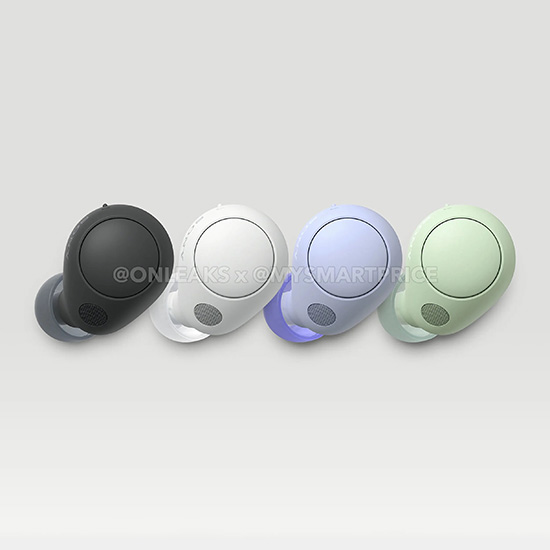
* The TWS will launch in four colour options – White, Green, Violet, and Black.
* Sony WF-C700N is expected to launch in India as affordable noise cancelling earbuds
* Design renders and leaked marketing material has revealed key features
* A new colour variant is coming to the WH-1000XM5 flagship, too

2
1
2 1

Sony is expected to launch a new pair of affordable true wireless earbuds, soon. Word on the Sony WF-C700N has been around for a while, with a set of isolated rumours tipping an upcoming launch.
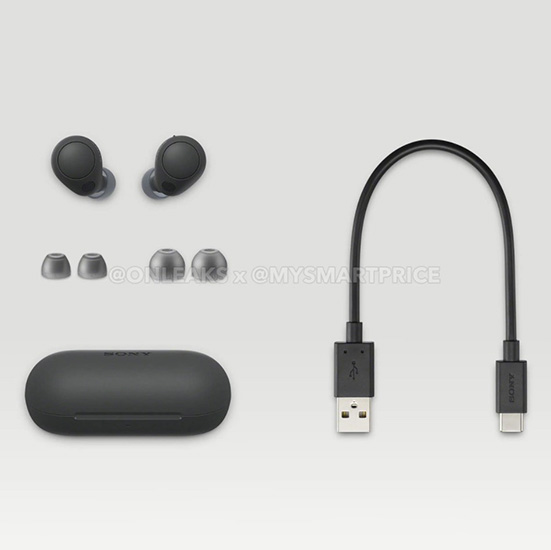
Now, a new leak courtesy MySmartPrice and OnLeaks has revealed design renders of the true wireless earbuds, with details of its colour variants, charging standard and speed, and the overall set of features that the earbuds are tipped to come with.

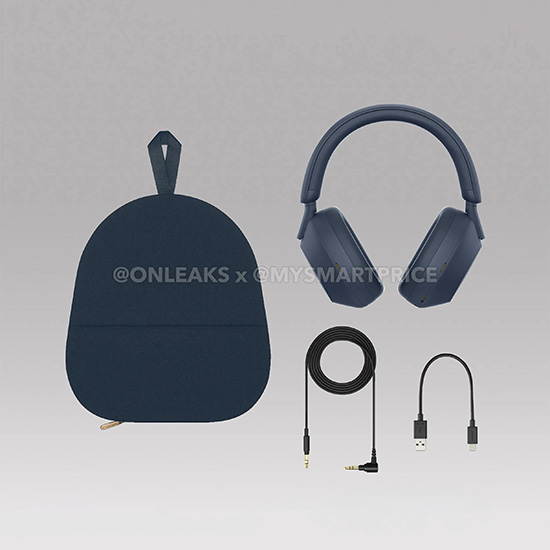
The leak has also detailed a new colour variant of Sony’s present generation flagship over-ear headphones, the Sony WH-1000XM5.

Sony, back in January 2022, introduced its budget

2
3
4
5
7
2 3 4 5 7

TWS – the Sony WF-C500. The company appears to be gearing up to launch its successor – the Sony WF-C700N. MySmartPrice exclusively brings to you the design renders and key specifications of the upcoming Sony WF-C700N, courtesy of OnLeaks.
Alongside, MySmartPrice and OnLeaks bring to you some exclusive renders of an upcoming colour variant of the Sony WH-1000XM5 headphones. The Sony WF-C700N, similar to its predecessor, will be available in some funky colour options.

Let us take a closer look at the details.

Sony is sticking with the same design script on the WF-C700 earbuds, featuring a simple round design that doesn’t stand out too much.
From the leaks (via Roland Quandt) we can see the earbuds, pill-shaped case, and what looks like the box contents.
The WF-C700 should hit the market in at least 4 colors – black, white, lavender, and mint.
As for the over-the-ear leak, we’re seeing a brand-new variant of the WH-1000XM5 headphones.
As a successor to the 1000XM4s, these headphones had a lot to live up to. Launched in May of last year, the XM5 headphones took on that challenge and delivered.

In another leak, the Sony WH-1000XM5 headphones are shown off in a new dark navy finish.
This blue and gold design looks great and adds to the massive colorway collection of black and silver.
Sony hasn’t officially addressed these leaks yet, so there’s no real telling of when the devices will hit the shelves.
As best as we can hope, the WH-1000XM5 blue variant should follow the same pricing of $399 and the Sony WF-C700 shouldn’t stray too far from the last model.

Sony WF-C700N Design Renders and Specifications

3
4
7
6
9
10
11
12
13
3 4 7 6 9 10 11 12 13

The Sony WF-C700N, as the leaked renders reveal, will come in four colour options – White, Green, Violet, and Black. The charging capsule of the Sony WF-C700N appears to have a capsule-shaped design. Whereas, earbuds have an in-ear design with silicon ear tips.
The Sony WF-C700N will offer digital active noise cancellation with wind noise reduction. The upcoming TWS from Sony will be equipped with the company’s in-house Digital Sound Enhancement Engine (DSEE) which can upscale tracks and boost the bass to offer a personalised sound experience. Sony is also adding the Dual-Connection feature to its WF-C lineup of TWS with the upcoming 700N.

The Sony WF-C700N will offer up to 15 hours of battery life (including the case) when ANC is kept on. This appears more or less similar to the current generation WF-C500 which offers about 20 hours of battery life and does not feature ANC support.

The upcoming WF-C700N will take about 90 minutes to charge from 0 to 100 over a Type-C port. The upcoming Sony audio product will also feature support for fast charging and will provide an hour of music playback with just 10 minutes of charging.

The predecessor of the Sony WF-C700N is priced at Rs 5,990 in the Indian market. However, since Sony is adding ANC support on the upcoming WF-C700N, we can expect the pricing to go up by a couple of thousand bucks.

Alongside, we also have some high-resolution renders and a promotional image of an upcoming colour variant of Sony WH-1000XM5. Take a look.

Sony WH-1000XM5 Blue Colour Variant Renders

To recall, the Sony WH-1000XM5 over-the-ear headphones was announced back in September
2022. The WH-1000XM5 are the company’s flagship audio product and offers up to 30 hours of battery life.
It packs a 30mm driver unit and is supported by DSEE Extreme and LHDC audio.

Faqs on Sony WF -C700N

1)What Sony WF-C700N: what we know so far?

Ans)According to the MySmartPrice report, the Sony WF-C700N will come in four colour variants – white, black, green and purple. It will feature an elongated cylindrical charging case that looks similar to what OnePlus offered with its older
generation Buds, but is different from what Sony previously offered with its WF-1000XM4. The earbuds have a similar design to the latter, with a circular no-stalk design and eartips.

The earbuds will charge via USB-C, and take 90 minutes to fully charge. It will also take 10 minutes of charging to offer one hour of playback. With noise cancelling switched on, the C700N will offer a claimed 15 hours of playback.
Finally, there will also be multi-device connectivity with the WF-C70ON, which will allow users to switch between two actively connected Bluetooth devices simultaneously.
In terms of the feature set, the Sony WF-C700N will seemingly come with digital noise cancellation with wind noise suppression, and Sony’s trademark Digital Sound Enhancement Engine (DSEE) HX, which will upgrade streaming tracks to the highest possible quality.

There is no word so far on the pricing of the Sony WF-C700N earbuds, but given that the C500N was priced at Rs 5,990, the C700N should be priced at under Rs 10,000 as well.

The Sony WH-1000XM5’s blue colour variant, meanwhile, is also expected to launch soon – although it is not clear as to which markets would Sony release the new variant in.

2) What are Sony WF-C70ON Leaked Features?

Ans)According to a Sony fan site, The Walkman Blog, the new Sony WF-C700N will come with Active Noise Cancellation. Yes, you read that right.
Active Noise Cancellation is a budget offering from Sony. Does that sound a little bit familiar to you? Well, you might be thinking about the recently released WH-CH720N.
That was a pair of budget-friendly headphones that offered high-end features.
In fact, people compare it against the flagship WH-1000XM5 headphones. And the case might be the same for the Sony WF-C700N. That is, the new buds will be compared to the currently available WF-1000XM4 series flagship earphones.
Nonetheless, the leak from The Walkman Blog also confirmed that the Sony WF-C700N would come with Bluetooth 5.2.
Looking back, the Sony WF-C500N came with Bluetooth 5.0.
That means that the new pair of buds will offer an upgrade in terms of the wireless range and connection stability.

Dark Web: What is Dark Web? How To Access the Dark Web and What Is Found on Dark Web? How to Save Yourself from Hackers?

0

Highlights

  • The Dark Web is a hidden corner of the internet where cybercrime thrives.
  • Hackers use techniques like phishing, social engineering, and malware to gain access to sensitive information.
  • To protect yourself, educate yourself about the threats, use strong passwords, avoid clicking on suspicious links, and keep your software up-to-date.
  • By taking these steps, you can reduce the risk of falling victim to cybercrime and protect your sensitive information.
  • In this blog, we are taking a closer look at Dark Web and also understanding how to save yourself from hackers.

The Dark Web is a term used to describe the hidden corners of the internet that are not indexed by standard search engines. While the internet has revolutionized the way we access information and communicate with others, the Dark Web is home to many illegal activities, including cybercrime.

Hackers are constantly looking for ways to exploit vulnerabilities in computer systems, networks, and applications, and the Dark Web provides a fertile ground for them to find tools and resources to carry out their attacks. Cybercrime has become more sophisticated over the years, with hackers using techniques like phishing, social engineering, and malware to gain access to sensitive information.

To protect yourself from the dangers of the Dark Web, there are several steps you can take. The first step is to educate yourself about the threats that exist and the methods hackers use to carry out their attacks. This includes staying up-to-date with the latest security trends and being aware of the risks associated with using the internet.

Another way to protect yourself is to use strong passwords and enable two-factor authentication wherever possible. You should also avoid clicking on suspicious links or downloading attachments from unknown sources.

Moreover, it’s important to keep your computer and software up-to-date with the latest security patches and updates. This will help to prevent hackers from exploiting known vulnerabilities in your system.

In this blog, we are digging deep into how to save yourself from Hackers with a closer look at Dark Web. By the end of this post, you would learn about reducing the risk of falling victim to cybercrime and protecting your sensitive information from hackers on the Dark Web.

What is Dark Web?

The Dark Web is a part of the internet that is not indexed by standard search engines such as Google or Bing. Instead, it is accessed through a special browser that allows users to browse anonymously and access websites that are not available on the open web.

The Dark Web is often associated with illegal activities, such as drug trafficking, weapons sales, and hacking services.

Unlike the open web, where websites are hosted on servers and their locations can be easily tracked, websites on the Dark Web are hosted on a network of servers and computers that are decentralized and difficult to trace. This makes it harder for law enforcement agencies to track down individuals involved in illegal activities on the Dark Web.

While the Dark Web is often portrayed as a dangerous place where criminals thrive, it is also used by activists, journalists, and whistleblowers who need to communicate anonymously and protect their identities.

However, it is important to note that accessing the Dark Web can be risky and should be done with caution, as it is possible to stumble upon illegal content or fall victim to cybercrime.

How to Access Dark Web & What Will You Find?

First things first, it is important to note that accessing the Dark Web can be risky, as it is possible to stumble upon illegal content or fall victim to cybercrime. Once you understand the risks involved, take a closer look at how to access Dark Web.

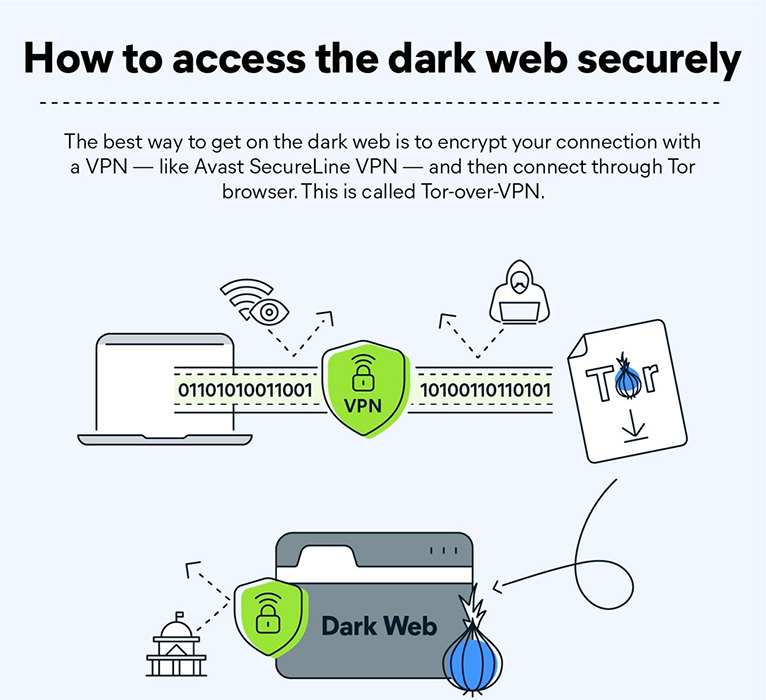
To access the Dark Web, you will need to download and install a special browser, such as Tor or I2P. These browsers allow you to access websites with .onion or .i2p domains, which are not available on the open web.

Steps to access the dark web using Tor browser

  • Visit the Tor Browser website to download the latest Tor browser.
  • Open the downloaded file and follow the prompts to install the Tor browser on your PC/laptop or Android mobile phone.
  • Once installed, click on the Tor browser icon to open it.
  • Tap the “Connect” button and wait for a connection to be established.
  • Start surfing the dark web!

Once you have installed the Dark Web browser, you can start exploring the Dark Web.

One of the most well-known features of the Dark Web is its marketplaces, where users can buy and sell goods and services anonymously. These marketplaces can include anything from drugs and weapons to fake IDs and stolen credit card information. However, some marketplaces sell legal products, such as books and art.

Another popular feature of the Dark Web is its forums, where users can discuss a wide range of topics anonymously. These forums can cover anything from politics and religion to technology and hacking. While some of these forums can be used to facilitate illegal activities, such as sharing tips on how to carry out cybercrime, many of them are simply used for discussions on various topics.

In addition to marketplaces and forums, there are also websites on the Dark Web that provide anonymity and privacy services. These can include encrypted email services, virtual private networks (VPNs), and anonymous messaging apps. These services can be useful for individuals who are concerned about their privacy or want to communicate with others without revealing their identities.

What Is Found on the Dark Web?

It’s important to note that while the Dark Web does contain some legitimate and useful services, the majority of what can be found on the Dark Web is illegal or at least morally questionable. Accessing the Dark Web can be dangerous and should be done with caution, as it is possible to fall victim to cybercrime or stumble upon illegal content.

Here is a quick brief on what can be found on the Dark Web:

  • Marketplaces for buying and selling illegal goods, such as drugs, weapons, and stolen credit card information
  • Forums for anonymous discussion on a wide range of topics, including politics, religion, and technology
  • Communication channels for individuals who want to communicate anonymously or protect their identities
  • Websites offering anonymity and privacy services, such as encrypted email services and virtual private networks (VPNs)
  • Hacking services and tutorials for individuals who want to learn how to carry out cybercrime
  • Illegal pornography and other forms of illicit content
  • Services for hiring hitmen, contract killers, and other criminals
  • Counterfeit money and fake IDs
  • Tutorials and guides for carrying out illegal activities, such as identity theft and credit card fraud
  • Whistleblower sites for individuals who want to leak sensitive information without being identified

Why is Dark Web So Dangerous?

As we mentioned before, the Dark Web is a part of the internet that is not indexed by standard search engines and can only be accessed through special browsers that allow for anonymous browsing. While the Dark Web does contain some legitimate and useful services, it is also home to a variety of illegal and dangerous activities.

Here are some reasons why the Dark Web can be so dangerous:

Anonymity: The Dark Web allows users to remain anonymous and untraceable, making it a haven for criminals who want to carry out illegal activities without being caught.

Illegal Activities: The Dark Web is home to a wide range of illegal activities, including drug trafficking, weapons sales, and human trafficking.

Cybercrime: The Dark Web is also a hub for cybercrime, with websites offering services such as hacking tutorials, stolen credit card information, and malware.

Phishing Scams: Dark Web marketplaces and websites are also rife with phishing scams, which can trick users into providing personal information or sending money to criminals.

Risk of Malware: Many websites on the Dark Web contain malware, which can infect users’ devices and compromise their personal information.

Difficulty in Prosecution: The anonymous nature of the Dark Web makes it difficult for law enforcement to identify and prosecute criminals who operate on the platform.

Overall, the Dark Web can be a dangerous place for individuals who are not experienced in navigating it safely. It’s important to take steps to protect your personal information and avoid engaging in any illegal or suspicious activity when accessing the Dark Web.

Deep Web vs Dark Web

While the terms “Deep Web” and “Dark Web” are often used interchangeably, they actually refer to different things. Here is a comprehensive explanation of the difference between the Deep Web and the Dark Web –

Deep Web

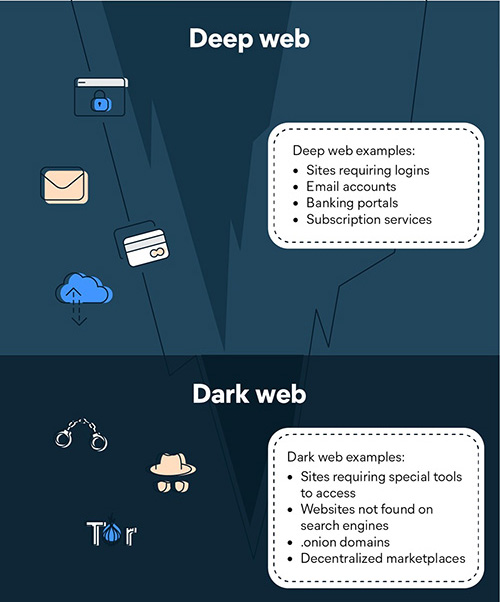
The Deep Web refers to the portion of the internet that is not indexed by standard search engines, meaning that it cannot be found through a simple Google search. This includes any web page or content that is behind a password-protected login, as well as any content that is not linked to other websites. The Deep Web can include anything from online banking sites and private databases to email and social media accounts.

Dark Web

The Dark Web, on the other hand, is a part of the Deep Web that is intentionally hidden and cannot be accessed through standard web browsers. Instead, it requires the use of special software, such as Tor, to access. The Dark Web is intentionally designed to be anonymous, with users able to remain untraceable and communicate without being identified.

The Dark Web is often associated with illegal activities, such as drug trafficking, weapons sales, and human trafficking, but it also includes legitimate services, such as anonymous communication channels and privacy protection tools.

Here are the key differences between the Deep Web and the Dark Web

Deep Web Dark Web
The portion of the internet not indexed by search engines Part of the Deep Web requires special software to access
Includes password-protected pages, email and social media accounts, private databases Often associated with illegal activities, but also includes legitimate services
Not intentionally hidden Designed to be anonymous and untraceable
Accessible to anyone with appropriate login credentials Requires specialized knowledge and software to access

What are the Laws Related to Dark Web in India?

The use of the Dark Web is legal in India as the Government of India does not recognize accessing the space in itself as an illegal activity. For the authorities, it is just another part of the internet that you are surfing, through TOR, Freenet, etc.

However, this doesn’t mean you are free to do whatever you want. You should undoubtedly maintain a few limits while using the dark web. There are several laws related to the use and regulation of the Dark Web and what activities the users are indulging in. Some of the key laws related to Dark Web activities in India are –

  • Information Technology Act, 2000: The Information Technology Act is the primary legislation governing cyber crimes and other digital activities in India. It includes provisions for the regulation of the internet, electronic commerce, and the use of digital signatures.
  • Prevention of Money Laundering Act, 2002: This act is aimed at preventing money laundering and terrorist financing activities.
  • Narcotic Drugs and Psychotropic Substances Act, 1985: This act is aimed at controlling the production, sale, and use of narcotic drugs and psychotropic substances.
  • Indian Penal Code, 1860: The Indian Penal Code is the primary criminal code in India, and includes provisions for the punishment of a wide range of offences, including those related to cyber crimes, fraud, and other illegal activities.
  • The Unlawful Activities (Prevention) Act, 1967: This act is aimed at preventing unlawful activities that threaten the security of the country.

10 Best Dark Websites You Won’t Find on Google

Here’s a list of the 10 best Dark Web websites you won’t be able to access on Google –

Website Name Purpose
The Hidden Wiki Directory for dark web links
DuckDuckGo Go to search engine on the Tor browser
Facebook Access to Facebook in restricted places
Hidden Answers Share insights, ask questions and more
ProPublica Investigative journalism platform
SecureDrop The exchange between news outlets and their anonymous sources
Keybase Secure file sharing on the dark web
ZeroBin Share encrypted text on the dark web
Riseup Secure email service primarily for activist groups
The Hidden Wallet Digital wallet for cryptocurrencies

How to Save Yourself from Hackers?

The internet has brought with it many benefits, but it has also opened up new avenues for hackers to gain access to our personal information and sensitive data. Here are some tips on how to save yourself from hackers:

Use Strong Passwords: Create strong and unique passwords for all your online accounts. A strong password should be at least 12 characters long, and include upper and lowercase letters, numbers, and symbols. Do not use the same password for multiple accounts.

Use Two-Factor Authentication: Two-factor authentication is a security measure that requires a user to provide two forms of identification before accessing an account. This could be a password and a security code sent to your phone, for example. Many online services now offer two-factor authentication, and it’s an effective way to protect your accounts from hackers.

Keep Your Software Updated: Keep your operating system, software, and apps up-to-date with the latest security patches and updates. This will help protect your system from known vulnerabilities that hackers can exploit.

Be Careful What You Click On: Do not click on suspicious links or download attachments from unknown sources. These links and attachments could contain malware or viruses that can compromise your system and steal your data.

Use a Virtual Private Network (VPN): A VPN encrypts your internet traffic, making it more difficult for hackers to intercept your data. It also masks your IP address, making it harder for hackers to track your online activity.

Use Antivirus Software: Antivirus software can detect and remove malware and viruses from your system. Make sure you have up-to-date antivirus software installed on your computer and run regular scans to keep your system clean.

Be Cautious with Personal Information: Be cautious about what personal information you share online, and avoid sharing sensitive information such as your social security number, financial information, or passwords.

By following these tips, you can help protect yourself from hackers and keep your personal information and sensitive data safe online.

FAQs

Q1. What do the statistics say on the usage of the dark web in India?

Answer. India has the biggest marketplace of dark web users as compared to Australia and South America. India makes up 26% of all the country’s users using the dark web.

Q2. What are some examples of Dark Web hacks?

Answer. According to ZDNet, a hacking group known as ShinyHunters tried to sell the data of 73 million users on the dark web. It breached the security of around ten organizations, including online dating app Zoosk, Printing service Chatbooks, South Korean fashion platform Social Share, etc.  According to a Cybersecurity firm Cyble, around half a million zoom accounts were hacked in April 2020 and were sold at less than one rupee each. Arxiv found out that around 70.6% of users were male who used the dark web as compared to only 29.4% of females using the dark web. According to the Arxiv, If we take the category-wise statistics, we can summarise it as below from the table.

Q3. Who created the dark web?

Answer. The dark web was created by the US government to communicate with their spies without the risk of being tracked in the process. In 2002, the Tor (or The Onion Router) technology used for the dark web was made available to the general public.

Q4. Do cybercriminals want my data? And how much is it worth?

Answer. Cybercriminals hacking into company databases and stealing user data is very common. You have probably heard of these data breaches in the news. While each piece of data (like a credit card number) might only be worth a few dollars when they resell it, this adds up when they’ve stolen thousands or hundreds of thousands of pieces of sensitive information.

Q5. Who is impacted by the dark web?

Buyers and sellers flock to the dark web because they can trade credit card data, log-in information, forged documents, pirated videos, hacking services, drugs, weapons and stolen company data. The buying and selling of these goods and services are illegal in most countries.

Q6. What is Tor?

Answer. The Tor network enables anonymous communication, and was originally called “The Onion Router”. Tor is what people often mean when they talk about the Dark Web. Tor protects your identity via a process called onion routing, which wraps your data in encrypted layers like an onion. Your traffic is encrypted and relayed three times as a Tor circuit, using randomly-chosen nodes from thousands of volunteer-run servers known as Tor relays. Though Tor circuits can provide a connection to “onion services”, which are generally considered the largest component of the Dark Web, the majority of users only use Tor to access clear Internet services and websites anonymously.

Q7. What is I2P?

Answer. The Invisible Internet Project (I2P) is an anonymity network that focuses on its role as a darknet, not on sending traffic from the clear Internet through it. In this way, it is distinct from Tor, but that’s not the only difference.

8)What Is Cybersecurity?

Ans)Cybersecurity is critical for businesses of all sizes. These 18 tips can help you secure your computers and mobile devices from malicious actors.
* Hackers are criminals who gain unauthorized access to a network and devices, usually with the intent to steal sensitive data, such as financial information or company secrets.
* You can protect your computers by using firewalls and antivirus software and by following best practices for computer use.
* You can protect your mobile devices by turning off Bluetooth when it’s not in use, being mindful of the Wi-Fi networks you connect to and using security applications to improve monitoring and protection.
The growth of the World Wide Web in the 1990s introduced new possibilities and spawned new industries, but it also brought about new downsides of connectivity. Tons of spam started to infiltrate email accounts, and computer viruses wreaked havoc on business networks.
A new threat known as computer hacking extended the definition of thievery to include infiltrating your computer, stealing personal information, tricking you into revealing private data, and using that data to steal and extort personal information, such as business secrets, bank account credentials and even people’s identities

9)What are computer hackers?

Ans)Computer Hackers are people who break into internet-connected devices such as computers, tablets and smartphones, usually with the intent to steal, change or delete information.
Just as other thieves have malicious intent, hackers usually find their way into devices for negative purposes. (However, one exception is so-called white Hat hackers whom companies hire to break into their devices to find security flaws that need to be fixed.) Hackers may want to steal, alter or delete information in your devices, and they often do so by installing malware (software used for malicious purposes) you might not even know is there. These thieves might get access to your most precious data before you’re aware of a break-in.
Key takeaway: Hackers are interested in gaining unauthorized access to your devices to steal sensitive data.
Types of hacking
Here are some of the reasons computer hackers break into devices:
* Financial crimes. We’ve all heard the classic story of somebody checking their credit card statement, only to find transactions they didn’t make. These false transactions are often the result of computer hackers stealing your credit card numbers, checking account info or gaining access to other financial data.
* Vandalism. Hacking has its own subculture, so some hackers may want to vandalize certain websites just to show off to other hackers. Does it sound ridiculous? Don’t make the mistake of not taking this motivation seriously; it’s fairly common, according to malware bites .
* Hacktivism. This portmanteau describes a form of hacking somewhat like vandalism. Some hackers may want to alter or destroy certain websites for politically motivated reasons.
* Corporate espionage. Spying existed long before the internet era, and hacking has only made espionage more accessible to the everyday person. With much of the world constantly connected to the internet, one company can hack into other companies’ devices to steal their information and use it to build an unfair competitive advantage.
Key takeaway: Hackers have a variety of motivations, ranging from financial gain to political goals. Awareness of these intentions can help you anticipate attacks that could affect your small business.

10)How to secure your computer from hackers

Ans)Despite the prevalence of computer hackers, most businesses rely on the internet to track their financials, order and maintain inventory, conduct marketing and PR campaigns, connect with customers, engage in social media, and perform other critical operations.
Yet we continue to hear about massive computer breaches, even at giant corporations with robust security measures in place.
Small businesses are often targeted as well, especially because they may underestimate the risk of cybercrime and may not have the resources to employ expensive cybersecurity solutions. Follow these tips to protect your devices and safeguard your sensitive data:
1. Use a firewall.
Windows and macOS have built-in firewalls – software designed to create a barrier between your information and the outside world. Firewalls prevent unauthorized access to your business network and alert you to any intrusion attempts.
Make sure the firewall is enabled before you go online. You can also purchase a hardware firewall from companies such as Cisco, Sophos or Fortinet, depending on your broadband router, which also has a built-in firewall that protects your network. If you have a larger business, you can purchase an additional business networking firewall.
2. Install antivirus software.
Computer viruses and malware are everywhere. Antivirus programs such as Bitdefender, Panda Free Antivirus , Malwarebytes ,Avast your computer against unauthorized code or software that may threaten your operating system. Viruses may have easy-to-spot effects – for example, they might slow your computer or delete key files – or they may be less conspicuous.
Antivirus software plays a major role in protecting your system by detecting real-time threats to ensure your data is safe. Some advanced antivirus programs provide automatic updates, further protecting your machine from the new viruses that emerge every day. After you install an antivirus program, don’t forget to use it. Run or schedule regular virus scans to keep your computer virus-free.
3. Install an anti-spyware package.
Spyware is a special kind of software that secretly monitors and collects personal or organizational information. It is designed to be hard to detect and difficult to remove and tends to deliver unwanted ads or search results that are intended to direct you to certain (often malicious) websites.
Some spyware records every keystroke to gain access to passwords and other financial information. Anti-spyware concentrates exclusively on this threat, but it is often included in major antivirus packages, like those from Webroot, McAfee and Norton.Anti-spyware packages provide real-time protection by scanning all incoming information and blocking threats.
4. Use complex passwords.
Using secure passwords is the most important way to prevent network intrusions. The more secure your passwords are, the harder it is for a hacker to invade your system.
More secure often means longer and more complex. Use a password that has at least eight characters and a combination of numbers, uppercase and lowercase letters, and computer symbols. Hackers have an arsenal of tools to break short, easy passwords in minutes.
Don’t use recognizable words or combinations that represent birthdays or other information that can be connected to you. Don’t reuse passwords, either.

Also Read –https://www.mymobileindia.com/a-handbook-to-access-the-dark-web/

Also Read – https://www.mymobileindia.com/twitter-data-breached-40-crore-twitter-users-sold-on-dark-web/

Also Read – https://www.mymobileindia.com/mobile-phones-are-an-ideal-target-for-data-privacy-threats

Secret Essential Windows Keyboard Shortcut Keys You Didn’t Know Existed on Your Keyboard

0
Secret Essential Windows Keyboard Shortcut Keys You Didn’t Know Existed on Your Keyboard

Highlights

  • Windows keyboard shortcuts can save time and improve productivity
  • Shortcuts such as Ctrl+C and Ctrl+V are essential for copying and pasting text and images and Alt+Tab lets you quickly switch between open windows. Apart from these, many shortcuts can assist in your daily routine can save time and effort.
  • keyboard shortcuts are an essential tool for any computer user. They can save time, increase productivity, reduce the risk of repetitive strain injuries, improve accessibility, simplify complex tasks, and provide consistency across different applications. By learning and using keyboard shortcuts, you can become a more efficient and effective computer user.
  • In this blog post, we’ll are sharing some secret essential windows keyboard shortcuts keys you didn’t know existed on your keyboard that can save you time and improve your productivity.

Do you ever feel like you’re not using your computer to its full potential? If so, you’re not alone. Many people don’t realize that dozens of keyboard shortcuts can help them work faster and more efficiently on their Windows PCs.

First on the list and probably the most popular keyboard shortcuts are the Ctrl+C and Ctrl+V shortcuts. These simple keystrokes allow you to copy and paste text or images from one location to another.

Instead of manually highlighting the text or image and using the right-click menu, you can simply use these shortcuts to do it in a fraction of the time.

Then, we have the Alt+Tab, which lets you quickly switch between open windows. This is particularly useful when you have multiple applications open at once and need to switch between them frequently.

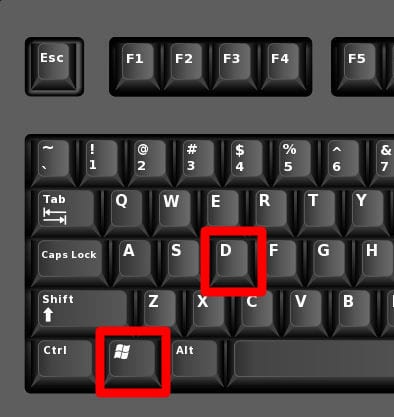
Another helpful shortcut is Win+D, which minimizes all open windows and takes you directly to your desktop. This can be a lifesaver when you need to quickly access a file or folder on your desktop.

These are just a few examples of the many Windows keyboard shortcuts that can make your computing experience smoother and more efficient.

So, take the time to learn them and start using them in your daily routine – you’ll be amazed at how much time and effort they can save you in the long run!

In this blog post, we’ll go over some of the most essential Windows keyboard shortcuts that can save you time and improve your productivity.

Whether you’re a professional writer, a graphic designer, or just someone who uses their computer for everyday tasks, these shortcuts are sure to come in handy.

Before we move to the keyboard shortcuts, let’s understand the significance of using shortcuts on a PC during your everyday tasks.

Why Do We Need Keyboard Shortcuts?

Secret Essential Windows Keyboard Shortcut Keys You Didn’t Know Existed on Your Keyboard

Keyboard shortcuts are a set of key combinations that are designed to perform specific tasks on your computer. They can be incredibly helpful for users who want to increase their productivity and work more efficiently. Here are some reasons why we need keyboard shortcuts:

Saves Time: Using keyboard shortcuts can save you a significant amount of time. Instead of going through menus and submenus to find a particular option, a simple keyboard shortcut can do the job in seconds.

Increases Productivity: Keyboard shortcuts can significantly increase your productivity by allowing you to work faster and more efficiently.

For instance, by using a keyboard shortcut, you can easily switch between different applications, copy and paste text, or create a new document, without having to move your hand away from the keyboard.

Reduces Repetitive Strain Injuries: Repetitive strain injuries (RSI) are common among computer users, particularly those who use a mouse extensively. Using keyboard shortcuts can help reduce the strain on your hands, wrist, and fingers, thereby reducing the risk of developing RSI.

Improves Accessibility: Keyboard shortcuts can make your computer more accessible to users with disabilities. For example, users who have difficulty using a mouse can use keyboard shortcuts to navigate through menus and perform tasks.

Simplifies Complex Tasks: Many software applications have complex functions that are difficult to access through menus. Keyboard shortcuts can simplify these tasks by providing a quick and easy way to access them.

Offers Consistency: Keyboard shortcuts offer a consistent way to perform tasks across different applications. This consistency helps users quickly learn new software applications and become more proficient in their use.

Basic Windows Keyboard Shortcuts

Windows 11 Keyboard Shortcuts

Here are some basic Windows keyboard shortcuts that can make your computing experience smoother and more efficient:

Ctrl + C – Copy – This shortcut allows you to copy selected text, images or files to the clipboard.

Ctrl + V – Paste – This shortcut allows you to paste the contents of the clipboard into the current document or location.

Ctrl + X – Cut – This shortcut allows you to cut selected text, images or files to the clipboard.

Ctrl + A – Select All – This shortcut selects all items in the current window or document.

Ctrl + Z – Undo – This shortcut allows you to undo the last action performed.

Ctrl + Y – Redo – This shortcut allows you to redo the last undone action.

Alt + Tab – Switch between open windows – This shortcut allows you to switch between open windows or applications.

Windows Key + D – Show Desktop – This shortcut minimizes all open windows and takes you directly to your desktop.

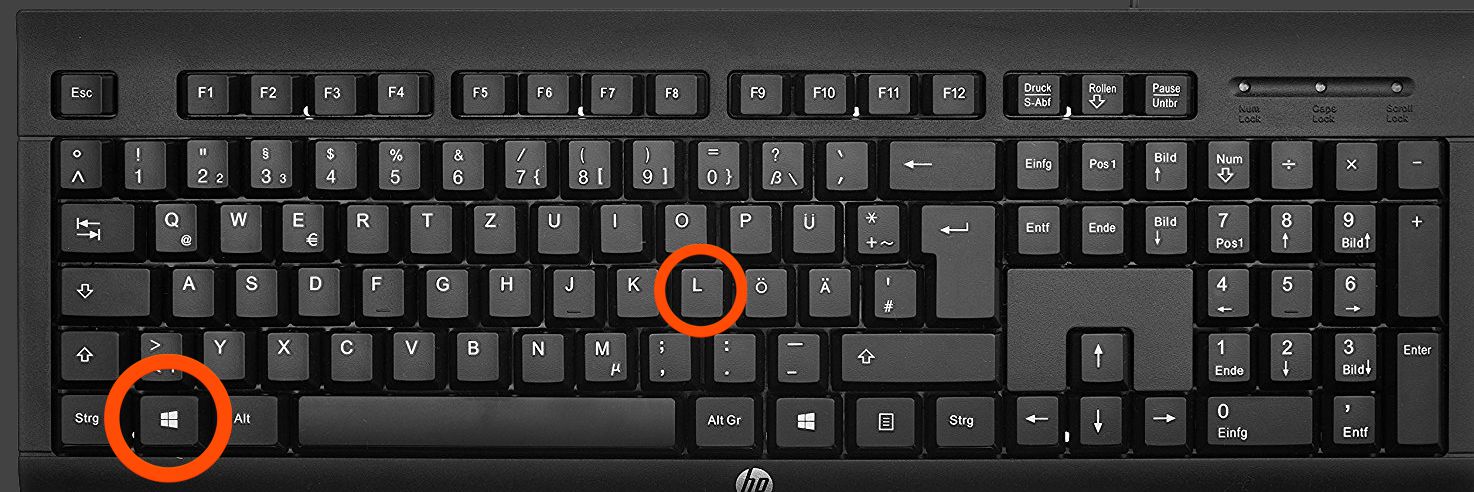
Windows Key + L – Lock Screen – This shortcut allows you to lock your computer screen quickly.

These Short Keys are Going to Make Your Life So Much More Productive

Windows Key + E – File Explorer – This shortcut opens the File Explorer window.

How to press Windows + E - Quora

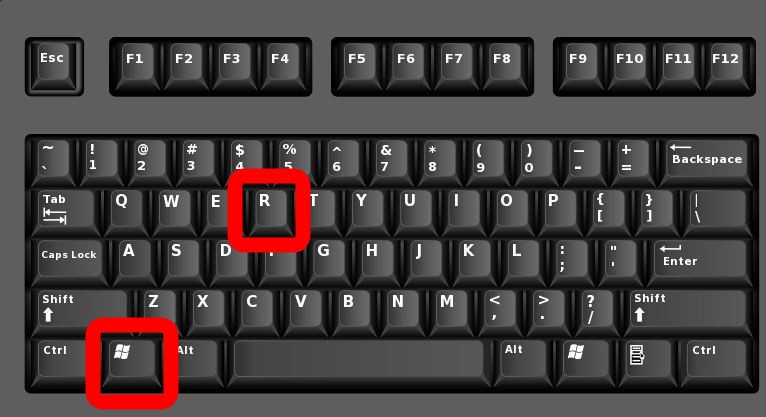
Windows Key + R – Run Dialog – This shortcut opens the Run dialog box.

How to Force Quit an Application on a Windows 10 PC : HelloTech How

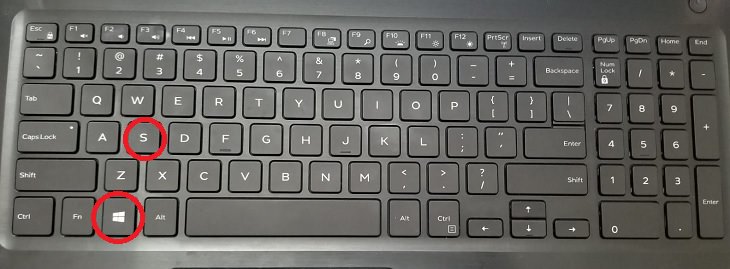
Windows Key + S – Search – This shortcut opens the Windows Search box.

25 Essential Windows Keyboard Shortcuts You Need to Know Now - LifeHack

Windows Key + I – Settings – This shortcut opens the Windows Settings window.

How to Downgrade Windows 10 and Reinstall Windows 7 - Make Tech Easier

Windows Key + P – Project to a second screen – This shortcut allows you to project your screen to a second display.

Windows 10 Keyboard Tip | Keyboard, Computer keyboard, Surface laptop

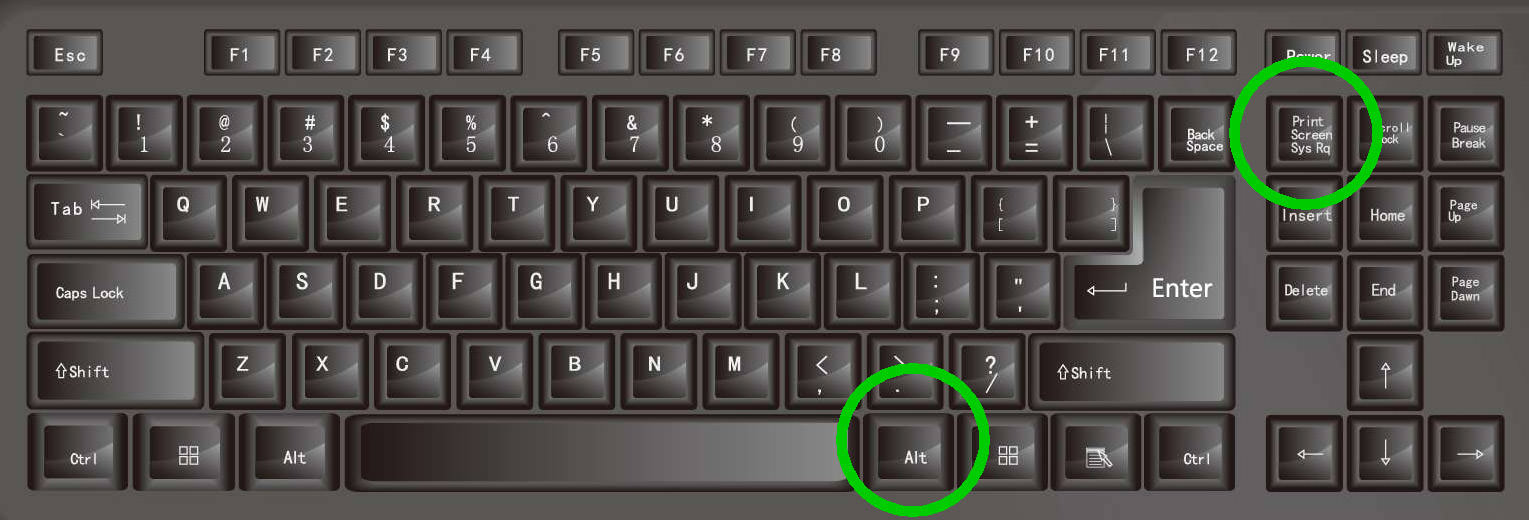
Windows Key + Print Screen – Screenshot – This shortcut takes a screenshot of your entire screen and saves it to your Pictures folder.

Screen Capture Keyboard Shortcuts for Windows & macOS - Hongkiat

These basic keyboard shortcuts can help you work more efficiently on your Windows PC. By using them regularly, you can save time and improve your productivity.

Advanced Windows Keyboard Shortcuts

Here are some advanced Windows keyboard shortcuts that can take your computing experience to the next level:

Ctrl + Shift + Esc – Task Manager – This shortcut opens the Task Manager, which allows you to manage running processes and applications on your computer.

11 Fast Ways to Open Task Manager in Windows 10, 11, and 8

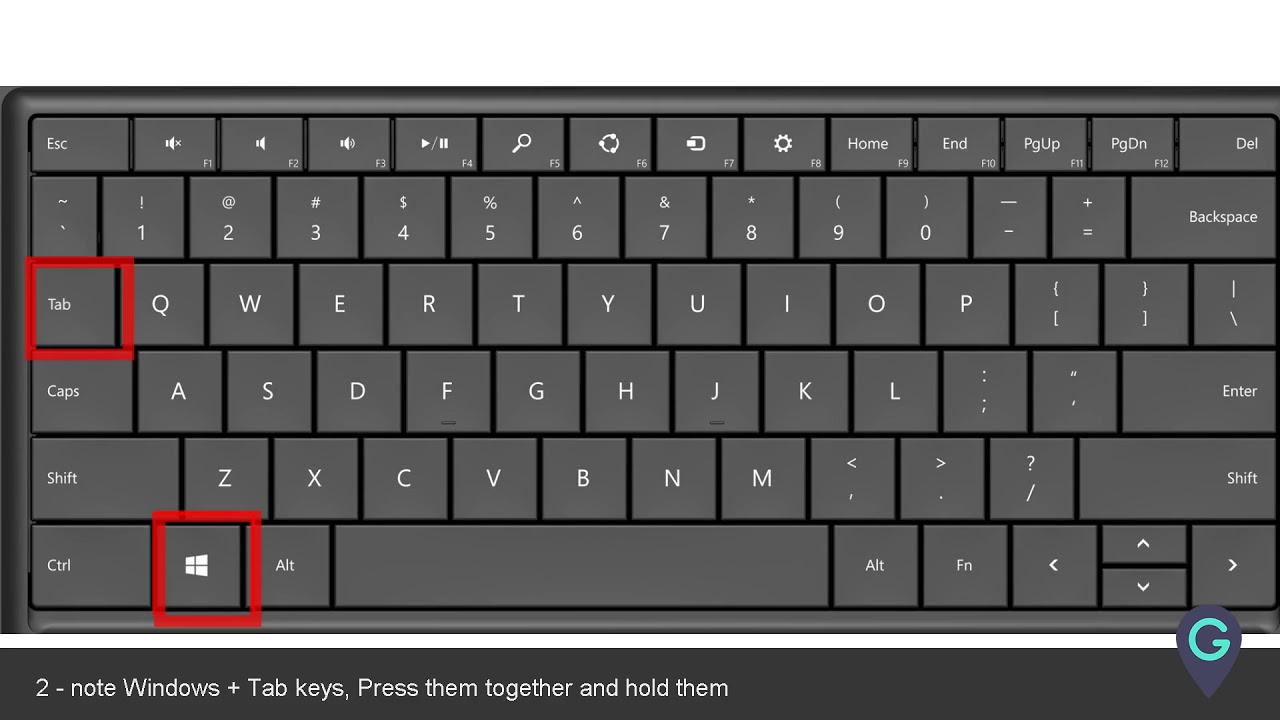
Windows Key + Tab – Task View – This shortcut opens the Task View, which shows all your open windows and virtual desktops.

How to quickly switch Apps on Windows 10 using Windows + Tab key - YouTube

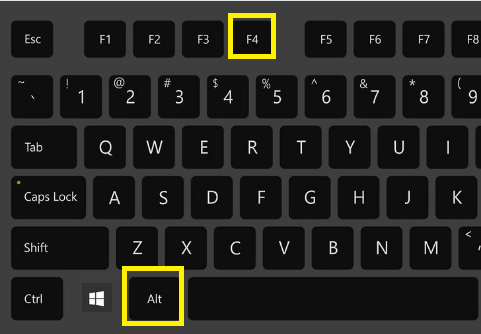
Alt + F4 – Close Window – This shortcut allows you to quickly close the current window or application.

ALT F4 - Things No One Will Tell You About It And Why Is The Alt F4 Meme So Popular!

Ctrl + Alt + Delete – Security Options – This shortcut opens a menu with security options such as Lock, Switch User, Sign Out, and Task Manager.

Windows Key + Arrow Keys – Snap Window – This shortcut allows you to quickly arrange open windows on your desktop.

How to Control Windows Only With Keyboard - Hongkiat

Windows Key + Number Keys – Open App from Taskbar – This shortcut opens the application on the taskbar that corresponds to the number you press.

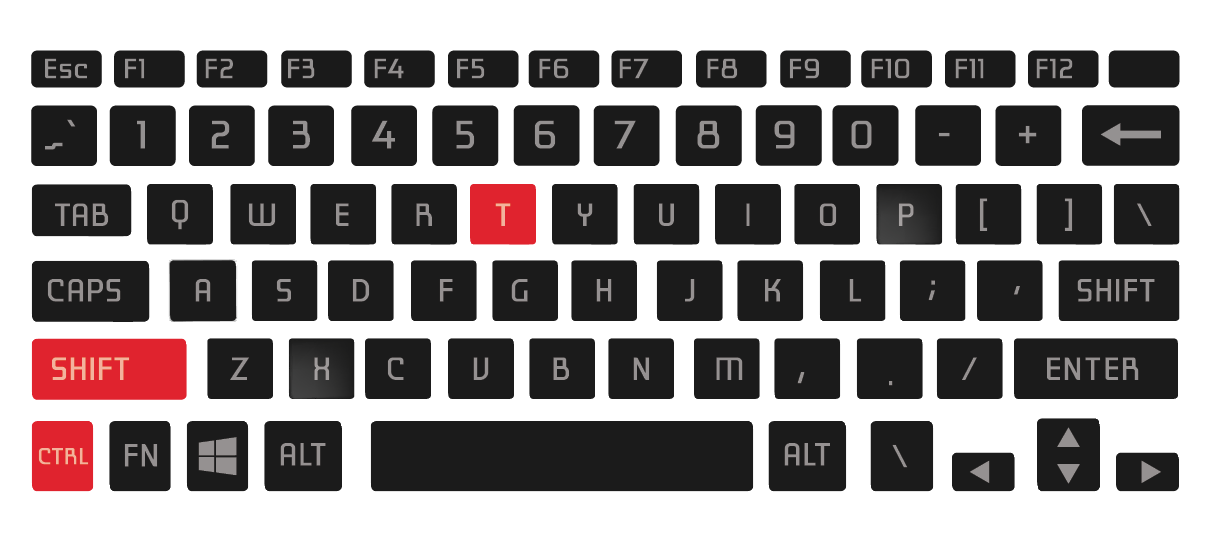
Ctrl + Shift + T – Reopen Closed Tab – This shortcut reopens the last closed tab in your web browser.

Os melhores atalhos do Windows com as teclas 'Ctrl+Shift'

Ctrl + Shift + N – New Incognito Window – This shortcut opens a new private browsing window in your web browser.

Ctrl + Shift + N - Meme by MaqXIsePuU :) Memedroid

Ctrl + Shift + P – New InPrivate Window – This shortcut opens a new private browsing window in Internet Explorer and Microsoft Edge.

Windows Key + Break – System Properties – This shortcut opens the System Properties window.

The Pause Break Key On A Razer Keyboard: Uses And Functions – LiquidSky.com

Windows Key + E + Shift – Open File Explorer as Administrator – This shortcut opens File Explorer with administrator privileges.

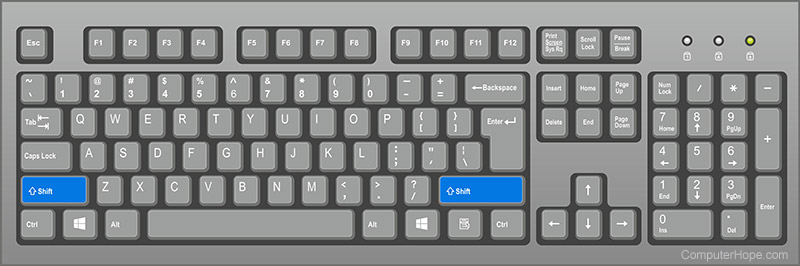
What is the Shift Key?

Windows Key + R + Type “msconfig” + Enter – System Configuration – This shortcut opens the System Configuration tool, which allows you to manage startup programs and system services.

How to Reset your Keyboard to Default Settings - TechCult

Ctrl + Shift + Esc + Alt – Resource Monitor – This shortcut opens the Resource Monitor, which provides detailed information about system resource usage.

Windows Key + X – Quick Link Menu – This shortcut opens the Quick Link menu, which provides quick access to various system settings.

These advanced keyboard shortcuts can help you take full advantage of your Windows PC. By using them regularly, you can work more efficiently and get the most out of your computer.

Productivity Windows Shortcuts

Boost Your Productivity With Our Top 20 Windows 11 Keyboard Shortcuts | PCMag

Here are some productivity Windows keyboard shortcuts that can help you get more done in less time:

Windows Key + A – Action Center – This shortcut opens the Action Center, which provides quick access to important system notifications and settings.

Windows 10 Keyboard Shortcuts -

Windows Key + C – Cortana – This shortcut activates Cortana, Microsoft’s virtual assistant, allowing you to search the web, set reminders, and perform other tasks using voice commands.

Windows Key + H – Share – This shortcut opens the Share menu, which allows you to quickly share files, photos, and other content with others.

More Win 10 Keyboard Shortcuts -

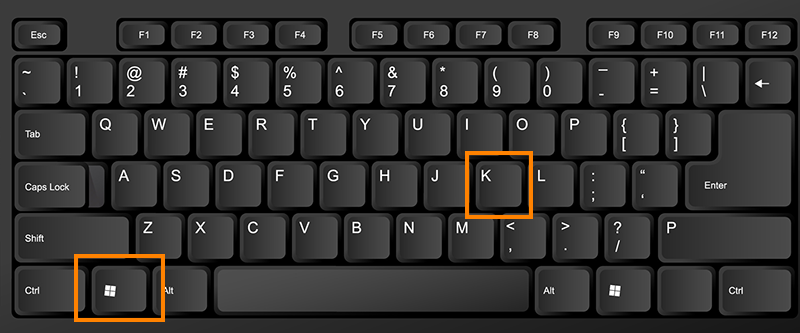
Windows Key + K – Connect – This shortcut opens the Connect menu, which allows you to quickly connect to wireless displays, audio devices, and other peripherals.

Connecting a Laptop Wirelessly | Classroom Technology Resource

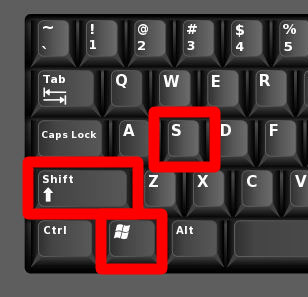
Windows Key + S – Snipping Tool – This shortcut opens the Snipping Tool, which allows you to capture screenshots and annotate them with notes and highlights.

How to Fix Windows + Shift + S Not Working on Windows

Windows Key + W – Whiteboard – This shortcut opens the Whiteboard app, which allows you to collaborate with others on a virtual whiteboard.

Windows Key Icon #228771 - Free Icons Library

Windows Key + Shift + S – Snip & Sketch – This shortcut allows you to capture screenshots and annotate them using the Snip & Sketch tool.

How to Take a Screenshot On a Windows 10 PC : HelloTech How

Windows Key + D + Shift – Show Desktop on Second Screen – This shortcut minimizes all open windows on the second screen.

The Most Useful Windows Keyboard Shortcuts - The Plug - HelloTech

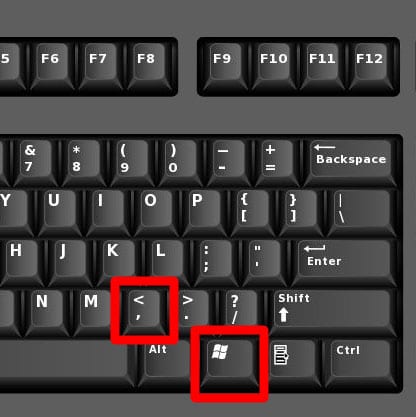
Windows Key + Comma – Peek at Desktop – This shortcut allows you to quickly peek at the desktop without minimizing any open windows.

The Most Useful Windows Keyboard Shortcuts - The Plug - HelloTech

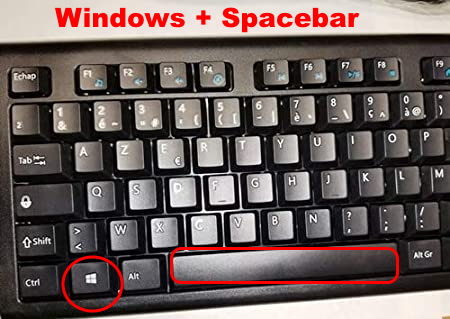
Windows Key + Space – Switch Language Input – This shortcut allows you to quickly switch between different input languages.

How to Fix Windows plus Spacebar key not working in Windows 10

Windows Key + Ctrl + F – Find Text – This shortcut allows you to quickly search for text within a document or web page.

Only one in 10 know what Ctrl-F does - here are shortcuts you should know

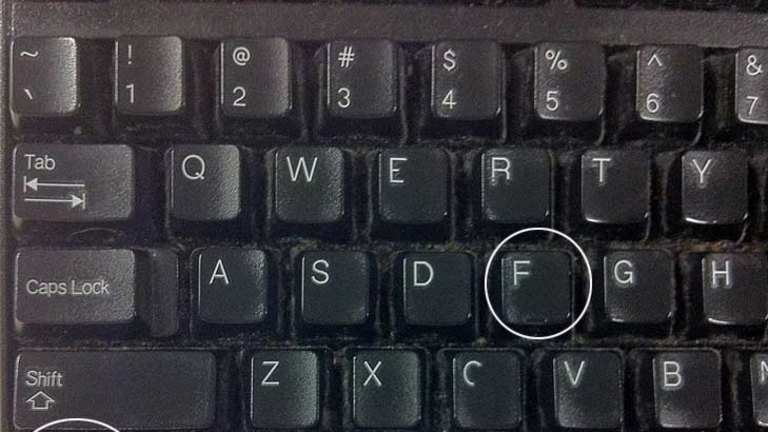
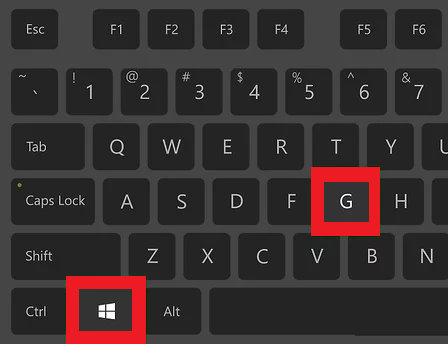
Windows Key + G – Xbox Game Bar – This shortcut opens the Xbox Game Bar, which allows you to capture screenshots and record game footage.

How To Record Screen in windows 10 - Complete Guide - Electronics Hub

Windows Key + L + Shift – Logout of Windows – This shortcut logs you out of your Windows account.

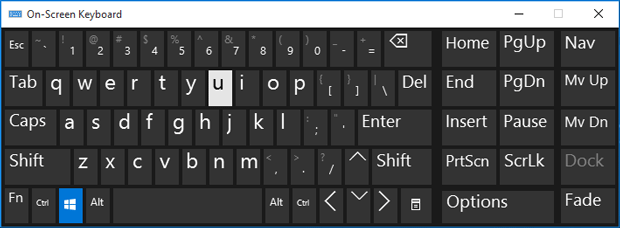
Windows Key + U – Ease of Access Center – This shortcut opens the Ease of Access Center, which provides quick access to accessibility settings.

4 Ways to Open Ease of Access Center in Windows 10

These productivity keyboard shortcuts can help you work more efficiently and accomplish more in less time. By using them regularly, you can streamline your workflow and get more done.

Microsoft Office Keyboard Shortcuts

60+ Useful Microsoft Word Keyboard Shortcuts for PC and Mac - TechPP

Microsoft Office is one of the most commonly used computer software in both personal and professional capacities. If you use MS office for performing many of your computer tasks, here are some easy and quick keyboard shortcuts that will surely make your life easier.

Excel

Microsoft Excel: Spreadsheets - Apps on Google Play


  • Close a spreadsheet: Ctrl + W
  • Open a spreadsheet: Ctrl + O
  • Choose a fill colour: Alt + H, H

You can also create your own Excel keyboard shortcuts.

PowerPoint

10 astuces pour travailler plus vite avec PowerPoint

  • Change the font size for selected text: Alt + H, F, S
  • Insert a picture: Alt + N, P
  • Insert a shape: Alt + H, S, H
  • Select a theme: Alt + G, H
  • Select a slide layout: Alt + H, L

OneNote

Microsoft OneNote: Save Notes - Apps on Google Play

  • Open a new OneNote window: Ctrl + M
  • Dock the OneNote windows: Ctrl + Alt + D
  • Bring up the context menu for anything currently in focus: Shift + F10

Outlook

Microsoft Outlook - Apps on Google Play

  • New message: Ctrl + Shift + M
  • Reply: Alt + H, R, P
  • Forward: Alt + H, F, W
  • Send: Alt + S
  • Insert File: Alt + N, A, F

Word

Microsoft Word - Wikipedia

  • Close active window or document: Ctrl + W
  • Format all letters as capitals: Ctrl + Shift + A
  • Save as: Alt, F, A
  • Insert Table of Contents: Alt, S, T, I
  • Full-Screen Mode: Alt, W, F

Bonus – A Shortcut Windows 10 “God Mode” for Desktop

Get Windows 10 God Mode: Ultimate Guide - Ask Bayou

This is not a real keyboard shortcut, but a rather helpful and handy productivity trick nonetheless. It is the Windows 10 “God Mode”. This creates a shortcut on the desktop for easy access to the settings of your PC.

Using this shortcut, you can access all the important settings and information of your computer at a glance.

Here’s How to Activate the Windows 10 “God Mode” –

Step 1. Make sure you’re on an administrator account

Step 2. Click right on the desktop to create a “new folder”

Step 3. As the folder’s name, copy and paste (exactly as is):

GodMode.{ED7BA470–8E54–465E-825C-99712043E01C}

And that’s all, the folder will be created. This folder once saved will change to a control panel icon and provide all the functionality and information you could ever want.

Essential shortcuts

Keyboard shortcut Action
Ctrl + A Select all content.
Ctrl + C (or Ctrl + Insert) Copy selected items to clipboard.
Ctrl + X Cut selected items to clipboard.
Ctrl + V (or Shift + Insert) Paste content from clipboard.
Ctrl + Z Undo an action, including undelete files (limited).
Ctrl + Y Redo an action.
Ctrl + Shift + N Create new folder on desktop or File Explorer.
Alt + F4 Close active window. (If no active window is present, a shutdown box appears.)
Ctrl + D (Del) Delete selected item to the Recycle Bin.
Shift + Delete Delete the selected item permanently, skipping Recycle Bin.
F2 Rename selected item.
Esc Close current task.
Alt + Tab Switch between open apps.
PrtScn Take a screenshot and stores it in the clipboard.
Windows key + I Open Settings app.
Windows key + E Open File Explorer.
Windows key + A Open Action center.
Windows key + D Display and hide the desktop.
Windows key + L Lock device.
Windows key + V Open Clipboard bin.
Windows key + Period (.) or Semicolon (;) Open emoji panel.
Windows key + PrtScn Capture a full screenshot in the “Screenshots” folder.
Windows key + Shift + S Capture part of the screen with Snip & Sketch.
Windows key + Left arrow key Snap app or window left.
Windows key + Right arrow key Snap app or window right.

Desktop shortcuts

Keyboard shortcut Action
Windows key (or Ctrl + Esc) Open Start menu.
Ctrl + Arrow keys Change Start menu size.
Ctrl + Shift + Esc Open Task Manager.
Ctrl + Shift Switch keyboard layout.
Alt + F4 Close active window. (If no active window is present, a shutdown box appears.)
Ctrl + F5 (or Ctrl + R) Refresh current window.
Ctrl + Alt + Tab View open apps.
Ctrl + Arrow keys (to select) + Spacebar Select multiple items on desktop or File Explorer.
Alt + Underlined letter Runs command for the underlined letter in apps.
Alt + Tab Switch between open apps while pressing Tab multiple times.
Alt + Left arrow key Go back.
Alt + Right arrow key Go forward.
Alt + Page Up Move up one screen.
Alt + Page Down Move down one screen.
Alt + Esc Cycle through open windows.
Alt + Spacebar Open context menu for the active window.
Alt + F8 Reveals typed password in Sign-in screen.
Shift + Click app button Open another instance of an app from the Taskbar.
Ctrl + Shift + Click app button Run app as administrator from the Taskbar.
Shift + Right-click app button Show window menu for the app from the Taskbar.
Ctrl + Click a grouped app button Cycle through windows in the group from the Taskbar.
Shift + Right-click grouped app button Show window menu for the group from the Taskbar.
Ctrl + Left arrow key Move the cursor to the beginning of the previous word.
Ctrl + Right arrow key Move the cursor to the beginning of the next word.
Ctrl + Up arrow key Move the cursor to the beginning of the previous paragraph
Ctrl + Down arrow key Move the cursor to the beginning of the next paragraph.
Ctrl + Shift + Arrow key Select block of text.
Ctrl + Spacebar Enable or disable Chinese IME.
Shift + F10 Open context menu for selected item.
F10 Enable app menu bar.
Shift + Arrow keys Select multiple items.
Windows key + X Open Quick Link menu.
Windows key + Number (0-9) Open the app in number position from the Taskbar.
Windows key + T Cycle through apps in the Taskbar.
Windows key + Alt + Number (0-9) Open Jump List of the app in number position from the Taskbar.
Windows key + D Display and hide the desktop.
Windows key + M Minimize all windows.
Windows key + Shift + M Restore minimized windows on the desktop.
Windows key + Home Minimize or maximize all but the active desktop window.
Windows key + Shift + Up arrow key Stretch desktop window to the top and bottom of the screen.
Windows key + Shift + Down arrow key Maximize or minimize active desktop windows vertically while maintaining width.
Windows key + Shift + Left arrow key Move active window to monitor on the left.
Windows key + Shift + Right arrow key Move active window to monitor on the right.
Windows key + Left arrow key Snap app or window left.
Windows key + Right arrow key Snap app or window right.
Windows key + S (or Q) Open Search.
Windows key + Alt + D Open date and time in the Taskbar.
Windows key + Tab Open Task View.
Windows key + Ctrl + D Create new virtual desktop.
Windows key + Ctrl + F4 Close active virtual desktop.
Windows key + Ctrl + Right arrow Switch to the virtual desktop on the right.
Windows key + Ctrl + Left arrow Switch to the virtual desktop on the left.
Windows key + P Open Project settings.
Windows key + A Open Action center.
Windows key + I Open Settings app.
Backspace Return to the Settings app home page.

File Explorer shortcuts

Keyboard shortcut Action
Windows key + E Open File Explorer.
Alt + D Select address bar.
Ctrl + E (or F) Select search box.
Ctrl + N Open new window.
Ctrl + W Close active window.
Ctrl + F (or F3) Start search.
Ctrl + Mouse scroll wheel Change view file and folder.
Ctrl + Shift + E Expands all folders from the tree in the navigation pane.
Ctrl + Shift + N Creates a new folder on desktop or File Explorer.
Ctrl + L Focus on the address bar.
Ctrl + Shift + Number (1-8) Changes folder view.
Alt + P Display preview panel.
Alt + Enter Open Properties settings for the selected item.
Alt + Right arrow key View next folder.
Alt + Left arrow key (or Backspace) View previous folder.
Alt + Up arrow Move up a level in the folder path.
F11 Switch active window full-screen mode.
F2 Rename selected item.
F4 Switch focus to address bar.
F5 Refresh File Explorer’s current view.
F6 Cycle through elements on the screen.
Home Scroll to the top of the window.
End Scroll to the bottom of the window.

Settings page shortcuts

Keyboard shortcut Action
Ctrl + Tab Cycles forward through the tabs.
Ctrl + Shift + Tab Cycles back through the tabs.
Ctrl + number of tab Jumps to tab position.
Tab Moves forward through the settings.
Shift + Tab Moves back through the settings.
Alt + underline letter Actions the setting identified by the letter.
Spacebar Checks or clears the option in focus.
Backspace Opens the folder one-level app in the Open or Save As dialog.
Arrow keys Select a button of the active setting.

Command Prompt shortcuts

Keyboard shortcut Action
Ctrl + A Select all content of the current line.
Ctrl + C (or Ctrl + Insert) Copy selected items to clipboard.
Ctrl + V (or Shift + Insert) Paste content from clipboard.
Ctrl + M Starts mark mode.
Ctrl + Up arrow key Move the screen up one line.
Ctrl + Down arrow key Move screen down one line.
Ctrl + F Open search for Command Prompt.
Left or right arrow keys Move the cursor left or right in the current line.
Up or down arrow keys Cycle through the command history of the current session.
Page Up Move cursor one page up.
Page Down Move cursor one page down.
Ctrl + Home Scroll to the top of the console.
Ctrl + End Scroll to the bottom of the console.

Microsoft Edge shortcuts

Keyboard shortcut Action
Ctrl + Shift + B Show or hide the favorites bar.
Alt + Shift + B Focus on the first item in the favorites bar.
Ctrl + D Save the tab as a favorite.
Ctrl + Shift + D Save open tabs as favorites inside a new folder.
Alt + D (or Ctrl + L or F4) Select the URL in the address bar to edit.
Ctrl + E (or Ctrl + K) Start search in the address bar.
Alt + E (or Alt + F or F10 + Enter) Open the Settings (three-dotted) menu.
Ctrl + F (or F3) Open the Find on page feature.
Ctrl + G Cycle through search matches in the Find Bar.
Ctrl + Shift + G Reverse cycle through search matches in the Find Bar.
Ctrl + H Open the History page in a new tab.
Ctrl + Shift + I (or F12) Open Developer Tools console.
Alt + Shift + I Open the Send feedback experience.
Ctrl + J Open the Downloads page in a new tab.
Ctrl + Shift + K Create a duplicate of the tab.
Ctrl + Shift + L Paste and search or Paste and go.
Ctrl + M Mute the current tab.
Ctrl + Shift + M Sign in as a different user in the browser or use Guest user.
Ctrl + N Open a new tab in a new window.
Ctrl + Shift + N Open a new InPrivate window.
Ctrl + O Launch Open dialog.
Ctrl + Shift + O Open Favorites management page.
Ctrl + P Print the current page.
Ctrl + Shift + P Open print settings to print page.
Ctrl + R (or F5) Reload the current page.
Ctrl + Shift + R (or Shift + F5) Reload the page, ignoring cached content.
Ctrl + S Save loaded page.
Ctrl + T Open a new tab and switch to new tab.
Ctrl + Shift + T Reopen the last closed tab and switch to the tab.
Alt + Shift + T Focus on the first item in the toolbar.
Ctrl + U View page source code.
Ctrl + Shift + U Controls Read Aloud feature.
Ctrl + Shift + V Paste without including formatting.
Ctrl + W (or Ctrl + F4) Close the current tab.
Ctrl + Shift + W Close the current window and tabs.
Ctrl + Shift + Y Open Collections feature.
Ctrl + 0 Reset zoom level setting.
Ctrl + 1, 2, … 8 Switch to a specific open tab.
Ctrl + 9 Switch to the last tab of the window.
Ctrl + Enter Add “www.” to the link you typed.
Ctrl + Tab (or Ctrl + PgDn) Switch to the next open tab.
Ctrl + Shift + Tab Switch to the previous open tab.
Ctrl + Plus (+) Zoom in.
Ctrl + Minus (-) Zoom out.
Ctrl + \ (PDF) Toggle PDF between fit to page or fit to width.
Ctrl + [ (PDF) Rotate PDF counter-clockwise 90 degree.
Ctrl + ] (PDF) Rotate PDF clockwise 90 degree.
Ctrl + Shift + Delete Open clear browsing data options.
Alt (or F10) Focus on the Settings (three-dotted) button.
Alt + Left arrow Go back.
Alt + Right arrow Go forward.
Alt + Home Open home page.
Alt + F4 Close the current window.
F1 Open Help page.
F6 Switch focus to the next pane.
Shift + F6 Switch focus to the previous pane.
F7 Enable or disable caret browsing.
F9 Enter or exit Immersive Reader.
Shift + F10 Open browser context menu.
F11 Enter fullscreen.
Esc Stop loading page, close dialog, or close pop-up.
Spacebar (or PgDn) Scroll down the webpage one screen at a time.
Shift + Spacebar (or PgUp) Scroll up the webpage one screen at a time.
Tab Go to the next tab stop.
Shift + Tab Go to the previous tab stop
Home Scroll to the top of the page, or move keyboard focus to the first item of the pane.
End Scroll to the bottom of the page, or move keyboard focus to the last item of the pane.

Windows key shortcuts

Keyboard shortcut Action
Windows key Open Start menu.
Windows key + A Open Action center.
Windows key + S (or Q) Open Search.
Windows key + D Display and hide the desktop.
Windows key + L Locks computer.
Windows key + M Minimize all windows.
Windows key + B Set focus notification area in the Taskbar.
Windows key + C Launch Cortana app.
Windows key + F Launch Feedback Hub app.
Windows key + G Launch Game bar app.
Windows key + Y Change input between desktop and Mixed Reality.
Windows key + O Lock device orientation.
Windows key + T Cycle through apps in the Taskbar.
Windows key + Z Switch input between the desktop experience and Windows Mixed Reality.
Windows key + J Set focus on a tip for Windows 10 when applicable.
Windows key + H Open dictation feature.
Windows key + E Open File Explorer.
Windows key + I Open Settings.
Windows key + R Open Run command.
Windows key + K Open Connect settings.
Windows key + X Open Quick Link menu.
Windows key + V Open Clipboard bin.
Windows key + W Open the Windows Ink Workspace.
Windows key + U Open Ease of Access settings.
Windows key + P Open Project settings.
Windows key + Ctrl + Enter Open Narrator.
Windows key + Plus (+) Zoom in using the magnifier.
Windows key + Minus (-) Zoom out using the magnifier.
Windows key + Esc Exit magnifier.
Windows key + Forward-slash (/) Start IME reconversion.
Windows key + Comma (,) Temporarily peek at the desktop.
Windows key + Up arrow key Maximize app windows.
Windows key + Down arrow key Minimize app windows.
Windows key + Home Minimize or maximize all but the active desktop window.
Windows key + Shift + M Restore minimized windows on the desktop.
Windows key + Shift + Up arrow key Stretch desktop window to the top and bottom of the screen.
Windows key + Shift + Down arrow key Maximize or minimize active windows vertically while maintaining width.
Windows key + Shift + Left arrow key Move active window to monitor on the left.
Windows key + Shift + Right arrow key Move active window to monitor on the right.
Windows key + Left arrow key Snap app or window left.
Windows key + Right arrow key Snap app or window right.
Windows key + Number (0-9) Open the app in number position in the Taskbar.
Windows key + Shift + Number (0-9) Open another app instance in the number position in the Taskbar.
Windows key + Ctrl + Number (0-9) Switch to the last active window of the app in the number position in the Taskbar.
Windows key + Alt + Number (0-9) Open Jump List of the app in number position in the Taskbar.
Windows key + Ctrl + Shift + Number (0-9) Open another instance as an administrator of the app in the number position in the Taskbar.
Windows key + Ctrl + Spacebar Change previous selected input option.
Windows key + Spacebar Change keyboard layout and input language.
Windows key + Tab Open Task View.
Windows key + Ctrl + D Create a virtual desktop.
Windows key + Ctrl + F4 Close active virtual desktop.
Windows key + Ctrl + Right arrow Switch to the virtual desktop on the right.
Windows key + Ctrl + Left arrow Switch to the virtual desktop on the left.
Windows key + Ctrl + Shift + B Wake up the device when black or a blank screen.
Windows key + PrtScn Capture a full screenshot in the “Screenshots” folder.
Windows key + Shift + S Create part of the screen screenshot.
Windows key + Shift + V Cycle through notifications.
Windows key + Ctrl + F Open search for the device on a domain network.
Windows key + Ctrl + Q Open Quick Assist.
Windows key + Alt + D Open date and time in the Taskbar.
Windows key + Period (.) or Semicolon (;) Open emoji panel.
Windows key + Pause Show System Properties dialog box.

FAQs on Secret Essential Windows Keyboard Shortcut Keys You Didn’t Know Existed on Your Keyboard

Q1. What are settings page shortcuts?

Answer. This list includes the keyboard shortcuts for the dialog box legacy settings pages (for example, Folder Options).

  • Ctrl + Tab – Cycles forward through the tabs.
  • Ctrl + Shift + Tab – Cycles back through the tabs.
  • Ctrl + number of tab – Jumps to tab position.
  • Tab – Moves forward through the settings.
  • Shift + Tab – Moves back through the settings.
  • Alt + underline letter – Actions the setting identified by the letter.
  • Spacebar – Checks or clears the option in focus.
  • Backspace – Opens the folder one-level app in the Open or Save As dialog.
  • Arrow keys – Select a button of the active setting.

Q2. What is the main key that does most of the shortcuts on a PC?

Answer. Shortcut keys help provide an easier and quicker method of navigating and executing commands in the computer software. Shortcut keys are performed using Alt (on IBM-compatible computers), Command (on Apple computers), Ctrl, or Shift in conjunction with another key.

Q3. How do I close a window shortcut?

Answer. To Close an Application Window

  • Press Alt+Tab to move the highlight to the window you want to close.
  • Press Alt+F4.

Q4. How do I assign a shortcut key in Windows 10?

Answer. Once the program is on the taskbar:

  • Right-click the desired icon.
  • At the bottom of the drop-down menu, above “unpin”, right-click the name of the program. …
  • Left-click “properties”
  • Click on the text box that says “shortcut key”
  • Type in your desired keyboard combination by pressing the keys.
  • Once completed, click “ok”

Q5. How do I enable keyboard shortcuts in Windows?

Answer. Enable Keyboard Shortcuts

  • Click the Settings icon.
  • Select Settings. Scroll down the General settings tab until you find the Keyboard shortcuts category.
  • Click the Keyboard shortcuts on option button on the General tab.
  • Click the Save Changes button.

Q6. Why Windows shortcut keys are not working?

Answer. Keyboard shortcuts could fail to work if you don’t press the key combinations at the same time. If you are having difficulties pressing multiple keys at the same time, you should enable Sticky Keys. This Windows 10 feature allows you to press the shortcut keys one after another.

Q7. What is the keyboard shortcut to maximize a window?

Answer. To maximize a window using the keyboard, hold down the Super key and press ↑ , or press Alt + F10.

Q8. What is the shortcut for full screen?

Answer. A very common shortcut, particularly for browsers, is the F11 key. It can take your screen into and out of full-screen mode quickly and easily. When using a document type of application, like Word, pressing the WINKEY and the up arrow can maximize your window for you.

Q9. What is the keyboard shortcut for Refresh?

Answer. One of the most popular shortcut keys to refresh is the F5 key. It is available in Windows 11 as well as older versions of Windows. You just need to press the F5 key to refresh Windows PC. On some Windows 10/11 laptop/ PC, you may need to press the Function ‘Fn’ key with F5 as well to refresh.

Also Read: Windows 11 in 2023 — Here’s What to Expect

Also Read: How to Factory Reset Laptop without Password (Windows 11, 10, XP, 8, 7 PC and MacBook)?

Also Read: How to Fix Video Lag in VLC Media Player on Windows?


How to Secure Your Whatsapp Chat?

0

Highlights

  • WhatsApp is one of the most popular messaging apps in the world, with over 2 billion active users.
  • With so many people using the app, it’s important to take steps to secure your chats and protect your privacy.
  • Securing WhatsApp chats is crucial for protecting personal and sensitive information, preventing cyber-attacks, and maintaining privacy.
  • Users can ensure WhatsApp chats security by enabling two-factor authentication, locking the app, turning off chat backups, and verifying the identity of their contacts to protect their privacy and prevent potential risks.
  • In this blog post, we’ll cover some simple and effective ways to secure your WhatsApp chats.

WhatsApp is one of the most widely used messaging apps in the world, with over 2 billion active users. It’s a convenient and easy-to-use platform for staying in touch with friends, family, and colleagues.

However, as with any communication tool, it’s important to take steps to secure your WhatsApp chat to protect your privacy and personal information.

A key step to secure your WhatsApp chat is to be cautious about what you share on the app. Avoid sending sensitive information, such as passwords or credit card details, over WhatsApp.

How to Secure Your Whatsapp Chat?

If you do need to share sensitive information, consider using a secure method such as an encrypted email or a password manager.

However, in recent years, WhatsApp has implemented a number of security features to protect user data, including end-to-end encryption.

Apart from these security measures, there are still steps that you can take to further secure your WhatsApp chat. One of the most important is to enable two-factor authentication (2FA).

This adds an additional layer of security to your account by requiring a code in addition to your password to access your WhatsApp account.

In this blog, we are sharing everything that you need to know on how to secure your Whatsapp Chats. By taking simple steps, you can help to ensure that your WhatsApp chat is as secure as possible, giving you peace of mind and protecting your personal information.

Let’s start by understanding the importance of securing WhatsApp chat.

Why Securing WhatsApp chats is Important?

WhatsApp is one of the most popular messaging applications used globally, with over two billion active users. The application offers end-to-end encryption, which means that messages sent and received are only visible to the sender and the recipient.

This makes WhatsApp an incredibly secure means of communication. However, there are still reasons why securing WhatsApp chats is important.

Firstly, WhatsApp is a platform that is prone to cyber-attacks. Hackers can try to gain access to users’ chats, photos, and files, and use them for malicious purposes. This can lead to identity theft, financial fraud, and other serious consequences.

By securing chats with strong passwords, users can prevent unauthorized access and keep their information safe.

Secondly, WhatsApp is used by many individuals and businesses to exchange sensitive information. This includes personal information, financial information, and confidential business data.

If this information falls into the wrong hands, it can have serious consequences for individuals and businesses. By securing WhatsApp chats, users can ensure that their information is protected and not compromised.

Lastly, securing WhatsApp chats is important for maintaining privacy. In a world where online privacy is becoming increasingly important, securing chats ensures that users have control over their personal information.

This allows users to communicate freely and without fear of their messages being intercepted, monitored, or shared without their consent.

Securing WhatsApp chats is crucial for protecting personal and sensitive information, preventing cyber attacks, and maintaining privacy.

How To Secure WhatsApp Chats by Enabling Two-Factor Authentication?

How to Make WhatsApp More Secure and Private: 8 Tips

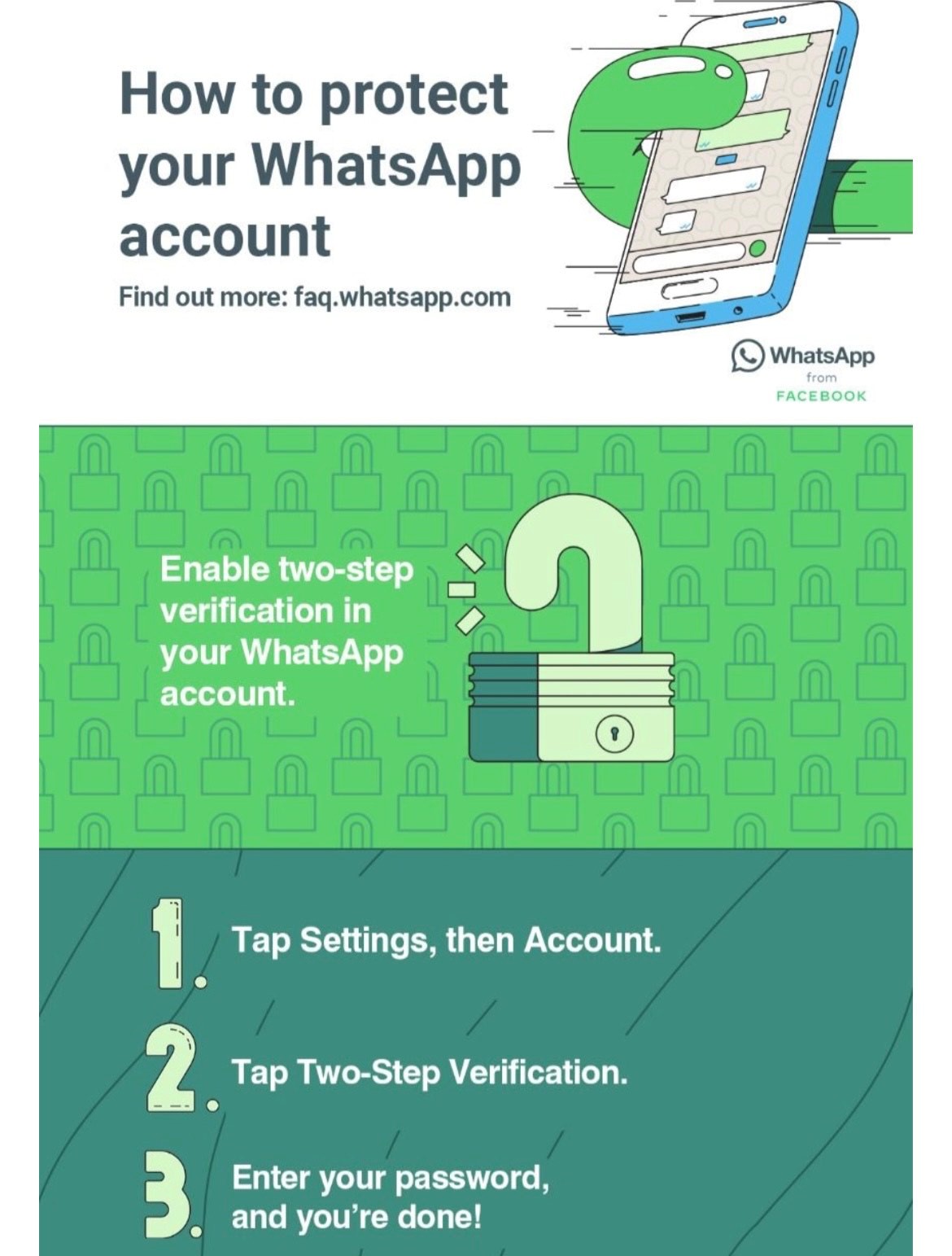
Two-factor authentication is an important security feature that adds an extra layer of protection to your WhatsApp account. It requires you to enter a unique code, in addition to your password, when you sign in to your account on a new device.

Here’s a complete step-by-step process for enabling two-factor authentication (2FA) on WhatsApp

To enable 2FA on WhatsApp, follow these steps:

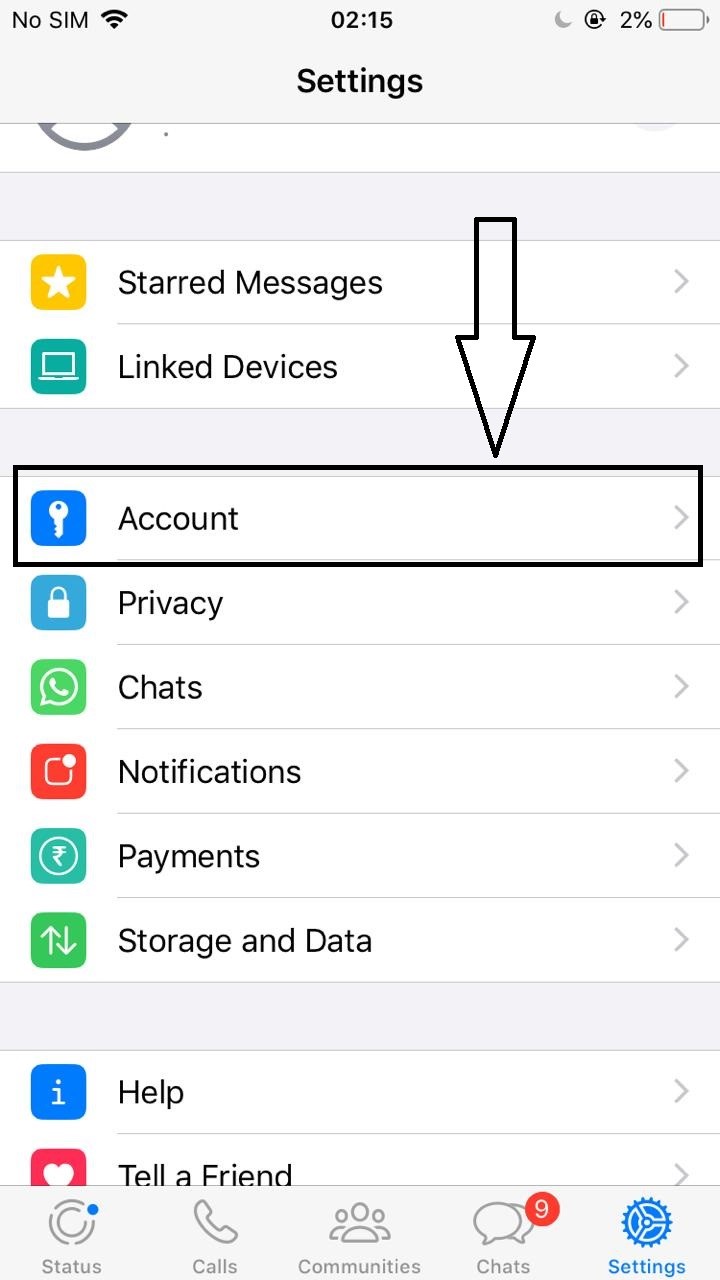
Step 1: Open WhatsApp on your device and go to Settings.

How to Secure Your Whatsapp Chat?

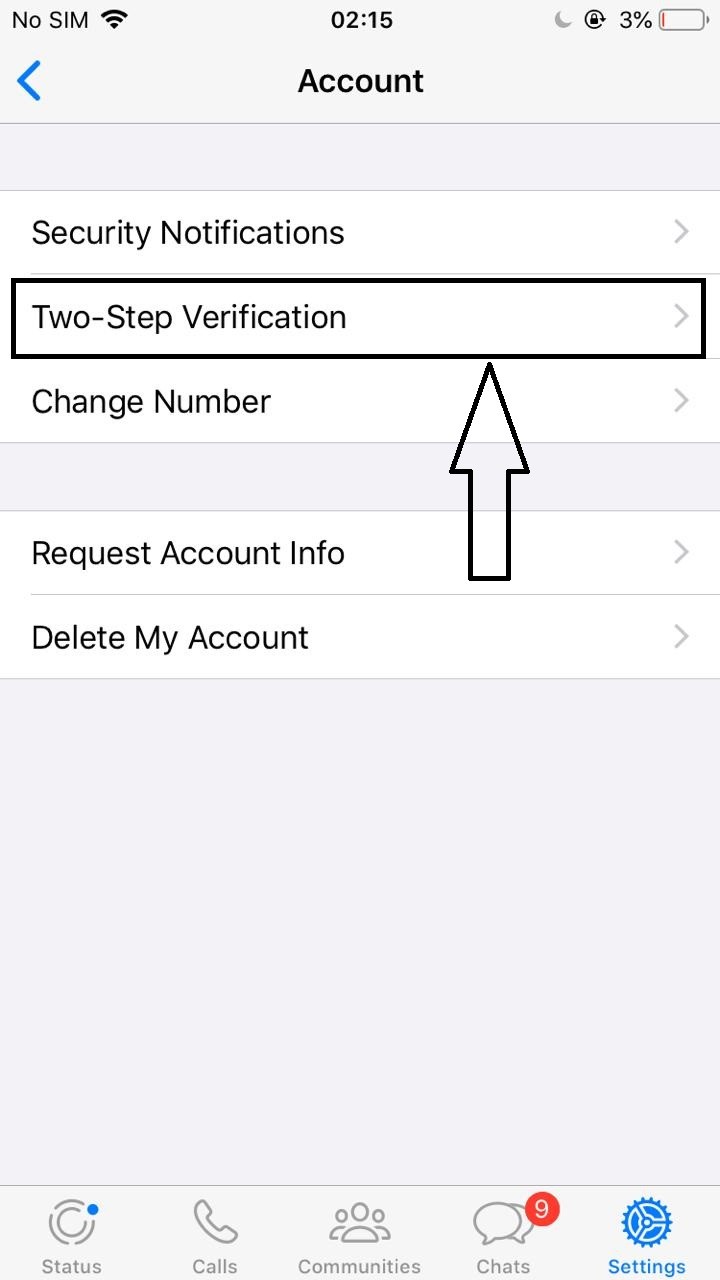
Step 2: Click on Account, then select Two-step verification.

How to Secure Your Whatsapp Chat?

Step 3: Click on Enable to start setting up two-step verification.

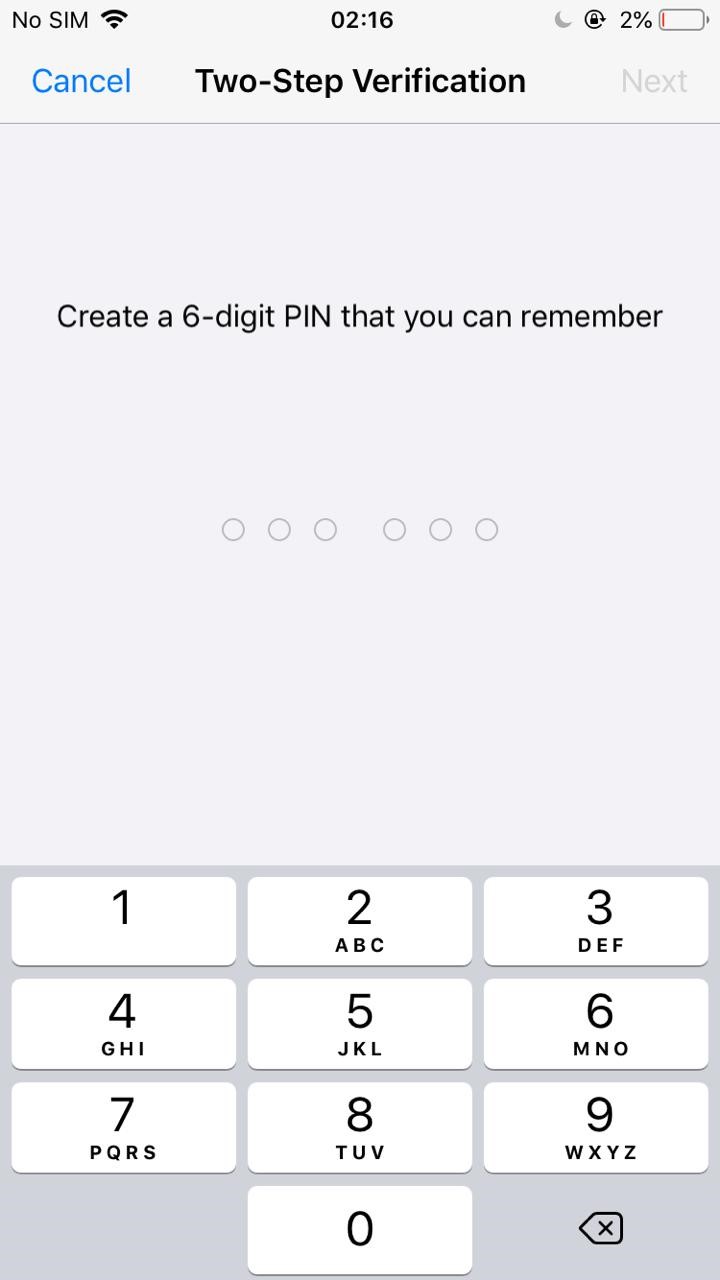
Step 4: You will be prompted to enter a six-digit PIN. This PIN will be required whenever you register your phone number with WhatsApp again.

How to Secure Your Whatsapp Chat?

Step 5: Re-enter the six-digit PIN to confirm it.

Step 6: Optionally, you can provide an email address. This will allow you to reset your PIN in case you forget it. WhatsApp will send you an email with a link to reset your PIN.

Step 7: Confirm your email address.

Step 8: Two-step verification is now enabled on your WhatsApp account.

Note that once you’ve enabled 2FA on WhatsApp, you’ll need to enter your PIN every time you register your phone number with WhatsApp, such as when you install the app on a new device. This helps to prevent unauthorized access to your account, even if someone else has your password.

By enabling two-factor authentication on WhatsApp, you’ll add an additional layer of security to your account, helping to protect your personal information and privacy.

How To Secure WhatsApp Chats by Locking The App?

How to boost WhatsApp's privacy and better protect your data | WIRED UK

Locking the WhatsApp app is an effective way to secure your chats, especially if you share your device with other people. It ensures that your messages remain private and can only be accessed by you.

Here’s a complete step-by-step process of securing WhatsApp chats by locking the app:

Lock WhatsApp Using a Third-Party App

To lock the WhatsApp app on your device using a third-party app, follow these steps:

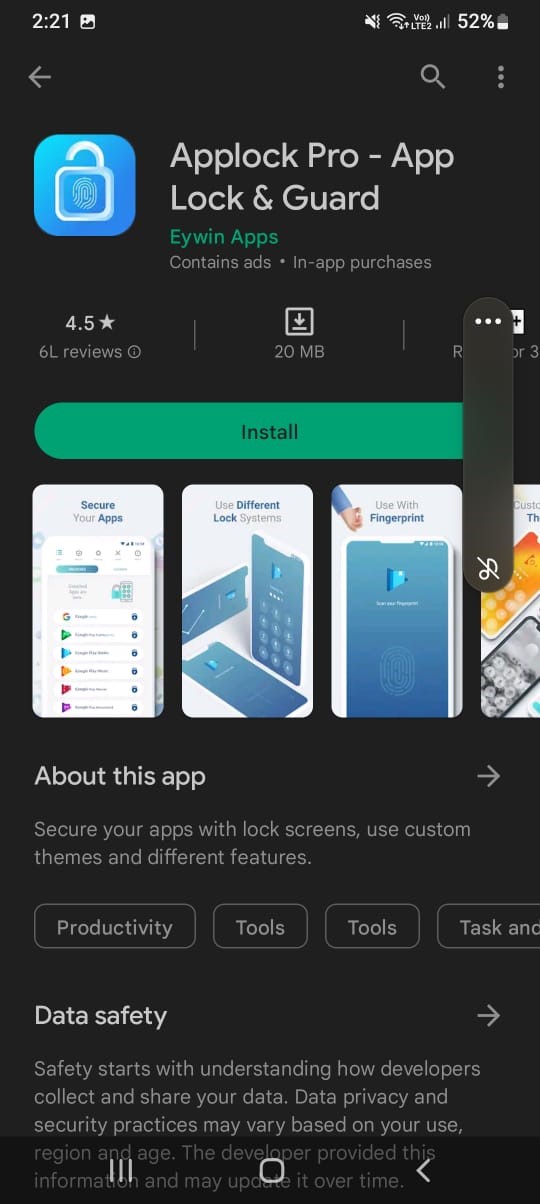
Step 1: Download a third-party app lock from your app store. There are many app lock apps available on both the Apple App Store and Google Play Store.

How to Secure Your Whatsapp Chat?

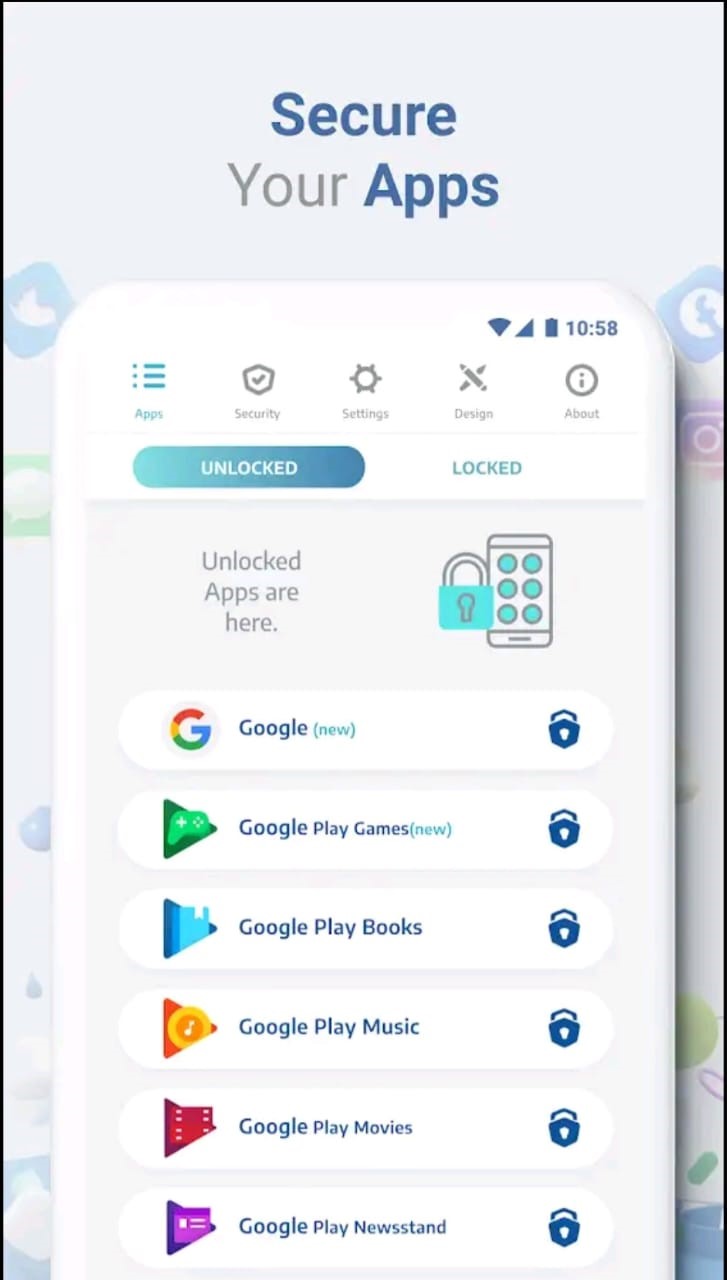
Step 2: Open the app lock and follow the prompts to set a password or pattern lock.

Step 3: Once the app lock is set up, open it and add WhatsApp to the list of locked apps.

Step 4: From now on, whenever you open WhatsApp, you’ll need to enter your app lock password or pattern before you can access your chats.

How to Secure Your Whatsapp Chat?

Step 5: If you want to disable the app lock, simply go back to the app lock app and turn off the lock for WhatsApp.

Lock WhatsApp Using In-Built App Lock Features –

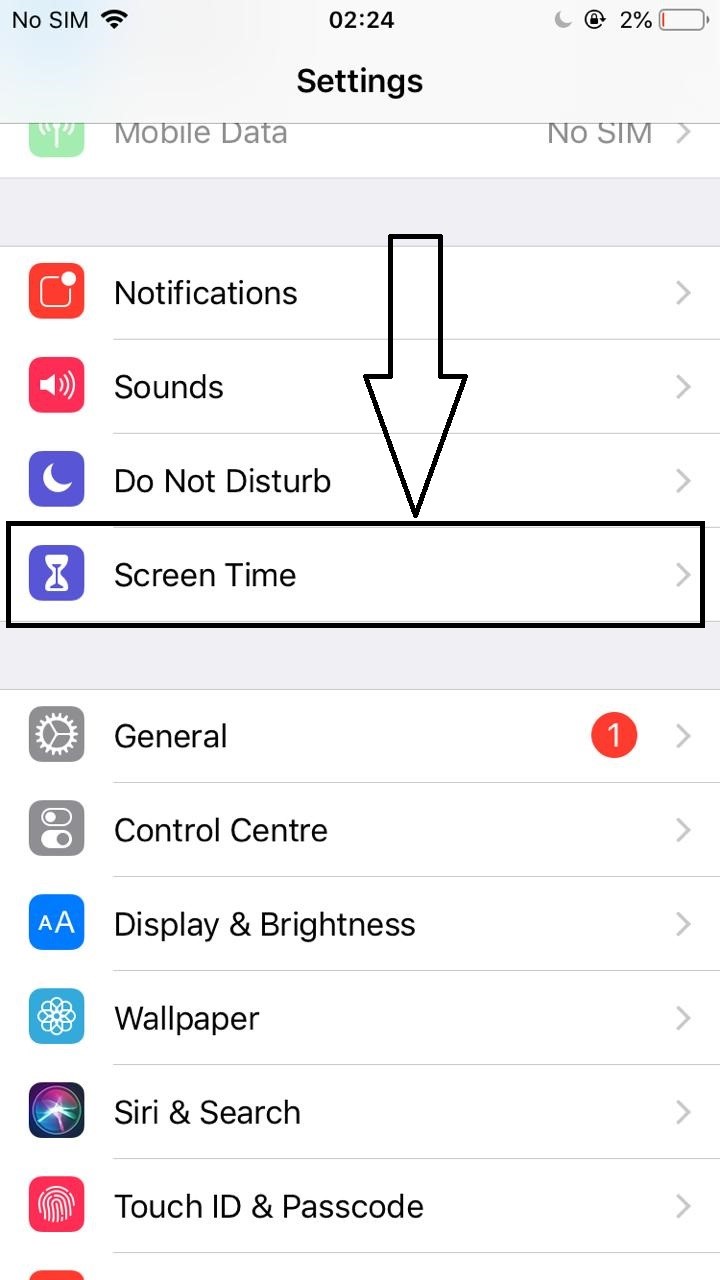
Alternatively, if your device has a built-in app lock feature, you can use that instead of downloading a third-party app. For example, on an iPhone, you can use the Screen Time feature to lock WhatsApp. Here’s how you can use the feature –

Step 1: Go to Settings on your iPhone.

How to Secure Your Whatsapp Chat?

Step 2: Click on Screen Time.

Step 3: Tap on Turn on Screen Time.

Step 4: Follow the prompts to set up Screen Time.

How to Secure Your Whatsapp Chat?

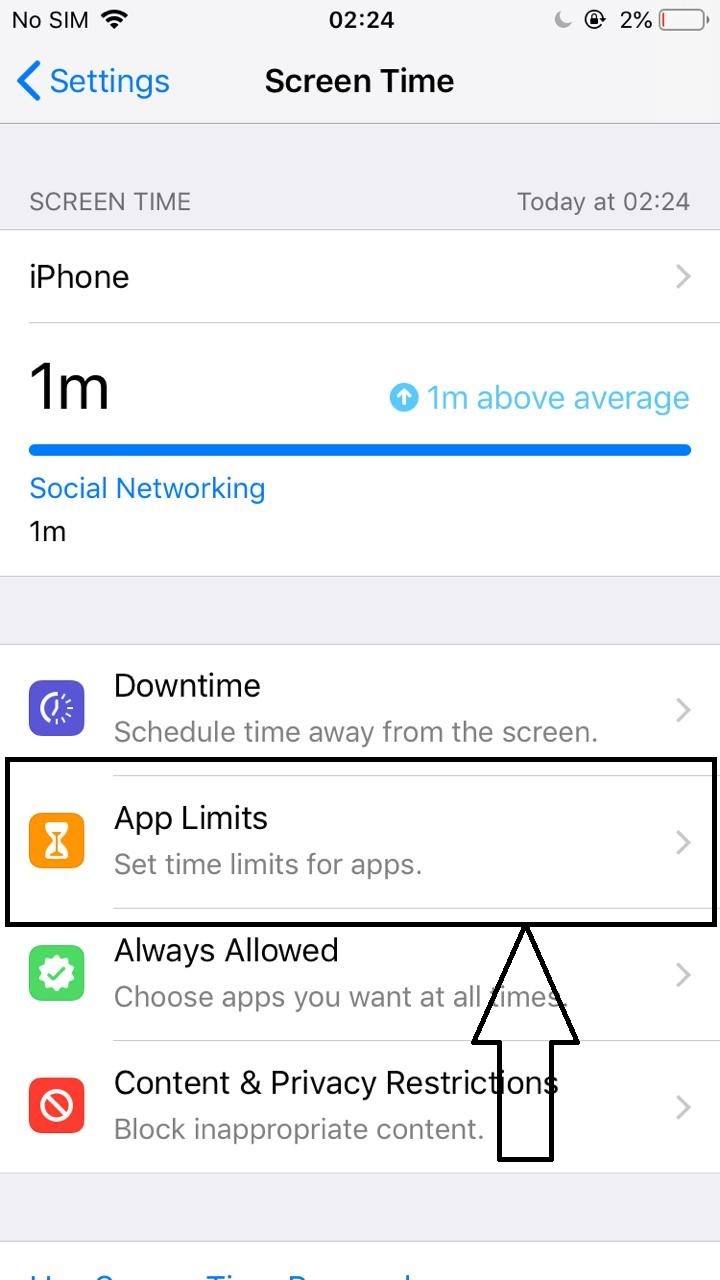
Step 5: Once Screen Time is set up, go to App Limits and add WhatsApp to the list of limited apps.

How to Secure Your Whatsapp Chat?

Step 6: Set a time limit for WhatsApp or choose to block it entirely.

How to Secure Your Whatsapp Chat?

Step 7: Whenever you open WhatsApp during the limited time, you’ll need to enter your Screen Time passcode before you can access your chats.

By locking the WhatsApp app on your device, you can ensure that your chats remain private and secure, even if someone else has access to your device.

How To Secure WhatsApp Chats by Turning Off Chat Backups?

WhatsApp Chat Backup: How To Keep WhatsApp Chat Backups Saved Securely on Google Drive

WhatsApp allows you to backup your chats to the cloud, making it easy to restore your messages if you ever need to.

However, storing your chats in the cloud could potentially put your messages at risk, as they could be accessed by unauthorized parties. To secure your chats, you can turn off chat backups in WhatsApp.

Here’s a complete step-by-step process of securing WhatsApp chats by turning off chat backups:

To turn off chat backups in WhatsApp, follow these steps:

Step 1: Open WhatsApp on your device and go to Settings.

How to Secure Your Whatsapp Chat?

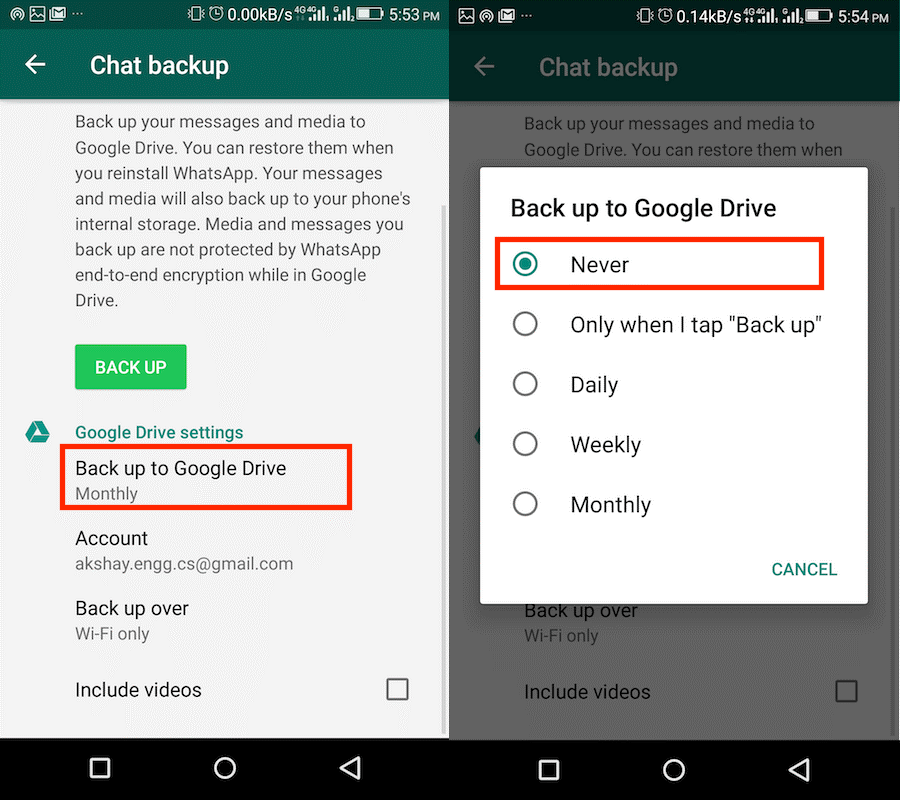
Step 2: Click on Chats, then select Chat Backup.

Step 3: Click on Back Up Now to create a backup of your chats, if you haven’t already done so.

How to Secure Your Whatsapp Chat?

Step 4: Click on Auto Backup and select Never. This will turn off automatic chat backups.

Step 5: Optionally, you can also choose to exclude certain chats from backups by selecting Exclude Chats.

Step 6: If you want to delete your existing chat backups from the cloud, you can do so by clicking on Back Up Now, and then selecting Delete Backup.

Step 7: Confirm that you want to delete the backup.

By turning off chat backups in WhatsApp, you’ll ensure that your chats aren’t stored in the cloud, minimizing the risk of unauthorized access.

However, keep in mind that turning off backups means that you won’t be able to restore your messages if you lose or switch devices. If you’re concerned about losing your chats, you may want to consider backing them up locally to your device instead.

Whastsapp-Seguro-1024x538
1631302154_227_WhatsApp-reads-the-messages-of-our-chats
1582265131Whatsapp_Secure_Chat
2
Whastsapp-Seguro-1024x538 1631302154_227_WhatsApp-reads-the-messages-of-our-chats 1582265131Whatsapp_Secure_Chat 2

FAQs on How to Secure Your Whatsapp Chat?

Q1. How to adjust your WhatsApp privacy settings to make your account safer?

Answer. WhatsApp isn’t the most private messenger out there, but it gives users at least some control. Go to Settings > Account > Privacy to see everything at your disposal. You can control who can see your WhatsApp Last Seen and online status, Profile photo, About, Status, and Live location. You can also turn off Read receipts here, so the blue check marks are switched off, and even adjust who can add you to groups.

Additionally, use the Disappearing message timer to set a default timer when you enable the feature in a given chat.

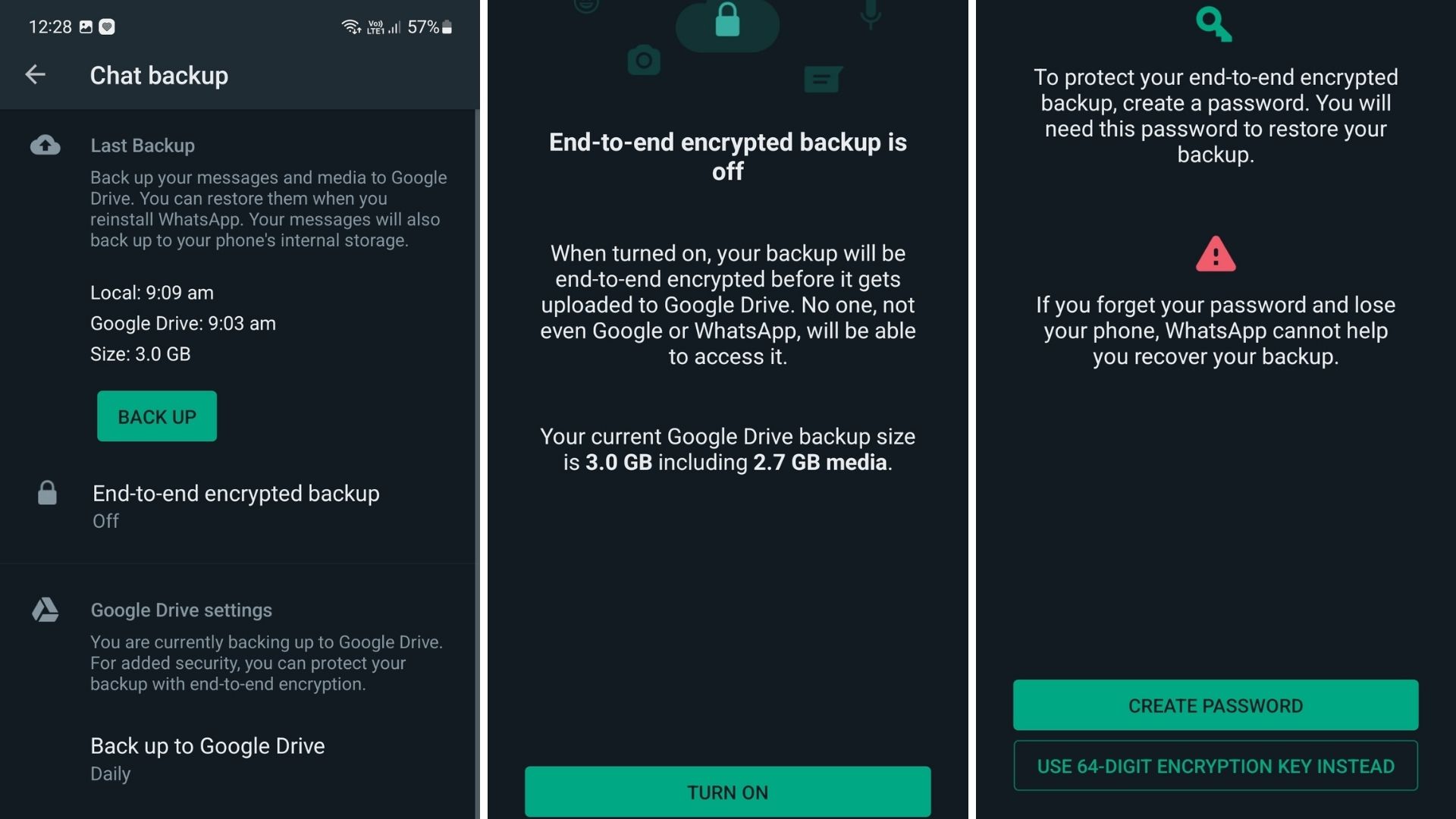
Q2. Can I encrypt chat Cloud backups?

Answer. The end-to-end encryption is awesome, but there’s one loophole: WhatsApp backs up chats to Google Drive or iCloud. That way, if you reinstall it later, you can retrieve your old messages.

But this backup isn’t encrypted by default. So if you care about your privacy, you must enable end-to-end encryption for your WhatsApp backups. Remember, storing your data with Apple and Google might not protect you against eavesdropping by governments.

Here’s how to encrypt chat Cloud backups on Android devices –

  • Tap the three-dot menu in the top right and select Settings
  • Chats > Chat backup > End-to-end encrypted backup > Turn on.

You can do the same on iPhone by going to Settings > Chats > Chat Backup > End-to-end encrypted backup > Turn on.

Q3. Can I lock WhatsApp with With Fingerprint or Face Verification?

Answer. Yes. A cool feature to improve the privacy of your WhatsApp messages is to lock the app with your fingerprint or face. This ensures that only you can access WhatsApp even if you give someone else your device without a screen lock.

The only catch is this feature is only available on phones with facial or fingerprint verification. As such, there’s no way to lock your WhatsApp app with a password. You’ll have to use a third-party locking app if that’s what you want.

On Android, you can lock your WhatsApp app by hitting the three-dot menu in the top right, selecting Settings > Privacy > Fingerprint lock, and then toggling Unlock with a fingerprint. You’ll then be asked to add a fingerprint, and then you can select the standby time before WhatsApp is automatically locked.

On iOS, go to Settings > Privacy > Screen Lock and toggle on Require Touch ID or Require Face ID. Finally, select the time standby time before WhatsApp automatically locks.

Q4. How can I enable disappearing messages for sensitive conversations to secure my WhatsApp chats?

Answer. Even though WhatsApp encrypts all chats by default, sometimes you also want to be sure that there’s no copy of your conversation in the future. This helps ensure that even if your device or the recipient’s device falls into bad hands, you can be certain that none of your secret conversations can be seen.

WhatsApp’s disappearing messages feature ensures that exchanged messages are automatically deleted for everyone after a specific period.

To activate Disappearing messages in a given chat, tap the contact’s name at the top and select Disappearing messages. Next, choose a period after which a message will be deleted.

Q5. Why is WhatsApp security important?

Answer. Criminals, hackers, and scammers have all taken advantage of this. There have been instances of attackers passing off malicious software as WhatsApp desktop applications. If you are unfortunate enough to have downloaded one of these, the installation can distribute malware or otherwise compromise your computer.

Q6. Is WhatsApp more secure than texting?

Answer. WhatsApp is far more private and secure than iMessage, with end-to-end encryption that works across both iPhones and Android, including group chats. With WhatsApp, you can also set all new chats to disappear with the tap of a button. And last year we introduced end-to-end encrypted backups too.

Q7. Can WhatsApp be tracked or hacked?

Answer. WhatsApp boasts the world’s most secure encryption, but hackers can use social engineering to make their way into your chats – through you, the user. Here’s how to stay one step ahead and keep your data safe on WhatsApp.

Q8. Is WhatsApp end-to-end encrypted?

Answer. WhatsApp provides end-to-end encryption for all personal messages that you send and receive to ensure that only you and the person you’re talking to can read or listen to them. With end-to-end encrypted backup, you can also add that same layer of protection to your iCloud and Google Drive backups.

Q9. Can anyone track my WhatsApp chats?

Answer. Yes, you can use a monitoring app like AirDroid Parental Control App or Hoverwatch to monitor a WhatsApp chat

Q10. Can WhatsApp messages be traced after being deleted?

Answer. Thankfully WhatsApp has a dual-backup system that saves chats to your smartphone as well as the cloud. This means that even if you lose your phone, the chats will be stored on your Google Drive account or your iCloud account (for Android and iPhone respectively) and can be recovered at any time.

Q11. What is end-to-end encrypted chat?

Answer. End-to-end encryption is a security method that keeps your communications secure. With end-to-end encryption, no one, including Google and third parties, can read eligible messages as they travel between your phone and the phone you message.

Also Read: WhatsApp launches picture-in-picture (PIP) mode for video calls on Apple IOS

Also Read: How to Add Emojis on WhatsApp in Android

Also Read: WhatsApp’s upcoming features: ‘Audio chats’ on Android, Edit Messages Tab for iOS users

How to Check If Your Phone Call is Being Recorded?

0
How to Check If Your Phone Call is Being Recorded?

Highlight

  • Call recording can only be done for specified purposes such as national security, prevention of incitement to the commission of an offence, and investigation or detection of any offence.
  • Call recording is legal in India as long as one party involved in the conversation consents to it.
  • While call recording can have its benefits, such as improving customer service quality and resolving disputes, it can also raise concerns about privacy and legal implications.
  • In this blog post, we’ll discuss how to check if your phone call is being recorded, and what to do if it is.

In today’s digital age, phone conversations have become an essential part of our daily lives. Whether we’re calling a friend, family member, or business, phone calls are a convenient way to communicate.

However, with the rise of call recording technology, it’s become increasingly important to know if our calls are being recorded.
How to Check If Your Phone Call is Being Recorded?

While call recording can have its benefits, such as improving customer service quality and resolving disputes, it can also raise concerns about privacy and legal implications.

Whether it’s for legal reasons, customer service quality assurance, or simply to ensure privacy, knowing if your call is being recorded is crucial.

In this blog, we’ll explore various methods to check if your call is being recorded, including listening for the beep tone, asking the other party, and using third-party call recording detection apps.

We’ll also discuss what to do if your call is being recorded and you’re not comfortable with it, including asking the other party why they’re recording the call, hanging up, or contacting the company or authorities.

By the end of this guide, you’ll have a better understanding of how to check if your call is being recorded, what to do if it is, and how to protect your privacy and legal rights.

However, let’s start by understanding the legality of call recordings.

Is Recording A Call Legal?

How to Check If Your Phone Call is Being Recorded?

It’s important to note that the legality of call recording varies from country to country and jurisdiction to jurisdiction. Some countries require all parties to consent to call recording, while others only require one party to consent.

In some jurisdictions, call recording without consent may be illegal, while in others, it may be legal under certain circumstances.

It’s essential to familiarize yourself with the laws and regulations in your country or jurisdiction to ensure that you’re aware of your rights and responsibilities when it comes to calling recording.

In India, call recording laws are primarily governed by the Indian Telegraph Act 1885 and the Information Technology Act 2000.  According to the Indian Telegraph Act, call recording is legal as long as one party involved in the conversation consents to it.

This means that if you’re recording a call and you’re one of the parties involved, you don’t need the other party’s consent to record the call. However, if you’re not one of the parties involved, you need the consent of at least one party before you can legally record the call.

It’s also important to note that call recording without consent may be a violation of a person’s right to privacy, which is protected under the Indian Constitution.

How To Check If Your Phone Call is Being Recorded?

How to know if someone whom I'm talking to over the phone is recording me - Quora

So, how can you check if someone you are on a call with is actually recording your call? Here are some simple ways to check if your call is being recorded or not.

Listen for the beeping tone

Most countries require a beep tone to be played at the beginning of a call if it’s being recorded. This tone indicates to the participants that the call is being recorded, and it’s a legal requirement in many jurisdictions. However, some companies may not play the beep tone, so this method isn’t foolproof.

Ask the other party

Another way to find out if your call is being recorded is to simply ask the other party. If you’re speaking with a customer service representative, for example, you can ask them if the call is being recorded. If they confirm that it is, you can decide whether or not you’re comfortable with that.

Look for call recording signs

If you’re making a call from your smartphone or landline, there may be a sign indicating that the call is being recorded. For example, on some smartphones, you may see a small recording icon or an indication in the call history that the call was recorded.

Similarly, on some landlines, there may be a red light or an indicator on the phone that the call is being recorded.

Check the company’s website or privacy policy

How to Check If Your Phone Call is Being Recorded?

If you’re unsure whether a company records its calls, you can check its website or privacy policy. Many companies have a section on their website or in their privacy policy that explains their call recording practices. If you can’t find this information, you can contact the company and ask them directly.

Look for Suspicious Apps in Your Phone

How to Check If Your Phone Call is Being Recorded?

Check your phone’s installed apps for any suspicious recording apps. You can do this by going to your phone’s settings and checking the list of installed apps. Look for any app that may have the capability to record audio or phone calls.

Check your phone’s permissions

How to Check If Your Phone Call is Being Recorded?

Some recording apps require special permissions to access your phone’s microphone and record audio. Go to your phone’s settings and check which apps have access to your microphone and audio recording capabilities. If you find any suspicious apps with these permissions, you may want to uninstall them.

Use an Anti-spyware App

How to Check If Your Phone Call is Being Recorded?

There are anti-spyware apps available on both Android and iOS platforms that can detect any spyware or recording apps installed on your phone. Download and install a reputable anti-spyware app and run a scan to check for any suspicious apps.

Use call recording detection apps

There are various call-recording detection apps available for smartphones that can detect if a call is being recorded. These apps work by analyzing the call for any signs of call recording, such as the beep tone or background noise. However, keep in mind that these apps may not work for all types of calls or in all countries.

How To Check if Your Phone Call is Being Recorded Using Third-Party Apps?

How to Check If Your Phone Call is Being Recorded?

There are multiple third-party apps available on both Android and iOS platforms that claim to detect if someone is recording your calls. However, it is important to note that the effectiveness of such apps may vary, and there is no guarantee that they will work correctly.

One such third-party app is Call Recording Detector. Follow the below-mentioned steps to install and use the app to detect if your phone call is being recorded.

  • First, you need to install the Call Recording Detector: Block Recorder Simulator app.
How to Check If Your Phone Call is Being Recorded?

  • After installation, you will receive an alert if someone is recording your call.

How to Check If Your Phone Call is Being Recorded?

  • You can then choose to block that person. If you want to continue with the recording, you can simply press the “Confirm” button.

And that’s how you can use a third-party app to check if your call is being recorded. The steps to follow on any app would be almost similar when minor setting changes, if any.

What To Do If Your Phone Call is Being Recorded?

Now, suppose in the middle of a call you suddenly realise that the person on the other end is recording your conversation. What should you do in that case? Here we are sharing some simple ways of getting yourself out of a call that is being recorded.

Ask the Other Party

If you find out that your call is being recorded and you’re not comfortable with it, you can ask the other party why they’re recording the call. If it’s for legal reasons, such as in a court case, you may not have a choice. However, if it’s for customer service quality assurance or other reasons, you can request that they stop recording the call.

Hang up the Call to Avoid Getting Recorded

If you’re not comfortable with the call being recorded and the other party refuses to stop recording, you can hang up. While this may not be ideal, it’s your right to end the call if you feel your privacy is being violated.

Contact the Company or Authorities

If you feel that your privacy is being violated or the call recording is illegal, you can contact the company or authorities. Depending on the country and jurisdiction, call recording without consent may be illegal, and you may have legal recourse.

Conclusion

Knowing if your call is being recorded is important, both for legal and privacy reasons. By using the methods outlined in this blog post, you can determine if your call is being recorded and take appropriate action if necessary. Remember, it’s your right to know if your call is being recorded, and to take steps to protect your privacy.

FAQs on How to Check If Your Phone Call is Being Recorded?

Q1. How can I block my Android device from listening to my phone?

Answer. You can use Google Assistant to block your device from listening to your calls on android. Follow the below steps –

  • Open the Settings app on your phone. Then, scroll down and tap Account Services.
  • Tap Search, Assistant & Voice. Then, tap Google Assistant.
  • Tap on Assistant. Then, scroll down to Assistant devices and tap Phone.
  • Tap the Google Assistant slider to turn it off.

Q2. How Do I Turn Off Voice Recording On Android smartphone?

Answer. Turn voice and audio activity on or off by following the simple steps below –

  • On your Android phone or tablet, open your device’s Settings app Google. Manage your Google account.
  • At the top, tap Data & privacy.
  • Under “History settings,” tap Web & App Activity.
  • Next to “Include voice and audio activity,” check or uncheck the box.

Q3. What to do if someone is secretly recording you?

Answer. If you realize someone is recording you without your permission in a public setting, there isn’t much you can do but ask them to stop or leave. If this is a recurring occurrence with a certain individual, you can call the police or choose to sue if you have legal grounds for it.

Q4. Which audio source is best for call recording?

Answer. The microphone is the best audio source for call recorder apps on most devices. Typically, when you install the call recording software on your device, it automatically finds the best audio source and starts using it for recording purposes.

Q5. How can I record a call without notification?

Answer. There are multiple ways you can record calls without the other person knowing on Android. You can either disable call recording warning in Google Dialer, use a third-party app to record calls, or even use the manufacturer’s app if it supports phone recording.

Q6. How can I recover deleted call recordings?

Answer. Follow the below-mentioned steps to recover deleted call recordings –

Open Android phone > Open local or cloud backup drive > Select and download deleted call recordings on your phone. Contact the call recording app service provider > Or visit the call recording cloud drive > Find and restore the deleted recordings to your phone.

Q7. What can I do if someone recorded me without my consent in India?

Answer. If someone recorded you without your permission in such a way that it violates the law, you could take them to court. Depending on the situation, you may be able to bring criminal charges against them or sue them for damages.

Q8. Can I record a phone call on iPhone?

Answer. An easy way to record a phone call on an iPhone is by using another Apple device with the Voice Memos app, which should come already been installed on your Apple device. This app allows you to record audio using the microphone on your iPhone, with no need for a cord or extra devices to help you pick up sound.

9) Does factory reset remove spy apps from the phone?

Ans) Factory reset also known as master reset involves resetting your phone back to factory settings. It erases all the data, settings, and applications that were previously on the device. Hence, you can get rid of the spy app too.

10) Can a person read my text messages from their phone?

Ans) Yes, if someone has hacked your phone then he or she can surely read your text messages. And, to do the same one needs to install a tracking or spying app on your smartphone.

11) Can someone spy through a phone camera?

Ans) Yes, you can be spied upon through the camera of your smartphone. There are several applications that can be found online that assist in spying on someone through their cell phone camera.

12) Can a cell phone be hacked without the Internet?

Ans) Smartphones can be hacked without the Internet. Hackers may be able to sneak into your mobile just by analyzing the low-power electronic signals your device emits.

13) What happens when your phone is hacked?

Ans) When your phone gets hacked, the hacker will have access to all the data and accounts. You will have to check your social media and email for password reset prompts, unusual login locations or new account signup verifications.

14) Does factory reset remove hackers?

Ans) Factory reset removes all apps, data, messages, contacts, and call history. In addition to this, it will remove all kinds of spy apps, malicious downloads, malware, Trojans, and viruses. So if your phone has been hacked using a spy app, it will also be removed.

15) What happens after the factory reset?

Ans) All the data from your phone is erased after the factory data. Moreover, the data that you have stored in your Google account is safe. All apps and data will be uninstalled after the factory reset

16) Can Your Phone Be Tracked?

Ans) Your phone can be tracked. The most common way is through the use of third-party spy software that will track all your device activity and report it to the third party. Examples of such software are mSpy ,uMobix, and Webwatcher .

17) Can Your Phone Be Tracked If It Is Off?

Ans) Your phone can still be tracked if it’s off. For example, your last known location can be tracked through the last cell tower that your phone’s signal passed through. You can also track Bluetooth locations, as well as through the Find My Phone feature on iCloud.

Method 1: Physical Signs Your Phone Is Being Tracked

Although tracking apps have already come a long way in terms of technology, in most cases, there are still unintentional side effects of having one installed on a target device.
For this method, I’m going to examine the telltale signs specified by Kapersky one of the leaders in the security protection industry. These signs may indicate someone is tracking your phone.

Take note that seeing just one of these signs on your phone doesn’t necessarily mean your phone is being tracked, but if it’s two or more, you should probably be concerned.

Faster Battery Drain

If you notice that your device’s battery percentage is going down faster than normal, it could mean two things: either your battery is old and needs servicing, or there’s a hidden spy app working in the background to track your device’s information.

Havimnga tracking app installed on your phone can be hard on your phone’s battery. After all, spy apps need to constantly comb through your data, take screenshots, and send alerts and notifications to the third party that’s monitoring your device.

These apps have to run in the background 24/7, consuming battery all the while. Obviously, this drains your battery much faster than normal. That said, it’s important to know the difference between an overused device and a bad battery.

If your device has a removable battery, you can simply test how fast a full charge will drain by transferring it to another device of the same model.
However, if your device’s batteries can’t be removed, such as is the case with iPhones and newer Androids, you’ll have to resort to other methods.

Checking Battery Health

This is much easier on an iPhone, thanks to the Battery Health app. It is a native app on iOS devices and it is mentioned in the iphone user by apple.com.
You can access it by going to Battery Health. It will take you about 3 minutes.

Here are the steps on how to check your battery health with the native Battey Health app.

1)Go to Settings and scroll down to find Battery.
2) Click battery health.
3) Here, you’ll see the health of your iPhone’s battery.
It should give you an idea of what battery life you can expect

For instance, if your iPhone has a battery health of 95 to 100 percent and yet it drains in just a few hours, then there’s a chance that a spy app may be installed. If the battery health is at 80 percent or lower, however, it shouldn’t come as a surprise if it gets fully drained halfway through the day.

Some Android phones also have this feature, and the steps are the same as with iPhones. However, instead of Battery Health, it’s under Battery Usage.

Take note that it’s not available for all brands, though. The brands Xiaomi and Oppo, for instance, don’t have it. Don’t worry, if your device doesn’t have this feature, you can download a third-party app like Accubattery.

Accubattery seems to be a trustworthy app with a 4.7-star rating, 429K reviews, and whopping 10M+ downloads so you can use it without fear.
For Google phones, you can follow the steps provided on Pixel Phone help by Google.

Keep in mind that a fast-draining battery alone might not be a sufficient reason to assume that there’s spyware involved. That said, if it happens along with the other signs on this list, then there’s a probability that you’re being tracked.

Increased Data Usage

A hidden tracking app needs to send information to its server using either your device’s Wi-Fi or mobile data.

Since it’s recording and tracking all your device activity, you can expect that its data demands are pretty big. This is especially true if you tend to make a lot of calls or video messages.

If you think your phone is being tracked, there’s one way you can check. Simply turn off your Wi-Fi and turn on your phone’s cellular data. Then notice if there’s an unusual spike in your phone’s data usage.

Once you rule out any data-heavy apps, like online games, you’ll be able to check if it’s a hidden spy app causing the increased data usage.

Checking Data Usage On Android

So, how do you check your phone’s data usage? If you have an Android phone, follow these steps:

1. First, go to your phone’s Settings.
2. The next step differs, depending on your phone. Some Android phones have Data Usage on the main page of Settings. Others need you to click another option first.may be under Connection and Sharing, Dual Sim and Cellular Network, Connections, or something similar.In this specific example, you’ll see that it’s under the Dual Sim and Cellular Network option.
3. After that, you should see a section for Mobile Data Usage, like the one in the screenshot. This shows you the amount of data you’ve consumed for the set period. Again, the exact feature will differ depending on your device. Some devices provide an option to show the data usage for the day, week, or month.As you can see on the test device, it only logs the monthly data usage. If this is the case for you, you should have a rough idea of your average monthly usage to ensure that there’s something suspicious going on. You can also find more useful tips about your Android’s data usage in the Reduce & Manage Date Use by Google.

Checking Data Usage On iPhone

If you’re using an iPhone, you can also see your data usage by going to Settings. However, since iPhones only show your overall data usage, it’s best to reset it first before trying this method out.

1. Go to Settings and tap Cellular.
2. Scroll all the way down to the bottom and tap Reset Statistics. This will bring your Cellular Data Usage to 0.
3. Once you’ve reset the stats, leave your Cellular Data on for at least a day or two. If the amount of data consumed seems suspicious for your regular usage, then there’s a possibility that there’s a hidden spy app using your data without your knowledge.

Uncharacteristic Overheating

Did your phone suddenly become much hotter, even though you weren’t doing anything? Mobile devices tend to heat up when you’re using apps with high processing demands, such as mobile games or video streaming apps.

However, if it just happened randomly without you using a demanding app, it’s possible that you’ve got spy software installed on your phone. Tracking apps put additional strain on your device’s computational power, which leads to your device generating more heat.

That said, keep in mind that a bad battery can also cause overheating. To rule out this cause, check your battery health or test your phone battery on another device.

Unauthorized Phone Activities

If your phone does something without you clicking or setting anything, it’s a pretty strong sign that there’s an app running in the background.

These could be unprompted phone reboots, lighting up even when not in use, and strange noises or messages during calls or text conversations.

You may even see the location or microphone notification pop up.
Some spy apps need to restart your phone to install updates or apply changes in settings. That’s why if your phone reboots randomly without being told to do so, it could be a strong sign an app is initiating the command in the background.

The same is true if your phone lights up even if you’re not using it. This should only happen if there are notifications from your phone, such as calls, texts, and important system alerts that warrant your attention. If you turn on your screen and you see that there’s no reason for it to light up, then some kind of spying activity could’ve been what triggered the response.

Lastly, if you notice something different in your calls and conversations, that’s a good sign that your phone is being tapped.

This could include strange sounds during your call, extra words or characters in your text messages, or contacts that appear on your blacklist, even though you didn’t do anything.
Some spy software can also send messages and chats from your phone remotely, so you might notice messages that are sent without your knowledge.

Other signs include photos, recordings, and internet searches that you don’t remember doing.

Sudden Performance Deterioration

Mobile devices will naturally become sluggish over time, especially if you don’t regularly uninstall unused apps, clean caches, and maintain healthy internal storage levels.

However, if you regularly do all these things and yet you still experience sudden lag, touchscreen sluggishness, and longer boot-up and shutdown times, it could be because of unauthorized spy software running in the background.

As mentioned before, spy software can take up a lot of your device’s computational power. Aside from making your phone overheat and quickly drain the battery, it can also leave less processing power for other normal operations, resulting in laggy performance.

Method 2: Check For Enabled Root Permissions

In order for most spy apps to function, they need permissions that are not usually granted to normal users. This is called “rooting” in Android and “jailbreaking” in iPhones.

Understandably, spy apps such as mSpy and uMobix root permissions to achieve their full potential.

If you think a tracking app was installed on your phone without permission, you can check if your phone was rooted or jailbroken.

Remember, just the fact that your phone is rooted or jailbroken without your knowledge is already a clear sign that there was some tampering done.

After all, rooting is not a simple process. Someone going through all that trouble must mean that they have an ulterior motive.

However, before I tell you how to detect rooting or jailbreaking, it’s important to note that many spy apps still function even on non-jailbroken or unrooted phones.

Just because your phone isn’t jailbroken or rooted doesn’t mean there’s no spy software accessing it.

Detecting A Jailbroken iPhone

The best way to know if your iPhone was jailbroken is to look for jailbreak apps installed on your phone.

In order to jailbreak your device , apps like Cydia, Pangu, or Sileo need to be installed. According to Avast ,if one of these apps is present, you can reasonably assume that your phone is jailbroken – or at least was jailbroken in the past.

To check, follow the steps below:

1)Go to the Spotlight search bar by swiping right on your home screen.
2) Search for Cydia, Sileo, or Pangu. If it’s not present, then your phone is likely not jailbroken.
3) Another way is to download a third-party app like 3utools.
You can use this to check the device summary of your iPhone, where it will show if the software is jailbroken or not.

Detecting a Rooted Android

Checking for root access is more straightforward on Android devices.

Just like in iPhones, some apps need to be installed during the rooting process. To check for these, look for Kinguser, SuperSU, EasyRoot, or Unrevoked on your home screen.
Two last apps are suggested by PCWorld being the easiest to use.
If you can’t find these apps and you still suspect that your phone is rooted, you can use a root checker app from Google Play.

1)Go to Google Play. Search for the Root Checker app and download it.

2) Once it’s successfully installed, open the app and go through the necessary verifications.

3) On the home screen, you will see multiple tabs: Verify Root, Upgrades, Rankings, etc. Make sure you’re in Verify Root and tap the Verify Root button.

4) Under the Status category, you will see whether your Android is rooted or not.

Method 3: Checking Utility Phone Codes

There’s a clever, little-known way to check your phone’s status using built-in USSD codes.

USSD stands for Unstructured Supplementary Service Data, which serves as a way for you to avail of additional utility services on your phone.
You can also use them as a number to dial to see if your phone is tapped.
Basically, dialing these codes can tell you all kinds of information.

IMEI Check USSD Code: *#06# 

The first thing you have to do is find out your IMEI, which stands for International Mobile Equipment Identifier.

As you might have gained from the name, it’s a unique phone identifier code that’s assigned to devices all around the world.

It can be used when taking legal action against the person illegally monitoring your phone, and when finding your phone Incase it goes missing .

You can actually see your IMEI when viewing your phone’s About info in settings, but the IMEI Check via USSD code is also a viable option.

1. Open your phone dialer app and type in the code. In most cases, as soon as you finish the code, the USSD activates, and you won’t have to hit dial.
2. Your IMEI code will then appear. Take a screenshot or record it and keep it somewhere safe and private.The steps for the rest of the USSD codes are exactly the same, so simply replace the code in Step 1 with the others.

Redirection Code: #62 

The signals that carry calls, messages, and data get passed around from tower to tower before transferring from one phone to another.

When someone is monitoring your device, they could be redirecting those signals to their device before it gets to you.

The #62 USSD code will forward you the redirection status of your device.

If no one can seem to be able contact you, even if you have service, then someone may be redirecting your calls and messages to another device.

If you see nothing after the code, don’t worry. The code is working, it’s just that your signals aren’t being redirected to another number.

On the other hand, if a 10-digit number shows after you dial the code, that’s the cell number of the device that has your signals.

Diversion Code: *#21#

Call diversion means forwarding your call to another number when the line of the target phone number is currently in use.

This means that calls won’t even reach your phone, leaving fewer traces than a redirect.
To know whether your calls are being diverted without you knowing, you can dial the *#21# USSD code.

You should see a pop-up screen that displays the diversion status of calls, data, and more.

Utility Netmonitor Code

The Utility Netmonitor Code is a nifty way to find out who’s tracking your device.
When used properly, it’s supposed to help you find the geographic location of the contact number connected to your device through these ways.

This can be very useful if you want to investigate further, or even when pressing charges.

For Android, you can use:

* #*#197328640#*#
* #*#4636#*#   

For iOS, you can use:
* 3001#12345#

That said, while the codes do work for my test devices, I see different options, so I wasn’t able to test the validity of this method.

Nonetheless, here’s how you can use this USSD code to check if your phone is monitored and potentially track down your unknown tracker.

1. Dial the correct code for your device as mentioned above.
2. You will then be presented with a menu. From there, choose UMTS Cell Environment.
3. Next, select UMTS RR Information. If you’re being tracked, you’ll see a 5-digit number called a cell ID. Write it down.
4. Press the back key twice to go back to the main menu.
5. Choose MM Information.
6. Pick Serving PLMN (Public Land Mobile Network).
7. You will then be presented with a local area code (LAC). Once again, write it down.
8. Lastly, you need a netmonitor website such as Open Cell ID tocross-reference the cell ID and PLMN code you wrote down.
9. On the left side of the interface, you will see search fields for cell towers. Enter the Cell ID and the LAC that you have previously jotted down and press Search.
10. You will now see the tracker’s rough geographic location.
11. If this seems interesting to you, here’s a video of someone playing around with the #*#197328640#*# code.

18) How To Know If Your Phone Is Being Tracked: Conclusion

Ans) Nowadays, anyone with enough time, money, and opportunity can track your device.
However, hope is not lost. If you’re wondering how to know if your phone is being tracked, you can do so by looking for physical signs, checking for root access, and using USSD codes. Better yet, you can even take the initiative and get rid of the spyware yourself .

19) Can We Know If Someone Is Recording Your Phone Calls?

Ans) Yes, you can know if someone is recording your call. Type “history.google.com/history” into your web browser. On the lefthand menu, click ‘Activity controls’.

Scroll down to the ‘Voice & Audio activity’ section and click that. There you’ll find a chronological list of all the voice and audio recordings, which will include any recorded without you knowing.

20) How Do You Know If My Calls Are Being Recorded?

Ans) A regular beeping sound is one sign your call is being recorded. Laws governing the recording of telephone conversations vary by state. If you suspect your phone calls are being recorded without your consent, first determine whether your consent is legally required in your state.

21) Can I Stop Someone From Recording Your Call?

Ans)You can’t. Recording a call needs permission from only one person, either you or the person at the other end. But you can tell the person to respect your privacy by stopping the recording.

22) How Do You Tell If Someone Is Recording You On iPhone?

Ans)When your iPhone’s microphone is on or was recently accessed, a small orange dot appears in the upper-right-hand corner of the screen.
If your camera is in use or was recently recording, you’ll see a green dot. When your iPhone’s camera and microphone are in use, you’ll see the green camera dot.

23) Is there an app to detect if you are being recorded?

Ans) Yes. Android users have the app Detectify. Detectify offers cloud-based external attack surface management products that streamline asset discovery and vulnerability assessment to security and product development teams.

24) Can my phone calls be recorded without me knowing?

Ans) Yes, your call can be recorded without your notice. But under the federal Wiretap Act, it is illegal for any person to secretly record an oral, telephonic, or electronic communication that other parties to the communication reasonably expect to be private. (18 U.S.C. § 2511.).

25) Is there an app for detecting listening devices?

Ans) There are apps for detecting listening devices. Popular apps include Glint Finder for Android phones and Spy Hidden Camera Detector for iOS. Or, as you’d do with a regular flashlight, you can use your smartphone’s flashlight to scan your home for camera lenses.

26) How can I block a device from listening to my phone?

Ans)You can use Google Assistant to block your device from listening to your calls on android.

* Open the Settings app on your phone. Then, scroll down and tap Account Services.
* Tap Search, Assistant & Voice. Then, tap Google Assistant.
* Tap on Assistant. Then, scroll down to Assistant devices and tap Phone.
* Tap the Google Assistant slider to turn it off.

Also Read: Truecaller users will not be able to record calls, here is why

Also Read: Your Phone Has A Secret Spy, How To Stop Google From Recording?

Also Read: WhatsApp launches picture-in-picture (PIP) mode for video calls on Apple IOS 

Tecno Phantom V Fold launch date in India announced, will be made in India: Early Bird Sale Date, Price & Specifications

0
Tecno Phantom V Fold

HIGHLIGHTS

* The Tecno Phantom V Fold is all set to launch in India on April 11th
* The handset will be available at Rs 77,777 for a limited period.
* Key specs include a large foldable screen, MediaTek Dimensity 9000+ SoC, a 5,000mAh battery, and more.
* The 5-lens camera unit of the phone comes with two selfie cameras
* Tecno Phantom V Fold is offered in two storage variants

After making its global debut at Mobile WorldCongress (MWC), the Tecno Phantom V Fold is all set to launch in India.

The OEM has officially announced that the handset will make its debut as early as next month in the country.

The foldable smartphone will be ‘Made in India’ and come with a sticker price of Rs 77,777 for a limited period.

Tecno Phantom V Fold

Key specs of Tecno Phantom V Fold (first impression) include a 7.65-inch foldable screen, MediaTek Dimensity 9000+ SoC, a 5,000mAh battery, and more.

Tecno launched the Phantom V Fold in India earlier this month.

The device carries a price tag of Rs 89,990 and Rs 99,999 for the 12GB + 25GB and 12GB +512GB configurations respectively. Tecno had announced an early-bird sale offer but the exact date was not mentioned. Now the brand has revealed an exclusive early access date to initial users.

Additionally, Teno India has also announced the production of its first-ever foldable phone in the country under the ‘Make in India’ initiative.

Tecno Phantom V Fold launch Date, Availability

Tecno Phantom V Fold foldable

The company has confirmed that the Teno Phantom V Fold will be launched in India on April 11th.

It will be available for purchase as an early bird offer on Amazon from April 12th.

As per the company, the Tecno Phantom V Fold will be manufactured in the Noida factory, which is now capable of producing 24 million phones on an annual basis.

Tecno Phantom V Fold Price in India, Specifications

Tecno Phantom V Fold foldable

Initially, the company announced that the price of the Tecno Phantom V Fold in India is Rs 89,999 for the model with 12GB+256GB of storage and Rs 99,999 for the one with 12GB + 512GB of storage.

But as part of the early bird offer, the smartphone will be available for Rs 77,777 for a limited period.

The Tecno Phantom V Fold boasts a novel, aerospace-grade drop-shaped hinge with a fixed-axis rotate and slide mechanism and a self-designed reverse snap structure that enables flawless, crease-free folding.

In terms of specifications, the smartphone has a 6.42-inch FHD+ LTPO outer AMOLED dual 10Hz-120Hz display.

The main screen is ultra-flat and has dual-high brightness and dual-high colour accuracy. It has a 7.65-inch 2K 10-120Hz LTPO AMOLED display.

Tecno Phantom V Fold

The Tecno Phantom V Fold sports a triple rear camera setup – a 50MP main camera, a 13MP ultra-wide-angle sensor, and a 50MP 2x portrait lens.

It comes with a 32MP selfie camera on the external screen and a 16MP selfie camera placed on the inner display.

The foldable smartphone comes offers the MediaTe Dimensity 9000+ chipset and paired with up to 12GB of RAM and 512GB of internal storage.

It houses a 5,000mAh battery with fast charging support of 45W. The Tecno Phantom V Fold has an in-display fingerprint sensor for security.

Regarding the connectivity options, the smartphone has 5G SA/NSA, Dual 4G VoLTE, Wi-Fi 6, Bluetooth 5.3, and USB Type-C, among others.

TECNO PHANTOM V FOLD SPECIFICATIONS

Key Specs

RAM 12 GB
Processor MediaTek Dimensity 9000 Plus
Rear Camera 50 MP + 13 MP + 50 MP
Front Camera 16 MP
Battery 5000 mAh
Display 7.85 inches (19.94 cm)


General

Launch Date March 30, 2023 (Expected)
Operating System Android v13
Custom UI HiOS

Performance

Chipset MediaTek Dimensity 9000 Plus
CPU Octa core (3.2 GHz, Single core, Cortex X2 + 2.85 GHz, Tri core, Cortex A710 + 1.8 GHz, Quad core, Cortex A510)
Architecture 64 bit
Fabrication 4 nm
Graphics Mali-G710 MC10
RAM 12 GB

Display

Display Type AMOLED
Screen Size 7.85 inches (19.94 cm)
Resolution 2000 x 2296 pixels
Pixel Density 388 ppi
Screen to Body Ratio (calculated) 87.97 %
Bezel-less display Yes with punch-hole display
Touch Screen Yes, Capacitive Touchscreen, Multi-touch
Brightness 1100 nits
Refresh Rate 120 Hz
Screen to Body Ratio (claimed by the brand) 90 %

Design

Height 159.4 mm Compare Size 
Width 140.4 mm
Thickness 6.9 mm
Weight 299 grams
Colours Black, White

Camera

MAIN CAMERA
Camera Setup Triple
Resolution 50 MP f/1.9, Wide Angle, Primary Camera(1.33″ sensor size)13 MP, Ultra-Wide Angle Camera
50 MP , Telephoto Camera
Autofocus Yes, Phase Detection autofocus
Flash Yes, Dual LED Flash
Image Resolution 8150 x 6150 Pixels
Settings Exposure compensation, ISO control
Shooting Modes Continuous Shooting
High Dynamic Range mode (HDR)
Camera Features Digital Zoom
Auto Flash
Face detection
Touch to focus
Video Recording 3840×2160 @ 30 fps
1920×1080 @ 30 fps
FRONT CAMERA
Camera Setup Single
Resolution 16 MP, Wide Angle, Primary Camera

Battery

Capacity 5000 mAh
Type Li-Polymer
Removable No
Quick Charging Yes, Fast, 45W: 40 % in 15 minutes
USB Type-C Yes


Storage

Internal Memory 256 GB
Expandable Memory No
USB OTG Yes


Network & Connectivity

SIM Slot(s) Dual SIM, GSM+GSM
SIM Size SIM1: Nano, SIM2: Nano
Network Support 5G Not Supported in India, 4G Supported in India, 3G, 2G
VoLTE Yes
SIM 1
4G Bands:
TD-LTE 2300(band 40)
FD-LTE 1800(band 3)
3G Bands:
UMTS 1900 / 2100 / 850 / 900 MHz
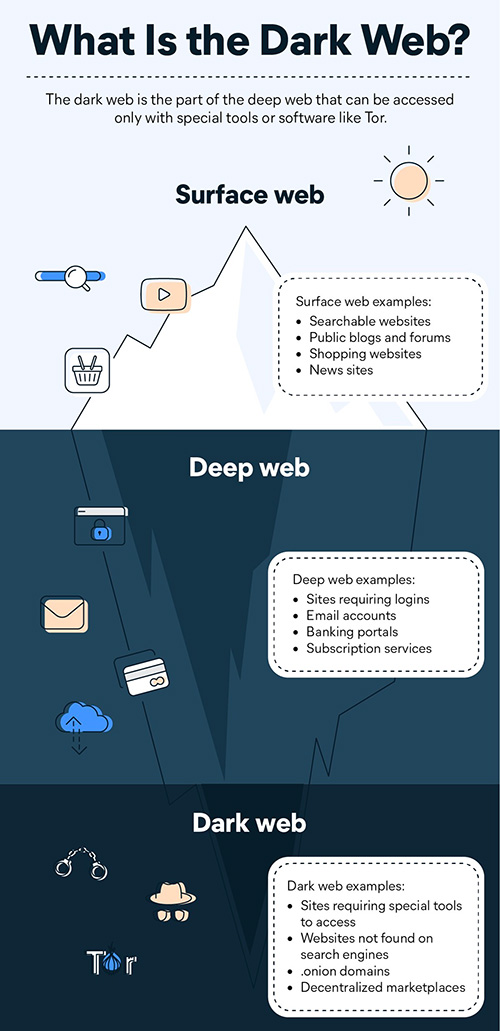
2G Bands:
GSM 1800 / 1900 / 850 / 900 MHz
GPRS:
Available
EDGE:
Available
SIM 2
4G Bands:
TD-LTE 2300(band 40)
FD-LTE 1800(band 3)
3G Bands:
UMTS 1900 / 2100 / 850 / 900 MHz
2G Bands:
GSM 1800 / 1900 / 850 / 900 MHz
GPRS:
Available
EDGE:
Available
Wi-Fi Yes, Wi-Fi 5 (802.11 a/b/g/n/ac)
Wi-Fi Features Mobile Hotspot
Bluetooth Yes, v5.2
GPS Yes with A-GPS, Glonass
NFC Yes
USB Connectivity Mass storage device, USB charging

Multimedia

Loudspeaker Yes
Audio Jack USB Type-C

Sensors

Fingerprint Sensor Yes
Fingerprint Sensor Position Side
Other Sensors Light sensor, Proximity sensor, Accelerometer, Compass, Gyroscope

FAQ’s on Tecno Phantom V Fold

1) What is the price of Tecno Phantom V Fold ? Where can I buy the Tecno Phantom V Fold?

Ans) The Tecno Phantom V Fold early access sale for initial users will start on April 12th on Amazon.

It will be applicable as long as stocks last. The device will be available for Rs 77,777.
The open sale date of the foldable phone remains unknown at the moment.

The Tecno Phantom V Fold will be manufactured at the Noida facility and it is said to have a present capacity of producing 24 million phones annually.

2) What are the specifications of Tecno Phantom V Fold ?

Ans) As for the core specifications, the Tecno Phantom V Fold is a horizontal folding phone with a 6.42-inch main display with an FHD+ resolution and a 7.85-inch interior screen with a resolution of 2,000 x 2,296 pixels. Both displays have an AMOLED LTPO panel with a 120Hz refresh rate and a punch-hole cutout. There is a side-mounted fingerprint scanner.

The Tecno Phantom V Fold sports a circular camera module housing a 50MP main sensor, a 50MP telephoto unit, and a 13MP ultra-wide-angle lens. There is a 32MP camera on the primary screen and a 16MP sensor on the interior display for selfies and video calling.

Under the hood, the Tecno Phantom V Fold is equipped with a Dimensity 9000 Plus processor.

It packs 12GB LPDDR5 RAM and is offered in 256GB and 512GB storage options. The foldable phone is backed by a 5,000mAh battery unit with support for 45W fast charging.
It runs on Android 13 OS out of the box.
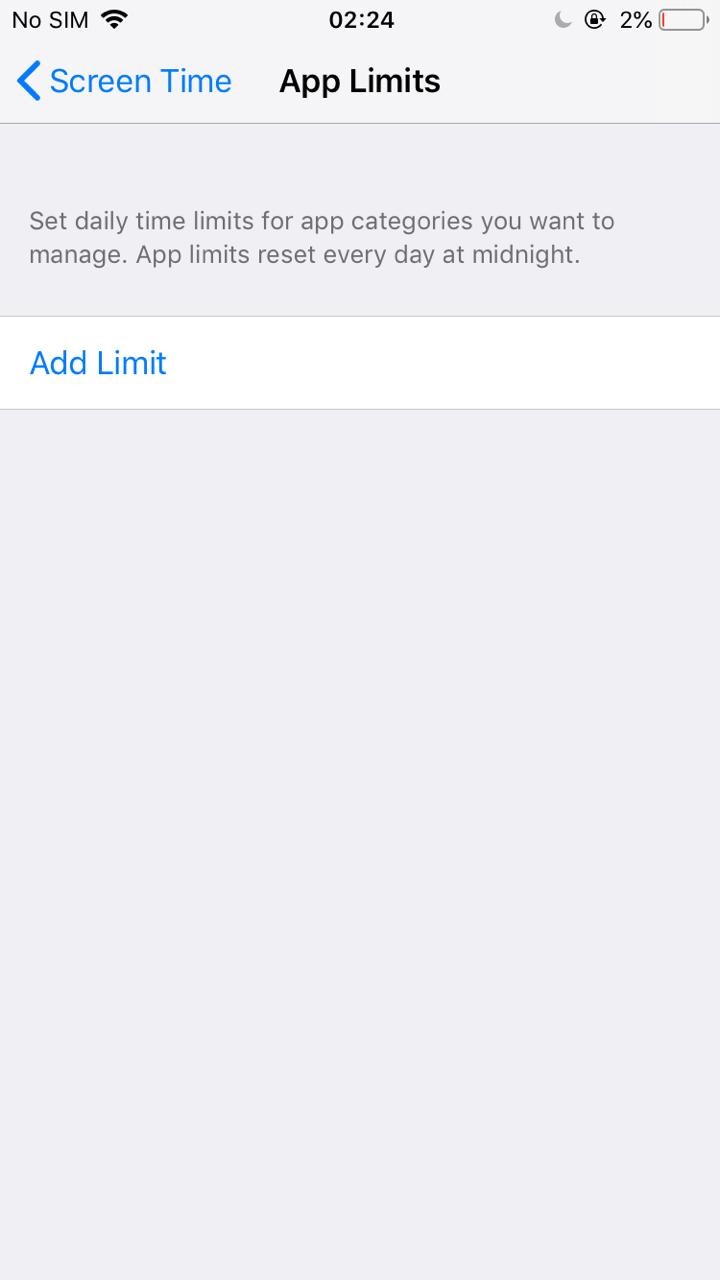
3) How is the battery of Tecno Phantom V Fold?

Ans) The foldable phone is backed by a 5,000mAh battery unit with support for 45W fast charging.

Also Read: Tecno Spark 10 Pro India Launch Set for March 23; To Feature 16GB RAM, and teased to Priced Under Rs 15,000

Also Read: Tecno Spark 10 Pro India Launch Set for March 23; To Feature 16GB RAM, and teased to Priced Under Rs 15,000

Akshaya Tritiya 2023: 10 Best Mobile Phones to Buy on this Akshaya Tritiya

0

Highlights

  • Akshaya Tritiya is an auspicious Hindu festival celebrated across India, considered highly significant for new beginnings, investments, and purchases.
  • The festival is traditionally associated with buying gold and property but is now increasingly becoming associated with buying mobile phones.
  • Many people believe that investing or purchasing something on Akshaya Tritiya will bring good luck and prosperity in the long run.
  • In this context, retailers and manufacturers offer attractive discounts and deals to attract buyers to purchase mobile phones on the festival day.
  • In this blog, we are looking at the 10 best mobile phones to buy on this Akshaya Tritiya with their quick reviews, features, and My Mobile Ratings to assist you in making an informed purchase decision.

Akshaya Tritiya 2023 is around the corner, and it is that time of the year again when people across India celebrate the auspicious occasion by making new investments and purchases. It is a popular belief that investing in something on this day will bring good luck and prosperity. While traditionally gold and property have been the preferred choices for Akshaya Tritiya purchases, the trend is gradually changing.

With the rise of technology and smartphones becoming an essential part of our daily lives, many people are now opting to buy mobile phones on Akshaya Tritiya.

Mobile phone manufacturers and retailers are aware of this trend and are coming up with exciting offers and discounts to attract buyers.

If you’re planning to buy a new mobile phone this Akshaya Tritiya, there are plenty of options to choose from. From flagship models to mid-range phones, you can find a phone that suits your budget and requirements.

In this blog post, we’ll take a look at some of the best mobile phones to buy on this Akshaya Tritiya 2023 that will offer you the best value for your money. But before we get to the list of mobile phones you can choose from, let’s quickly understand the significance of Akshaya Tritiya.

What is Akshaya Tritiya and Why is Akshaya Tritiya an Auspicious Time?

Akshaya Tritiya, also known as Akti or Akha Teej, is an auspicious Hindu festival that falls on the third lunar day of the Hindu month of Vaishakha. Celebrated across India, this day is considered highly significant and auspicious for new beginnings, investments, and purchases.

According to Hindu mythology, Akshaya Tritiya marks the day when Lord Vishnu, the preserver of the universe, reincarnated as Lord Parashurama, the sixth incarnation of Lord Vishnu, to free the world from the tyranny of evil kings. It is also believed that on this day, Lord Ganesha, the god of wisdom and prosperity, started writing the epic Mahabharata.

Akshaya Tritiya is considered a highly auspicious day for making purchases, starting new ventures, and investments. It is believed that any investment made on this day is bound to grow and bring prosperity in the long run. Therefore, people purchase gold, silver, property, and other valuables on this day. Many people also perform pujas and rituals to seek the blessings of Lord Vishnu, Goddess Lakshmi, and Lord Ganesha for prosperity and success.

The significance of Akshaya Tritiya lies in the fact that it is believed to bring eternal prosperity and success to those who make investments or purchases on this day. It is considered a highly auspicious time for starting new ventures, making new investments, and purchasing new assets. Hence, people wait for this day to make new investments and purchases in the hope of achieving long-term prosperity and success.

10 Mobile Phones You Can Buy on This Akshaya Tritiya

Best Premium Mobile Phones

Oppo Find N2 Flip

2
1
3
4
5
2 1 3 4 5

Oppo Find N2 Flip is Oppo’s foray into foldable smart devices. It presents an impressive 6.8-inch AMOLED inside screen featuring Corning Gorilla Glass v5 Schott Xensation Glass protection, 1080 x 2520 pixels resolution, 120Hz refresh rate and 403ppi pixel density. Moreover, The foldable smartphone is configured with 8GB RAM, a MediaTek Dimensity 9000 Plus MT6983 chipset and an Octa-core CPU having Cortex A510, Cortex A710 and Cortex X2 layout.

This flip smartphone by Oppo comes with a dual-camera setup on the rear side. The camera setup includes an Exmor-RS CMOS Sensor and has two lenses with 50-megapixel and 8-megapixel resolutions. On the other hand, the front side of this smartphone offers a 32-megapixel wide-angle camera for selfies and video calls. Other camera features include  ISO Control, Face Detection, Exposure Compensation, Continuous Shooting Mode, HDR Mode and Auto Flash are some of the important highlights of the smartphone.

It has a Li-Polymer battery of 4300mAh capacity. The battery is supported by a Super VOOC 44W fast charging system. Some of its connectivity features are Wi-Fi 4 (802.11 b/g/n), Mobile Hotspot, 5G, GLONASS A-GPS, v5.3 Bluetooth, 4G and VolTE networks.

Oppo Find N2 Flip Key Features

  • 8 inches AMOLED Display
  • MediaTek Dimensity 9000 Plus MT6983 Processor
  • 8 GB RAM
  • 256 GB Storage
  • 50 MP + 8 MP Dual Rear Camera
  • 32 MP Front Camera
  • 4300 mAh Battery
  • Android v13 OS

Oppo Find N2 Flip Pros & Cons 

Pros Cons
●       Sleek design that feels solid

●       Practical cover screen

●       Excellent primary camera

●       44W SuperVOOC fast-charging

●       Hardly any crease

●       Smooth performance

●       Capable cameras

●       ColorOS needs more refinement

●       No IP rating and wireless charging


Oppo Find N2 Flip My Mobiles Ratings

Design – 4/5

Display – 4/5

Software – 3.5/5

Camera – 3.5/5

Performance – 3.5/5

Battery – 3.5/5

Oppo Find N2 Flip Price and Availability

OPPO Find N2 Flip price in India starts from Rs. 89,999. The base variant comes with 8 GB RAM / 256 GB internal storage configurations. It is available in Black, Gold, and Purple colour variant options.

Samsung Galaxy S23 Ultra

samsung-feature
IMG_7375
in6
IMG_7373
samsung-feature IMG_7375 in6 IMG_7373

Samsung Galaxy S23 Ultra 5G sports a bezel-less 120Hz layered 6.8-inch dynamic AMOLED Corning Gorilla Glass display with a resolution of 1440 x 3008 pixels, a pixel density of 501ppi and an aspect ratio of 20:9.

The smartphone is powered by Qualcomm Snapdragon 8 Gen 2 chipset accompanied by a 12GB RAM. Samsung Galaxy S23 Ultra 5G, further, comes with a quad-camera setup that includes a 200-megapixel wide-angle shooter, two 10-megapixel periscope cameras, and a 12-megapixel ultra-wide angle camera with an LED Flash.

The smartphone comes with a 5000mAh Li-ion battery supported by a 45W Fast Charging system. Samsung Galaxy S23 Ultra 5G features 4G VoLTE network connections. Other connectivity features include Wi-Fi, Mobile Hotspot, Bluetooth v5.1, A-GPS with Glonass and USB Type-C.

Samsung Galaxy S23 Ultra Key Features

  • 8-inch dynamic AMOLED display
  • Qualcomm Snapdragon 8 Gen 2 chipset
  • 12GB RAM
  • Quad-camera (200mp + 10mp + 10mp + 12mp) setup on the backside
  • 12MP Selfie Shooter at the front
  • 5000mAh battery compatible with 45W fast charging
  • On-screen fingerprint sensor

Samsung Galaxy S23 Ultra Pros & Cons 

Pros Cons
●       Impressive display

●       Excellent camera setup

●       Solid performance

●       Good battery life

●       Unmatched S Pen

●       Expensive

●       Too huge and bulky


 Samsung Galaxy S23 Ultra My Mobiles Ratings

Design – 4/5

Display – 4/5

Software – 3/5

Camera – 3.5/5

Performance – 3.5/5

Battery – 3.5/5

Samsung Galaxy S23 Ultra Price and Availability

Samsung Galaxy S23 Ultra 5G price in India starts from Rs. 124,999.

The base variant of the smartphone comes with 12 GB RAM / 256 GB internal storage. It is available in Green, Red, Phantom Black, Cream, Graphite, Sky Blue and Lime colour variants.

Google Pixel 7 Pro 5G

Google Pixel 7
Google Pixel 7 Pro
Google Pixel 7 Pro
Google Pixel 7
Google Pixel 7 Google Pixel 7 Pro Google Pixel 7 Pro Google Pixel 7

Google Pixel 7 Pro 5G flaunts a 6.7-inch OLED front screen with a resolution of 1440 x 3120 pixels, a pixel density of 513ppi, an aspect ratio of 19.5:9 and a refresh rate of 120Hz. It also comes with a Corning Gorilla Glass Victus for complete screen protection.

Google has further packed a massive RAM of 12GB backed by Mali-G710 MC10 GPU and a Google Tensor G2 chipset. Its 64-bit Octa-Core processor stands with Cortex X1, Cortex A78 and Cortex A55 layout, clocking at a speed of 2.85GHz, 2.25GHz and 1.8GHz precisely.

The Google device has a triple camera layout on the rear side, which includes a 50-megapixel wide-angle main camera, a 48-megapixel telephoto camera and a 12-megapixel ultra-wide angle camera with dual LED flash. Users with also get a 10.8-megapixel front camera.

As for the battery, it comes with a 5000mAh battery supported by a 30W fast charging system. On the connectivity part, it is compatible with 4G VoLTE networks besides Bluetooth v5.2, Wi-Fi, A-GPS Glonass, NFC, USB Type-C and 5G.

Google Pixel 7 Pro Key Features

  • 7 inches OLED Display
  • Google Tensor G2 Processor
  • 12 GB RAM
  • 128 GB Storage
  • 50 MP + 12 MP + 48 MP Triple Rear Camera
  • 8 MP Front Camera
  • 5000 mAh Battery
  • Android v13 OS

Google Pixel 7 Pro Pros & Cons

Pros Cons
●       Beautiful display

●       Respectable camera performance

●       Powerful enough for mid-to-high-level gaming

●       Live captioning is very useful

●       Smoothest Android experience to date

●       All-day battery life

●       Slow charging

●       No 8K video recording


Google Pixel 7 Pro My Mobiles Ratings

Design – 4/5

Display – 4/5

Software – 3.5/5

Camera – 3.5/5

Performance – 3.5/5

Battery – 4/5

Google Pixel 7 Pro Price and Availability

Google Pixel 7 Pro 5G price in India starts from Rs. 73,390. The base variant is available in 12 GB RAM / 128 GB internal storage configuration. Google Pixel 7 Pro 5G is available in Obsidian, Snow, and Hazel colour variants.

Best Mid-Range Mobile Phones

OnePlus 11R

OnePlus 11R
1
OnePlus 11R
OnePlus 11R
OnePlus 11R
OnePlus 11R 1 OnePlus 11R OnePlus 11R OnePlus 11R

OnePlus 11R has a 6.74-inch Fluid AMOLED bezel-less display with a screen resolution of 1240 x 2772 pixels, a pixel density of 451ppi and an aspect ratio of 20:9. It also comes with Corning Gorilla Glass v5 that protects against accidental damages. OnePlus has further packed the smartphone with a Qualcomm Snapdragon 8 Plus Gen 1 chipset, 8GB RAM and 128 GB internal storage.

There is also a rear triple camera setup that OnePlus 11R flaunts. The camera setup includes a 50-megapixel wide-angle main lens, an 8-megapixel ultra-wide angle lens and a 2-megapixel macro lens. OnePlus has installed an impressive 16-megapixel wide-angle lens on the front to capture beautiful selfies and support video calling.

The smartphone is configured with a 5000mAh non-removable Li-Polymer battery that comes with 100W fast charging support.

Connectivity-wise, OnePlus 11R supports 5G and 4G VoLTE networks, along with Bluetooth v5.1, Wi-Fi, Mobile Hotspot, USB Type-C and A-GPS and Glonass.

OnePlus 11R Key Features

  • 74 inches Super Fluid AMOLED Display
  • Qualcomm Snapdragon 8 Plus Gen 1 Processor
  • 8 GB RAM
  • 128 GB Storage
  • 50 MP + 8 MP + 2 MP Triple Rear Camera
  • 16 MP Front Camera
  • 5000 mAh Battery with 100W fast charging support
  • Android v13 OS
  • 5G support

OnePlus 11R Pros & Cons

Pros Cons
●       Curved and fast display

●       Amazing battery life

●       Good primary camera

●       Consistent everyday performance

●       Excellent build quality and design

●       100W fast charging support

●       No IP rating


OnePlus 11R My Mobiles Ratings

Design – 3.5/5

Display – 4/5

Software – 3.5/5

Camera – 3.5/5

Performance – 3.5/5

Battery – 3.5/5

OnePlus 11R Price and Availability

OnePlus 11R price in India starts from Rs. 39,999. This is available in Sonic Black and Galactic Silver colour options.

Redmi Note 12 Pro 5G

redmi-note12pro
redminote12-feature
IMG_7395
Redmi Note 12 Pro+ 5G
redmi-note12pro redminote12-feature IMG_7395 Redmi Note 12 Pro+ 5G

Xiaomi Redmi Note 12 Pro 5G features a 6.67-inch AMOLED type display with an aspect ratio of 20:9, a pixel density of 394ppi and a resolution of 1080 x 2400 pixels. This bezel-less display also has an alluring visual experience with its 120Hz refresh rate.

Moreover, the brand has powered the Xiaomi Redmi Note 12 Pro 5G with the help of a MediaTek Dimensity 1080 MT6877V chipset and 6GB RAM.

A powerful triple-camera setup is available on the rear side of the Xiaomi Redmi Note 12 Pro 5G. It consists of a 50-megapixel Wide Angle Camera, an 8-megapixel Camera and a 2-megapixel Depth Camera. On the front side, users can also find a 16-megapixel Camera for selfies and video calls.

The operational energy comes from a 5000mAh battery, which has a 67W Turbo Charging system support. Connectivity-wise, the device supports 5G and 4G VoLTE connections along with USB Type-C, Wi-Fi, A-GPS with Glonass, NFC, Bluetooth and Mobile Hotspot.

Redmi Note 12 Pro 5G Key Features

  • 67 inches AMOLED Display
  • MediaTek Dimensity 1080 MT6877V Processor
  • 6 GB RAM
  • 128 GB Storage
  • 50 MP + 8 MP + 2 MP Triple Rear Camera
  • 16 MP Front Camera
  • 5000 mAh Battery
  • Android v12 OS

Redmi Note 12 Pro 5G Pros & Cons

Pros Cons
●       Attractive design and display

●       Crisp 120Hz display

●       Fast charging

●       Good camera capabilities with a great front camera

●       Decent overall performance

●       Headphone jack

●       Side-wise fingerprint sensor

●       Average low-light ultrawide performance

●       HDR inconsistencies


Redmi Note 12 Pro 5G My Mobiles Ratings

Design – 3.5/5

Display – 4/5

Software – 3.5/5

Camera – 4/5

Performance – 3.5/5

Battery – 4/5

Redmi Note 12 Pro 5G Price and Availability

Xiaomi Redmi Note 12 Pro 5G price in India starts from Rs. 24,999. The base variant is available with 6 GB RAM / 128 GB internal storage configuration. Xiaomi Redmi Note 12 Pro 5G is available in Onyx Black, Glacier Blue, and Stardust Purple colour options.

iQOO Neo 7

neo-7-feature
iQOO Neo 7
IQOO Neo 7
iQOO Neo 7
neo-7-feature iQOO Neo 7 IQOO Neo 7 iQOO Neo 7

iQOO Neo 7 has a 6.78-inch AMOLED bezel-less display. The display is featured with a screen resolution of 1080 x 2400 pixels, a pixel density of 388ppi and a refresh rate of 120Hz.

The smartphone boasts a triple-camera setup on the rear side that includes a 64-megapixel wide-angle primary camera, a 2-megapixel macro camera and a 2-megapixel depth camera. The rear camera setup comes with supporting features that include Autofocus, Dual LED Flash, ISO Control, HDR mode, Digital Zoom, Face Detection and Touch to Focus. There is also a massive 16-megapixel wide-angle primary lens for brilliant selfies and video calling support.

The smartphone is configured with 8GB RAM, 128GB of internal storage and a MediaTek Dimensity 8200 MT6896Z chipset for optimum performance.

The smartphone is configured with 8GB RAM, 128GB of internal storage and a MediaTek Dimensity 8200 MT6896Z chipset for optimum performance.

The smartphone has been equipped with a non-removable 5000mAh battery that supports 120W fast charging system. For connectivity, the smartphone comes with 4G VoLTE, 5G, Wi-Fi 802.11, b/g/n, USB Type-C, Mobile Hotspot, A-GPS with Glonass, USB OTG and Bluetooth v5.3.

iQOO Neo 7 Key Features

  • 78 inches (17.22 cm) bezel-less display
  • MediaTek Dimensity 8200 MT6896Z Octa-core Processor
  • 8 GB RAM
  • 128 GB internal storage, Non-Expandable Memory
  • 64 + 2 + 2 MP Triple Rear Cameras
  • 16 MP Front Camera
  • 5000 mAh battery with Flash Charging
  • 5G Enabled

iQOO Neo 7 Pros & Cons

Pros Cons
●       Solid performance

●       Good primary camera

●       Impressive 16MP front camera

●       8GB RAM

●       Decent stereo speakers

●       Capable display

●       5G Support

●       No ultra-wide shooter

●       Basic design


iQOO Neo 7 My Mobile Rating

Design – 3/5

Display – 3.5/5

Software – 4/5

Camera – 4/5

Performance – 3.5/5

Battery – 3.5/5

iQOO Neo 7 Price and Availability

QOO Neo 7 price in India starts from Rs. 29,999. This smartphone is available in Interstellar Black and Frost Blue colour variants.

Realme GT Neo 3T 5G

1
2
3
4
1 2 3 4

Realme GT Neo 3T 5G sports a 6.62-inch AMOLED front bezel-less screen and has a pixel density of 398ppi, an aspect ratio of 20:9, a resolution of 1080 x 2400 pixels and a refresh rate of 120Hz. Moreover, it comes with a RAM of 6GB and a Qualcomm Snapdragon 870 chipset. To enhance the device`s performance, the brand has placed a CPU that runs at the speed of 3.2GHz which is backed by a GPU of Adreno 650 for better graphical outputs.

It comes with a triple camera setup at the rear side, which comprises a 64-megapixel camera, an 8-megapixel wide-angle lens, and a 2-megapixel macro camera. Additional features include Autofocus, Digital Zoom, Autoflash, Face Detection and Touch-to-Focus. Users also get a front camera with a 16-megapixel lens for selfies and video calls.

The 5000mAh battery comes with 80W super dart charging support. And the connectivity features are mobile hotspots and WiFi, Bluetooth v5.2, A-GPS along with a C-type USB charging facility. The phone also allows you to make 5G and 4G network calls.

Realme GT Neo 3T 5G Key Features

  • 62 inches AMOLED Display
  • Qualcomm Snapdragon 870 Processor
  • 6 GB RAM
  • 128 GB Storage
  • 64 MP + 8 MP + 2 MP Triple Rear Camera
  • 16 MP Front Camera
  • 5000 mAh Battery
  • Android v12 OS

Realme GT Neo 3T 5G Pros & Cons

Pros Cons
●       Good display

●       Decent performance

●       Fast charging

●       Unique design

●       Decent speakers

●       Decent battery life

●       Average low-light camera performance


Realme GT Neo 3T 5G My Mobiles Ratings

Design – 3.5/5

Display – 3.5/5

Software – 3.5/5

Camera – 3/5

Performance – 3.5/5

Battery – 4/5

Realme GT Neo 3T 5G Price and Availability

 Realme GT Neo 3T 5G price in India starts from Rs. 22,999. The base variant comes with 6 GB RAM / 128 GB internal storage variant configuration. Realme GT Neo 3T 5G is available in White, Dash Yellow, Drifting White, and Shade Black colour options.

Best Mobile Phones Under 10k

POCO C55

POCO C55
POCO C55
POCO C50
Poco C50
POCO C55 POCO C55 POCO C50 Poco C50

POCO C55 with the premium leather-like stitch design and the brand’s claim of being the “best-performing smartphone in the segment” is the top contender for the best phone under 10k. The smartphone flaunts a massive 6.71-inch HD IPS LCD display that features a pixel density of 268ppi, an aspect ratio of 20:9 and a screen resolution of 720 x 1650 pixels.

The leather-finish back panel presents a dual camera set-up housing a 50-megapixel primary lens and a 2-megapixel depth sensor. The smartphone also comes with a 5-megapixel front camera for selfies and video calls.

POCO has powered the C55 with a MediaTek Helio G85 chipset, 4GB RAM and 64 GB internal storage in the base variant. The higher variant is available with 6GB RAM and 128 GB internal storage options. This storage is expandable by up to 512GB.

The smartphone boasts a massive 5000mAh battery capacity that is supported by a 10-watt charger. As for connectivity requirements, POCO C55 offers Bluetooth v5.1, Mobile Hotspot, 4G, A-GPS, VolTE 5G and Wi-Fi 4.

POCO C55 Key Features

  • 71-inch IPS LCD Display
  • MediaTek Helio G85 Processor
  • 4GB/6GB RAM
  • 64GB/128GB Internal Storage
  • Dual Rear Camera Setup – 50-megapixel + 2-megapixel
  • 5-megapixel Front Camera
  • 5000 mAh Battery
  • Android v12 OS

POCO C55 Pros & Cons

Pros Cons
●       Good Design with leather-like stitch design back panel

●       Good Overall Performance

●       Decent Cameras Features

●       Great Battery Life

●       IP52-Rating splash-resistant and scratch-resistant

●       Rear fingerprint sensor

●       Expandable RAM

●       Reasonably priced

●       Bloatware

●       Substandard Selfie Camera

●       Outdated micro USB 2.0 port


POCO C55 My Mobiles Ratings

Design – 4/5

Display – 3.5/5

Software – 3.5/5

Camera – 3.5/5

Performance – 3.5/5

Battery – 4/5

POCO C55 Price and Availability

POCO C55 price in India starts from Rs. 8,999. With a base variant of 4 GB RAM / 64 GB internal storage, POCO C55 is available in Forest Green, Power Black and Cool Blue colour options.

Xiaomi Redmi 10

1
34
2
3
1 34 2 3

Xiaomi Redmi 10 comes with a massive 6.7-inch IPS LCD bezel-less display that is featured an aspect ratio of 20.6:9, a pixel density of 269ppi and a screen resolution of 720 x 1650 pixels. Apart from a waterdrop notch, the screen also has been equipped with Corning Gorilla Glass v3 to provide adequate protection. Moreover, Xiaomi Redmi 10 has a Qualcomm Snapdragon 680 chipset with in-built 4GB RAM promising smooth multitasking.

The smartphone comes with a dual-camera setup at the backside, which includes a 50-megapixel wide-angle primary camera and another 2-megapixel depth camera. Its ear camera also has various additional functionalities such as the LED Flash, Touch to Focus, Autofocus, Face Detection, Digital Zoom, Exposure Compensation, ISO Control and HDR mode. There is also a 5-megapixel front camera to click selfies.

Users also get a 6000mAh battery compatible with 18W fast charging technology. As for connectivity, there are 4G VoLTE networks besides Bluetooth v5.0, Wi-Fi 802.11, b/g/n, A-GPS and Mobile Hotspot.

Xiaomi Redmi 10 Key Features

  • 7 inches IPS LCD Display
  • Qualcomm Snapdragon 680 Processor
  • 4 GB RAM
  • 64 GB Storage
  • 50 MP + 2 MP Dual Rear Camera
  • 5 MP Front Camera
  • 6000 mAh Battery
  • Android v11 OS

Xiaomi Redmi 10 Pros & Cons

Pros Cons
Snapdragon 680 processor

Impressive 6,000mAh battery

Expandable storage slot

18W fast charging support

Stereo loudspeakers

Android 11

Average Cameras


Xiaomi Redmi 10 My Mobiles Ratings

Design – 3.5/5

Display – 3/5

Software – 3/5

Camera – 4/5

Performance – 3.5/5

Battery – 4/5

Xiaomi Redmi 10 Price and Availability

Xiaomi Redmi 10 price in India starts from Rs. 9,610. The smartphone is available in Pacific Blue, Caribbean Green, Midnight Black, and Sunrise Orange colour variants.

Vivo Y16

1
2
14
1
1234
1 2 14 1 1234

The Vivo Y16 comes with an impressive 6.51-inch IPS LCD display that has 1600 x 720 pixels resolution, 270ppi pixel density and a waterdrop notch. The smartphone is running on a MediaTek Helio P35 chipset with 3GB RAM and an Octa-core processor manufactured with a two-Cortex A53 module.

The dual rear camera setup of the Vivo Y16 includes a 13-megapixel main shooter and a 2-megapixel depth-sensing shooter. Users also get another 5-megapixel shooter on the front for video calls and selfies.

The 5000mAh battery is decent enough to support everyday smartphone functions. Moreover, the supported connectivity features of the Vivo Y16 are A-GPS, 4G VoLTE, micro USB 2.0, Bluetooth v5.0, Mobile Hotspot and Wi-Fi.

Vivo Y16 Key Features

  • 51 inches IPS LCD Display
  • MediaTek Helio P35 Processor
  • 3 GB RAM
  • 32 GB Storage
  • 13 MP + 2 MP Dual Rear Camera
  • 5 MP Front Camera
  • 5000 mAh Battery
  • Android v12 OS

Vivo Y16 Pros & Cons

Pros Cons
●       Decent Display

●       Decent Design Langauge

●       Good Battery Life

●       Expandable Storage

●       Android 12 OS

●       Average cameras

●       No fast charging support


Vivo Y16 My Mobiles Ratings

Design – 3.5/5

Display – 3/5

Software – 3/5

Camera – 3/5

Performance – 3/5

Battery – 3.5/5

Vivo Y16 Price and Availability

Vivo Y16 price in India starts from Rs. 9,999. The base variant comes in 3 GB RAM / 32 GB internal storage configuration. Vivo Y16 is available in Stellar Black and Drizzling Gold colour options.

FAQs

Q1. Why is it good to buy gold on Akshaya Tritiya?

Answer. According to another legend, it was on this day that Lord Kuber was made the custodian of the wealth of heaven. Hence, the devout believe that buying gold on Akshaya Tritiya and worshipping Lord Kuber will bring prosperity to their family. People also believe that making donations on this day will bring prosperity.

Q2. What is the importance of Akshaya Tritiya in astrology?

Answer. The Astrological Importance Of Akshaya Tritiya – Akha Teej is observed once a year when the Sun and the Moon are in exaltation along with being at the peak level of brightness during the day. Indeed a rare phenomenon, isn’t it? In Vedic Astrology, the 3 lunar periods are believed to be extremely auspicious during the year.

Q3. What are the similarity in the significance of Ramadan 2023 and Akshaya Tritiya 2023?

Answer. While Ramadan and Akshaya Tritiya are two distinct religious observances celebrated by different communities, there are some similarities in their significance:

Spiritual reflection: Both Ramadan and Akshaya Tritiya are times for spiritual reflection and growth. During Ramadan, Muslims are encouraged to reflect on their faith, practice self-discipline and improve their relationship with Allah. Similarly, Akshaya Tritiya is associated with new beginnings and is a time for Hindus to reflect on their lives and set new goals.

Charitable giving: Both Ramadan and Akshaya Tritiya emphasize the importance of charitable giving. During Ramadan, Muslims are encouraged to give Zakat (charitable donations) to those in need, while during Akshaya Tritiya, Hindus are encouraged to donate to charity and perform acts of kindness.

New beginnings: Both observances signify new beginnings. For Muslims, Ramadan is seen as a time to start fresh and focus on personal and spiritual growth. Similarly, Akshaya Tritiya is considered an auspicious time for new investments, purchases, and business ventures.

Overall, while the specific practices and traditions associated with Ramadan and Akshaya Tritiya differ, both observances share common themes of spiritual reflection, charitable giving, and new beginnings.

Q4. What type of camera does Samsung Galaxy S23 Ultra 5G has?

Answer. Samsung Galaxy S23 Ultra 5G has a quad-camera setup with a 200-megapixel f/1.8 Wide Angle Shooter, a 10-megapixel Periscope Camera, two 10-megapixel Cameras and a 12-megapixel Ultra-Wide Angle Camera placed on the rear side of the Samsung Galaxy S23 Ultra 5G along with an LED Flash. For the front side, the brand has installed an amazing 12-megapixel f/2.2 Wide-Angle Primary Shooter that clicks beautiful selfies.

Q5. What is the charging time of the OnePlus 11R?

Answer. Battery life and charging speed in one of the biggest selling points of the OnePlus 11R. The smartphone comes with a 5000mAh battery supplemented by an impressive 100W SUPERVOOC fast charging technology. Believe it or not, it only takes 5 minutes and 17 seconds to get it from 0% to 30% battery, 10 minutes to get it to 52%, and 25 minutes to 100% battery!

Q6. Being a low-budget phone, is the camera of the POCO C55 any good?

Answer. The POCO C55 packs dual rear cameras with a 50MP primary sensor and a 0.8MP depth sensor. The images are detailed with decent colour accuracy in daylight where the sensor is also quick to focus. There is no auto HDR, but it can be enabled from the camera layout. The HDR shots look good with enough dynamic range and balanced exposure level.  For selfies and video calling, the handset relies on a 5MP front camera that outputs hazy images, but the facial details are closer to reality. However, skin tones are subdued at times.

Q7. What is the screen size and resolution of the Oppo Find N2 Flip?

Answer. Oppo Find N2 Flip sports a 6.8-inch main FHD+ display with 1080×2520 pixel resolution. The display offers 120Hz of adaptive refresh rate with up to 1600 nits of brightness. The display is also protected with a coating of UTG glass on top. Along with this, the foldable smartphone also houses a 3.26-inch AMOLED display 720×382 pixel resolution and it is protected with a layer of Corning Gorilla Glass 5 on top.

Q8. Does Google Pixel 7 Pro heat up?

Answer. Some heat is anticipated and perfectly normal, though the phone should not become too warm to handle comfortably. The Pixel 7 and Pixel 7 Pro supports Fast Charging, and therefore are likely to get warm during charging. This is expected, especially if the device is being operated while it is charging.

Q9. Is Vivo Y16 waterproof and does it support wireless charging?

Answer. Vivo Y16 is not completely waterproof. However, it is built with a glass front, plastic frame, and plastic back while it is splashproof. And No, the Vivo Y16 cannot be charged wirelessly.

Q10. Which company does iQOO Neo 7 belong to?

Answer. This smartphone is the latest addition to the Neo series from Vivo’s subsidiary brand iQOO.

Q11. Does the Redmi Note 12 Pro 5G come with Turbo Charge?

Answer. The Redmi Note 12 Pro 5G comes with 67W Turbo Charging support along with a 67W Turbo charger in the box. It also features a massive battery of 5000mAh that further enhances the charging experience.

Also Readhttps://www.mymobileindia.com/best-samsung-5g-mobile-phones-in-india/

Also Read – https://www.mymobileindia.com/best-oppo-5g-mobile-phones-in-india/

Also Read – https://www.mymobileindia.com/best-5g-mobile-phones-under-15000-in-india/

Apple Watch survives hours at sea after being lost for days; returned to owner in working condition after being found on Instagram

0
Apple Watch

HIGHLIGHTS

* An Apple Watch was lost in the sea and was later recovered.
* As per the report, the Apple Watch was still in working condition.
* The company says Apple Watches can be submerged underwater.

There are several reports in the past that indicated how Apple Watch saved the lives of a number of people.

However, a new report has indicated that a lost Apple Watch survived for hours in the sea and was later returned to the owner in working condition.

According to a report by G1, Jefferson Rocha was on a schooner trip in Rio de Janeiro, Brazil, when he lost his Apple Watch at sea. He was fortunate enough to retrieve the watch later because of the Find My feature. However, it is not clear which Apple Watch model it was.

Lost Apple Watch retrieved from the sea

During a tour in Bzios, Rocha decided to go for a swim and lost his Apple Watch. The watch, he claims, detached from his wrist while he was underwater.

Rocha attempted to reclaim his Apple Watch, but it appeared impossible. So he went back to the schooner, and to his surprise, he could still monitor it at sea using the Find My app, but later it was switched off.

The following day, he received an alert from the Find My app indicating that the Apple Watch had been activated. He powered up Lost Mode and provided personal details so anyone who discovered the watch could contact him.

To his surprise, a 16-year-old girl messaged him on Instagram, saying she had discovered the lost Apple Watch.

Rocha found out that the watch was found by a 50-year-old diver, Benoni Antônio Filho, who takes care of a coral park and always looks for lost things to return them to their owners, the report said “We are happy because there are still good people in the world. I can only thank God that there are still honest, good-natured people like him and his family,” the man said.

How to locate a lost Apple Watch?

Apple Watch

* On your iPhone, launch the Apple Watch app.
* After selecting All Watches, select My Watch.
* Next to your watch, tap the Info button; after that, tap Find My Apple Watch.
* To view your watch’s location on a map in the Find My app on your iPhone, tap it.
* Tap Play Sound if the map indicates that your Apple Watch is nearby.

Can an Apple Watch survive underwater?

Apple Watch

According to the company, all Apple Watch models released after the Series 2 are rated to be water resistant for a depth of 50 metres. The Apple Watch Ultra has a rating of 100 metres for its water resistance. Therefore, they can survive under the mentioned range.

FAQ’s on Lost Apple Watch

1) What’s the story of a Man losing his Apple Watch in the sea and recovering it days later?

Ans) As reported by GI ,Rocha decided to go for a swim during a tour in Búzios when he lost his Apple Watch. According to him, the watch detached itself from his wrist while underwater. “My watch fell into the water, came off my wrist and I just lost hope,” he said.

Rocha tried to get his Apple Watch back, but it seemed impossible. So he returned to the schooner and surprisingly, he was still able to track it at sea through the Find My app. “This watch has GPS, it’s water-resistant. But I didn’t know it was so resistant.”

Eventually, the Apple Watch died, and the man thought he would never see his smartwatch again.

The next day, Rocha received a notification from the Find My app showing that the Apple Watch had been turned on. He enabled Lost Mode and entered some of his personal information so that anyone who found the watch could contact him. To his surprise, a 16-year-old girl sent him a message on Instagram saying that she had found the Apple Watch.

“The daughter of the man who found the Apple Watch texted me and asked if I was in Búzios, that they had found the watch, and her father wanted to return it,” said Rocha. The watch was found by Benoni Antônio Filho, a 50-year-old diver who takes care of a coral park and always collects lost items to return them to their owners.

Filho told the report that he had no hope that the Apple Watch was still working. However, since his daughter also has an Apple Watch, he put it on the charger and waited. The Apple Watch turned on and showed the Find My app message.

“I asked my daughter to handle the return process so that she could learn about being honest,” the diver mentioned. The Apple Watch was safely returned to Rocha, who was surprised not only that the Apple Watch survived the sea but also by the honesty of the people who found it and returned it.

2) How deep can an Apple Watch stay underwater?

Ans) Since Apple Watch Series 2, every Apple Watch Model is fully water-resistant. According to Apple, the device has been tested to withstand up to 50 meters underwater.
For Apple Watch Ultra ,resistance level increases to 100 meters deep.

However, one thing to keep in mind is that Apple doesn’t cover water damage, even though you can use the Apple Watch to track activities like swimming and diving. You can find more details about the water resistance of the Apple Watch on Apples Website.

Also Read: What Happens If You Replace Your iPhone with an Apple Watch Ultra?

Also Read: Apple Watch Ultra Becomes Diving Computer via Oceanic+ App

Also Read: How to Change the Language Used to Send a Message on Apple Watch?

OPPO Find N3 specifications tipped: bigger 8-inch display, Snapdragon 8 Gen2 and Periscope Lens in Line

0
OPPO Find N3

HIGHLIGHTS

* OPPO Find N3 key details have been leaked.
* The foldable is expected to come with a larger 8-inch main display compared to a smaller 7.1-inch panel on the Find N2.
* OPPO Find N3 might debut before the end of this year
* The Oppo Find N2 made its debut back in December.
* The company has kept Find N and Find N2 exclusive to the Chinese market.
* The upcoming Find N series foldable is tipped to sport a 4805mAh battery.

Oppo, back in December, unveiled the Oppo Find N2 foldable in the Chinese market. Within a few months of launch, the details of its successor – the Oppo Find N3 have started surfacing on the web.

Now, in the latest development, some of the specifications of the upcoming Oppo Find N3 have surfaced on the Chinese micro-blogging site – Weibo, courtesy of Digital Chat Station.

The tipster claims that the upcoming Find N series foldable from Oppo will feature a larger display compared to its predecessor – the Find N2. Apart from it, DCS has also revealed that the Find N3 will feature a periscope camera lens and will be powered by a Qualcomm Snapdragon 8 Gen 2 processor.

OPPO launched the Find N2 foldable back in December 2022. This is the brand’s most premium flagship that has the same design as the Samsung GalaxyZ Flip 4, but with a slightly shorter screen.

Now, it appears the brand has started working on a potential successor, which could be called the OPPO Find N3, details of which have leaked on Weibo.

The first biggest change the Find N3 is touted to bring is a larger 8-inch main display; in comparison, the Find N2 had a smaller 7.1-inch panel.

Let us take a closer look at the details.

OPPO Find N3


Digital Chat Station claims that the upcoming Find N series foldable will feature an 8-inch display with a 120Hz refresh rate and 2268 × 2440 pixel resolution.

To those unaware, the current generation foldable – the Find N2 features a 7.1-inch AMOLED display that supports a 120Hz refresh rate and 1792 × 1920 pixel resolution.

The upcoming Find N foldable from Oppo is tipped to feature a 50MP Sony IMX890 camera with optical image stablisation (OlS) on the rear.

It will reportedly be accompanied by a 48MP Sony IMX581 sensor which will function as an ultra-wide-angle lens. The smartphone is tipped to sport a 32MP L07D1W22 periscope sensor.

Talking about the front camera, the cover display is said to house a 20MP selfie shooter. Whereas, the main display might sport a 32MP selfie camera.

Oppo’s upcoming foldable is rumoured to sport a 4805mAh battery unit under the hood.
Oppo might equip the upcoming foldable handset with the flagship Qualcomm Snapdragon 8 Gen 2 processor.

Oppo decided not to launch the Oppo Find N and the Oppo Find N2 in global markets and kept both of these exclusive to the Chinese market.

We do not know yet if the company will change that with the upcoming Find N3. However, Oppo’s sister company

OnePlus has confirmed that it will launch a foldable in Q3, 2023 which might be a rebranded Oppo Find N3 or might be based on the Find N3.

OPPO Find N3 Specifications (Expected)

OPPO Find N3

The OPPO Find N3 is tipped to arrive with the Qualcomm Snapdragon 8 Gen2 SoC paired with Adreno GPU for graphics. The 8-inch main screen on the foldable will have a 2268 x 2440 pixels resolution and a 120Hz refresh rate.

The OPPO Find N3 is expected to come with two selfie cameras, one for the cover screen and one for the main display. The resolutions for the cameras will be 20MP and 32MP sensors, respectively. The OPPO foldable is tipped to house a 50MP Sony IMX890 main display with OIS, a 48MP IMX581 for the ultra-wide lens, and a 32MP shooter for the telephoto module.

Lastly, the battery capacity of the phone is tipped to be 4,805mAh battery. The Weibo post claims the Find N3 will have an ultra-thin design but no specifics are mentioned.

The leak doesn’t mention anything about the launch timeline, but we can speculate the OPPO foldable might debut before the end of the year, so there’s still time for us to come across more details.

FAQ’s on Oppo Find N3

1) What are the rumoured features of Oppo Find N3?

Ans) According to DCS, the Find N3 will arrive with an 8-inch foldable OLED display, which is expected to have a resolution of 2,268 x 2,440 pixels and a refresh rate of 120Hz. The foldable screen is quite bigger than the 7.1-inch display that was made available on the Find N2.

While the size of the front display is not known yet, it can be assumed that it will have a front screen of around 6.5 inches.

In terms of cameras, the OPPO Find N3’s back panel is set to feature an OIS-assisted 50-megapixel Sony IMX890 primary camera, along with a 48-megapixel IMX581 ultra-wide camera and an L07D1W22 periscope camera.

Moreover, the device is also rumoured to come with a 20-megapixel front camera and a 32-megapixel OmniVision OV32C camera on the inside.

Under the hood, the OPPO Find N3 is expected to pack the Snapdragon 8 Gen 2 processor, which should offer lightning-fast performance and exceptional multitasking capabilities.
Furthermore, the device is rumoured to come with a massive 4805mAh battery.

Additionally, the device is said to be ultra-thin, making it extremely portable and easy to carry around.

The Find N3 looks like it will be a great device, full of enticing features and advanced technology.

At present, there is no word on the launch date or the price of the device.

2) How are the selfie camera of Oppo Find N3?

Ans) The OPPO Find N3 is expected to come with two selfie cameras, one for the cover screen and one for the main display. The resolutions for the cameras will be 20MP and 32MP sensors, respectively. The OPPO foldable is tipped to house a 50MP Sony IMX890 main display with OIS, a 48MP IMX581 for the ultra-wide lens, and a 32MP shooter for the telephoto module.

Also Read: OPPO Find N2 Flip price in India officially revealed sale starts from 17th March: Check Specifications, Availability & Colours

Also Read: OPPO Find X6, Find X6 Pro Launched In India with Hasselblad cameras, up to 100W fast charging ,1-inch sensor & periscopic camera: Price , Specifications & Availability

Also Read: OPPO Find X6 Pro spotted on Geekbench with Snapdragon 8 Gen2 and 16GB RAM: Launch Expected Soon

Samsung Galaxy S23 series receives major improvements with significant camera update

0
Samsung Galaxy S23 Series

HIGHLIGHTS

* Samsung recently released a significant Galaxy S23 camera update.
* The Samsung Galaxy S23 was launched last month.
* The Galaxy S23 series consists of three flagship smartphones.

Samsung has recently launched its latest flagship device, the Galaxy S23, which has been receiving positive feedback from consumers.

However, some users reported issues with the camera, which has now been addressed in a new update rolled out by Samsung.

The update with build number S91xNKSU1AWC8 is currently available in Korea and comes under the March 2023 security patch with a file size of 922.88 MB. Galaxy S23, Galaxy S23+, and Galaxy S23 Ultra are all part of this update.

One of the major improvements in the update is related to the camera and gallery. The gallery has a new function that allows users to delete photos immediately, providing a smoother experience.

Samsung Galaxy S23 series

Additionally, the autofocus concept has been changed, allowing users to take photos even when the focus is not completely set.

However, users can also turn off this feature and prioritize focus over speed by going to the camera assistant settings.

Furthermore, the update enhances ultra-wide camera photography by improving sharpness and adding notice when shooting Ultrawide in low light.

It also fixes several issues related to shooting after Night mode off in low light, face recognition after ending a video call using a third-party app, and improves the stability of camera movements. The OIS is now also more stabilized, resulting in better image quality.

Overall, the latest update for the Galaxy S23 devices brings significant improvements and fixes related to the camera and gallery.

A Samsung executive has revealed exactly which camera features of the Samsung Galaxy S23 series have been improved, as the South Korean technology giant Samsung is currently in the process of releasing a new update that will improve the performance of the camera on its recently released flagship series, the Samsung Galaxy S23 series, which consists of three smartphones – Galaxy S23, Galaxy S23+, and Galaxy S23 Ultra.

The enhancements are now available in South Korea as part of the second software update rolled out in March 2023 for the Galaxy S23 series. It has a massive file size of approximately 922.88MB and comes with the firmware version S91xNKSU1AWC8.

Samsung Galaxy S23 Series Camera Update

Samsung Galaxy S23 Series


In a post on the Community forum, the executive said that the company had enhanced the speed and accuracy of autofocus and the speed of the Camera and Gallery apps. We have mentioned some of the major updates here. You read the full text here.

* With the latest update to the Gallery app, users can now instantly delete freshly captured photos while they are being processed.
* Since the autofocus algorithm has been modified, pressing the shutter button now causes the camera to take a picture even if the subject is blurry or the scene isn’t properly composed. However, you can alter this behavior in the Camera Assistant app (Camera Assistant » Prioritize Focus Over Speed ON) to have the image taken only when the frame is in focus.
* When recording video in low light with the ultrawide camera’s Super Steady mode, sharpness is increased and flicker is decreased. Super Steady mode requires bright lighting, so the camera app will alert you to this fact if you use it.
* When taking pictures with the rear camera in “Photo” mode, a green line will no longer appear on the left side.
* Enhanced video stabilisation when using the rear-facing camera at Full HD 60 frames per second and with the Auto FPS setting off.
* A solution for the sky banding issue that showed up in high resolution and medium-low ambient light (50MP or 200MP). The overall sharpness of the 50MP and 200MP modes has improved. To address the sporadic blurring issue, Samsung also enhanced the OIS performance.
While the Samsung Galaxy S23 series impressed users with its amazing camera capabilities, a few issues created a fuss among the users. However, the aforementioned camera updates and fixes will soon be available in other nations. However, they might appear in April 2023.

Samsung Galaxy Ultra 5G Key Specifications

Samsung Galaxy S23 Series

Display & Storage

RAM 8 GB
Processor Qualcomm Snapdragon 8 Gen 2
Rear Camera 200 MP + 12 MP + 10 MP + 10 MP
Front Camera 12 MP
Battery 5000 mAh
Display 6.8 inches (17.27 cm)

General

Launch Date February 1, 2023 (Unofficial)
Operating System Android v13
Custom UI Samsung One UI

Performance

Chipset Qualcomm Snapdragon 8 Gen 2
CPU Octa core (3.2 GHz, Single core, Cortex X3 + 2.8 GHz, Quad core, Cortex A715 + 2 GHz, Tri core, Cortex A510)
Architecture 64 bit
Fabrication 4 nm
Graphics Adreno 740
RAM 8 GB
RAM Type LPDDR5X

Display

Display Type Dynamic AMOLED
Screen Size 6.8 inches (17.27 cm)
Resolution 1440 x 3088 pixels
Pixel Density 501 ppi
Screen to Body Ratio (calculated) 89.99 %
Screen Protection Corning Gorilla Glass, Glass Victus
Bezel-less display Yes with punch-hole display
Touch Screen Yes, Capacitive Touchscreen
Brightness 1750 nits
HDR 10 / HDR+ support Yes, HDR 10+
Refresh Rate 120 Hz

Design

Height 163.4 mm Compare Size 
Width 78.1 mm
Thickness 8.9 mm
Weight 223 grams
Build Material Back: Gorilla Glass
Colours Green
Waterproof Yes, Water resistant (up to 30 minutes in a depth of 1.5 meter), IP68
Ruggedness Dust proof

Camera

MAIN CAMERA
Camera Setup Quad
Resolution 200 MP f/1.7, Wide Angle, Primary Camera(23 mm focal length, 1.31″ sensor size, 0.6µm pixel size)12 MP f/2.2, Ultra-Wide Angle Camera(13 mm focal length, 2.55″ sensor size, 1.4µm pixel size)10 MP f/2.4, Telephoto Camera(70 mm focal length, 3.52″ sensor size, 1.12µm pixel size)10 MP f/4.9(230 mm focal length)
Sensor ISO-CELL
Autofocus Yes
OIS Yes
Flash Yes, LED Flash
Image Resolution 14500 x 13650 Pixels
Settings Exposure compensation, ISO control
Shooting Modes Continuous Shooting
High Dynamic Range mode (HDR)
Camera Features Digital Zoom
Auto Flash
Face detection
Touch to focus
Video Recording 7680×4320 @ 24 fps
3840×2160 @ 30 fps
1920×1080 @ 30 fps
FRONT CAMERA
Camera Setup Single
Resolution 12 MP f/2.2, Wide Angle, Primary Camera(25 mm focal length)
Autofocus Yes, Phase Detection autofocus
Video Recording 3840×2160 @ 30 fps
1920×1080 @ 30 fps

Battery

Capacity 5000 mAh
Type Li-Polymer
Removable No
Wireless Charging Yes
Quick Charging Yes, Fast, 45W
USB Type-C Yes

Storage

Internal Memory 256 GB
Expandable Memory No
Storage Type UFS 4.0
USB OTG Yes

Network & Connectivity

SIM Slot(s) Dual SIM, GSM+GSM
SIM Size SIM1: Nano, SIM2: Nano
Network Support 5G Not Supported in India, 4G Supported in India, 3G, 2G
VoLTE Yes
SIM 1
4G Bands:
TD-LTE 2600(band 38) / 2300(band 40) / 2500(band 41) / 1900(band 39)
FD-LTE 2100(band 1) / 1800(band 3) / 2600(band 7) / 900(band 8) / 700(band 28) / 1900(band 2) / 1700(band 4) / 850(band 5) / 850(band 18) / 850(band 19) / 1900(band 25) / 850(band 26)
3G Bands:
UMTS 1900 / 2100 / 850 / 900 MHz
2G Bands:
GSM 1800 / 1900 / 850 / 900 MHz
GPRS:
Available
EDGE:
Available
SIM 2
4G Bands:
TD-LTE 2600(band 38) / 2300(band 40) / 2500(band 41) / 1900(band 39)
FD-LTE 2100(band 1) / 1800(band 3) / 2600(band 7) / 900(band 8) / 700(band 28) / 1900(band 2) / 1700(band 4) / 850(band 5) / 850(band 18) / 850(band 19) / 1900(band 25) / 850(band 26)
3G Bands:
UMTS 1900 / 2100 / 850 / 900 MHz
2G Bands:
GSM 1800 / 1900 / 850 / 900 MHz
GPRS:
Available
EDGE:
Available
Wi-Fi Yes, Wi-Fi 6 (802.11 a/b/g/n/ac/ax) 5GHz
Wi-Fi Features Mobile Hotspot
Bluetooth Yes, v5.3
GPS Yes with A-GPS, Glonass
NFC Yes
USB Connectivity Mass storage device, USB charging

Multimedia

FM Radio No
Loudspeaker Yes
Audio Jack USB Type-C

Sensors

Fingerprint Sensor Yes
Fingerprint Sensor Position On-screen
Fingerprint Sensor Type Ultrasonic
Other Sensors Light sensor, Proximity sensor, Accelerometer, Compass, Gyroscope

FAQ’s on Samsung Galaxy S23 Ultra 5G

1) What are Galaxy S23 Series March Update Changelogs?

Ans) A new function has been added to the gallery that allows users to delete photos immediately after they are taken with the camera while still being processed.

1. The autofocus concept has been modified to allow users to take photos even if the focus is not completely set when the shooting button is pressed for faster photo taking. However, users can still shoot after completing focus as before by changing the settings in the latest Camera Assistant. To prioritize focus over speed, users can turn on the “focus priority” setting.
(Camera Assistant > Prioritize Focus Over Speed ON)

2. Improved sharpness and flicker have been added when shooting ultrawide in low light indoors after setting the Camera Video Mode to Super Steady On. Users will also receive a notice stating that more light is needed to take a good Super Steady photo.

3. A green line that intermittently appeared on the left side when shooting in rear photo mode has been fixed.

4. Image stabilization has been improved when shooting with FHD60 after setting Auto FPS Off in the rear video.

5. Improved line-shaped banding noise in the sky in mid-low light when shooting high-pixel in low-mid light. The overall sharpness has also been optimized for high-pixel shooting, and intermittent blurring has been reduced through OIS stabilization.

6. A malfunction when shooting after Night Off in low light after selecting Shooting Speed > High Resolution > Speed Priority in Camera Assistant has been fixed.

7. Face recognition issues after ending a third-party video call have been resolved.

8. Samsung has also improved the stability of the camera app when the frame has moving subjects.

2) How to buy Samsung Galaxy S23 Ultra for Rs 59,999?

Ans) The Samsung Galaxy S23 Ultra price in India starts from Rs 1,24,999.
 However, Samsung is offering an exchange value of old devices up to Rs 47,000 with an additional upgrade bonus of Rs 10,000.

Moreover, HDFC card holders can avail a cashback of Rs 8,000 on the purchase of the Galaxy S23 Ultra, bringing the effective price of the device down to Rs 59,999. Additionally, the Galaxy S23 Ultra can be purchased for as low as Rs 6,060.78 per month using the 24-month No Cost EMI option.

3) What are Samsung Galaxy S23 Series Discount Brings Lowest Prices Yet?

Ans) The Samsung Galaxy S23 series is the company’s most premium offering in India before it launches the Galaxy foldable phones later this year.

Samsung has announced some new offers for its flagship lineup. Customers who wish to buy the Galaxy S23 or S23 Plus can get benefits of up to Rs 13,000 and 12 months no cost EMI offers. There is also an option to buy the devices with a no-cost EMI option of up to 24 months with a monthly instalment of Rs 3,125.

Consumers will also get an additional upgrade bonus of Rs 8,000 on the Galaxy S23 and Galaxy S23 Plus.

The Galaxy S23 was launched in India for Rs 74,999. For the price, users get 8GB of RAM and 128GB of storage.

There is also an 8GB + 256GB storage option, which is priced at Rs 79,999. The phone is available in four colours — Phantom Black, Lavender, Green and Cream.

The Galaxy S23 Plus has been launched for Rs 94,999 and comes with 8GB of RAM and 256GB of internal storage.

The higher 512GB storage option also comes with 8GB of RAM and is priced at Rs 1,04,999.
It is available in Phantom Black and Cream colour options in India. Samsung has also announced some lucrative offers on the S23 Ultra.

The phone can be bought for as low as Rs 59,999 during the offer period. Samsung is providing benefits worth Rs 18,000 and 12 months no cost EMI option. There is also a 24-month no-cost EMI option along with an additional upgrade bonus of Rs 10,000.

The Galaxy S23 Ultra has a starting price of Rs 1,24,999. With the exchange value of your old smartphone, you can get up to Rs 47,000 as a discount.

On top of this, there is an additional upgrade bonus as mentioned above. Customers with an HDFC Bank card can also get a cashback of Rs 8,000 on the S23 Ultra, bringing the total price down to Rs 59,999.

The Galaxy S23 Ultra also arrives in 12GB + 512GB and 12GB + 1TB storage options, which are priced at Rs 1,34,999 and Rs 1,54,999.

All three Galaxy S23 phones come with a customised version of the Snapdragon 8 Gen 2 SoC.

The Galaxy S23 Ultra gets a 200MP quad-camera setup, a 6.8-inch QHD+ AMOLED display with a 120Hz refresh rate.

There is also a dedicated S Pen slot at the bottom. The phone packs a 5000mAh battery and offers 45W fast charging support.

The Galaxy S23 and Galaxy S23 Plus have a triple-camera setup on the back. The phones feature a 50MP main camera.

The Galaxy S23 Plus has a bigger display and battery compared to the vanilla Galaxy S23.

4) What are the new Samsung Galaxy S23 Plus: Specifications ?

Ans) Display: 6.6-inch FHD+ (2340 x 1080) Dynamic AMOLED 2X of adaptive refresh rate (48Hz-120Hz)
Rear camera: 50MP f1.8 dual-pixel (wide) + 12MP f2.2 dual-pixel (ultra-wide) + 10MP f2.4 (3x telephoto)
Front camera: 12MP F2.2 dual-pixel
Processor: Qualcomm Snapdragon 8 Gen 2 for Galaxy
Dimension: 76.2 x 157.8 x 7.6 mm
Weight: 196g
Protection: Gorilla Glass Victus 2
Colours: Phantom Black, Green, Cream, Lavender
Operating system: Android 13-based One UI 5.1 interface
Configuration: 8GB + 256GB, 8GB + 512GB
Battery: 4,700 mAh
Charging: Super Fast Charging 2.0, Fast Wireless Charging 2.0, and Wireless PowerShare
Connectivity: Bluetooth v5.3, Wi-Fi 6E

5) What are the Samsung Galaxy S23: Specifications?

Ans)  Display: 6.1-inch FHD+ (2340 x 1080) Dynamic AMOLED 2X of adaptive refresh rate (48Hz-120Hz)
Rear camera: 50MP f1.8 dual-pixel (wide) + 12MP f2.2 dual-pixel (ultra-wide) + 10MP f2.4 (3x telephoto)
Front camera: 12MP F2.2 dual-pixel
Processor: Qualcomm Snapdragon 8 Gen 2 for Galaxy
Dimension: 70.9 x 146.3 x 7.6 mm
Weight: 168g
Protection: Gorilla Glass Victus 2
Colours: Phantom Black, Green, Cream, Lavender
Operating system: Android 13-based One UI 5.1 interface
Configuration: 8GB + 128GB, 8GB + 256GB, 8GB + 512GB
Battery: 3,900 mAh
Charging: Super Fast Charging 2.0, Fast Wireless Charging 2.0, and Wireless PowerShare
Connectivity: Bluetooth v5.3, Wi-Fi 6E

6) What are the Samsung Galaxy S23 Ultra: Specifications?

Ans) Display: 6.8-inch QHD+ (3088 x 1440) Dynamic AMOLED 2X of adaptive refresh rate (1Hz-120Hz)
Rear camera: 200MP f1.7 quad-pixel with OIS (wide) + 12MP f2.2 dual-pixel (ultra-wide) + 10MP f2.4 dual-pixel (3x telephoto) + 10MP f4.9 dual-pixel (10x telephoto)
Front camera: 12MP F2.2 dual-pixel
Processor: Qualcomm Snapdragon 8 Gen 2 for Galaxy
Thermals: Vapour cooling chamber
Dimension: 78.1 x 163.4 x 8.9 mm
Weight: 234g
Protection: Gorilla Glass Victus 2
Colours: Phantom Black, Green, Cream, Lavender
Operating system: Android 13-based One UI 5.1 interface
Configuration: 8GB + 256GB, 12GB + 256GB, 12GB + 512GB, 12GB + 1TB
Battery: 5,000 mAh
Charging: Super Fast Charging 2.0, Fast Wireless Charging 2.0, and Wireless PowerShare
Connectivity: Bluetooth v5.3, Wi-Fi 6E, and UWB (Ultra wideband)

7) What’s new in the Samsung Galaxy S23 Ultra camera?

Ans) Samsung added new features while enhancing the existing ones for improved imaging experience on the Galaxy S23 Ultra. The smartphone gets enhanced ‘Night Photos’ with a new adaptive pixel 200MP sensor. To create bright and detailed shots in the dark of night, our new adaptive sensor on the S23 Ultra combines 16-pixels into one larger pixel to improve lighting – said Samsung.

8) What’s new in the Galaxy 23 series?

Ans) “The new Galaxy S series offers the ultimate premium smartphone experience, designed for today and beyond to help people take their passions further,” Samsung said at the Unpacked event.
All three smartphones in the Galaxy S23 series boast new design, enhanced protection and durability, and improved imaging experience. Samsung said its Galaxy S23 series is “a new standard with industry best and first innovations”.

Also Read: Samsung Galaxy S23 Series Gets New Offers in India with benefits up to Rs 18,000 ; Galaxy S23 Ultra Effective Price Drops to Rs 59,999

Also Read: Samsung Galaxy S23 Series Gets New Offers in India with benefits up to Rs 18,000 ; Galaxy S23 Ultra Effective Price Drops to Rs 59,999

Also Read: Samsung Galaxy S23 FE tipped to ship with Older Qualcomm Snapdragon 8+ Gen1 SoC In an Effort to Provide Competitive Pricing