Home Blog Page 1083

Use These Chromebook Split Screen Techniques To Improve Your Multitasking Abilities

0
Chromebook Split Screen Techniques

This year, Google released the 100th update for Chrome OS, taking advantage of the occasion to introduce brand-new features. Among them, a brand-new Chrome OS launcher and a screen recording tool with built-in support for Chrome OS were unveiled.

Later, Google added a new Partial Split feature that functions similarly to Windows 11’s Snap Layouts. Your Chromebook’s screen can be quickly split into two, allowing you to work with two windows side by side with just one click.

You can now benefit from having two windows open at once on your Chromebook in a number of ways, including:

It enhances multitasking efforts

One of the main benefits of being able to split screen on Chromebook is that it allows you to multitask more effectively. This means that you can work on two tasks simultaneously, which can be a real-time-saver when you’re under pressure to get multiple things done at once.

There’ll be fewer distractions on the screen

Another advantage of having multiple windows open is that it makes the Chromebook screen feel less cluttered when you need to use two apps simultaneously.

Chrome split screen can be really helpful if you need to focus on one task, in particular, allowing you to work more efficiently and achieve better results with fewer distractions.

So in this article, we have explained 5 different ways to split screen on a Chromebook to help you multitask effortlessly.

Using the maximise button to enable split-screen on a Chromebook

Chromebook Split Screen Techniques

The Maximise button also has other functions besides increasing and decreasing the window size. It can be used to split the Chromebook’s screen. This is how you can do it.

  1. Click and hold the “Maximise” button in the title bar of an open window. The maximise button will then have arrow indicators next to it on both the left and right. Simply drag the window to the left, and it will automatically reposition itself.
  2. Apply the same procedure to a second window. Drag the “Maximise” button to the right while holding the button down. Your Chromebook’s screen has now been split successfully. You can now see two windows simultaneously. Simply click the Maximise button to return to the full-screen versions of them, and the app will expand to its original size.

Also Read: How to Check RAM Slot Availability in Windows 11

Using keyboard shortcuts or a touchpad, you can split the screen on a Chromebook

You can easily split the screen on a Chromebook using keyboard shortcuts by following the below steps:

  1. To move a window to the left side while you are on an active window, simply press “Shift + [.”
  2. After activating a window, press “Shift +]” while clicking on another window to snap it to the right side of your Chromebook’s screen. You can easily split the screen on your Chromebook in this manner.
  3. Hover the mouse cursor over the intersection of the two windows in split-screen mode to change the window size. There will be a slider there immediately. To automatically resize the windows, hold the slider in place and slide it to the desired side.

You can split the screen on your Chromebook using touchpad gestures in addition to keyboard shortcuts. Yes, there are a few simple touch gestures that even Chrome OS supports. Here’s how they operate:

  1. Swipe up with three fingers on the touchpad to reveal the overview menu if you have several windows open.
  2. After that, click and drag a window to the left or right, depending on your preference. The window will snap back to that position right away.
  3. To split the screen on your Chromebook, click the window of your choice on the opposite side of the screen.

Chromebook Split Screen Techniques

On your Chromebook, use split screen by dragging and dropping

Dragging and dropping split screen where you want it can sometimes be the simplest method of using it. Simply open the first website you want to display and drag it to the left or right edge of the screen from the title bar.

Once the window is on the side of the screen you want it to snap to, let go of the mouse. When the screen’s outline has formed, release the mouse to dock the device.

If you want to work on two documents simultaneously on the same screen and need to refer to one of them, this mode is useful.

Using Windows 11-like snap layouts, capture windows on a Chromebook

You can quickly move windows to different locations on your screen with the help of Snap Layouts. Google has been developing a window-snapping function dubbed “Partial Split” that is modelled after it.

All Chrome OS channels, including Stable, Beta, and Dev, already have the feature available on Chrome OS 105 or above. However, it is still disabled by a few Chrome settings, so you must manually enable Partial Split on your Chromebook. Here’s how you approach it.

  1. Verify that Chromebook is supported by version 105 or higher. Open Chrome and then paste the following address (chrome://flags/#partial-split) into the address bar. From the drop-down menu, select “Enable” to make the feature active.
  2. After that, paste the address (chrome://flags/#cros-labs-float-window) and make sure this feature is enabled as well. The “Stay on top” option in the Partial Split menu will be activated. To apply the changes, click “Restart” now.
  3. After logging in, simply place your mouse over the “Maximise” button to instantly see the Partial Split menu. On your Chromebook, you can choose between a half-screen, partial-screen, or full-screen split. You can also pin a window on top of everything using the “float on top” feature.
  4. This is how the Chromebook’s Partial Split feature operates. We expect Google to add more split views, keyboard shortcuts, and features before a wider rollout because the feature is currently locked behind a flag.

Use the Duallas Extension to split screens on a Chromebook

Right beside the URL bar you can find an extension, which is called Dualless. It appears to be two split windows. Click on the tab you want to be on one side of the screen if you have two or more tabs open.

After that, select the window’s size by clicking the Dualless extension. The window will automatically resize and move to the desired side.

When multitasking, using a split screen is extremely beneficial for maximising productivity. However, this method works best with devices that have larger screens.

Roadmap for Innovation and Industry Reconstruction; Telecom Bill

0
Ashwini Vaishnaw
Ashwini Vaishnaw

Things have definitely changed ever since the Central Government changed back in 2014 when Narendra Modi came to power with a thumping majority, which is the first time in three decades when a political party came to power with a complete majority ever since the Congress Party won with the maximum number of votes in 1984.

However, it needs to be mentioned that, Congress winning in 1984 and Rajiv Gandhi becoming Prime Minister was largely due to the massive sympathy wave due to Indira Gandhi’s assassination but Narendra Modi-led BJP was largely due to merit and the massive corruption scandals of the Congress-led UPA government from 2004-2014.

Now, even in 2022, the current government refuses to show signs of slowing down with Modi’s popularity growing manifolds all across the globe with each passing day.

With the latest news coming out, things are truly getting better and better with Telecom Minister Ashwini Vaishnaw announcing the new Telecom Bill for industry reconstruction and innovation.

Brief Summary

Mr. Vaishnaw has claimed at a Public Affairs Forum India Event that the new Telecom Bill will bring up a clear roadmap for reconstructing industries, innovation, and infrastructure. He has vouched that in the next 2 to 3 years the digital regulatory framework will be completely revamped.

The bill will balance rights of individuals, societal objectives, technological framework, among others. Vaishnaw opines that technology keeps upgrading with the passage of time where you need reconstruction but the Telecom Ministry was unsure as to how to put that in a bill because if reconstruction has to happen, everything has to be taken into consideration.

Telecom Ministry

PM Modi has asked the telecom ministry to set a target for globally benchmarking the digital legal regulatory framework of the country for which the digital industry needs a comprehensive set of legislations.

The telecom bill has been drafted and also includes Over-the-Top (OTT) platforms as part of the telecommunications service where there is a provision to waive of penalty and fees of internet service providers.

Ashwini Vaishnaw concluded the event by claiming that the next quarter of a century will become a period of inclusive growth where investment will be the proverbial tool for growth where the main focus will be creativity, innovation, manufacturing, organizing, reformed rules and regulations, education and health infrastructure, among others.

While the roadmap has been put out, it remains to be seen as to how successful the endeavor will be but given the track record of the current central government, one can very well see that they will come out with flying colours.

Also Read: Department of Telecom Consults TRAI on Regulating OTT Services

Top 10 Smartphone Myths That You Too Might Have Fallen For

0
Top 10 Smartphone Myths

Ever since smartphones were introduced, there have been numerous myths associated with them. It’s amazing how, despite the continuous debunking of these myths associated with smartphones, they are popular among people.

We all think we know the tricks and advice that will benefit our mobile phones, whether it’s extending battery life or using the smartphone at a distance to prevent harmful radiation. But are you sure these methods work?

To help put an end to the widespread misconceptions about modern smartphones, we’re going to address the top 10 most common myths associated with these devices:

Cell phones can start fires at gas stations

There has never been a recorded instance of a cell phone setting a gas station on fire. The MythBuster Discovery TV programme claims that attempts to start gas pump fires with cell phones have failed.

Fires that happen at gas stations are typically started by a buildup of static electricity and not your cell phone. These dangerous static charges can be produced when getting in and out of your car.

So even though your phone won’t cause a fire, leave it in the vehicle. It will be easier for you to pay attention to your surroundings.

Top 10 Smartphone Myths

A similar myth lies around the use of smartphones in hospitals and on planes. Due to these myths, the stewardess asks us to turn off our phones, and there are signs around hospitals asking us to put them away.

The battery in your phone is harmed by overnight charging

Smartphones are referred to as “smart” devices because they can detect when charging is complete. Once the battery level reaches 100%, the phone will no longer accept charges.

If you leave it plugged in all night, your battery life will be slightly shortened over time because the phone will restart charging whenever the power reaches 99%.

Even though the phone is not charging, electricity is still being used. So, the cable should still be removed when you go to bed.

Top 10 Smartphone Myths

Before charging, let your phone discharge completely

Not only is it bad for the battery to let your phone run completely flat before plugging it in, but if you do it frequently, it may even cause damage. Your phone’s Lithium-ion battery doesn’t suffer from the memory effect, so you don’t need to completely discharge it to get accurate readings on the percentage of the battery that is still charged.

Connecting your battery to a charger whenever you have a chance is the best thing you can do for it.

Low screen light is better for your eyes

It doesn’t matter how bright or dark you keep your phone; it won’t hurt your eyes. However, if you keep the light dim, it will strain your eyes. You might get a headache from that, but your eyes won’t be harmed.

Smartphones generate harmful levels of radiation

If everyone was still convinced that this was actually true, then we would all throw our phones out in the nearest trash can and take a long decontamination shower. However, the anxiety that phones were releasing dangerous radiation was so pervasive when it was introduced that some people still have it in the back of their minds.

Some people may even still use their phones while holding them at a “safe distance.” But after extensive investigation, we can say with certainty that phones solely transmit electromagnetic waves. As a result, they are no worse for you than listening to the radio.

Also Read: Top Ten Facts About Smartphones

Your phone will run faster if background applications are closed

Apps that are “running” and those that are “open in the background” might occasionally be confused. A background-running app isn’t running; instead, it’s in a condition that facilitates relaunching it easier and faster. The resources needed by “open in the background” apps are minimal.

Closing every background app on your phone will not make it run faster. On the contrary, closing “background-running” apps can improve the performance of your phone.

Avoid using your phone while it is charging

Top 10 Smartphone Myths

Contrary to popular belief, using your phone as it charges won’t cause it to explode or harm the battery. Unless you are using a cheap, knockoff charger, charging while using it is entirely OK. The phone will charge properly even if it will do so more slowly while plugged in than it would if you weren’t using it.

More data is used by 4G than by 3G

This is quite complicated. On the one hand, we are aware that 4G speeds up video and streaming download times. We also know that regardless of whether your phone is utilising 3G, 4G, or even 5G, the quantity of data consumed to perform this remains the same.

However, research has shown that users who regularly use 4G consume their data faster than those who regularly use 3G. But, the speed of the 4G speeds is to blame for this, not the fact that it uses more data. In the case of 4G speed uses more content and videos can be consumed in the same amount of time.

A camera with more megapixels is of superior quality

Additional Camera

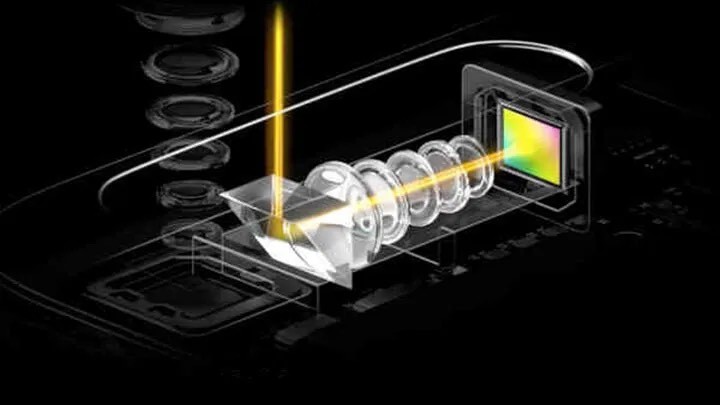
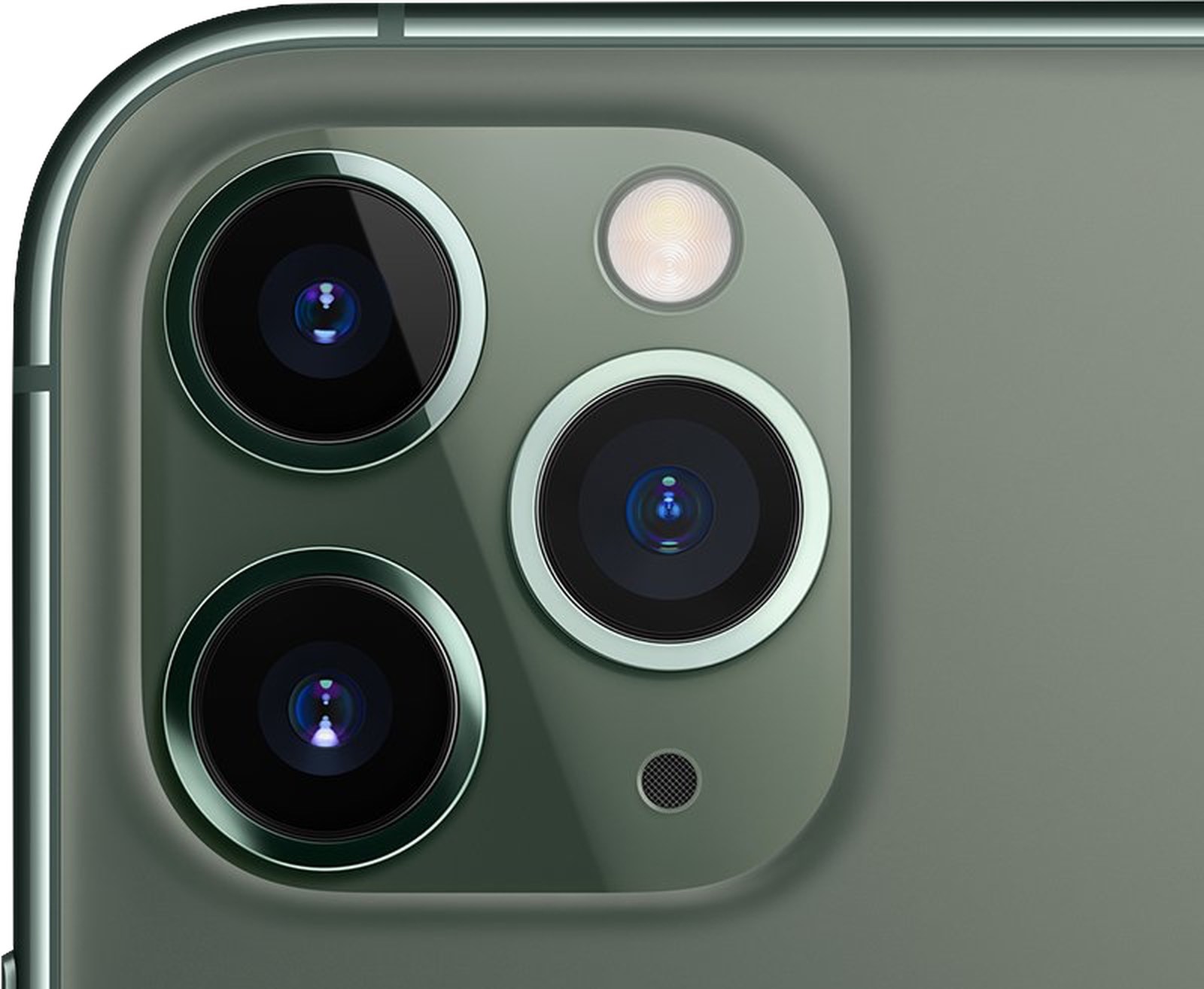
This is another misconception that most likely started during the early days of point-and-shoot digital cameras when everyone was obsessed with megapixels. But in reality, a camera’s megapixel count merely provides information on the maximum size of the picture it can capture and not the picture’s quality itself.

Even smartphone brands play around with the myth by continuing to advertise how many megapixels their camera has. The quality of the sensor, lens and image processor is much more important to consider. Additionally, do a little research on the camera quality before buying a smartphone.

You should only use the charger that was provided with your phone

In some ways, the only reason this misconception is spread is so that smartphone manufacturing brands can make a profit. The smartphone profit margins are extremely low, and a large portion of a company’s income comes from the accessories sector. Because of this, they have a strong reason to encourage you to use OEM chargers.

The truth is that you may use any charger with your phone as long as it was made to the manufacturer’s specifications. The duplicates, on the other hand, are reported to be quite hazardous.

The majority of people are unaware of the distinction between a high-quality third-party charger and an inexpensive Chinese counterfeit. Because they are constructed in accordance with the original specifications of the manufacturer’s charger, high-quality producers like Belkin, Amazon, and others are completely safe for use with your smartphone.

Sony Inzone Headphones Listed on Indian Online Stores

0
Sony Inzone
Sony Inzone

This has been a hectic September in 2022 with a slew of devices that have come out and captured the imagination of young and old alike. Apple devices, including iPhone 14 series, launched on September 7, 2022, was quite a success followed by Vivo V25 around eight days later.

While smartphones and laptops hog all the limelight and attention during their launches, those pertaining to audio, while extremely popular, don’t seem to generate the same enthusiasm by reporters as much as their bigger counterparts.

In Brief

While music lovers might be waiting with bated breath for the launch of new audio gadgets, the brand new Sony Inzone Headphones are something that everyone should know about, irrespective of whether they like listening to music or not.

Sony Inzone Gaming Headphones are something that gaming aficionados would be extremely excited about that have acquired popularity in the western world but is now available for sale in India as well.

Sony, a Japanese brand for electronics, has exported countless devices in India since the past many decades as have other tech giants, for they know that India is one of their biggest markets on the globe, possibly the biggest not only due to its population but due to the gadget freaks that abound in many parts of the country.

Three of the headphone models are available for purchase on numerous platforms like ShopAtSC online store even though Sony has not mentioned anything about the launch of these models.

Sony headphones

Price & Features

Nonetheless, the three models listed online are Inzone H3, H7, and H9 that are all priced at Rs.6,990 where the former features wired connectivity while the latter two are wireless headsets with Bluetooth and a connectivity of 2.4GHz.

All these are customized devices done and used via Sony Inzone Hub software on your desktop PC that is good for frequency response and equalizer settings. All three headphones are made for use with PC and modern gaming consoles, which also includes Sony PS4 and PS5.

However, Sony H7 and H9 can be simultaneously used for both Wireless connectivity and Bluetooth where the former is used for game audio through USB dongle, through which wireless audio is transmitted while the latter is for chats and calls.

The interesting thing is that the audio quality remains perfect, which is something that all gamers are very particular about where time and sound directions are taken into serious consideration during action adventure games.

Sony has a 360 Spatial Sound Format for virtualized surround sound that all three headphones support and can be instantly flipped to mute. For H7 models, the battery life is up to 40 hours while for H9 models, it is up to 32 hours whilst both also have active noise cancellation feature as well.

While online sites deem Rs.6,990 as the price for all three devices, there have been many listings that are on Twitter that state that Sony H3, H7, and H9 come at the starting price of Rs.6,990, Rs.15,990, and Rs.21,990, respectively.

Also Read: Sony India re-writes Rulebook via Noise Cancelling Headphones

Apple’s A16 vs  Snapdragon 8+ Gen 1: Which is better?

0
Apple’s A16 vs  Snapdragon 8+ Gen 1

To mention about OS compatibility, overall app management, Gaming performance, throttling issues, 5Nanometer vs 4Nanometer, The new A16 Chipset by Apple, 8gen and 8 gen +1 chipset by Snapdragon and Mediatek Dimensity chipsets.

Their performance in comparison, Apple’s A16 Chipset is a 4nanometer based tech so we have to mention its benefits above the 5 nanometres chipset, and why it is important to know about the chipset technology before buying a phone.

CPU

Two high-performance and four high-efficiency cores make up the hexa-core A16 Bionic chip. With its 16 billion transistors, the CPU can process data more quickly. The new chip is extremely efficient because it uses the most recent 4nm fabrication process from TSMC.

An octa-core processor has eight cores, such as the Snapdragon 8+ Gen 1. A powerful Cortex-X2 core operating at 3.2GHz, four Cortex-A710 powerful cores, three Cortex-A710 performance cores, and four Cortex-A510 effective cores are among the components of the processor.

Also Read: MediaTek Continues its Dominance in Smartphone Chipset Market

The 4nm fabrication process used by TSMC is the same one used by the Apple A16 Bionic and the Snapdragon 8+ Gen 1.

Apple has claimed that the efficiency cores of the A16 Bionic use only one-third of the power of its closest rival, which can be insinuated as the Snapdragon 8+ Gen 1.

Furthermore, Apple claimed that the A16 Bionic’s performance cores are 20% more efficient than those of its predecessor. It is evident from this that Apple’s A16 Bionic this year is all about efficiency.

GPU

Apple has increased memory bandwidth by 50% while maintaining its 5-core GPU design.  It implies that the A16 Bionic can play games with demanding graphics without breaking a sweat. Additionally, a new display engine that will power the iPhone 14 Pro series’ always-on display feature has also been added.

The Snapdragon 8+ Gen 1, on the other hand, has a new Adreno 730 GPU that supports HDR gaming, volumetric rendering, Snapdragon Elite Gaming, and more. A specialized Frame Motion Engine is also included for consistent graphics performance even at a greater refresh rate.

Also Read: Only Snapdragon Chipsets are Confirmed for the Galaxy S23 Series

Apple’s A16 vs  Snapdragon 8+ Gen 1

Connectivity

Apple has been developing its own modem for a while, but it appears that the corporation is not yet ready to introduce the integrated modem. On the A16 Bionic, Apple almost certainly uses Qualcomm’s 5G modem.

Both sub-6GHz and mmWave frequency bands are supported by the 5G modem on the iPhone 14 Pro and 14 Pro Max, however, it is currently only available in the US and Puerto Rico. In other locations, it supports nearly all the crucial sub-6GHz frequencies. Additionally, the A16 Bionic supports Bluetooth 5.3 and Wi-Fi 6.

As Qualcomm is a market leader in wireless technology, its flagship chipsets naturally have cutting-edge features and capabilities. The Snapdragon 8+ Gen 1’s inbuilt X65 5G modem supports both mmWave and sub-6GHz bands, but availability is dependent on the smartphone manufacturer. Wi-Fi 6, 6E, Bluetooth 5.3, and LE (Low Energy) are also supported by the Snapdragon 8+ Gen 1.

Also Read: Google Pixel 8 Features New Chipset

Artificial intelligence and Machine learning

For the A16 Bionic, Apple has created a new neural engine with a processing speed of 17 trillion operations per second. A total of 16 cores of an improved neural engine are used for computational photography. To create detailed and bright photos, you can analyze photos pixel by pixel.

In this area, Qualcomm easily outperforms Apple. The Snapdragon 8+ Gen 1’s 7th generation AI engine is capable of 27 trillion very large operations per second. Additionally, its AI engine provides superior performance per watt, which ought to increase battery life.

Moreover, it has a 3rd generation detection hub to conduct AI activities with low power consumption without compromising on battery life.

ISP

The A16 Bionic’s ISP has undergone significant improvements thanks to Apple, such as  creating a brand-new ISP, or image signal processor, designed specifically for the iPhone 14 Pros’ unique quad-pixel sensor.

To provide the quad-pixel sensor more versatility and enable speedier computational photography, Apple estimates that the ISP can carry out 4 trillion operations each snap.

Also Read: Next-Gen Apple TV 4k Comes with A15 Chipset and USB-C-Enabled Remote

Additionally, Apple has shown a new Photonic engine that enables Deep Fusion to take place sooner in the process, producing photos that are more vivid, detailed, and dazzling.
The new ISP also supports other technologies, including ProRes and Dolby Vision HDR, as well as the new Action Mode, which stabilises shaky films.

Apple’s A16 vs  Snapdragon 8+ Gen 1

The Snapdragon 8+ Gen 1’s ISP is reportedly quite powerful. The triple 18-bit ISP captures 3.2 gigapixels per second. It can record 8K HDR films and 64MP images without latency.

It can also shoot in RAW at 18 bits and has a 5X better night mode. It also contains a specialized Bokeh Engine for 4K videos, akin to the A16 Bionic’s Deep Fusion. The Snapdragon 8+ Gen 1’s ISP is as strong as the A16 Bionic’s.

After comparing the Apple A16 Bionic and the Snapdragon 8+ Gen 1, it is clear that the A16 is the better model. Apple’s CPU and GPU are superior, and it’s unclear when the Snapdragon CPUs will catch up. The A16 is currently the quickest smartphone processor available.

What was 5nm?

The A14 Bionic was based on 5-nm technology from TSMC. The 5nm chipset adopted TSMC’s most cutting-edge production method before anyone else in the smartphone business.

Also Read: MediaTek launches first mmWave chipset for seamless 5G smartphone connectivity

Apple is a significant customer of TSMC, the largest contract chip maker in the world. According to TSMC, the 5-nm technique makes transistors thinner so they can be packed onto tiny slabs of silicon more closely, increasing performance by 20% and energy efficiency by 40%.

The processor also included a quad-core graphics processing unit (GPU), which increased speed by 30% and allowed users to run high-resolution games and other animations. Apple improved the neural engine built into the processor, giving it 16 cores that could execute artificial intelligence tasks at a rate of about 11 trillion operations per second (TOPS), more than double the rate of the eight-core Neural Engine in the A12, which could execute five TOPS.

4nm vs 5nm

It is important to note that the A16 Bionic is built on modern fabrication; in contrast to the A15 Bionic, it features a 4nm fab. It has two cores with excellent performance and four cores with good efficiency. According to Apple, the new 4nm technology boasts a 5-core GPU with 50% higher memory bandwidth.

Mediatek chipset

The MediaTek Dimensity provides outstanding CPU, graphics, and AI performance, spectacular cameras, cutting-edge multimedia, and the choice of sub-6GHz and mmWave connections, creating exceptional smartphone experiences.

Vivo, RealMe, OnePlus are some of the smartphones that support the MediaTek chipset.

Also Read: Smartphone makers preferred multiple chipset portfolio in 2021

All apps that work with Apple iPhone’s new The Display Island feature

0
display island feature

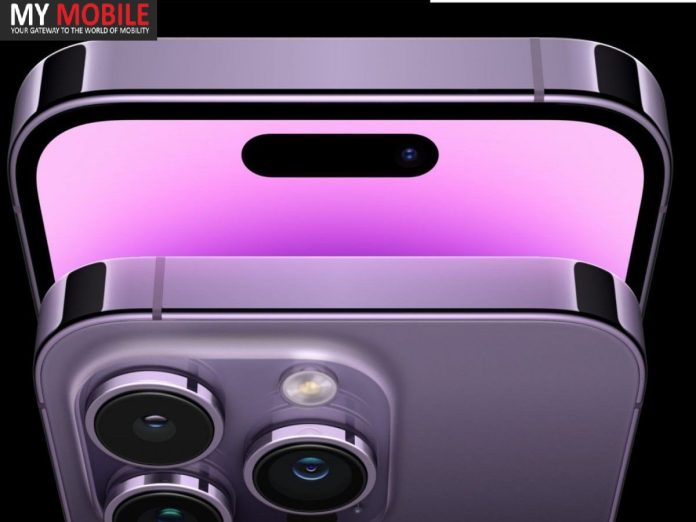
Apple’s new iPhone 14 and iPhone 14 Pro come with a brand-new Dynamic Island feature. According to the new feature, the notch has been replaced by a pill form at the top of the iPhone screen as part of Apple’s, which may be the company’s most distinctive update since the iPhone X.

Along with the other sensors needed for Face ID and other features, the front-facing selfie camera is also situated here. Thanks to the new pill cutout on the devices, you can watch and do many fun things on the iPhone.

If you’re wondering which applications and features are compatible with the new “island,” let me tell you that despite being at an early stage of development, many of Dynamic Island’s apps and features are fully functional right now.

Also Read: Amazon Offers Rs.22,000 Discount for Apple iPhone 13

You can access both Apple-owned app content and content created by third-party app developers thanks to Apple’s decision to let them integrate their apps into the Dynamic Island. For instance, the third-party app Flighty can add your flight information to Dynamic Island so you can tap it to view it.

Gaming App

There are not many gaming apps that support the Dynamic Island feature. However, two gaming apps use this feature and are fun to use.

Hit the Island

display island feature

Play the entertaining game Hit the Island against the pill-shaped cutout on your iPhone by adapting the tried-and-true “Pong” concept. To hit the ball, you essentially have a paddle here that you can move around.

You score one point for each time the ball contacts a pill, and the ball’s speed increases after every ten points. The paddle also gets smaller over time, and the ball occasionally even splits into two.

Also Read: Apple Aims to Launch Largest MacBook Air in 2023

The game becomes extremely challenging once you reach the 30–40 point range, so if you’re scoring anything above 45 points, as shown on the leaderboard, you’ll probably be in the top 1% of players.

The game is totally free, and users of the iPhone 14 Pro must give it a shot because of the incredible haptics and entertaining gameplay.

Apollo for Reddit

display island feature

The majority of Reddit users would be familiar with Apollo right away. It has a tonne of features and is one of the best third-party Reddit clients. The Dynamic Island Zoo has now been included by the app’s creator, which is a cute little game.

You can use this to “adopt” a pixel-pet animal that resides on top of the pill cutout on your iPhone. Although a cat is the default animal present, you can choose a dog too. Additionally, the premium version of the app must be unlocked to use other animals, such as a fox and an axolotl.

Also Read: Apple iPhone 13 Available at a Discounted Price of Rs.41,749

By the way, the animals on the island don’t just sit around. They will move around, sit, and even sleep while you use the app, with a floating ‘Zzz’ to indicate that they are asleep. It’s a fun way to use the island that doesn’t even compromise the otherwise perfect app experience.

Calling Apps

Apple iPhone

Your iPhone will now display an incoming call along with controls for accepting or rejecting it in the dynamic island. The iPhone 14 Pro now displays the island’s progress counter while you’re on a call.

The incoming and outgoing audio waveforms can be seen here as well. It’s interesting to note that while the waveform of the incoming audio is green, the waveform of your speech is yellow/orange. The same feature is supported by all third-party calling apps, which include: WhatsApp, Google Duo, Skype.

Also Read: Apple Spills the Beans on the Company That Made its Camera Sensors

Music and Audiobook Apps

display island feature

Most of the popular music and podcasting apps show up on Dynamic Island. You will be able to see a cover image (album art) for the music that’s playing, as well as a waveform. Additionally, if you connect your iPhone to a HomePod or similar device, the waveform will be replaced by the HomePod or Apple TV icon.

The third-party music and podcasting apps that function well with Dynamic Island are: Spotify, YouTube Music, Amazon Music, Amazon Audible for audiobooks, Soundcloud, Pandora, NPR One

Flighty

Flighty is the premium flight tracker for travellers, featuring an elegant design and plenty of power. It helps to predict the delays of the flight and mentions the gate number that you will use to board your flight. It helps to push notifications fast.

Also Read: Apple Pressurized to Introduce Revolutionary Changes in iOS 17

Google Maps

Apple iPhone

The pill also functions with Google Maps. Dynamic Island is currently unable to display navigational instructions or distance. It merely displays a navigation icon in its place. Hopefully, Google will address this in a later update.

Conclusion

These are some of the few third party apps that are using Dynamic Island. However, we expect a huge number of well-known apps to take advantage of the Dynamic Island cutout feature in the coming months so that there’s a lot of scope for fun and games.

Also Read: Apple Became The Subject Of Mockery By Google

Fifa 23 Soundtrack Now Available on Spotify and Others; Details Inside

0
FIFA 23
FIFA 23

We all have a little bit of adventurous streak within us that is lying dormant for a long time until it finally bursts forth at the opportune moment. Sometimes, it is difficult to contain our enthusiasm for something that we find entertaining.
Movies and Sports are the two biggest forms of entertainment not just in India but the entire world- so much so that they’re both revered as much as religious deities from all faiths- and the proof is there for all to see where celebrities from both fields are worshipped and adored as if they’re gods incarnated in human form.

Speaking of sports, there are many that merit a discussion of their own with Football, Baseball, and Basketball in the western world, and cricket in other countries have massive fan followings that has to be seen to be believed.

Also Read: Five popular games emerging in 2022

In Brief

One of the most popular sports games in existence is the Fifa World Cup that has seen many versions and incarnations. Its popularity is one that has completely withstood the test of time and continues to grow with each new version that comes out.

Fifa 23 has come out with its own soundtrack as EA sports, in a recent interview, revealed the complete playlist for the new football simulation venture that has taken over the fancy of many youngsters, including old school FIFA aficionados.

This is going to be the biggest simulation that EA Sports have come out with yet where listeners can avail 109 songs in total, which is going to be no less than a treat for FIFA 23 fans that are in large numbers.

FIFA 23

Now they can listen and sway to the catchy tunes at least 109 times with each new song being peppier than the other. FIFA 23 has a massive following in India as well but the problem is that while the soundtrack is available on Spotify, it features only 95 songs while others have been edited out citing regional restrictions.

The remaining ones are available on YouTube Music and EA Sports has listed out the soundtracks on its official Twitter handle. Like all its previous versions, the soundtrack for FIFA 23 will be divided into two halves as the first 57 songs will be a blended cocktail of genres.

They include electronic, jazz, rap, deep house, among others but will be there for general games and certain instances like navigating the menu and training sessions while the remaining 52 tracks are allocated to the Volte Segment of FIFA 23, which is more suited for hip hop culture.

EA Sports has left no stone unturned to make this endeavor a success as they’ve signed A-list footballers for their ads along with American rappers like Jack Harlow, Denzel Curry, Gorillaz, Yeah Yeah Yeahs, Nas, Labirinth, among many others.

In a recent development, EA Sports had a crossover with Apple TV+ where it confirmed that Ted Lasso too will be a part of FIFA 23, the character of which will be portrayed by Jason Sudeikis who will be selecting the Career Mode of the venture.

Conclusion

FIFA 23 will be available to the general public from September 30, 2022, on various platforms like Xbox One, PC, PS4 & PS5, Xbox Series E/X, along with a few others. However, if you’ve subscribed to EA Play Pro and purchased Ultimate Edition then you can get an early access of three days and play it on September 27 itself.

Also Read: Vivo to be the official sponsor of FIFA World Cup Qatar 2022

PlayStation vs Gaming PC, which one is better?

0
PlayStation vs Gaming PC

One of the broadly asked questions among the gaming community: Is a gaming PC better than a PlayStation? If you are a rookie in the community and want to know whether to acquire a PlayStation console or go for a fully-fledged gaming PC, then the article is for you.

The article will furnish a complete guide without any biased standpoint on the topic of PlayStation vs Gaming PC; all the prominent points like price, performance, and much more will be covered in the article. With this, let’s roll on our article.

A quick comparison between PlayStation and Gaming PC

Price

Every gamer planning to buy a gaming system will glance at the expenditure of the particular system. The pricing definitions of a PlayStation and a PC are different. For a PlayStation, one has to buy the console and some other controllers, but when buying a gaming PC, there are some other things that you have to purchase after some time, like RAM, Storage and much more.

If you look at the standard price comparison, then basically, a gaming PC will make you spend some additional bucks on it than a PlayStation. PlayStation usually costs cheaper than a gaming PC if the PC has identical specifications as the PlayStation model.

Also Read: Here’s How You Can Build Your Own Gaming PC

Modifications

Updating yourself timely is the rule of the world, and the gaming community also pursues the same. To upgrade your gaming system regularly, you should drive for a gaming PC rather than a PlayStation.

One cannot upgrade a PlayStation if someone imagines improving the processor of the console; they are not given the ability to pursue it. One can only elevate their PlayStation gaming system by changing it and buying a higher model.

On the other hand, we have gaming PCs that can be heightened anytime, and you can change anything in them. If a new graphic card is launched, then you have the strength to change the older one and add the new one.

In gaming PCs, many components can be upgraded, like graphic cards, RAM, storage space, and much more.

PlayStation vs Gaming PC

Advantages of Gaming PC

Here are some advantages of gaming PC in detail:

Customization

When assembling a gaming PC, one can choose all the components that will be fitted into the PC. From graphics cards to SDD, all the rulings are in your hand. You can design the gaming PC according to your demands and needs.

Also Read: List of top PC gaming controllers for 2022

You can even decide the looks of your gaming PC, which is an incredible privilege when heading for a gaming PC.

Amazing Gaming Experience

Due to high-end specifications, a gaming PC is capable enough to deliver a jaw-dropping experience when playing games. A gaming PC provides an astounding FPS rate with realistic graphics that fits nicely on a high-resolution screen. Blending all these gaming PCs makes someone feel that they are in the game for real.

Less Priced Games

A gaming system is exclusively a gaming system when it has games installed in it, and for installing games, you require money. PC games generally cost less than console games because in the PC gaming market, there is a lot of competition, so if you have bought a costly PC, then you will end up safeguarding money on games.

Independence from decided controllers

In a console, one can only play with a gamepad, and if someone is not satisfied with it, they do not have any other alternative. Still, when having a gaming PC, you can play with whatever tool you want, with a keyboard or with a gamepad, and if thinking of having a realistic experience in driving, then you can install steering in your system for real.

PlayStation vs Gaming PC

Advantages of PlayStation

Below are detailed benefits of a PlayStation

Also Read: Top 5 Much-Awaited Games of 2023 for Console and PC

Affordable

PlayStation is more affordable than high-end gaming PCs in general. If a gamer has a specific budget in which it seems complicated to buy a gaming PC, then the gamer should rush for PlayStation. The PlayStation may give you less realistic graphics than a PC, but the PlayStation is worth the investment.

Wide Variety of AAA games

Sony studio is a good ally of Microsoft that has advantaged them in a substantial range of AAA games. Even some AAA games are not available on PC for PlayStation. Some examples are The Last of Us, the Uncharted series, and God of War (2018), and you can flaunt this in front of PC gamers.

Wireless Gaming

You can play games on the PlayStation while relaxing on your bed or sofa. The controllers are formulated in a way that someone can play with them in any position.

Multiplayer Games

Suppose your friends are at your home and all of you four are sensing boredom, then you can jab on your PlayStation and play a multiplayer game like a racing game, fighting game and much more.

Frequently Asked Questions

Why are gaming PCs better than consoles?

Gaming PCs are believed to be better than consoles because they provide a realistic gaming experience and are customizable with being upgraded easily.

Why should you buy a gaming PC?

Gaming PC offers a range of benefits, including a breathtaking gaming experience, great FPS rate, ability to play with any controller and Upgradation facility.

Why are consoles suitable?

Consoles are suitable for someone who has a tight budget, and for them, gaming quality doesn’t matter much.

What is the percentage of PC gamers?

As per the data available, we can see that there are only 35% PC gamers and the rest are console gamers.

Final Words

Many people are confused by the age-old debate of  PlayStation vs Gaming PC, and they get confused when planning to buy a gaming system. In this article, we struggled to assist them.

The article concludes that if someone wants a fully customized gaming system with a top-notch gaming experience, they should depart for a gaming PC. Still, if you are one for whom price matters a lot and want to do gaming only for fun, then a PlayStation will be a suitable substitute.

Also Read: Acer Aspire 7 – The Ultimate Pocket-Friendly Gaming Laptop

What Are Motherboard Beep Codes?

0
Motherboard Beep Codes

Everything you need to know about motherboard beep codes, from their origins in BIOS makers to the meanings of specific beeps, is covered on this page. The purpose of this essay is twofold: first, to explain what beep codes are; second, to instruct you on how to decipher those codes.

What Do the Beep Codes on Your Motherboard Mean?

 Beep codes may differ from one BIOS to the next, making it difficult to determine their precise meaning. One short beep often indicates success. However, if you hear more than a single beep at startup, you may need to consult your motherboard’s user manual to find out what’s wrong.
The fact that your motherboard manufacturer is not always the same as the producer of your BIOS software adds an extra layer of complexity to an already tricky operation. And however, no matter what kind of BIOS firmware your computer has, they all use different beep codes.

Also Read: Asus recalls 10,000 Z690 Hero motherboards because of a backward capacitor

Due to the lack of a universally accepted standard across BIOS makers, each company has its own unique set of beep codes, even if there aren’t very many of them. They may use a wide variety of patterns and beep durations, some of which may be relatively brief while others may be pretty lengthy, and the tones of these sounds may also vary.

Because of this, the same computer beep might indicate two separate issues on two distinct machines.

And so, how does one decipher the meaning of those computer beeps? BIOS beep codes are unique to each board and manufacturer, so as we’ve noted before, the best method to find out what they indicate is to consult your motherboard’s documentation.

However, a current issue is that instructions for most motherboards do not include a listing of the beep codes.

Also Read: Compact Processor

How to Determine the BIOS Manufacturer of Your Computer

Even if you haven’t been able to find the instructions for your motherboard or have acquired a used computer, there are still various ways to figure out which version of the BIOS your motherboard uses.

Motherboard Beep Codes

The award, American Megatrends International (AMI), and Phoenix Computer Systems are the top three manufacturers of BIOS. Finding solutions to the same issues is possible by employing many different beep codes.

For example, if your graphics card failed in AMI BIOS, you would hear eight little beeps. In contrast, Phoenix beep codes are longer and more sophisticated than the other two, containing long and short sounds in various sequences. In addition, the Phoenix beep codes are the only ones that combine both long and short sounds.

Hardware LED Debugging as an Alternative to Beep Codes

The LED indicator light is one of the most frequent sorts of current debugging tools, and it may be used to determine whether or not there are issues with the hardware. This method is used to ensure MSI’s motherboards, and one popular application is the EZ debug LED.

Also Read: Know Everything About BIOS Post Codes

If there is an issue, the LED lights on the bottom of compatible motherboards, which correlate with labels for components such as BOOT, VGA, and CPU, should light up.

Even though the process of turning on your computer will cause these LEDs to flash on and off, this behavior does not indicate that there is a problem with the computer’s hardware. On the other hand, depending on the hardware manufacturer, this is a negative sign if they begin to consistently light red or white.

Tips for Tracking Down Your Computer’s BIOS Maker

Even if you’ve lost your motherboard manual or purchased a pre-owned computer, there are still plenty of methods to determine which BIOS version your motherboard uses. To know which beep codes to check for, you must first get acquainted with the various BIOS manufacturers.

The same problems may be addressed using a variety of unique beep codes. For instance, in AMI BIOS, a malfunctioning graphics card would be indicated by eight small sounds, but in Award BIOS, you would hear one long beep and two short beeps.

Motherboard Beep Codes

In contrast, Phoenix beep codes are longer and more intricate than the other two and include both long and short sounds in varying sequences.

Also Read: What is e-sim technology?

As such, let’s have a look at the many means by which you may determine the maker of your computer’s BIOS:

Using System Information on Windows

  • Accessing the Windows System Information page is the quickest method to learn who made the BIOS for your computer.
  • Enter “system information” into the search bar and choose the resulting link.
  • When the window for System Information appears, choose “System Summary” from the list on the left. Then, check for a section under “BIOS version/Date.” Where you see the name of your BIOS manufacturer, that’s where you’ll find it.

Using a Third-Party Software

If you’re unsure who made the BIOS chip for your motherboard, you may use a system information program like CPU-Z to find out. It’s user-friendly and widely recognized as the program of choice for determining the specifications of your computer’s central processing unit and motherboard. The procedure is as follows:

  • To begin, click on the provided CPU-Z (Free) link if you haven’t already done so.
  • CPU-Z may be launched by double-clicking its desktop shortcut after downloading and installing.
  • Your BIOS maker will be listed under “Brand” in this subheading. American Megatrends International is the company responsible for making our BIOS (AMI).

Why Should You Know About The Motherboard Beep Codes?

Common reasons why motherboard start beeping

Troubleshooting tips guaranteed to boot your PC’s Motherboard

Also Read: Lexar won Red Dot Awards 2022 in five categories

Beep Code Guide. For Example beep codes

1 Beep – Refresh Failure. Reseat/replace memory, troubleshoot motherboard.
2 Beeps – Parity Error.
3 Beeps – Memory Error (first 64KB) .
4 Beeps – Timer Failure.
5 Beeps – Processor Failure.
6 Beeps – Keyboard Controller Failure.
7 Beeps – Virtual Mode Exception Error.
8 Beeps – Display Memory Failure.

Common Reasons Why Motherboard Start Beeping

Starting a computer that immediately begins beeping may be stressful, mainly if the reason is unknown. Beep codes usually signal that your motherboard had an error and could not communicate that problem to your display. There are a few different things that might be causing your computer to beep, so before you attempt to conduct any fast solutions, you should figure out what the issue is (if any at all).

A little introduction to BIOS is in need before we investigate the source of the beeping coming from your motherboard. The abbreviation “BIOS” refers to the hardware that controls input and output. If the BIOS is corrupted, your computer won’t boot up correctly and won’t be able to function.

The data stored on a BIOS chip is safe from power loss. Therefore, the information saved on it will be safe even if the device loses power. Starting your computer relies heavily on the BIOS chip, which ensures appropriate hardware communication and proper display on your monitor.

Also Read: 82% of laptop problems are hardware-related

Be aware that the manufacturer of your BIOS chip determines the meaning of the beeps, so you shouldn’t assume anything until you’ve checked the relevant beep code troubleshooting guide.

Troubleshooting Motherboard Beep Codes

If you hear beep codes after turning on your computer, but it still won’t boot, the motherboard likely ran into trouble before sending any error information to the display.

To figure out what the beep code means, do as instructed below:

  • Pay close attention to the beep sequences that appear while the computer starts up.
  • Restarting probably won’t exacerbate the issue you’re experiencing.
  • Notating the beeps’ sounds in any manner is most helpful to you.
  • This all seems weird, but it’s crucial information for deciphering the meaning of the beep codes. If you make a mistake here, you’ll waste time troubleshooting an issue that doesn’t exist on your computer while ignoring the actual problem.
  • Try to trace down the manufacturer of the motherboard’s BIOS chip. It’s crucial to do this right since the computer industry has never settled on a standardised communication method with beeps.
  • If that doesn’t work, you can always open up your PC and check the BIOS chip on the motherboard, which should have the manufacturer’s name written on or near it.

Also Read: Fox My Box launches Kitsun