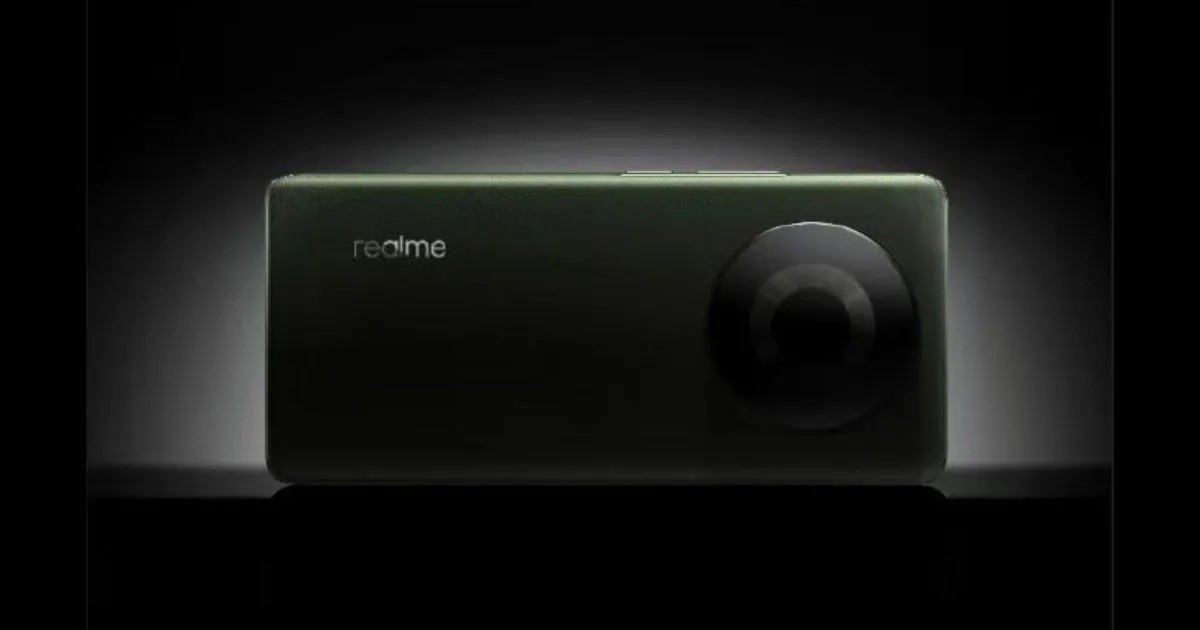
* The OnePlus Nord N30 5G could soon launch in the US. * The device will supposedly be a rebranded OnePlus Nord CE 3 Lite 5G, which has already launched in India. * An official-looking render image of the OnePlus Nord N30 5G has leaked ahead of launch.
The device will launch soon in the US, as per the reports, and has now been spotted once again in the wild, as its official looking renders have leaked. Let’s take a look.
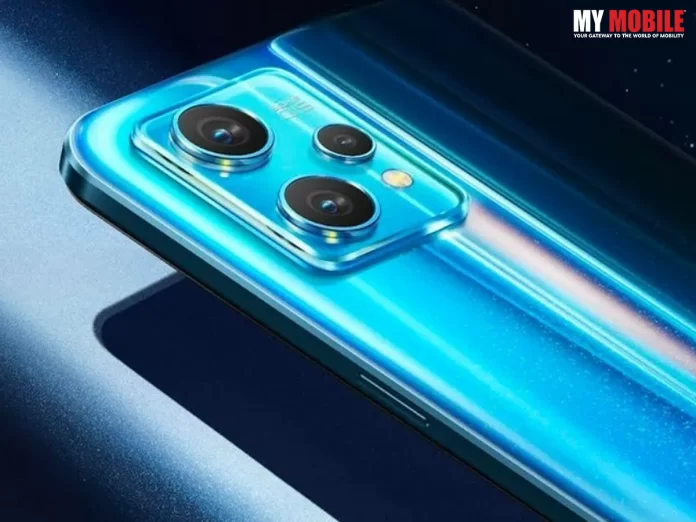
OnePlus Nord N30 5G Renders Leaked
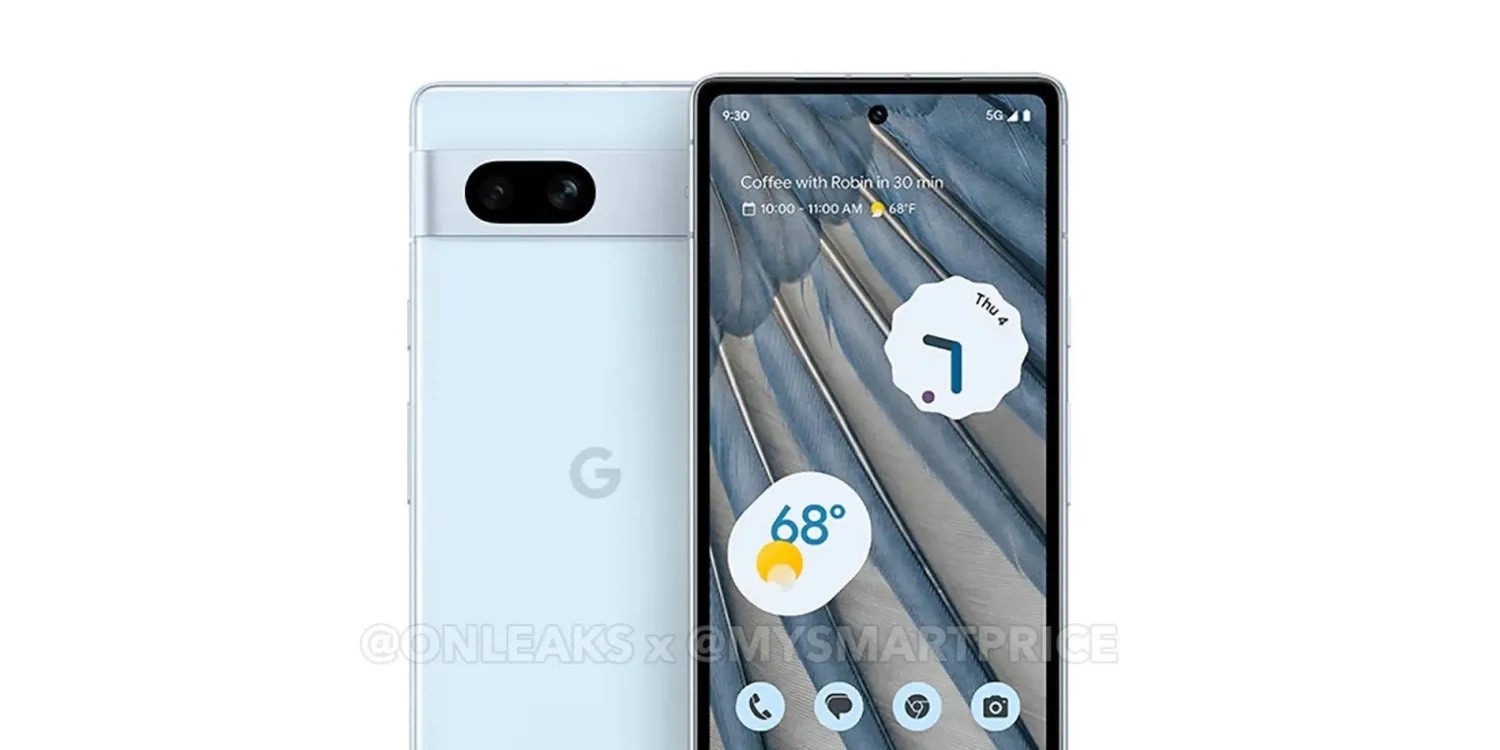
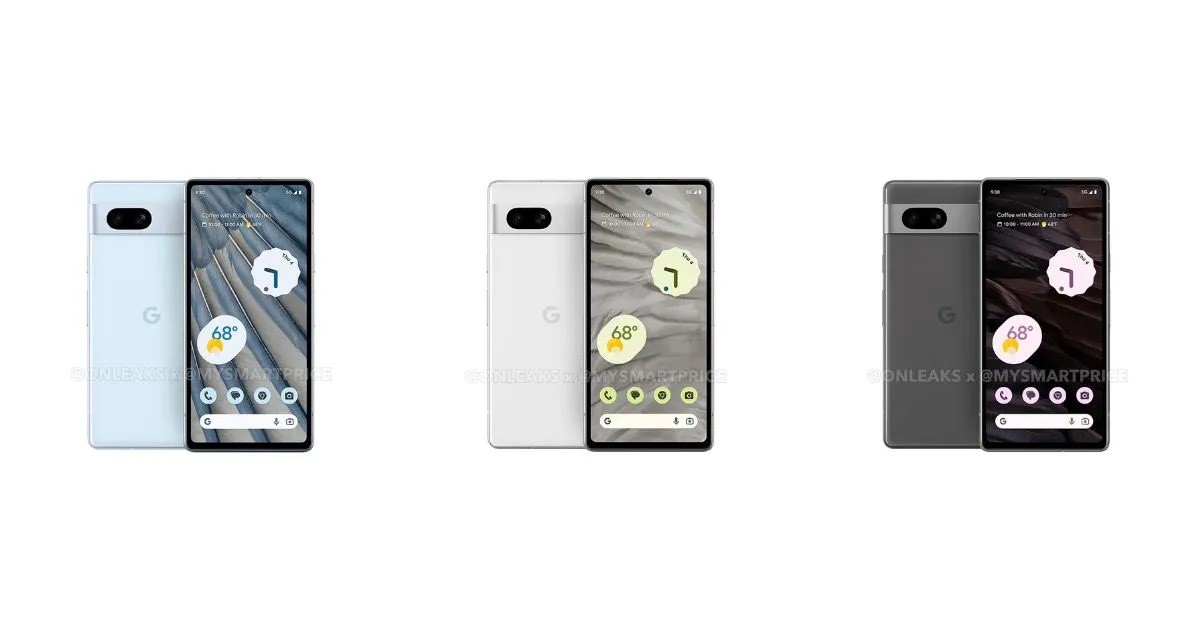
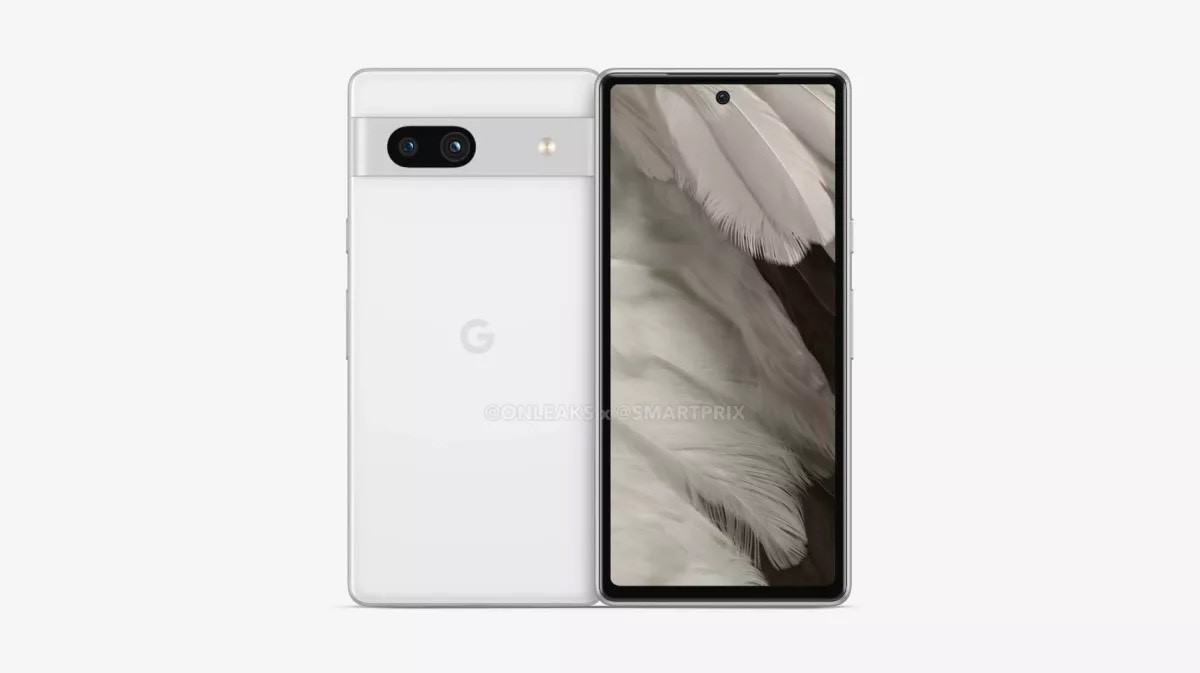
As seen in the image above, this is what the OnePlus Nord N30 5G would reportedly look like. The leaked image leaves little room for guesswork, as the OnePlus Nord N30 5G looks exactly like the OnePlus Nord CE 3 Lite 5G. In all likelihood, the OnePlus Nord N30 5G will launch in the US in this quarter itself.
OnePlus Nord N30 5G Specifications (Expected)
If the OnePlus Nord N30 5G is indeed an exact replica of the OnePlus Nord CE 3 Lite 5G smartphone, we can expect the device to feature a 6.72-inch FHD+ IPS LCD panel with a 120Hz refresh rate.
Under the hood, the device will come equipped with an octa-core Snapdragon 695 processor, which will be coupled with 8GB RAM and 128GB/256GB internal storage. In terms of cameras, the OnePlus Nord N30 5G will likely feature a 108MP + 2MP + 2MP triple rear camera setup and a 16MP selfie snapper.
Coming to the battery of the device, the OnePlus Nord N30 5G will feature a 5,000mAh battery with support for 67W SuperVOOC fast charging over a USB Type-C charging port. Lastly, the device will boot the latest Android 13-based OxygenOS 13 skin out of the box.
1) What are the OnePlus Nord N30 5G Specifications Revealed By Google Play Console Listing?
Ans) According to the Google Play Console listing, the OnePlus Nord N30 5G (CPH2513/CPH2515) will have a Full HD+ resolution display and 8 GB of RAM. Powering the handset under the hood there will be Snapdragon 695 SoC. The device will run Android OS.
Additionally, the handset is registered on the list of Google Play supported devices with the moniker OnePlus Nord N30 5G. These new details does reaffirm that the OnePlus Nord CE 3 Lite 5G will be rebranded as OnePlus Nord N30 5G for the US market.
The smartphone will arrive as a successor to the OnePlus Nord N20 which debuted last year in April. Considering that the OnePlus Nord N30 5G will be rebranded device, we can expect to it have the same specifications as that of the Nord CE 3 Lite 5G.
The upcoming OnePlus Nord N30 5G will flaunt a 6.7-inch IPS LCD display a 120Hz refresh rate. The display will have a Corning Gorilla Glass protection and 680 nits brightness. The smartphone will ship with 8GB of RAM and 128GB/256GB of internal storage.
In terms of imaging, the handset will feature a triple-camera setup consisting of a 108MP main camera and a pair of 2MP depth and macro camera units. The device will pack a 5,000mAh battery which will offer 67W fast charging support.
On the frontside, the smartphone will boast a 16MP selfie camera which will have a f/2.0 aperture. Connectivity-wise, the device will offer a host of features such as dual-SIM card support, 5G, Wi-Fi 802.11 b/g/n/ac, Bluetooth v5.1, GPS, a 3.5mm audio jack, and a Type C port. Last but not least, the device will also have a side-mounted fingerprint reader.
2) Is OnePlus Nord N30 headed to the US?
Ans) A OnePlus forum member recently presented evidence of the OnePlus Nord N30 being a rebranded Nord CE 3 Lite, headed to the States. It’s supposed to be the successor to the Nord N20, and the Google Play console listing seems to confirm that it’ll have a Full HD+ screen and 8GB of RAM, powered by a Snapdragon 695 chip. It’s also listed to run Android 13. Basically, it’s got pretty much the same specs as the Nord CE 3 Lite, which was just released.
Additionally, the handset has appeared on the list of Google Play-supported devices with the name OnePlus Nord N30 5G. This all makes it evident that OnePlus is just slapping a new name on the handset and calling it a day.
* WhatsApp has introduced a new ‘keep in chat’ feature. * It allows users to save the important messages in chat for future recall even in the disappearing messages setting. * It will be the sender’s discretion whether the messages can be saved for later or not.
Meta CEO Mark Zuckerberg has announced a new WhatsApp feature for users that will allow them to keep relevant messages saved in a chat, irrespective of having the disappearing messages setting turned on. The new feature is called ‘Keep in Chat’.
While the purpose of disappearing messages is to keep the conversations private as the chat disappears after a specific period of time, the ‘keep in chat’ feature allows users to save important messages that they might want to refer back to in future. WhatsApp’s idea behind it is that it is the sender’s choice if others can keep that chat for later or not.
To enable the new feature, the sender of the WhatsApp text will be alerted as and when someone keeps a message in the disappearing messages setting. Then it will be on the sender’s discretion to either allow the user to save it or to veto the decision. In case of negative, the messages sent by the user will get deleted once the timer expires.
WhatsApp announced this feature via a tweet and mentioned “Some things are worth keeping.” Have a look.
If you’re in a WhatsApp group chat where the disappearing messages feature is turned on, there’s now a way to keep some important chats, like an address or voice note someone sends you.
WhatsApp’s “Keep in Chat “announced Friday, lets you bookmark messages sent to you, although veto power remains with the sender.
“Anyone in a disappearing message thread can long press on a message to keep it,” Meta CEO Mark Zuckerberg explained in his Instagram broadcast channel. “The sender will be notified if it was saved and can decide if it stays or remains a disappearing message.” Disappearing messages is a privacy measure that was announced at the end of 2020.
Meta says it can also help declutter your phone and increase storage. It lets you set a timer for when messages in your WhatsApp chat will be deleted, with options for 24 hours, one week or 90 days.
Here’s how to turn on Disappearing Messages
Open your chat on WhatsApp.
Tap on the three vertical dots in the top right corner.
Select Disappearing messages.
Choose which message timer you want for when messages will automatically be deleted –24 hours, 7 days or 90 days.
Hit the back arrow in the top left corner.
Once it’s on, here’s how to save a message
Long press on the message you want to keep.
Tap the bookmark icon at the top of the screen, located next to the reply arrow.
The message sender will then be notified of your request to save that message, and will have the power to veto it.
If you don’t see the option in your WhatsApp chats yet, it’s because Meta is rolling the capability out over the next few weeks.
Messages saved in WhatsApp will be put in a Kept Messages folder and organized by chat, the company said.
How will the ‘Keep in Chat’ feature look like?
The saved messages in the chat will be kept with a bookmark icon, and users will be able to access these messages in the Kept Messages folder. Zuckerberg, in the announcement, said, “We hope people enjoy this new update and the flexibility to keep the messages they need.” He added the feature will roll out globally over the next few weeks.
In related news, the Meta-owned app is reportedly testing a new featurethat will allow users to add new description to forwarded media files including forwarded videos, images, GIFs, and documents.
Faqs WhatsApp New Feature
1) WhatsApp’s new Keep in Chat feature allows users to save disappearing messages?
Ans) WhatsApp’s disappearing messages is a great privacy feature for users who want their messages to disappear after a set time. Now, the instant messaging service will allow the senders of disappearing messages to keep some of the texts they send in the chat even if the feature is turned on.
Earlier this year, it was reported that WhatsApp is testing such a “Kept Messages” feature, and now, the instant messaging service has made it official. With disappearing messages, conversations do not stitch around forever. This acts as a layer of protection for messages that you wouldn’t want falling into the wrong hands. But what if there is a message or voice note that you want to keep in the chat despite the feature being turned on? That is where the Keep in Chat feature comes in handy.
When someone in a group chat keeps a disappearing message, the sender of the message will be notified, and they will be able to veto the decision. If the sender decides that the message should not be kept by others, their decision is final. This would mean that no one can keep it, and the message will automatically be deleted when the timer expires, just like disappearing messages usually do.
If you save any disappearing messages, they will be labelled with a bookmark icon, and you can see them in the Kept Messages feature, organised by chat.
WhatsApp says that the new feature will be rolled out globally over the next few weeks.
2) How to Disable disappearing messages on
Ans) Android and iPhone
You can disable disappearing messages at any time. Once disabled, new messages sent in the chat will no longer disappear.
1. Open the WhatsApp chat. 2. Tap the contact’s name. 3. Tap Disappearing messages. If prompted, tap CONTINUE. 4. Select Off.
Similarly if you want to enable or disable Disappearing Messages in a group then you will have to open the WhatsApp group chat who’s messages you want to disappear.
3) What can I do if I’ve lost access to my WhatsApp account?
Ans) Chances are that a hacker has taken over your account. When this happens, you can’t log in, and all of your account information is in the hands of the hacker. Getting your account back can be complicated. Fortunately, you can still reclaim your WhatsApp account.
4) If I receive a text verification code from WhatsApp, does that mean someone is using my account?
Ans) One of the more notorious ways someone can gain access to your WhatsApp account is by obtaining the text verification code. If WhatsApp sends you a text verification code that you didn’t invoke, it’s best to ignore it. You may even receive multiple codes back to back. However, WhatsApp will only send so many verification codes within a specific period. Afterwards, the app will lock you out if you log out.
5) How many days does WhatsApp web stay logged in?
Ans) Your phone doesn’t need to stay online to use WhatsApp on linked devices, but your linked devices will be logged out if you don’t use your phone for over 14 days.
6) How far does WhatsApp web work?
Ans) Once a phone is paired with a computer, it will stay linked, even if both devices aren’t using the same internet connection or gasp, in the same place. There is no distance limitation.
7) Can someone read WhatsApp messages from another phone?
Ans) You just need to pair the Android device with another mobile. Suppose your child has enabled Notification permission for WhatsApp, you can read the incoming WhatsApp messages from the dashboard. Screen Mirroring can even help you see the live screen of the original device.
8) Can I Use Whatsapp Web Without A Phone?
Ans) No, you cannot use WhatsApp Web without a phone. Although it’s an online-only service, users still need an active phone with Internet connectivity to make WhatsApp Web work. A phone with an active Internet connection is needed for WhatsApp Web to work and to be able to send messages. This is to make use of WhatsApp’s end-to-end encryption where messages are encrypted from the sender’s device and can only be decrypted by the intended receiver. Also, the messages are sent from the registered same phone number, which cannot be accessed with a working phone.
9) How To Download Whatsapp Web On My Computer?
Ans) You cannot download WhatsApp Web on your PC. It’s an online-only service, which can be accessed by visiting the link given above. You can also google WhatsApp Web.
10) How To Log In To Whatsapp Web?
Ans) WhatsApp Web login can be performed by simply pointing your phone that has the WhatsApp account configured to it, to the QR code shown on the web page. Follow these steps to log in to WhatsApp Web:
Open WhatsApp on your phone. Open Settings and scroll down to WhatsApp Web. The following screen will open the camera scanner. Now visit the following web address given above and scan the QR code on it.
Once done, the service will fetch your WhatsApp conversations and present it on your computer.
11) Can I Make A Video Call On Whatsapp Web?
Ans) No, it’s not possible to make a call using WhatsApp Web. You can still send voice messages using the web app on any Windows or Mac system. Simply press the microphone icon on the bottom right corner to record your message and send it. However, if you still want to make a call, you may use the WhatsApp app on your Android or iOS-based smartphone. You can also download the desktop app to make WhatsApp calls from your computer.
The Indian government has made it mandatory for all taxpayers to link their Aadhaar numbers with their PAN.
The purpose of linking Aadhaar with PAN is to streamline the tax filing process and prevent fraudulent activities.
The process of linking Aadhaar with PAN can be done online or offline.
The government has set a deadline for linking Aadhaar with PAN, and failure to do so can result in a penalty.
Linking Aadhaar with PAN is important to ensure compliance with government regulations and avoid any consequences.
In this blog, we are sharing a complete guide on the Aadhaar-PAN link including how to check the status of the Aadhaar link with their PAN card, how to link the Aadhaar-PAN, the deadline to do so, and more.
The Indian government has made it mandatory for all taxpayers to link their Aadhaar number with their PAN (Permanent Account Number) in order to file their tax returns. The process of linking Aadhaar with PAN has been made simple and straightforward, with both online and offline methods available for taxpayers to choose from.
The purpose of linking Aadhaar with PAN is to streamline the tax filing process and reduce fraudulent activities. By linking the two, the government can verify the identity of taxpayers and prevent individuals from creating multiple PANs to evade taxes. Additionally, linking Aadhaar with PAN can also help in detecting black money transactions and improving tax compliance.
The process of linking Aadhaar with PANcan be done online through the Income Tax e-filing website. All that a taxpayer needs to do is visit the website and follow the instructions provided on the page. Alternatively, taxpayers can also link their Aadhaar with their PAN Card offline by visiting a PAN service centre or sending a request through the post.
It is important to note that the government has set a deadline for linking Aadhaar with PAN, and failure to do so can result in a penalty or consequences. The deadline, which was previously 31st March 2023 with the penalty, has been recently extended till 30th June 2023 with the penalty. Therefore, it is recommended that taxpayers link their Aadhaar with their PAN as soon as possible to avoid any issues.
Linking Aadhaar with PAN is a crucial step in the tax filing process in India. By doing so, taxpayers can ensure compliance with government regulations and avoid any penalties or consequences. The process has been made simple and convenient, and taxpayers can choose the method that best suits their needs.
What is the Fees and Deadline for Aadhaar PAN Card Linking?
The PAN-Aadhaar linking was free till 31 March 2022.
If you linked PAN-Aadhaar after 31 March 2022, but before 30 June 2022, a penalty of Rs.500 was imposed.
However, after 30 June 2022, a penalty of Rs.1,000 is imposed to link PAN with an Aadhaar card.
Thus, you must first pay the penalty of Rs.1,000 to link your Aadhaar with your PAN before 30 June 2023. When the PAN and Aadhaar cards are not linked before 30 June 2023, PAN cards will become inoperative from 1 July 2023.
Who Should Link Aadhaar with a PAN Card?
All Indian taxpayers are required to link their Aadhaar with their PAN card.
This includes individuals, Hindu Undivided Families (HUFs), companies, and any other entities that are eligible to obtain a PAN card.
Any person who wishes to file their income tax return must link their Aadhaar with a PAN card.
If an individual has multiple PAN cards, they must link all their PAN cards with their Aadhaar and declare the inactive PAN cards as invalid.
It is also mandatory for individuals who are not eligible to obtain an Aadhaar card to provide proof of enrollment or application for an Aadhaar to link it with a PAN card.
Failure to link Aadhaar with a PAN card before the deadline set by the government can result in a penalty or consequences.
How To Check Aadhaar Card – PAN Card Link Status via the Income Tax Portal?
Login into the Income Tax e-filing portal.
Go to ‘Dashboard’ on the homepage and click the ‘Link Aadhaar Status’
Next, navigate to the ‘My Profile’ option and click on the ‘Link Aadhaar Status’
If your Aadhaar number is linked to your PAN card, the Aadhaar number will be displayed. If your Aadhaar is not linked with your PAN card, ‘Link Aadhaar Status’ will be displayed.
In case the request to link your Aadhaar with your PAN card is pending with the Unique Identification Authority of India (UIDAI) for validation, you will have to check the status later.
How To Check Aadhaar Card – PAN Card Link Status Online?
The PAN-Aadhaar linking status will be displayed on the screen.
How To Check Aadhaar Card – PAN Card Link Status via SMS?
Compose an SMS – UIDPAN <12 digit Aadhaar number> < 10 digit PAN number>
Send the SMS to ‘567678’ or ‘56161’.
Wait for the response from the government service.
If Aadhaar is linked with PAN, the message will appear as follows – “Aadhaar is already associated with PAN (number) in ITD database. Thank you for using our services.”
If Aadhaar is not linked to PAN, the message will appear as follows – “Aadhaar is not associated with PAN (number) in ITD database. Thank you for using our services.”
How to link Aadhaar with a PAN card online?
Anyone linking their Aadhaar with their PAN card after 31st March 2022 will have to first pay a late penalty of Rs.1,000 on the Income Tax website. So, there are two main steps for linking your Aadhar with your PAN now –
Enter Your PAN Card, Confirm PAN Card, and Enter Your Mobile Number linked with Aadhaar Card in the field provided. And click on Confirm.
Verify OTP on next page and click on Continue.
On the next screen, select head ‘(0021)’ and then ‘(500)’
Scroll down to select the mode of payment and enter the required details (like your PAN, for Assessment Year select 2023-24, address, etc.)
Proceed to make the payment and follow the next steps to submit the PAN-Aadhaar link request.
NOTE – It is advisable to wait 4-5 days before submitting the request.
How to link Aadhaar with the PAN card?
There are three ways of linking your PAN to your Aadhaar:
Linking of Aadhaar Number and PAN via SMS
Without logging in to your account (2-step procedure)
Logging in to your account (6-step procedure)
Let’s take a look at each one by one.
Linking of Aadhaar Number and PAN via SMS
Now you can link your Aadhaar and PAN through SMS.
The income tax department has initiated an SMS-based facility for linking Aadhaar with PAN. It can be done by sending an SMS to either 567678 or 56161.
Send SMS to 567678 or 56161 from your registered mobile number in the following format:
Linking of Aadhaar Number and PAN Without Logging in to Your Account
Go to the Income Tax e-filing portal. Under quick links, click on the ‘Link Aadhaar’ tab.
Enter your PAN, Aadhaar number and click on Validate.
After validating PAN and Aadhar, you will see a pop-up message “Your payment details are verified”. Click the ‘Continue’ button to submit the ‘Aadhaar link’
Enter the required details and click the ‘Link Aadhaar’ button.
Enter the 6-digit OTP received on your mobile number and validate.
Your request see a success message on the screen. You may now check your Aadhaar-PAN link status.
Linking of Aadhaar Number and PAN Logging in to Your Account
Register yourself at the Income Tax e-filing portal, if you are not already registered.
Log in to the e-filing portal of the income tax department by entering the user ID.
Confirm your secure access message and enter the password. And click ‘Continue’ to proceed further.
After logging in to the website, click on ‘Link Aadhaar’. Alternatively, go to ‘My Profile’ and select ‘Link Aadhaar’ under the ‘Personal Details’ option.
Enter details, enter your Aadhaar number and name as per Aadhaar. Verify the details on the screen with the ones mentioned on your Aadhaar card.
Click on the check box ‘I Agree to validate Aadhaar details’.
In case only the year of birth is mentioned in your Aadhaar card, then select the check box asking ‘I have only year of birth in Aadhaar card’.
Click on ‘Link Aadhaar’ button
A pop-up message will inform you that your Aadhaar number has been successfully linked to your PAN card.
Alternatively, you can also link your Aadhaar with your PAN while filing your income tax return. The process is similar to the one mentioned above and can be done at the time of filing the return.
It is important to note that you should ensure that the details entered while linking your Aadhaar with your PAN match the details mentioned on both documents. If there is any discrepancy, the linking process may fail, and you may need to rectify the details first. Also, ensure that your Aadhaar card and PAN are not linked with any other PAN or Aadhaar card to avoid any issues.
FAQs
1) Who should link Aadhaar with a PAN card?
Ans) According to Section 139AA of the Income Tax Act, taxpayers with a PAN card should link it to their Aadhaar cards. Thus, all taxpayers must mandatorily link their PAN with their Aadhaar cards by 30 June 2023 by paying the penalty of Rs.1,000 else their PAN cards will become inoperative.
However, Non-Residents Indians (NRIs), citizens aged above 80 years, and residents of Assam, Meghalaya and Jammu and Kashmir need not link their Aadhaar with PAN cards since they come under the exempt category. Thus, check your Aadhaar-PAN link status to find out if your Aadhaar is linked with your PAN card. If it is not linked, ensure to link it by 30 June 2023 to prevent your PAN card from being inoperative.
2) Is it mandatory to link PAN and Aadhaar?
Ans) Yes, it is mandatory to link PAN and Aadhaar as per the Income Tax India rules. Failure to link PAN and Aadhaar by June 30, 2023, can result in the deactivation of your PAN.
3) What is the deadline for linking PAN and Aadhaar?
Ans) The deadline for linking PAN and Aadhaar has been extended several times. The latest deadline to link PAN with Aadhaar is June 30, 2023.
4) Can I link multiple PAN cards to one Aadhaar card?
Ans) No, you cannot link multiple PAN cards to one Aadhaar card. Each individual can only link one PAN card to one Aadhaar card.
5) Can I link my Aadhaar card to someone else’s PAN card?
Ans) No, you cannot link your Aadhaar card to someone else’s PAN card. Each individual must link their own Aadhaar card to their own PAN card.
6) Can I link my Aadhaar card to my PAN card if there is a mismatch in my name?
Ans) No, you cannot link your Aadhaar card to your PAN card if there is a mismatch in your name. You will need to correct the name on either your Aadhaar card or PAN card before linking them.
7) How can I correct the name on my Aadhaar card or PAN card?
Ans) You can correct the name on your Aadhaar card or PAN card by visiting the respective official websites and following the instructions for name correction.
8) How to link Pan-Aadhaar with penalty
Ans)
Step:1 Visit e-Filing portal Home page and click on Link Aadhaar in Quick Links section. Step:2 Enter your PAN and Aadhaar Number Step:3 Click on Continue to Pay Through e-Pay Tax. Step:4 Enter your PAN, Confirm PAN and Mobile number to receive OTP Step:5 Post OTP verification, you will be redirected to e-Pay Tax page. Step:6 Click on Proceed on the Income Tax tab. Step:7 Select AY as 2023-24 and type of Payment as Other Receipts (500) and click Continue. Step:8(a) Applicable amount will be pre-filled against Others. Alternatively, if you have a Bank account which is not listed for payment through e-Pay Tax, please follow the steps as under: Step:8b(i) Click on hyperlink given below on e-Pay tax page to redirect to Protean (NSDL) portal Step:8b(ii) You will be redirected to Protean portal. Click Proceed under Challan No./ITNS 280 Step:8b(iii) Select Tax applicable as 0021 and Type of Payment as 500 Step:8 b (iv) Provide other mandatory details and Proceed.
Please select the Assessment Year 2023-24 for making late fee payment for Aadhaar PAN linkage.
Post payment of fee you can link your Aadhaar number with PAN on the e-Filing Portal.
9) How to link PAN-Aadhaar after penalty payment?
Ans) Login income tax website, under Dashboard, in Profile Section under the Link Aadhaar to PAN option, click Link Aadhaar.
10) Who needs to link Aadhaar and PAN?
Ans) Section 139AA of the Income Tax Act provides that every individual who has been allotted a permanent account number (PAN) as on the 1st day of July, 2017, and who is eligible to obtain an Aadhaar number, shall intimate his Aadhaar number in the prescribed form and manner. In other words, such persons have to mandatorily link their Aadhaar and PAN before the prescribed date (31.03.2022 without fee payment and 31.03.2023 with prescribed fee payment For more details refer to CBDT circular No.7/2022 dated 30.03.2022.
11) For whom is Aadhaar-PAN linkage not compulsory?
Ans) Aadhaar-PAN linkage requirement does not apply to any individual who is:
Residing in the States of Assam, Jammu and Kashmir, and Meghalaya;
a non-resident as per the Income-tax Act, 1961; of the age of eighty years or more at any time during the previous year; or not a citizen of India.
Note:
1. The exemptions provided are subject to modifications depending on subsequent government notifications on this subject
2. For further details refer to Department of Revenue Notification No 37/2017 dated 11th May 2017”
3. However, for users falling in any of the above category, voluntarily desires to link Aadhaar with PAN fee payment of specified amount is required to be done.
12) How to link Aadhaar and PAN?
Ans) Both registered and unregistered users can link their Aadhaar and PAN on the e-Filing Portal, even without logging in. You can use the quick link Link Aadhaar on the e-Filing home page to link Aadhaar and PAN.
13) What will happen if I don’t link Aadhaar and PAN?
Ans) Kindly, refer to the Circular No. 7/2022 dated 30/3/2022
14) I cannot link my Aadhaar with PAN because there is a mismatch in my name/phone number/date of birth in Aadhaar and PAN. What should I do?
Ans) Correct your details in either PAN or Aadhaar database such that both have matching details. You can correct your PAN details on:
The TIN-NSDL website ), or
UTIISL’s PANOnline Portal ).
In case of Query/Assistance, please contact on NSDL /UTI helpline number: 033 40802999 ,03340802999 or write on e-mail id: utiitsl.gsd@utiitsl.com
You can correct your Aadhaar details on the UIDAI website ).
In case of Query/Assistance, please contact on toll-free number 18003001947 or 1947
15) What should I do if my PAN becomes inoperative?
Ans) Kindly, refer to the Circular No. 7/2022 dated 30/3/2022.
Free methods that let you convert Word documents into PDF files on mobile and on your computer.
PDF is one of the most popular file formats, from government circulars to ebooks. We’ve already shown you how to convert PDF to Word, and now we’re going to show you how to convert Word to PDF. Word to PDF is a relatively easy conversion because there are really simple Word to PDF converters available. You can convert Word to PDF for free without installing any apps too. Follow this guide to see how to convert Word to PDF.
HIGHLIGHTS
* You can easily make changes to a Word doc * Learn to convert Word docs to PDF for free * It isn’t very easy to modify a PDF file
How to convert Word to PDF
The first method we are going to show doesn’t require you to install any app on your device. It works across all devices, be it smartphones, tablets and computers. With that said, follow these steps.
1. Visit the website, www.hipdf.com. 2. Once the website is loaded, click on the third option from the top that says, Word to PDF. 3. After that, click Choose File > select the Word document from your phone’s or computer’s local storage and open it. 4. Once the document is finished uploading, hit Convert > wait for the file to finish the conversion > click on Download. 5. That’s it. Your Word document will now be converted into a PDF file.
If you want to convert Word to PDF offline, you can do so via Apple’s Pages app, which is a Word alternative for iOS and macOS. Here’s how to convert Word to PDF via Pages.
1. Locate the Word document and open it in Pages. 2. Once the document is loaded, on Pages for Mac, click on File > Export To > PDF. 3. On Pages for Mac, a menu will pop-up, set the quality to Best and click on Next. 4. You’ll now be asked to enter the file name and edit the save location. Once done, hit Export. With this done, you have just now successfully converted a Word doc into a PDF file on a Mac. 5. On Pages for iOS, open the document, tap the three-dots icon on the top right > Export > PDF. The share sheet will open now and you can save it via the Files app, copy it to other apps, or share it with others.
That brings us to the last method that we’ll be suggesting to convert Word to PDF. This method is for the ones who have a Windows 10 machine and want to convert Word documents into PDFs. Simply, follow these steps.
1. Locate the Word document on your Windows 10 computer and open it in Microsoft Word. 2. Once the document is loaded, click on File > Save As > edit the file name.
Below that when you click, you’ll see a drop-down menu > select PDF. 3. Once done, hit Save and your Word file will now be downloaded as a PDF on your computer.
By following these simple methods, you can now easily convert Word documents into PDF files.
Faqs on How to Convert Word to PDF for Free
1) How to convert Word to PDF on Mac?
Ans) You can use any of the three ways mentioned below to export a Word document as a PDF on Mac.
1. Use the Pages app
Pages is a free app from Apple and you can download it from the macOS App Store. Once you have the app, follow these steps to change a Word file into a PDF.
1) Right-click on the Word file in the Finder folder and select Open With > Pages. 2) Click File from the top left. 3)Select Export To and choose PDF. 4) Optionally, set the image quality and explore other options like adding password protection to the PDF. When done, click Next. 5) Change the name and location if desired and click Export.
You have effortlessly converted a Word file into a PDF.
2. Use Google Docs
If you don’t have the Pages app, downloading it may take a while if your internet connection isn’t fast . In these situations, you can use Google Docs in your Mac’s web browser (Chrome, Safari, Firefox, etc.) to convert a Word file to PDF.
Here’s how to use Google Docs to export a Word document as a PDF:
1) Visit Google Docs at docs.google.com and make sure you’re signed in to your Google account. 2) Click Blank to start a new document. 3) Press Command + O or click File > Open. 4) Choose Upload and drag the Word file here or select from the Finder folder. 5) Once the Word file is uploaded, it should open in Google Docs. If not, click Open. 6)Select File > Download > PDF Document The Word file will instantly convert and save as a PDF to your Mac
3. Use iLovePDF.com
If you have some non-sensitive Word files, you can use this method to convert them instantly to PDF. The best part is, even in the free version, you can convert up to three Word files to PDF in one go. And if you subscribe to their premium plan, this number can go up to 10.
Here’s how to use iLovePDF to change a Word file to PDF:
1) Visit iLovePDF.com in a web browser and go to its Convert WORD to PDF page. 2) Drag the Word files here or click Select Word files and add from your Finder. 3) Click Convert to PDF. 4) Once done, click Download PDF.
2) How to convert Word to PDF on iPhone and iPad
Ans) Making a Word file into a PDF is effortless on iPhone and iPad. The best part is you don’t even need an additional app!
1. Use the Files app
Files app comes preinstalled on all recent versions of iOS and iPadOS. In case you deleted it, download it from the App Store. After that, make sure the Word file is saved inside the Files app.
If the Word file is in some other app, open it, tap the share icon and choose Save to Files. And in case the Word file is in a third-party cloud storage service like Google Drive, Dropbox, etc., you can simply enable these services .
Here’s how to use the iPhone Files app to convert a Word file to PDF:
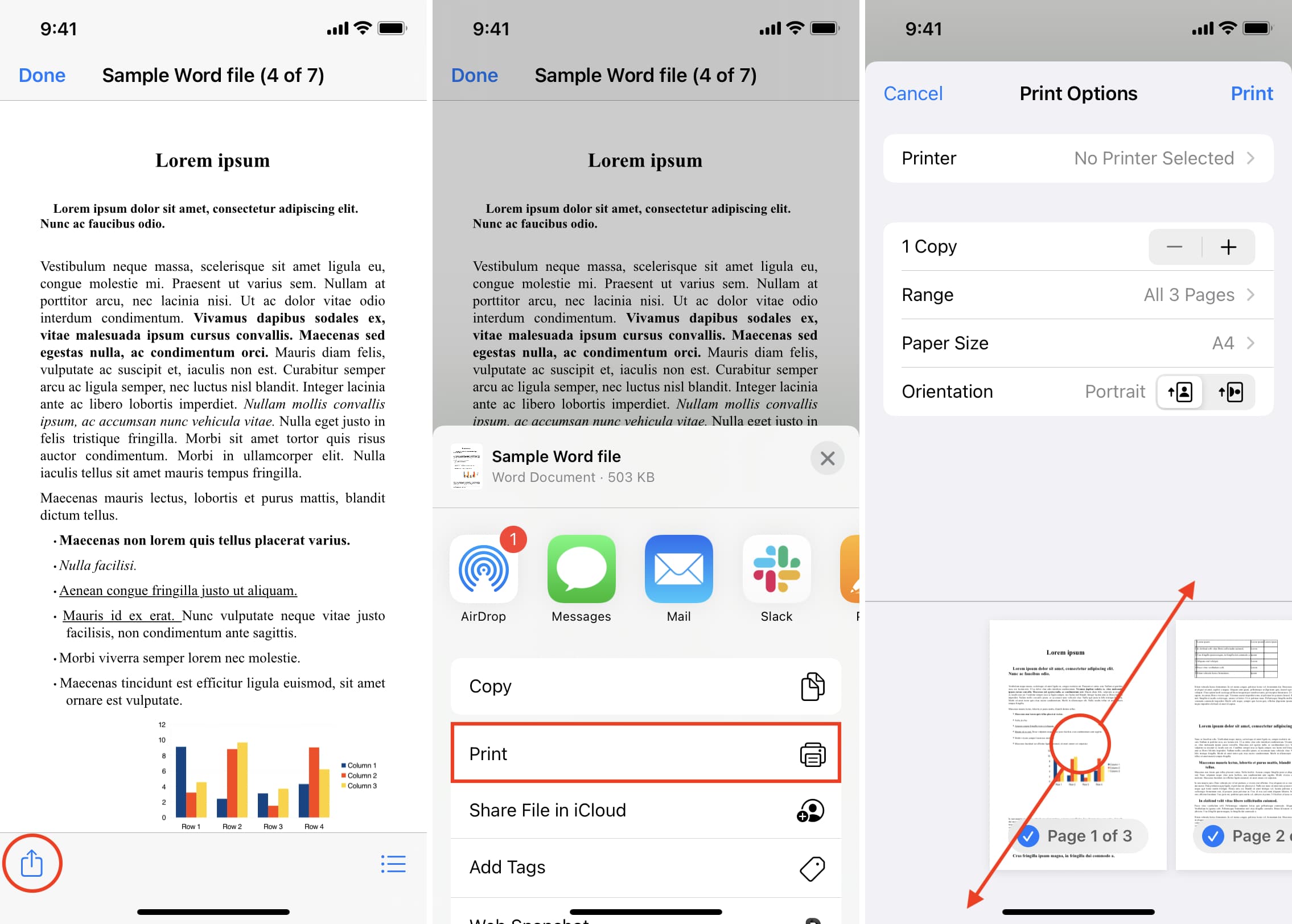
1) Open the Files app, tap Browse and go to the folder where the Word file is saved. 2) Tap the Word file, and it will open inside the Files app. 3) Select the share icon. 4) On the Share Sheet, choose Print. 5) Put two fingers on the page thumbnail and pinch out. 6)Tap the share icon again and choose Save to Files > choose any location > Save.
You have successfully converted a Word file into a PDF, all from the iOS Files app. To be sure, press the newly created document and tap Get Info. You will see that it’s a PDF.
2. Use an iOS shortcut
Ans) With the help of this simple shortcut that I built, you can instantly convert a Word file to PDF in just a few taps.
Follow these steps to use an iOS shortcut to convert a Word document into PDF: 1) Tap this iCloud link and then tap Add Shortcut to get the Save As PDF shortcut. 2) Go to the Files app or the app where the Word file is saved. From here, open the Word file and tap the share icon. 3) In the Share Sheet, select Save As PDF. 4) The shortcut will swiftly convert the Word file to PDF. Finally, choose a folder and tap Done to save the PDF version of the document.
Go to the Files app folder where you saved the final converted file to access it.
3. Use the Pages mobile app Apple’s Pages app is also available free download on the iOS & iPadOS App Store. Get the app and follow these steps to convert a Word document into a PDF file.
Here’s how to use Pages to change a Word file to PDF on iPhone or iPad:
1) Open Pages and tap Browse. Now, go to the location where the Word file is saved and tap to open it. 2) Choose the more icon (three dots inside a circle). 3) Select Export and choose PDF from the list of formats. 4) Tap Export, and it should show the Share Sheet. 5) From the Share Sheet, tap Save to Files > choose any location > Save.
This is how you can quickly and easily convert Word files to PDF on your iPhone, iPad, or Mac.
Besides the above options, you can also use dedicated iOS, iPadOS, or macOS apps that can do this job for you. Simply open the App Store and search for Word to PDF converter. Go through the search result and download an app with good ratings. However, keep in mind that, unlike the above methods, most third-party apps will either require payment or show several ads before you can complete the Word to PDF conversion.
3) How to convert Word to PDF
Ans) Follow these easy steps to turn Microsoft Word files into PDFs:
1)Click the Select a file button above, or drag and drop your Word doc into the drop zone. 2)Select the RTF, TXT, DOCX, or DOC file you want to convert into the PDF format. 3)Watch Acrobat automatically convert the file. 4)Download your new PDF or sign in to share it.
4) How to Convert a Document to PDF Using Word?
Ans) If you have the desktop version of Microsoft Word installed on your Windows PC or Mac, the easiest way to convert your document to PDF is right in Word itself.
Open the document you want to convert and then click the “File” tab.
On the backstage screen, select “Save As” from the list on the left.
Next, from the Save As screen, select where you would like the PDF to be saved (OneDrive, This PC, a particular folder, or wherever).
Click the dropdown arrow on the right side of the “Save As Type” box and select “PDF (*.pdf)” from the dropdown menu.
If you want to, you can change the filename at this time. When you’re ready, click the “Save” button.
After saving the PDF, you’ll be returned to your Word document, and the new PDF will open automatically in your default PDF viewer.
If You Don’t Have Microsoft Word
If you don’t have Word, but need to convert a document someone sent you to PDF, you do have a few options:
* Google Drive: You can upload a Word document to Google Drive, save it as a Google Document, and then convert it to PDF. This works well enough if you have a simple, mostly text Word document without much formatting (and if you already have a Google account). * A Conversion Website: There are a lot of sites out there that offer to convert Word documents to PDF for free. We recommend freepdfconvert.com. It’s a safe site, it works fast, and it does a pretty good job on Word documents with even a modest amount of formatting. And it really is free if you just need to convert the occasional Word document to PDF. A paid subscription gets you additional features like unlimited conversions (multiple documents at once), and the ability to convert more types of files. * LibreOffice: LibreOffice is a free, open-source office app that offers a lot of the same features as Microsoft Office. You can even open Microsoft Word documents, and convert them to PDF.
5) Why convert Word files to PDF?
Ans) Word files (.doc or docx) can be easily edited, while PDF files (.pdf) require special apps to make edits. So, if you plan to send a document like a resumé, rent agreement, bill, or research paper that you don’t want to be edited, PDF is an ideal choice.
Secondly, if you use a fancy font in Word files, the same may look different if someone opens that file in some other Word app on a mobile or computer. However, PDF is great for preserving style, format, and looks.
Besides that, certain websites like those related to tax and such might only allow you to upload PDF files. If you try to upload a Word file, it will show an error.
So, if you want to change a Word document to PDF due to a specific reason or one mentioned above, here are some safe, free, and swift ways to do that.
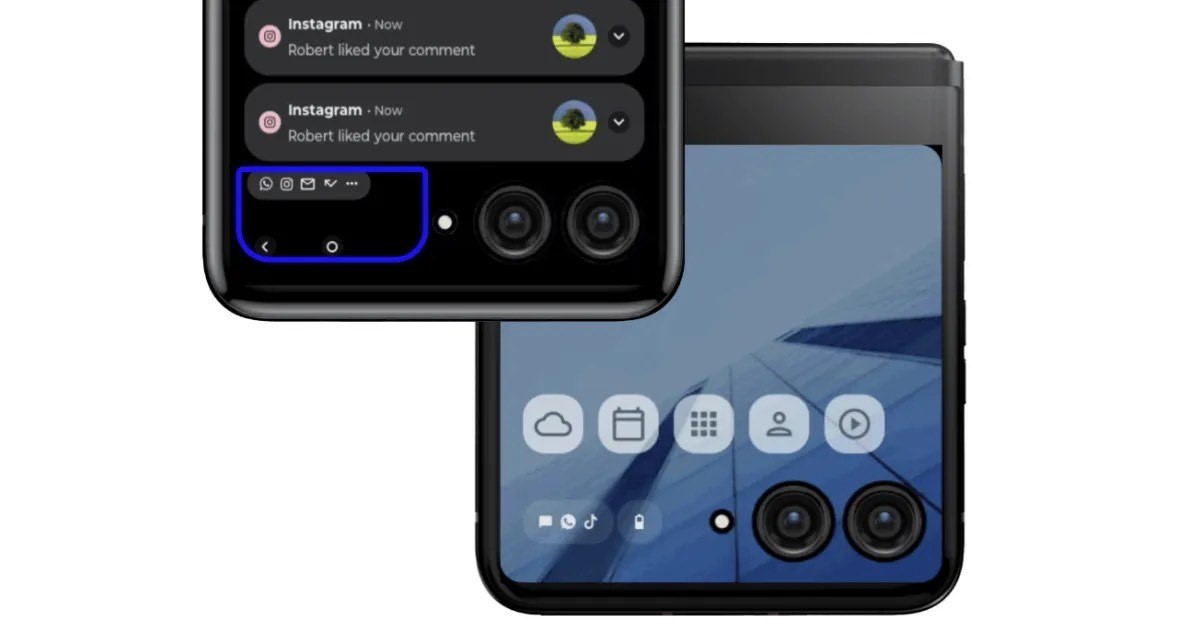
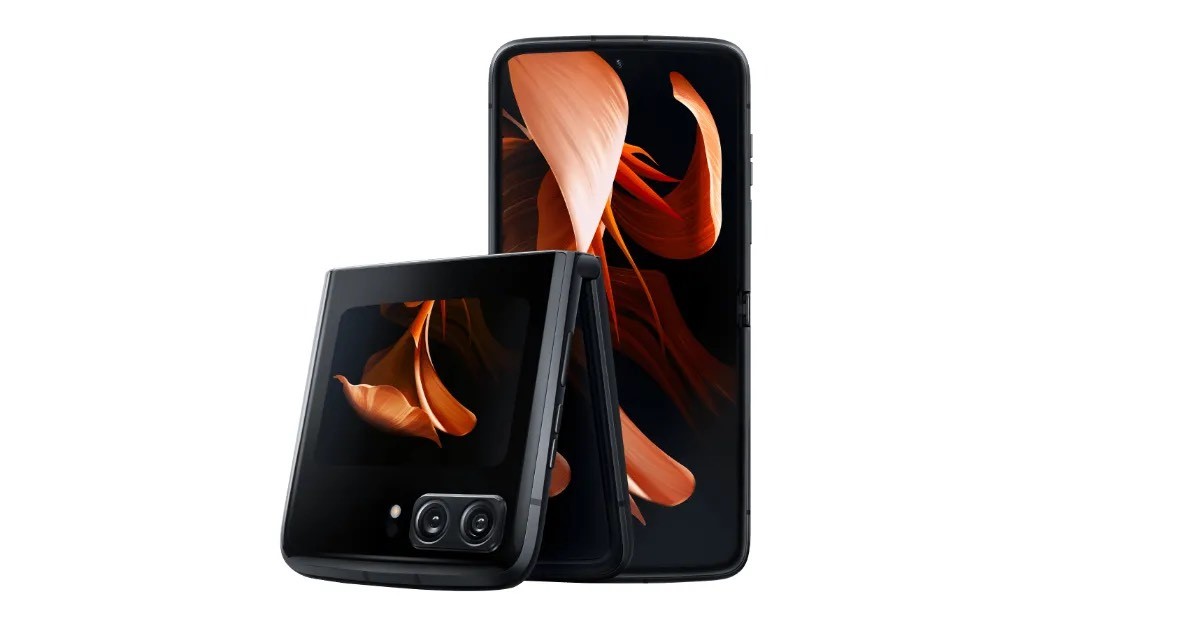
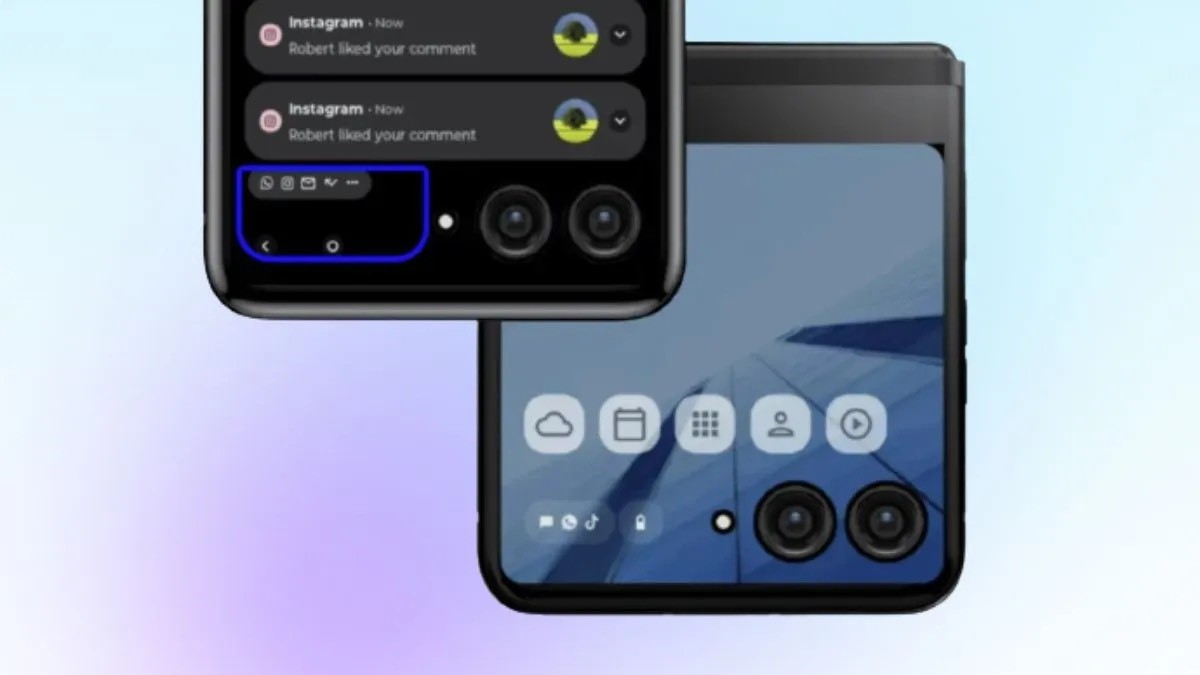
* The upcoming phone will likely launch as the Motorola Razr+ 2023 in some regions, including China and Canada. * The foldable will be powered by the Qualcomm Snapdragon 8+ Gen 1 SoC. * It will feature a new and improved cover display which is expected to measure 3.2 inches. * The Moto Razr+ 2023 is tipped to feature a larger secondary display. * The device might be powered by Snapdragon 8+ Gen 1 processor. * The handset is expected to run Android 13 OS with My UX on top.
Motorola has recently announced the upcoming release of its new foldable screen phone, the Moto Razr 2023.
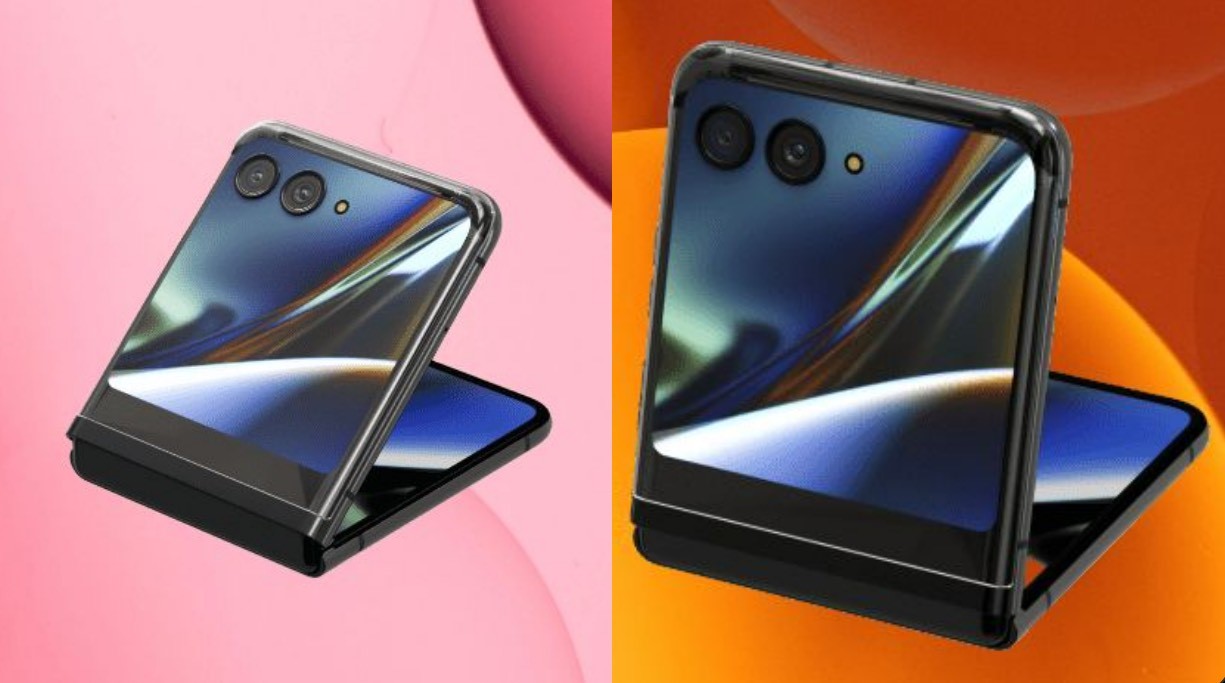
The company claims that the phone represents the “ultimate form of small foldable screens” due to its large external screen and high screen-to-body ratio. Although the release date of the vertical foldable has not yet been confirmed, it is speculated that the phone will launch sometime next month and feature a familiar design, as depicted in a teaser poster on Weibo.
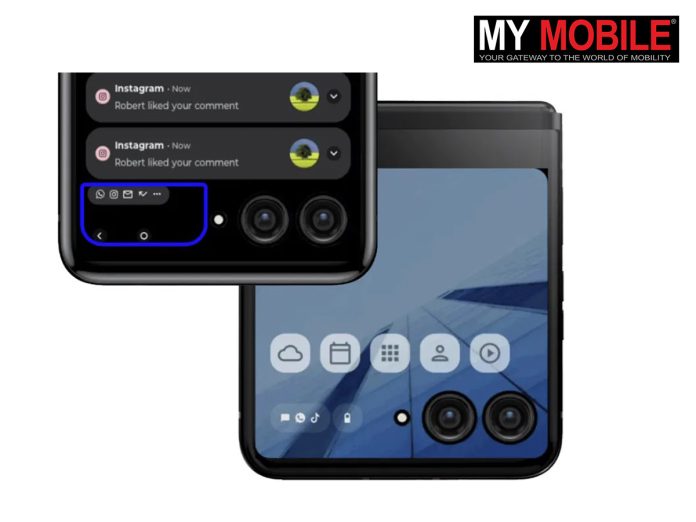
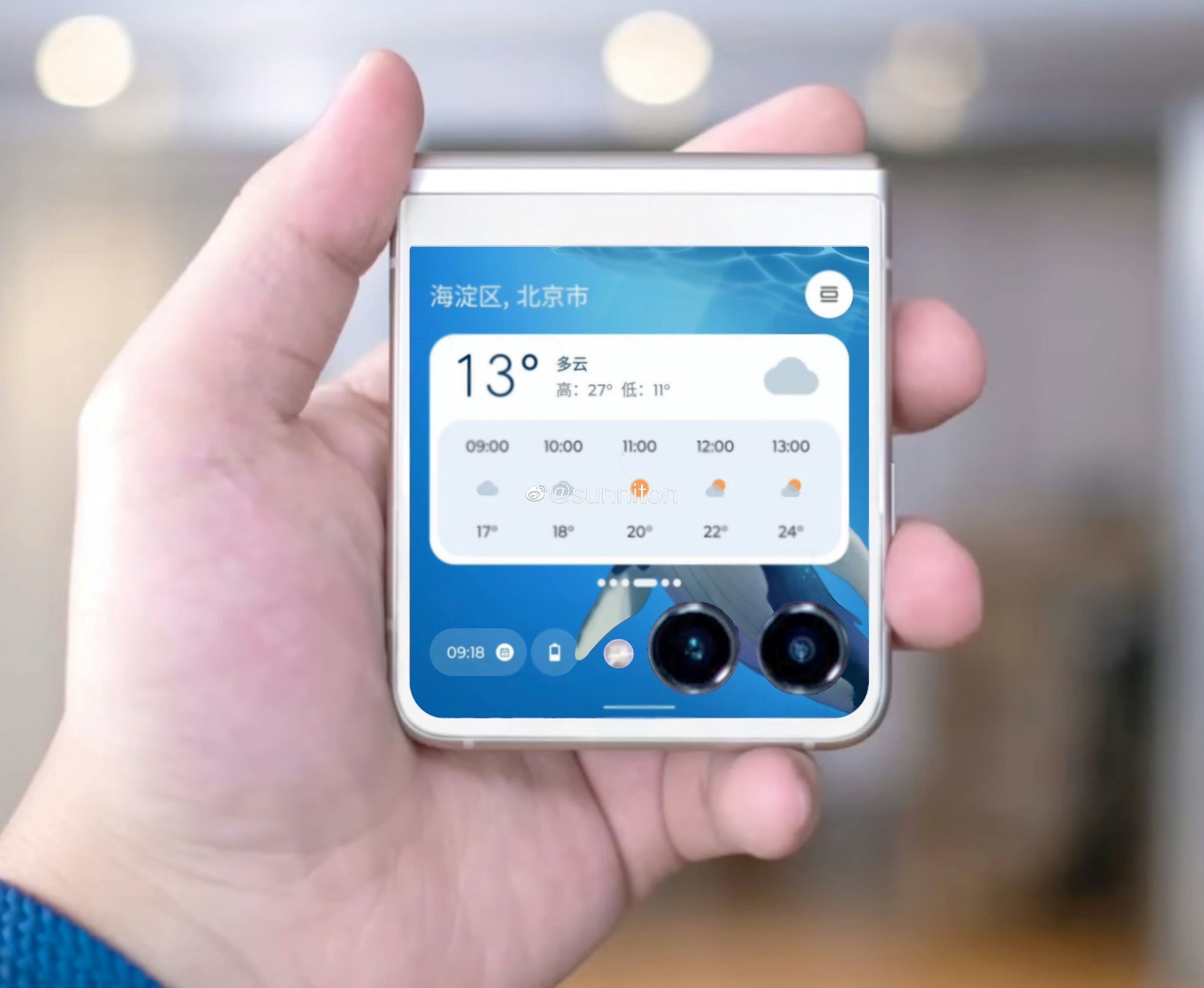
While the teaser poster does not disclose the device’s name, it is likely that the phone will be called the “Moto Razr Pro 2023” or the “Razr 40 Ultra”. One of the most notable features of the Moto Razr 2023 is its nearly edgeless cover display, which is rumored to be 3.26 inches in size, an upgrade from the 2.7-inch OLED panel on the Motorola Razr 2022.
The Moto Razr 2023 has already obtained certification from several global agencies, and it has also been seen on India’s BIS certification, revealing some critical specifications.
Lenovo-owned Motorola is preparing for the launch of the new phone in the Moto Razr series. The upcoming handset is tipped to be named as the Moto Razr+ 2023, and the company has now officially teased the arrival of this smartphone.
Though the brand has not revealed the launch date of the phone yet, it has posted a teaser on Weibo revealing that the handset will have a large external display and a higher refresh rate. As disclosed by Motorola through the teaser, the upcoming Razr+ 2023will have a vertical folding design.
Motorola Razr 2023 Specifications (ZRumoured)
The Moto Razr 2023 is rumoured to come with a 6.7-inch OLED foldable panel with Full HD+ resolution and a 120Hz refresh rate. The handset will feature a much larger cover display standing at 3.26 inches, which is said to span half the length of the phone.
At its heart, the Razr 2023 will likely be powered by the Qualcomm Snapdragon 8+ Gen 1 SoCpaired with up to 12GB RAM and 256GB storage. As for the cameras, the Razr 2023 is expected to retain the dual-camera setup with a 50MP primary camera with support for Optical Image Stabilization (OIS), along with a secondary 13MP ultra-wide-angle camera. The handset will also come with a 32MP camera for selfies and video calls.
The handset will ship with Motorola My UX 5 based on Android 13out of the box along with a promise of 2 future Android version updates. The handset passed China’s quality certification center, revealing that it will have a 3,640mAh battery and support 33W fast charging.
Ans) The teaser revealed by Motorola doesn’t explicitly reveal the name of the upcoming Razr handset. However, as mentioned above, the device could debut as the Moto Razr+ 2023, or as the Motorola Razr 40 Ultra. As far as the specifications go, the phone is said to feature a larger external display than 2.7-inches, which the Moto Razr 2022 has. Under the hood, the smartphone is expected to come with Snapdragon 8+ Gen 1 SoC. The handset is said to pack up to 8GB or 12GB of RAM. Furthermore, the phone is tipped to run Android 13 OS with My UX on top. As far as the other details of the device go, it is tipped to ship with a 3,640mAh battery which could offer 33W fast charging support.
Recently, the device also had made an appearance at India’s BIS certification with the model number XT2321-1. As mentioned above, the official launch date of the Moto Razr+ 2023 is vet to be revealed by Motorola. However, now that the company has started teasing the handset, we can expect its launch to happen in the upcoming few weeks.
2) What are the specifications of Moto Razr +2023?
Ans) The upcoming Moto Razr+ 2023 will succeed the Moto Razr 2022 which debuted back in August last year. To recall, the device features a 6.7-inches foldable AMOLED display with a Full HD+ 1080 x 2400 pixels resolution. The secondary display on the device is of 2.7-inches and it has a 573 × 800 pixels resolution. Powering the handset under the hood there is a Snapdragon 8+ Gen 1 SoC which is accompanied with a 12GB of RAM and 512GB of internal storage. The handset runs Android 13 out of the box.
In terms of optics department, the handset features a dual-camera setup which consists of a 50MP main camera and a 13MP ultra-wide lens. The other key specifications of the Razr 2022 include a 32MP selfie camera, stereo speaker setup, a 3,500mAh battery, a side-mounted fingerprint sensor, and 30W fast charging support.
Garenahas finally announced the details for its new Free Fire advance server update. The popular battle royale game allows users to try out new features before they go public. Through the Free Fire or Free Fire Max Advanced Server OB update, you can experience them in the main application.
The latest version of the Advanced Server, the OB33 update, has a release date for this month. But what is so special about the Free Fire Max OB33 update, what features can you expect and how to register for the Advanced Server OB33 update.Here’s everything you need to know about the Free Fire Advance Server OB33 update, including its launch date and an easy step-by-step guide on how to download it.
What is Free Fire Advance Server OB33 update?
As we have mentioned (above), Free Fire (Free Fire Max) Advance Server OB33 update is the best way for gamers to experience upcoming, beta features of the game before it releases globally. The new patch called Advance Server OB33 will be available in March 2022. Developers at Garena rely on select users to help them test the game, report any bugs and suggest to them how to make the gameeven better.
The Advance Server works through a different application, which can be downloaded only from Free Fire’s official website. So, if you love playing Garena Free Fire, don’t miss the chance to explore the yet-to-release features of the game.
Free Fire Advance Server OB33 update release date and time
Garena Free Fire Advance website has shared the release date for the Advance Server OB33 update. You can head over to the Garena Free Fire website between 10th March and 17th March to register for the latest Advance Server patch. The Advanced Server opening date is 10th March.
How to register for Free Fire Advance Server OB33 update
Now that you know everything about the Free Fire aka Free Fire Max Advance Server and what it brings to the table. How does one register to experience the new features? We’ve got you covered. Just follow these steps to get started:
* Go to Free Fire Advance Server website. * Tap on the ‘Login Facebook’ or ‘Login Google’ button (as seen above) to register * Fill in personal details like Full name, email ID and mobile number * Click on the Join Now button * Download the APK file from the website when the server is live * Install the APK file on your mobile and start playing the test version of Garena Free Fire * Note: You need to activation code to gain access to the Free Fire Advance server
How to get Free Fire Advance Server activation code
There is no way you can access the Free Fire Advance Server without having the activation code. So, it is crucial that you register for the Advanced Server when the window opens on 10th March as there are limited Advance Server codes. Many players who register for Free Fire Advance Server access may not get the activation code.
Free Fire Advance Server OB33 registration start and end date
Garena has disclosed the latest registration dates for Free Fire Advance Server OB33.The server goes live on March 10, and it will be available for a period of one week, up to March 17th. Use this time to test the new features and report bugs to the developer.
Why is Free Fire Advance Server a big deal?
Getting early access to any feature helps gamers acclimatise to the new settings quicker, giving them an edge over other players when the feature officially rolls out. You can also try new tools, weapons that are being developed behind the scenes, and get a feel of what is coming in the next few weeks. Advance Server is your gateway to achieve more success on Garena Free Fireand win more rewards.
Information about Free Fire Advance Server OB33 update APK Direct download link and procedure
The steps specified below can help users download the Advance Server:
Step 1: First, users must reach the official Advance Server of Garena Free Fire.
Step 2: As a next step, individuals must sign in via the platform they used in registration.
Step 3: A ‘Download APK’ button will be displayed, and clicking on it will begin the download process.
They can subsequently install the file on their devices. Individuals can then open it and enter the Activation Code to enjoy the OB33 Advance Server.
Note: It is necessary to have the Activation Code to access the Advance Server.
Features
A few of the features of the Advance Server include:
1) Mystery Character
Ability: Swordsman’s Wrath
The Mystery Character in the OB33 Advance Server has the Swordsman’s Wrath ability, which is of the active type. Upon usage, it creates a shield, blocking weapon damage coming from the front. However, it resets when users fire a shot.
2) Weapons
There are also two new firearms, the G36 and the F2000. Both are in the AR category and have their functionality. The former has two distinct firing modes, whereas the latter is very stable and balanced.
3) Zasil pet
Skill: Extra Luck Zasil is the name of the new pet, and while it is equipped, players have a 25% chance of receiving a new inhaler, medkit, or repair kit after using them. However, it has a 120-second cooldown. Readers can learn more about the Advance Server features
FAQs
1) Not able to download Free Fire OB32 Advanced Server?
Ans) Since there is limited access to Free Fire Advance Server, you may not be able to check upcoming features this time. However, you can register for the next Advance Server update, when Garena officially announces it.
2) Will Garena delete Free Fire account if you get Free Fire OB33 Advance Server access?
Ans) Thankfully, anyone registering for Free Fire OP33 Advance Server will not lose their Garena Free Fire account. The company has made it clear that a user will retain their Free Fire account, even if they are able to test using the Advance Server OB33.
3) What is the difference between Free Fire Advance and Free Fire?
Ans) The difference between Free Fire Advance and Free Fire is that the first one offers an advanced server with experimental weapons and features that are not available in the final version of Free Fire or Free Fire Max.
4) Do I need an invitation code to play Free Fire Advance?
Ans) Yes. You need an invitation code to play Free Fire Advance for free. Without it, you can download and install it, but you won’t be able to access the server and, thus, play.
5) How can I get an activation code?
Ans) To get an activation code to play Free Fire Advance you need to place a specific request on their official site. It is not recommended to trust any other site that claims to offer codes.
6) How do I download Free Fire Advance on Android?
Ans) To download Free Fire Advance on Android, just enter the Uptodown catalog and find the APK file. After you download the APK, you can finish the installation as long as you’ve allowed the installation of external applications on your Android device.
7) When does the advanced Free Fire Advance server open?
Ans) The advanced Free Fire Advance server opens in July 2022. In order to request access to the server, you’ll need to be registered on the official website. After you request access, you’ll receive a code that you can use to enter and enjoy the game.
8) How do I install the advanced Free Fire Advance server?
Ans) To install the advanced Free Fire Advance server, you must first request access from the official Free Fire Advance website. Once you get the access code for the server, you can play without any problems. The game can be installed by anyone.
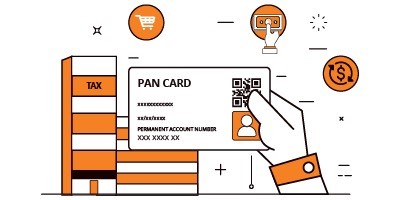
PAN Card is a unique 10-digit alphanumeric code issued by the Income Tax Department of India.
It serves as a universal identification key for all financial transactions and is mandatory for certain high-value transactions.
The structure of a PAN card consists of ten characters that include both alphabets and numerals.
In order to apply for a PAN Card, an individual must submit the required documents and fees to the Income Tax Department or through TIN-FCs.
This blog will explore the various aspects of a PAN Card in India, including its importance, structure, uses, and how to apply for PAN Card online, check the status and download an e-PAN.
Online PAN card application has made the entire process of applying for this essential document extremely simple and convenient. If you are even a little bit confused about the online process, you have landed at the correct webpage.
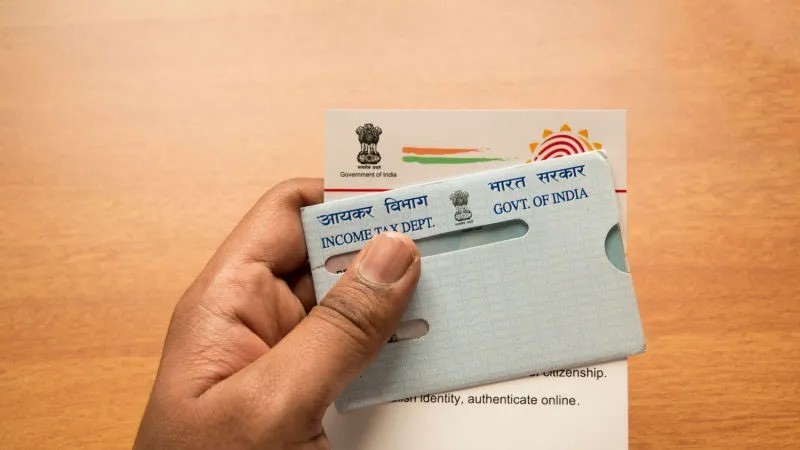
A Permanent Account Number (PAN) cardis a unique identification number issued by the Income Tax Department of India to individuals, companies, and firms. It is essential for every Indian citizen to apply for a PAN card to ensure smooth financial transactions and to establish their identity.
The PAN Card is mandatory for high-value financial transactions, serves as a valuable tool for identity verification, plays a crucial role in the KYC verification process, and helps in preventing tax evasion and black money.
In order to apply for a PAN Card, an individual must submit the required documents and fees to the Income Tax Department or through TIN-FCs. The process can be done online or offline, depending on the preference of the applicant.
In this blog, we will explore the various aspects of the PAN Card in India, including its importance, structure, uses, and more. We will also answer commonly asked questions related to how to apply for a PAN Card online in order to help you gain a better understanding of the online application process.
Let’s start by understanding PAN in detail.
What is PAN Card?
The Permanent Account Number (PAN) card is a unique 10-digit alphanumeric code that serves as a universal identification key for all financial transactions in India. It is issued by the Income Tax Department of India to individuals, companies, and other entities.
It is mandatory for certain high-value transactions such as opening a bank account, investing in the stock market, and purchasing real estate. Moreover, it is essential for filing income tax returns, applying for a loan, and opening a demat account.
PAN Card helps in preventing tax evasion and black money as it tracks all financial transactions of an individual or entity.
What is the Structure of a PAN Card?
The structure of a PAN card consists of ten characters that include both alphabets and numerals. The first five characters are letters, followed by four digits, and ended with a letter.
The first three letters signify the jurisdiction code of the Income Tax office that issued the card.
The fourth letter identifies the type of holder of the card, such as “P” for individuals, “C” for companies, “H” for Hindu Undivided Family (HUF), and “F” for firms.
The last letter is a random check digit used to prevent fraudulent activities.
Why is PAN Card Important?
The PAN card is a crucial identification document in India, and its importance cannot be overstated. The PAN Card serves as a unique identifier for all financial transactions carried out by an individual or entity. Without a PAN Card, one cannot carry out high-value transactions such as investing in the stock market, purchasing real estate, opening a bank account, or applying for a loan.
Let’s understand the importance of PAN cards a little more deeply –
The PAN Card is essential for filing income tax returns, and it helps in preventing tax evasion and black money. The Income Tax Departmentuses PAN cards to track all financial transactions, and any suspicious activities can be traced back to the holder of the PAN Card. This ensures transparency and accountability in financial transactions and prevents tax fraud.
In addition to financial transactions, the PAN Card is also used for identity verification purposes. It is widely accepted as valid identity proof by various government and private entities, and it serves as a valuable tool in establishing one’s identity.
The PAN Card also plays a crucial role in the process of Know Your Customer (KYC) verification, which is mandatory for several financial transactions. KYC verification helps in preventing money laundering, terrorist financing, and other fraudulent activities, and the PAN Card serves as an important KYC document.
The PAN Card is not limited to individuals and is also issued to companies and other entities. It serves as a unique identification key for all financial transactions carried out by them and helps in maintaining transparency and accountability in their financial dealings.
Who Should Apply for PAN Card in India?
The PAN card is a mandatory document for certain high-value financial transactions and for filing income tax returns. While it is not necessary for everyone to have a PAN card, there are certain individuals and entities who should apply for it. Here are some of the categories of people who should apply for a PAN card in India:
Individuals earning a taxable income: Any individual who earns a taxable income in India is required to apply for a PAN card. This includes salaried individuals, self-employed professionals, and business owners.
Non-resident Indians (NRIs): NRIs who earn income in India are also required to apply for a PAN card. This includes income from sources such as property rent, capital gains, and investments.
Individuals investing in the stock market: Anyone who wishes to invest in the stock market or purchase securities such as mutual funds or bonds must have a PAN card.
Individuals purchasing or selling real estate: Any transaction involving the purchase or sale of immovable property valued at over Rs. 10 lakhs requires a PAN card.
Individuals opening a bank account: While it is not mandatory to have a PAN card to open a bank account, it is advisable to do so as it serves as valid identity proof and helps in KYC verification.
Individuals applying for a loan: Most banks and financial institutions require a PAN card as part of their loan application process. This includes personal loans, home loans, and vehicle loans.
Companies and entities: Any company or entity carrying out financial transactions in India is required to have a PAN card. This includes partnerships, LLPs, trusts, and NGOs.
In conclusion, anyone who falls under the above categories should apply for a PAN card in India. It is a crucial document for high-value financial transactions, helps in tax compliance, and serves as a valid identity proof for KYC verification.
What Documents Are Required To Apply for PAN Card Online?
To apply for a PAN card online in India, you need to provide certain documents as proof of identity, address, and date of birth. The list of documents required may vary depending on the applicant’s citizenship status, occupation, and other factors. Here are the most common documents required to apply for a PAN card online:
Proof
Documents Accepted
Proof of identity
● Aadhaar card
● Voter ID card
● Passport
● Driving license
● Ration card with photograph
● Arm’s license
● Photo ID card issued by a central or state government authority
Proof of address
● Aadhaar card
● Voter ID card
● Passport
● Driving license
● Electricity or water bill (not more than three months old)
● Telephone bill (not more than three months old)
● Bank account statement (not more than three months old)
● Depository account statement (not more than three months old)
● Credit card statement (not more than three months old)
● Employer certificate (issued on company letterhead)
Proof of date of birth
● Birth certificate issued by a municipal authority or any office authorized to issue birth and death certificates
● School leaving certificate or matriculation certificate
● Passport
● Driving license
● Duly attested PAN card copy
For foreign nationals: In addition to the above documents, foreign nationals are required to provide a copy of their passport as proof of identity, proof of address, and proof of date of birth.
For companies and entities: Companies and entities are required to submit a copy of their registration certificate as proof of identity and address.
The documents required to apply for a PAN card online in India include proof of identity, proof of address, and proof of date of birth. The exact documents required may vary depending on the applicant’s citizenship status, occupation, and other factors. It is advisable to check the latest requirements on the official website of the Income Tax Department before submitting the application.
How To Apply for PAN Card Online? – Apply Through NSDL (Protean) Portal –
Applying for a PAN card online is a simple and convenient process that can be completed from the comfort of your home or office. Here’s a step-by-step guide on how to apply for a PAN card online:
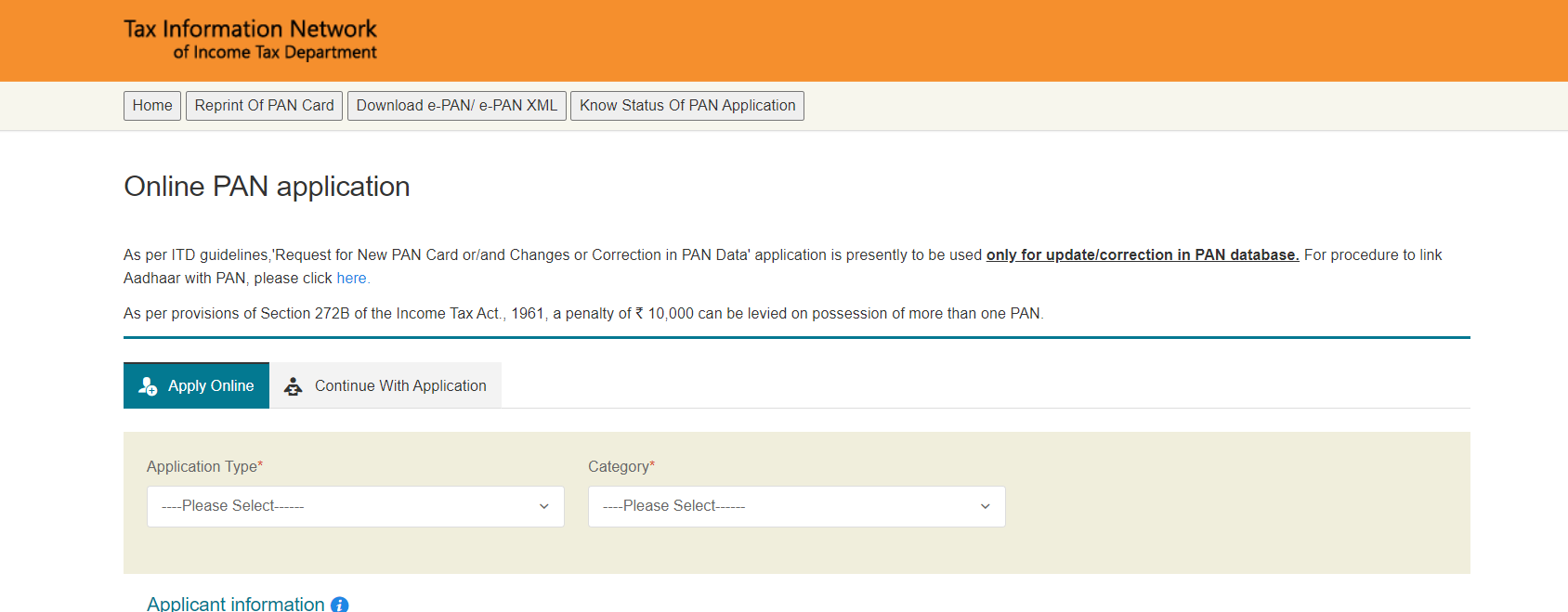
Step 1: Open the NSDL site to apply for a new PAN.
Step 2: Select the Application type – New PAN for Indian citizens, foreign citizens or for change/correction in existing PAN data.
Step 3: Select your category – individual, associations of persons, a body of individuals, etc.
Step 4: Fill in all the required details like name, date of birth, email address and mobile number in the PAN form.
Step 5: On submitting the form, you will get a message regarding the next step.
Step 6: Click on the “Continue with the PAN Application Form” button. You will be directed to fill in more personal details similar to Form 49A or Form 49AA. Input all the necessary information.
Step 7: Choose how you want to submit the documents. You can: a) Forward application documents physically; b) Submit digitally through digital signature; c) Submit digitally through e-sign.
Step 8: Complete the declaration form, review and submit the form.
Step 9: Click on ‘Proceed’ and you will be taken to the payment options. You can either pay by Demand Draft and Online Payment through Bill Desk.
Step 10: Click on ‘I agree to terms of service’ and proceed to pay. The PAN application fees will vary based on whether you are sending documents separately to Protean eGov Technologies Limited or uploading them online.
Step 11: After payment is confirmed, send the supporting documents via post or courier to Protean eGov Technologies Limited.
Once your documents are received, Protean eGov Technologies Limited will process your application.
Note – If you have provided your office address as your preferred address for communication, you will also need to submit proof of office address along with your residential address proof.
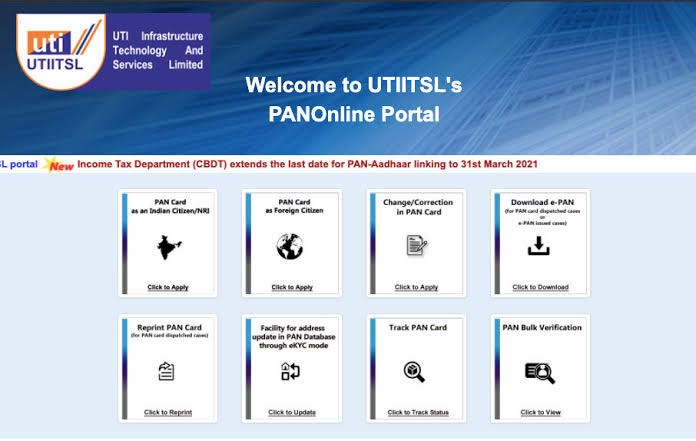
How To Apply for PAN Card Online? – Apply Through UTIITSL Portal
Here is how you can apply for a new PAN card online through the UTIITSL website:
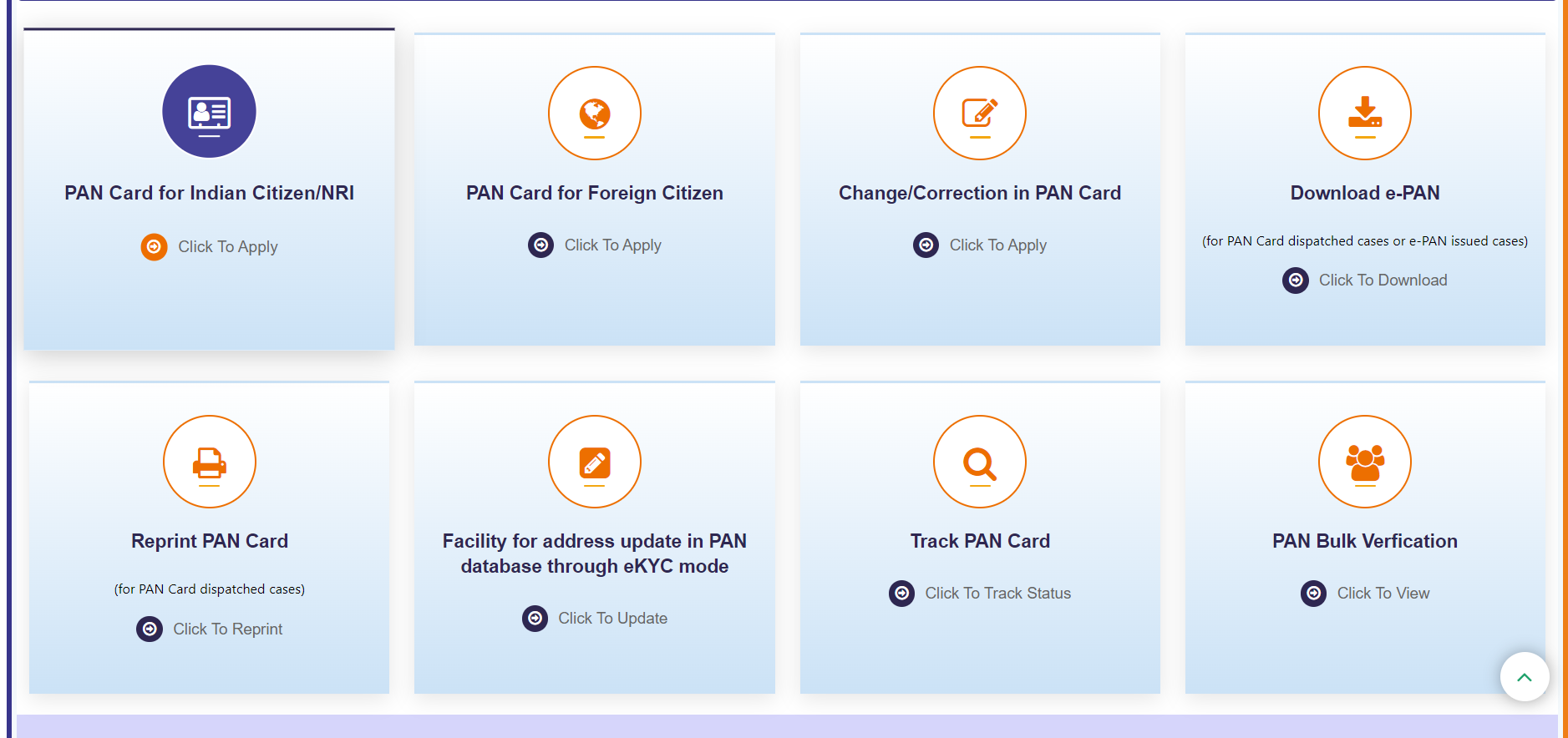
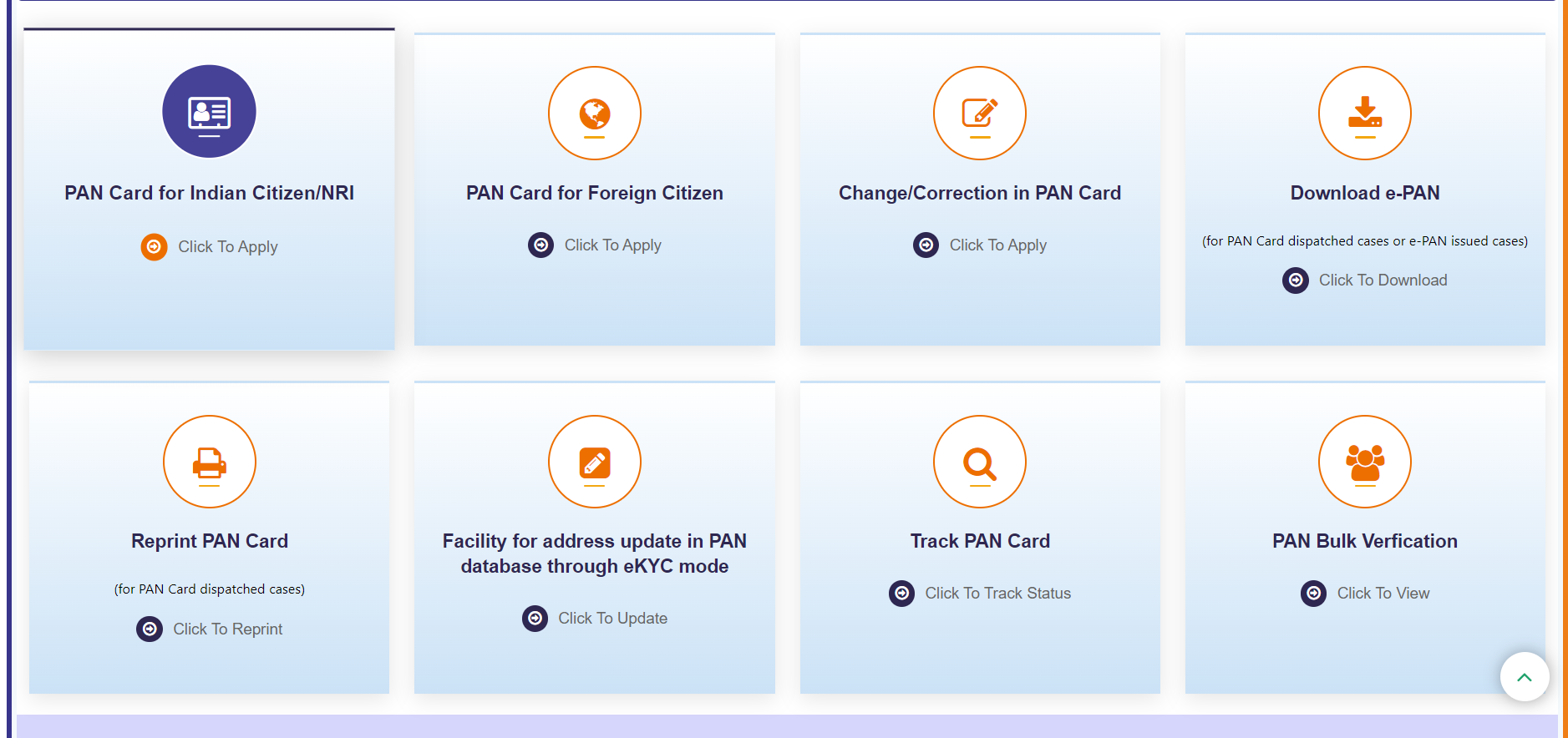
Step 1: Visit the UTIITSL PAN card application page – and scroll down to select ‘PAN Card for Indian Citizen/NRI’ under PAN Services.
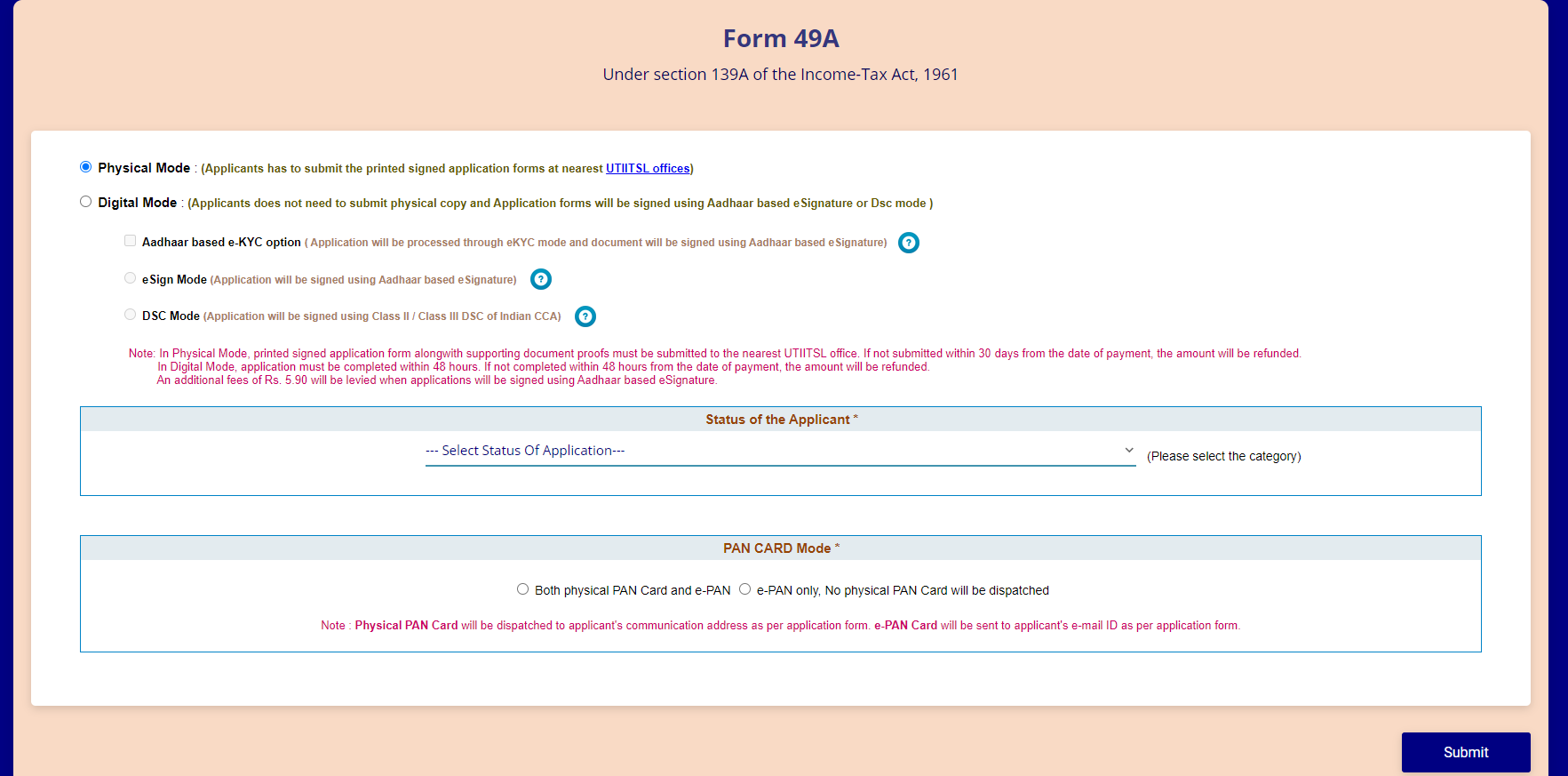
Step 2: Next, Click on ‘Apply for New PAN Card (Form 49A)’
Step 3: Choose either the ‘Physical Mode’ whereby you will have to submit the printed-signed application form at the nearest UTIITSL office or the ‘Digital Mode’ whereby the application form is signed using Dsc mode or using Aadhaar based eSignature and you need not submit the physical copy for the form.
Step 4: Fill in your personal and other mandatory details
Step 5: Verify the correctness of the filled-in information and click on the ‘Submit’ button
Step 6: Upon verification, you can go ahead and make the payment online by choosing either of the available payment gateway options- BillDesk or PayU India. You can pay via net banking, debit card, credit card, cash card, etc.
Step 7: On successful payment, you will get a payment confirmation. You can either save this or take a printout of the same.
Step 8: Affix 2 passport-sized photographs (3.5×2.5 cms) on the printed form and put your signature in the space provided
Step 9: Attach a copy of your identity, address, and date of birth proof documents along with your completely filled application form and submit online or send the same to the nearest UTIITSL office for processing and issuance of your PAN Card.
How To Check Your PAN Card Online Application Status?
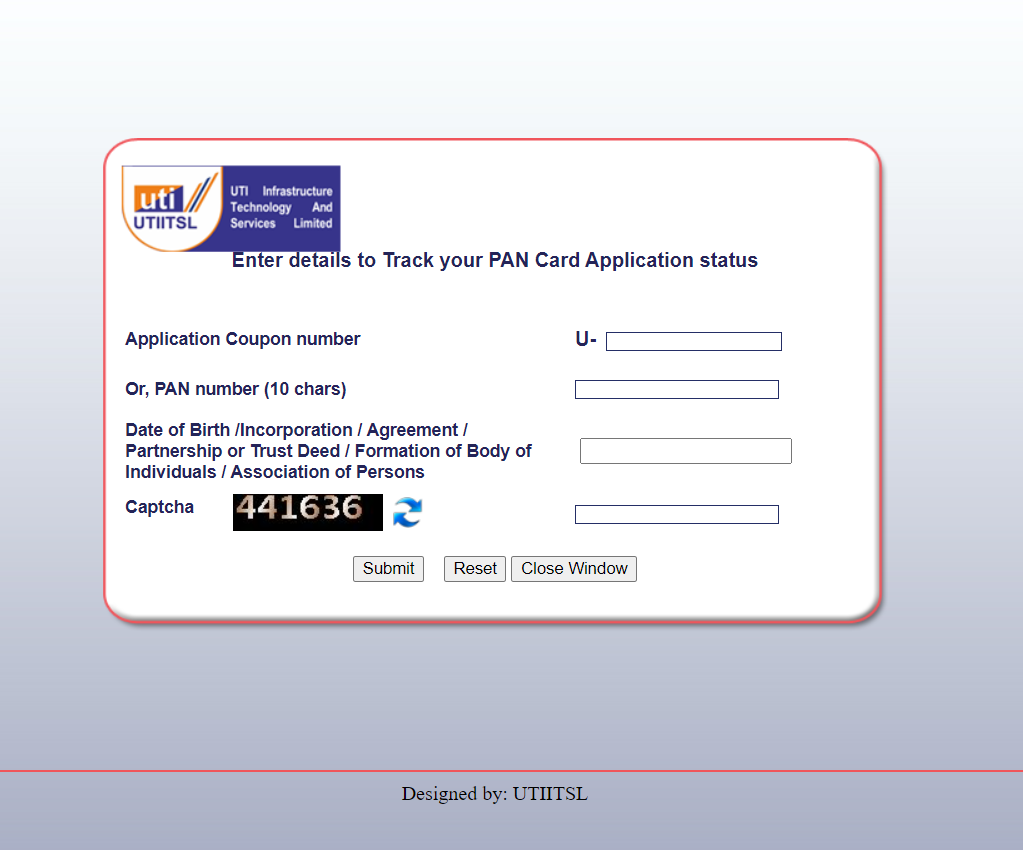
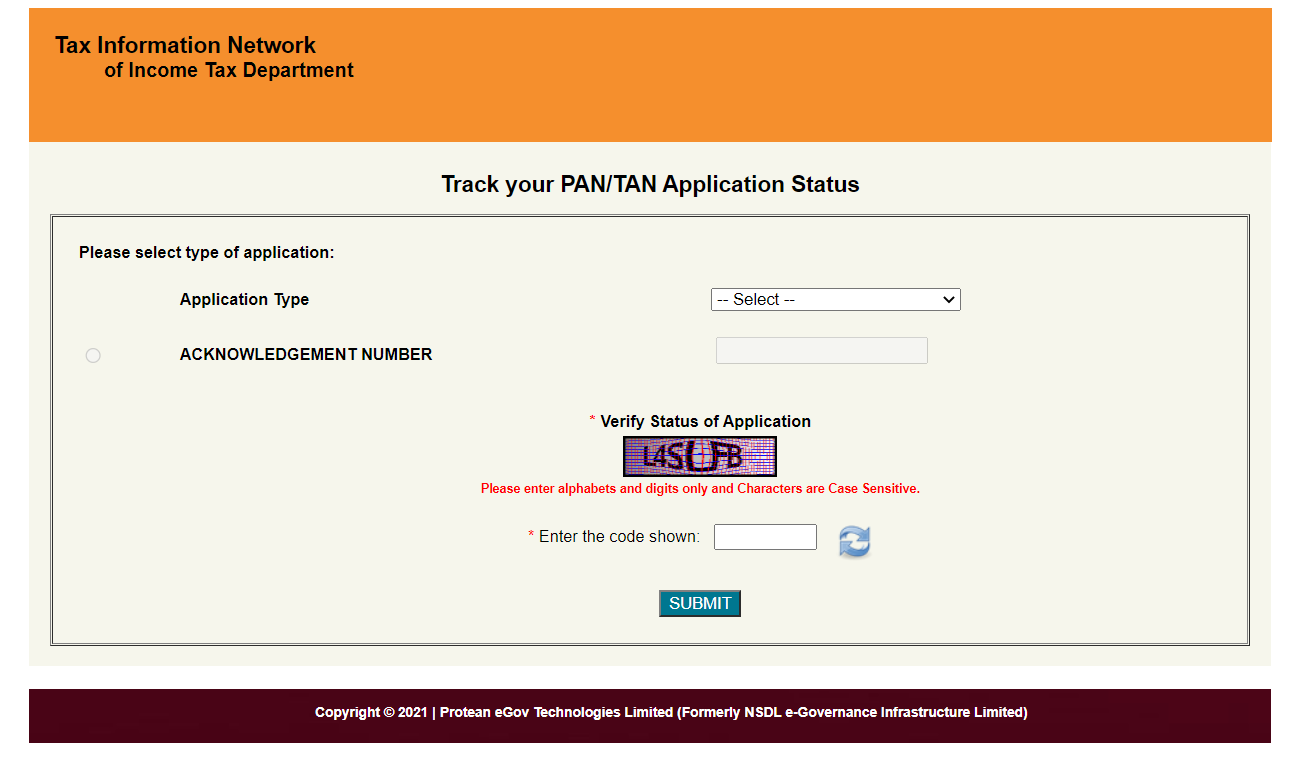
PAN card application status can be checked online via the UTIITSL or NSDL website. Follow the below-mentioned steps to check the status of your PAN card application online –
PAN card application status can also be checked via the UTIITSL website by visiting the PAN card application status tracking page – and using your application number or PAN along with your Date of Birth/Incorporation/Agreement, etc. and captcha code.
To check your PAN card application status via NSDL (Protean) website, you need to visit the Track You Pan page – https://tin.tin.nsdl.com/pantan/StatusTrack.html and use the 15-digit acknowledgement number on the PAN card status tracking page.
How To Download E-PAN?
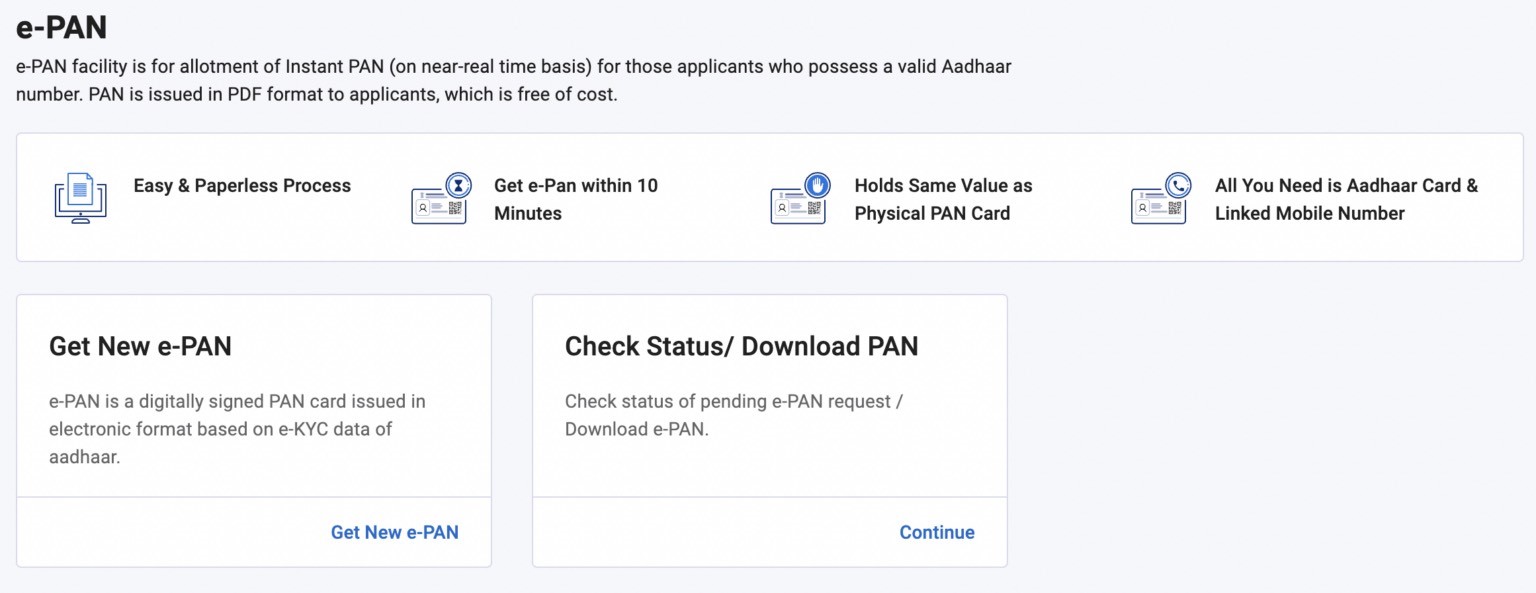
An e-PAN card is a digitally-signed PAN card issued in electronic format by the Income Tax Department of India. It is an electronic version of the physical PAN card and can be used as valid proof of identity and address. The e-PAN card can be downloaded online via the UTIITSL or NSDL website.
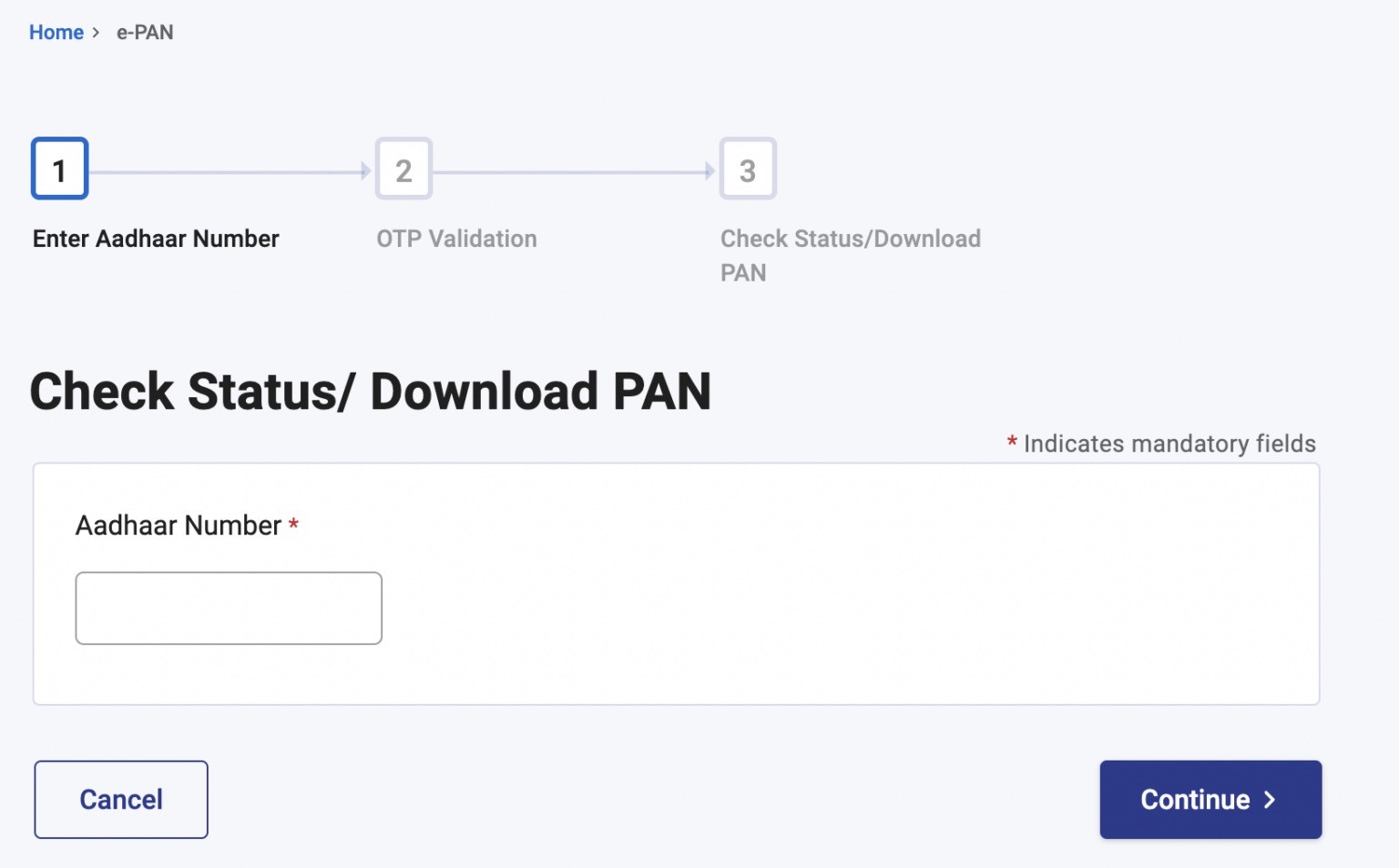
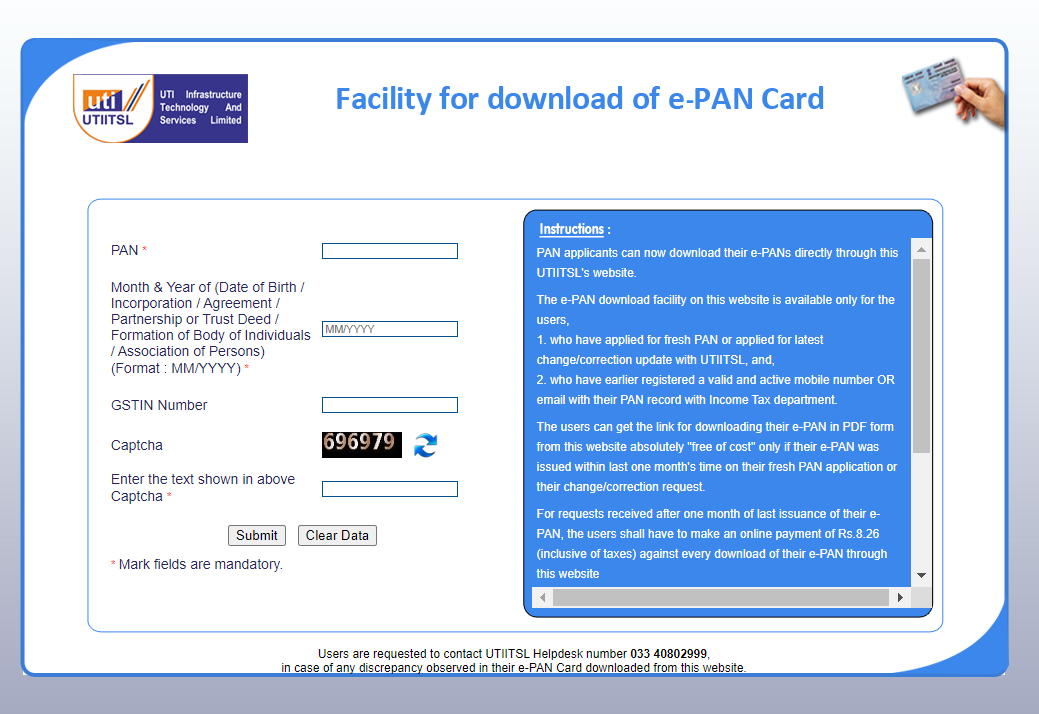
To download the e-PAN from UTIITSL, visit its Facility for download of the e-PAN card page – . Complete all the details and download the electronic version of the document.
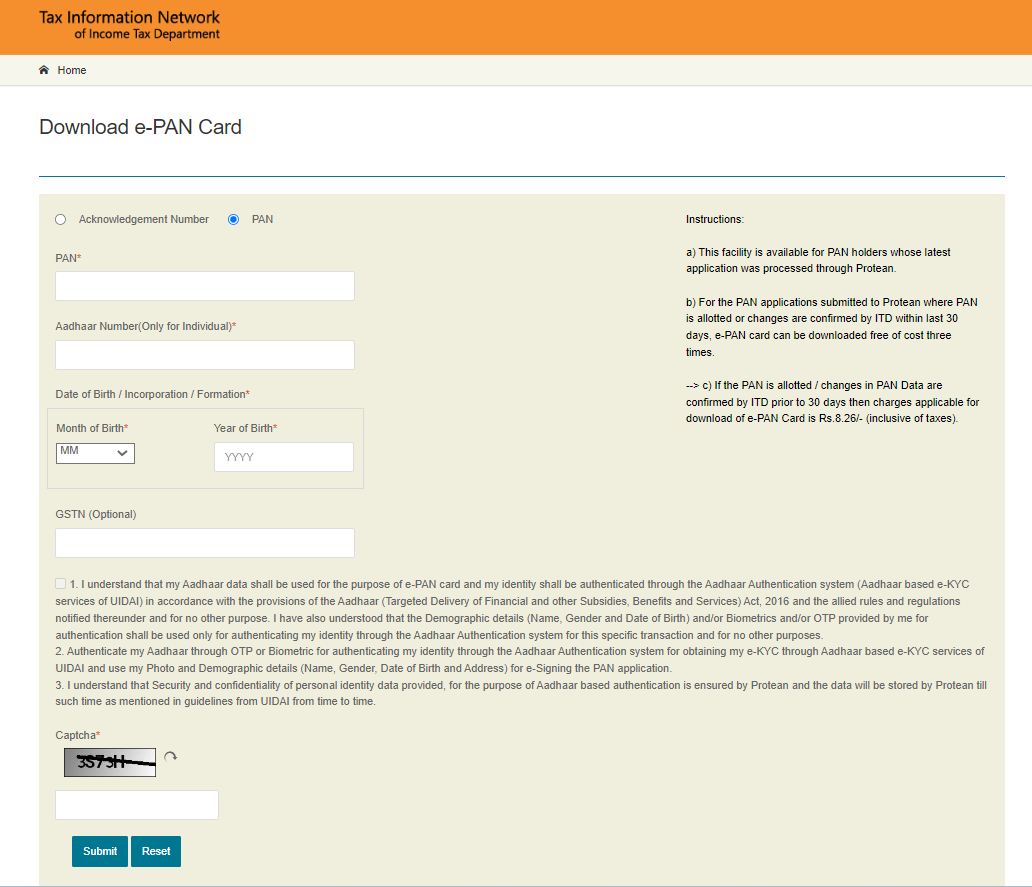
To download the e-PAN from NSDL website, visit its Download e-PAN Card page – https://www.onlineservices.nsdl.com/paam/requestAndDownloadEPAN.html and complete all the details. Click on submit and download the electronic version of the document.
FAQs
Q1. Can I apply for my PAN card online through a mobile?
Answer. Yes, you can apply for your PAN card online through your mobile.
Q2. How will the PAN card be delivered to me?
Answer. The PAN Card will be delivered by post to the communication address provided by you during the application process.
Q3. Can a minor apply for a PAN Card?
Answer. Yes, a minor can apply for a PAN Card under Section 160 of IT Act, 1961. A person who is non-resident, lunatic, or court of ward can also apply for a PAN Card. However, in this case they will have to represented through a Representative Assessee who will apply for a PAN Card on the behalf of the applicant.
Q4. Can I have more than one PAN Card?
Answer. You cannot have more than one PAN Card as it is against the law. In case you have more than one PAN Card, you will have to get in touch with the concerned authorities and get any one of the accounts closed.
Q5. Are there any charges I will be required to pay while applying for a PAN Card?
Answer. Yes, you will have to make a payment of Rs.93+ GST while applying for a PAN Card if you are a resident of India. If your PAN Card is to be dispatched outside India then you will have to make a payment of Rs.864 (Rs.93 + Rs.771 as dispatch fees).
Q6. What is the validity of my PAN Card?
Answer. Your PAN Card will be valid for life and you will not be required to renew your PAN Card. However, in case of any change in information, you will have to go through the process of changing the information on your PAN Card by filling out the form for ‘Request for New PAN Card Or/ And Changes or Correction in PAN Data’.
Q7. I do not have an Aadhaar card. Can I still apply for a PAN card online?
Answer. No, without an Aadhaar card, you cannot apply for a PAN card. An Aadhaar card is mandatory to get a PAN card.
Q8. Can a student apply for a PAN card?
Answer. Yes, if the student is above the age of 18, then they can apply for a PAN card.
Q9. How long will it take for me to get my PAN card after submitting my application?
Answer. Nowadays, it only takes 2 days after the submission of the application to get your PAN card.
Q10. Is applying for a PAN card free of cost?
Answer. Yes, it is totally free to apply for and to get a PAN card.
Q11. Will I get a receipt when I turn in my PAN application form at a TIN-FC?
Answer. Yes, a receipt bearing a special 15-digit number will be sent to you.
Q12. How do I track the delivery of a PAN card?
Answer. You can check the status of your PAN card delivery either offline by sending an SMS message or online via the India Post consignment tracking page. Enter ‘POST Track 13-digit article number>’ in the text box. and to check the status, send it to 166 or 51969
Q13. What makes a PAN Card necessary?
Answer. PAN cards are crucial for taxpayers because they are necessary for all financial transactions and are used to monitor the inflow and outflow of funds. It is essential for communicating with the Income Tax Department, filing tax returns, and paying taxes. Identification is also possible with the PAN Card.
Q14. What is the minimum age for obtaining a PAN card?
Answer. A Permanent Account Number (PAN) is frequently misunderstood to be a privilege reserved for those over the age of 18. However, since the Income Tax Department has not set an age limit for obtaining a PAN card, children are eligible to apply.
Q15. What age is required for children to obtain a PAN card?
Answer. Children are permitted to apply for a PAN card under Section 160 of the Income Tax Act because the Act makes no mention of an upper age limit. PAN cards are available for children below the age of five, and irrespective of the name or address changes, they act as a permanent form of identification.
Q16. Can I open a bank account without a PAN Card?
Answer. For the vast majority of financial transactions, PAN cards are required. The IT division has made it mandatory to link your bank account to your PAN. This is primarily due to the fact that your tax refunds will be deposited directly into your bank account.
Q17. How to Apply for a Reprint or Correction of PAN Details on UTIITSL Website
Answer. Follow the below steps –
Step 1: Visit
Step 2: Select if you want both a physical copy of your PAN and an e-PAN or the e-PAN only.
Step 3: Click on ‘Reprint Pan Card’, after which a new page will open, there click on ‘Reprint Pan Card’.
Step 4: Fill in the required details.
Step 5: Enter the captcha and submit the form.
Step 6: Pay the fee.
Step 7: Print the acknowledgement receipt and mail it to your nearest UTIITSL centre. Do remember to also include copies of the necessary documents (identity-proof, address-proof, and proof of date of birth documents). You must also enclose a copy of your Aadhaar card.
Step 8: You will also have to submit proof of an existing PAN card.
Q18. How to apply for a PAN card offline?
Answer. Applicants can choose the offline method as well to apply for the PAN card. They can visit a nearby TIN NSDL/UTIITSL centre and follow the steps:
Download and print form 49A. The form can be downloaded from.
)
Fill out the form and affix two passport-size photographs on the form.
Pay the fee in the form of a demand draft in favour of ‘NSDL – PAN’ payable at Mumbai/UTIITSL
Attach self-attested photocopies of proofs with the form.
Mention ‘APPLICATION FOR PAN-N-Acknowledgement Number’ superscripted on the envelope of the application form. The application has to be sent to- Income Tax PAN Services Unit, NSDL e-Governance Infrastructure Limited, 5th floor, Mantri Sterling, Plot No. 341, Survey No. 997/8, Model Colony, Near Deep Bungalow Chowk, Pune – 411016
19) Who Is Eligible To Use The E-PAN Download Service?
Ans) The facility is only available to PAN holders whose most recent application was processed through the NSDL e-Gov portal or the UTIITSL portal.
The e-PAN card can be downloaded free of charge three times for PAN applications submitted to either of the portals where PAN is allotted or changes are confirmed by ITD within the last 30 days.
If the PAN is assigned or changes in PAN data are confirmed by ITD prior to 30 days, the user must pay the applicable download charges to obtain their e-PAN.
The downloaded e-PAN card’s PDF will be password protected. The user must enter their date of birth as the password in order to gain access.
20) What are the options available to apply for, change, or update my PAN card?
Ans) Users can apply for a new PAN card, or submit change requests for their existing PAN card, at either the NSDL e-services portal or the UTIITSL portal.
21) How Do I Change Or Update My PAN Card’s Information?
Ans) The applicant can update his or her PAN by going to the NSDL’s official website or the UTIITSL portal, and selecting the Update PAN section.
Then he must choose “correction” and update the necessary PAN card information.
A copy of address proof and identity proof documents are required to complete the requirement.
22) How Can I Check And Verify My PAN Card Information?
Ans) The Income Tax department has a dedicated section on their portal for all PAN related information. In order to know the details of your PAN Card, go to
FilingGS/Services/KnowYourJurisdictionLink.html.
‘Know Your Jurisdictional A.O’ will be displayed on the page. You must enter your PAN card number and the mobile number associated with your PAN card. After entering these details, you must click the ‘submit’ button.
Following that, a page will prompt you for the OTP, which you will receive on your registered mobile number. You must enter the OTP once you receive it.
Following that, a page will appear displaying ‘Jurisdiction Details for the PAN’ – Name, Citizenship status, Area Code, AO Type, Range Code, AO Number, Jurisdiction, Building name, email id, and, most importantly, the PAN Card’s status.
23) Is e-PAN a valid form of PAN as well?
Ans) Yes, e-PAN is a legitimate PAN proof. The e-PAN includes a QR code that contains demographic information about the PAN applicant, such as name, date of birth, and photograph. These details can be obtained using a QR code reader. In Notification No. 7 of 2018, dated December 27, 2018, the Principal Director General of Income-Tax recognized e-PAN.
24) Is there an expiration date on the PAN card?
Ans) A PAN card is valid for life once obtained. The PAN Card is unaffected by changes to an individual’s database. However, such changes must be reported to the Income Tax Department in the form ‘Request for New PAN/Correction in PAN.’
25) Can I print out my e-PAN card?
Ans) Yes, your e-PAN can be downloaded in PDF format and printed out.
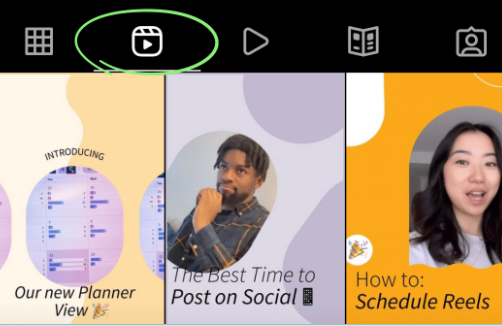
Instagram Reels is a feature of the social media platform Instagram that allows users to create and share 15-second video clips with a range of creative tools and effects.
Reels has experienced rapid growth since its launch in August 2020, with over 220 million Reels created in September 2021 alone.
Reels can be a valuable tool for businesses looking to showcase their products and services in a creative and engaging way and have been shown to increase engagement compared to regular Instagram posts.
Music is a key feature of Reels, with over 75% of Reels including a music track.
In this article, we are sharing everything you need to know about Instagram Reels and how to download them online on Mobile and Laptop so that you can refer to them later.
Since its introduction, Instagram Reels has become one of the most popular and engaging social media features. One of the main reasons for the popularity of Instagram Reels is that it provides a fun and creative way for users to express themselves. With features like AR effects and music tracks, users can easily create high-quality videos that are sure to capture the attention of their followers.
Another reason for the success of Instagram Reels is that it provides an opportunity for businesses to connect with their audiencein a more engaging way. Brands can use Reels to showcase their products or services, share behind-the-scenes glimpses, and promote their offerings in a way that is both informative and entertaining.
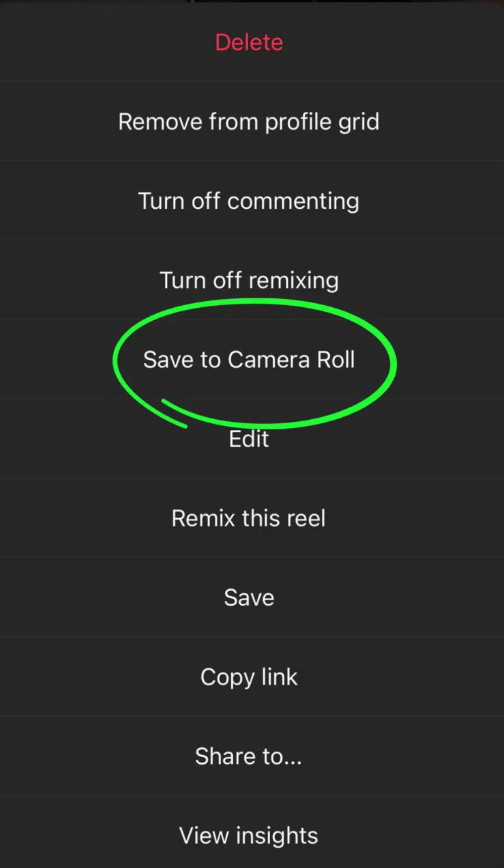
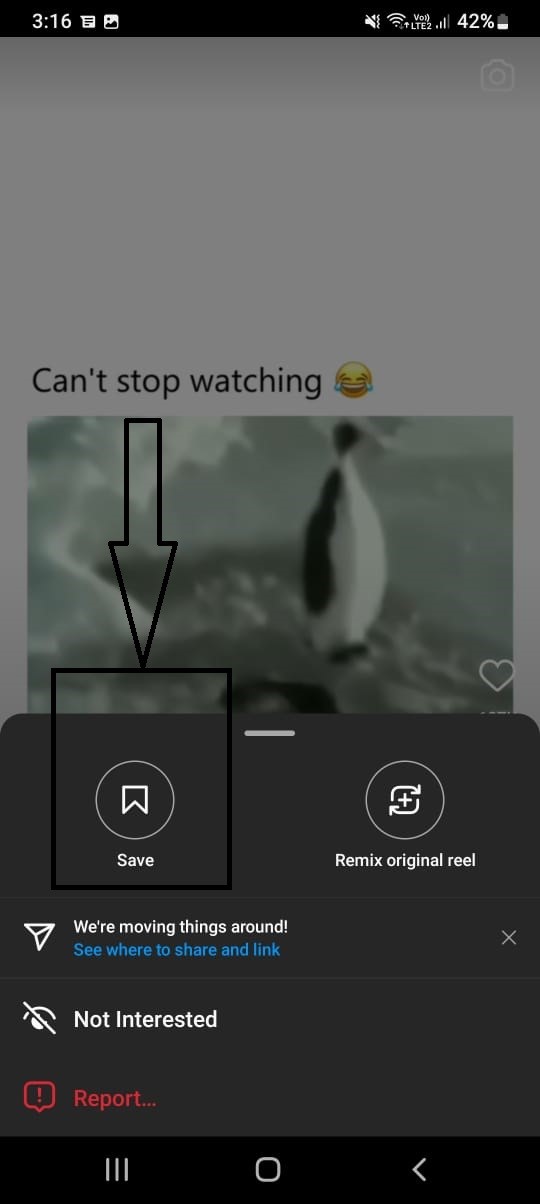
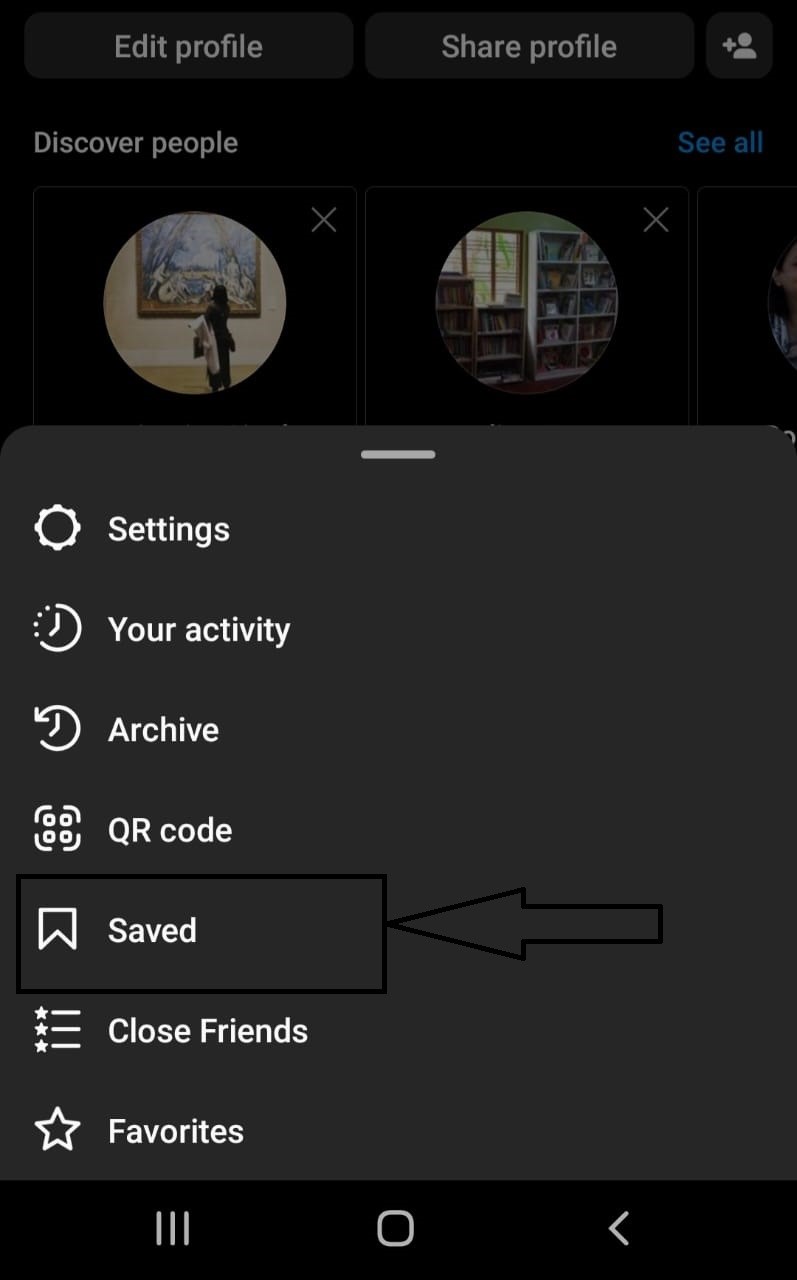
As Instagram Reels continues to gain popularity, many users want to know how to download their favourite videos. Whether you want to save a Reel for later or share it on other platforms, downloading Instagram Reels is a simple process that can be done in just a few steps.
In this blog, we will discuss everything you need to know about Instagram Reels and how to download them so that you can enjoy all the benefits that this exciting feature has to offer.
However, before we get to that, let’s take a closer look at the Instagram Reel feature itself.
What are Instagram Reels?
In 2020, Instagram introduced a new feature called Reels, and it has since become a popular way for users to create and share short-form videos. Instagram Reels allows users to create 15-second video clips that can be edited with various filters, music, and effects.
These short videos are perfect for sharing quick, attention-grabbing content that can engage viewers and increase engagement.
With Reels, users can add music from Instagram’s music libraryor their own original audio, and choose from a range of visual effects and filters to enhance their videos. Reels also allow users to speed up or slow down their footage and adjust the timing of their transitions.
One of the key features of Reels is the ability to share them on the Explore page, where they can be discovered by a wider audience. This feature allows users to reach new followers and grow their online presence beyond their existing network.
Reels can also be a valuable marketing tool for businesses, as they provide a unique opportunity to showcase products or services in a creative and engaging way. Brands can use Reels to create product demos, tutorials, or behind-the-scenes glimpses into their operations, helping to build a stronger connection with their followers and attract new customers.
Whether you’re a casual user looking to have fun with video content or a business owner looking to promote your brand, Reels provides a powerful tool for sharing your message with the world.
Instagram Reels Stats
In its first year, Reels experienced rapid growth, with Instagram reporting that users created over 220 million Reels in September 2021 alone.
In a survey conducted by Instagram, 81% of users said that Reels helped them discover new products or services.
Brands have also embraced Reels, with 65% of the top-performing Reels including a product or service featured.
The use of music is a key feature of Reels, with over 75% of Reels including a music track.
Instagram has made a concerted effort to promote Reels, featuring it prominently on the Explore page and in user feeds.
Reel content has been shown to be highly engaging, with a study finding that Reels receive 17.2% more engagement than regular Instagram posts.
The most popular Reels categories include dance, comedy, and beauty and fashion, with these topics consistently performing well on the platform.
Reels have also been used to promote social causes and raise awareness, with many users creating Reels that educate and inform their followers about important issues.
How to Download Instagram Reels Online on Mobile and Laptop?
Sure, here’s a step-by-step guide on how to download Instagram Reels online on mobile and laptop:
On Mobile
Open the Instagram app on your mobile device.
Find the Reel you want to download.
Tap the three dots in the top right corner of the Reel.
Select “Copy Link” from the options that appear.
Open your preferred Instagram Reels downloader app or website.
Paste the link you copied from Instagram into the downloader.
Select the quality and format in which you want to download the Reel.
Click the “Download” button.
Once the download is complete, you can find the Reel in your device’s gallery.
On Laptop or Computer
Open Instagram on your web browser and log in to your account.
Find the Reel you want to download.
Click on the Reel to open it.
Copy the URL from the web browser’s address bar.
Open your preferred Instagram Reels downloader website on your laptop.
Paste the copied URL into the downloader’s text box.
Choose the format and quality in which you want to download the Reel.
Click the “Download” button.
Once the download is complete, the Reel will be saved in your laptop’s default download folder.
And that’s it! By following these simple steps, you can easily download Instagram Reels on both mobile and laptop devices.
Popular Instagram Reels Downloader Websites and Apps
Instagram Reels downloader apps and websites are becoming increasingly popular as more people want to save and share their favourite Reels. With these tools, you can easily download Instagram Reels and watch them offline anytime you want.
There are many differentapps and websites available that allow you to download Reels, and they all offer different features and capabilities. Some are free and some require a fee, but all are easy to use and can save you time and frustration.
Whether you’re using an app on your phone or a website on your computer, Instagram Reels downloadertools are a great way to enjoy your favourite content on your own terms.
Here are some popular Instagram Reels downloader websites and apps along with a brief description of each:
InstaDownloader.co – This website allows you to download Instagram Reels quickly and easily without any extra software. You just need to copy the link of the Reel you want to download and paste it into the website to start the download.
Snapinsta.app – This website is another popular option for downloading Instagram Reels. It offers a simple interface and lets you choose the resolution and format of the Reel before downloading it.
Video Downloader for Instagram – This app is available for both Android and iOS and is one of the most popular apps for downloading Instagram Reels. It has a simple interface and allows you to download Reels with just a few clicks.
InSaver for Instagram – This app is available for Android and iOS and allows you to save not only Instagram Reels but also other content like photos and videos. It offers a simple and user-friendly interface and lets you save content with just one tap.
These are some of the most popular Instagram Reels downloader websites and apps available. They are all free and easy to use, making it simple for you to download and save your favourite Reels to watch later.
How To Download Your Own Instagram Reels?
If you posted an Instagram Reel a while back and now want to use that video for something else or share it on your other social media accounts. Here’s how to download your own Instagram Reels that are already Live on your account –
Open Instagram and go to your account.
Navigate to the Reels tab.
Find the Reel you want to save, then tap on it to open the video up in full-screen mode.
Tap on the three dots in the bottom right corner to pull up the menu.
Tap the Save to Camera Roll option.
Once done, the Reel will automatically save to your device.
How to Save Instagram Reels on Your Phone without Third-Party Apps?
Here’s a step-by-step guide on how to save Instagram Reels on your phone app without third-party apps to watch later:
Open the Instagram app on your mobile device.
Scroll through your feed until you come across an Instagram Reel that you want to save.
Tap the Reel to start playing it.
In the bottom right corner of the screen, you’ll see three dots. Tap on these dots.
A menu will appear. Tap “Save” to save the Reel to your device.
You can then find the saved Reel by going to your profile and tapping on the three horizontal lines in the top right corner of the screen.
From the menu that appears, select “Saved.”
All of your saved Instagram Reels will appear on this screen.
To watch a saved Reel, simply tap on it and it will start playing.
And that’s it! By following these simple steps, you can easily save Instagram Reels to your device and watch them later at your convenience.
Reels Downloader app from Ezapo Technologies is also a great app to download Instagram Reels on your Android smartphone. The app offers a simplistic UI and it directly saves all the Instagram Reels on your device. The best part about it is that it doesn’t bombard you will ads, which is a common problem with most of these applications.
Apart from downloading Reels, you can save high-quality photos and videos as well. One can also re-post, share, delete photos and videos right from the application. Here’s how to use this application:
Open the Instagram application on your Android smartphone and search for the favourite reel you want to download. Now click on the three-dot at the bottom and then tap on the copy link. Go to the Reels Downloader applicationand simply paste the link there. The Reel video will start downloading on your Android device.
FAQs
Q1. Can you download the Instagram Reels video from a private account?
Answer. Instagram Reels video download from the private account is only possible if it’s on your follower’s list. Otherwise, there is no provision to download Instagram Reels videos from a private account, at least for free. Ingramer asks for a subscription to save the video from the social networking site’s private account.
Q2. What are the rules for Insta reels?
Answer. You can share to Feed so only your followers can see your reel. People will not be able to use original audio from your reels, and people cannot share your reels with others who don’t follow you.
Q3. What is the video file format of Instagram Reels?
Answer. Instagram Reels video supports only two video file formats at the moment: MP4 and MOV.
Q4. How to record a Reel on Instagram?
Answer. To record a reel, follow the below-mentioned steps –
Tap on new Create on the left.
Tap on Post.
Tap on “Select from computer” and choose the content that you want to share from your device. Click media in the bottom right, then click add to add another file.
Tap on Next in the top right. From here, you can a) Use the slider on the right, below the Cover photo, to choose a cover photo from the clip or click Select from computer to choose one on your device. b) Use the slider on the right, below Trim, to trim the beginning or end of your clip.
Tap on Next in the top right. Here you can write a caption, add a location, tag people, add alternate text and adjust your post’s settings.
Tap on Share in the top right.
Note that you can record one or multiple clips that add up to 90 seconds. The progress bar at the top shows how long you’ve recorded. If you share your reel to Explore, it can also be seen in the Reels section of your profile.
Q5. What is the maximum video file size of Instagram Reels?
Answer. Instagram Reels video supports a maximum file size of 4GB. Anything north of that will end up making the video a little shabby on the social networking platform.
Q6. How to share Instagram Reels videos on Facebook?
Answer. Instagram allows you to share Reels videos to other apps like Facebook, without going through the trouble of downloading or saving them on your device. To share your Instagram Reels video on Facebook, follow the steps below –
Go to your Insta feed and open the Reels video
Now, click on the three-dot icon and tap ‘Post to other apps’
Toggle the button next to Facebook to share Instagram Reels videos on Facebook
If you’re looking to share an Instagram Reels video posted by others, go to the Reels section and look for three dots –> select ‘Share to’ from the screen that pops up, followed by a Facebook app. This way you’ll be able to post Instagram Reels videos on Facebook.
Q7. What are the Insta Reels dos and don’ts?
Answer. Reels is a unique opportunity as short videos can be an unparalleled branding opportunity. There are some important Do’s and Don’ts to follow when creating Reels.
The Do’s
Do use all the tools. Take full advantage of the filters, GIFs, text tools, and available audio tracks. Your Reels will be more authentic when making total usage of the tools.
Do add hashtags. Consider not only which ones are relevant to your content and existing audience but also your target audience. Use hashtags that put your content in front of new people primed to discover your property.
Do share to your feed. At first, always cross-post Reels to the feed. It will make your content more accessible and visible to your followers and other users on the Explore Page. You can always remove the Reel from your grid later if it doesn’t fit in with your aesthetic. Or here’s a hack: include a one-second frame at the start of the Reel so that your grid’s flow is uninterrupted.
Do it for the right reasons. If you’re doing Reels because it’s the hot new thing, you’ll be less successful. Instead, create for the format! Observe what’s popular – and then see how to add your brand into the mix in an engaging and appropriate way.
The Don’ts
Don’t repost from TikTok. It’s tempting to save time and money by reposting a TikTok to IG (or a Reel to TikTok). That’s not a good idea! Videos with the TikTok logo are most likely dinged in Instagram’s algorithm, and this will defeat the purpose of reaching a wider audience. The same goes for posting a Reel to TikTok.
Don’t use big borders or too much text. The IG algorithm will also deprioritize Reels that are primarily text or that have chunky frames. That’s because it goes against the aesthetic and intention of the format. Since it’s not what people expect, your Reel won’t be recommended to others.
Don’t use outside music. You should also avoid using audio that’s not from the Instagram music library. If you do, at least make sure that you have full rights to it, which means that it’s original audio or you’ve purchased a license. Otherwise, you risk the video getting flagged and potentially removed.
Q8. How to add audio in Instagram Reels?
Answer. Mix your own audio with music or someone else’s original audio in your reel on Instagram
Tap Music and select a song.
Tap Voiceover to add a voiceover.
Tap Sound Effects and select the sound effect you want to add, then tap Done at the bottom.
Q9. Why don’t I have Reels on Instagram?
Answer. You won’t have Reels If you are using an outdated version of Instagram. So update it to the latest version.
* As per a leak, the Google Pixel 7a will come with a face unlock feature out of the box. * Pixel 7a expected to be available immediately after the announcement on May 10th. * Pixel 7a is tipped to cost $499 (approx Rs 41,000).
Google is all set to launch its new Pixel A-series smartphone, the Pixel 7a, next month at the company’s Google I/O 2023 conference. While key details about the phone have leaked in the past, the company is likely to introduce incremental changes to the design of its entry-level Pixel phone, while upgrading the hardware and software.
One of the key areas where the Pixel 7a is expected to receive an upgrade over its predecessor, the Pixel 6a, is in terms of face unlock support. The Pixel 6a lacked an Al-based facial recognition system to unlock the phone, but with the Pixel 7a, Google is reportedly adding this feature for user convenience.
According to tipster Snoopy Tech, who shared some UI images of the phone, the Pixel 7a will have a flat display with a hole-punch cutout at the top centre and slightly thicker bezels.
Additionally, the phone will offer two types of biometric authentication methods, including the face unlock feature along with an in-display fingerprint sensor.
Google Pixel 7a Specifications (Expected)
The Google Pixel 7a is expected to come with a 6.1-inch OLED panel with a Full HD+ resolution and a 90Hz refresh rate. The handset will likely be powered by Google’s in-house Tensor G2 SoC and paired with up to 8GB LPDDR5 RAM and 128GB of UFS3.1 storage.
The handset is said to feature a dual camera setup on the back with a new 64MP primary camera along with a 13MP ultra-wide angle sensor. For selfies and video calls, the Pixel 7a will likely rely on an updated 12MP sensor. Other notable features on the handset include 5G, 4G, WiFi6, wireless charging, Android 13 out of the box with the promise of 3 future Android version updates, and a sizeable 4,500mAh battery with support for 18W charging.
1) Google Pixel 7a leak points to Face Unlock support ?
Ans) With the Google Pixel 7a moving ever closer to launch, the leak cycle for the mid-range phone has been ramping up. The latest leak seems to indicate that the Pixel 7a will be Google’s first affordable phone with Face Unlock.
Face Unlock for the Google Pixel series debuted on the Pixel 4 lineup, but the feature didn’t return the following year. And while there were quite a few signs that Google had every intention of bringing Face Unlock to the pixel 6 series ,didn’t see the convenient feature arrive again until the Pixel 7 and Pixel 7 Pro.
All the while, Google’s affordable A-Series Pixel phones have thus far only featured fingerprint sensors to supplement the usual Pattern/PIN unlock options. Last year’s Pixel 6a was a step up in technology (but maybe not in quality) from the Pixel 5a before it, as Google switched to using an under-display fingerprint sensor.
By all indications, the Pixel 7a should also feature an under-display sensor, but according to the latest leaked images, it may also have another way to unlock. New (blurry) alleged images of the Pixel 7a shared by leaker snoopy tech some of the phone’s menus, including options for “Face & Fingerprint Unlock.”
If these images are to be believed, this will mark the most affordable Pixel phone to feature Face Unlock. That said, we’ve been down this road before with the Pixel 6 series. It’s still entirely possible for Google to remove this feature from the Pixel 7a before launch.
Presumably, the Face Unlock would work on the same principle as it does on the Pixel 7 and 7 Pro. On those phones, the front-facing camera’s dual-pixel nature better ensures that what the phone sees is a 3D face and not something like a 2D picture of you.
2) What are the specifications of google pixel 7a?
Ans) As for the rest of the specifications, the Pixel 7a is expected to get a 6.1-inch FHD+ AMOLED panel with a 90Hz refresh rate, and be offered with a dual-camera setup, including a main wide lens and a secondary ultrawide unit.
Based on the leaked renders, the phone could also offer relatively symmetrical bezels, minimizing the chin—and increasing the overall screen-to-body ratio. As for the price, leaks have pointed towards a sticker price of $499, which would represent a $50 price hike, up from the $449 price of the Pixel 6a.
* Realme 11 Pro+ is expected to launch in China in May * Leaked specifications have claimed it to feature a MediaTek Dimensity chip * It is also tipped to come with a 200MP primary camera * Realme 11 Pro+ is confirmed to come with a Moon mode for photography. * It has been confirmed by a sample moon shot shared by Realme China Marketing Director, Jessie on Weibo.
Realme is expected to launch a new mid-premium range smartphone that will seek to rival Xiaomi’s Redmi Note 12 series. The smartphone has a potential launch date of May this year, and two devices are expected under the new series – Realme 11 Pro+ and 11 Pro.
Now, building up to the launch, a post on Chinese social media platform Weibo, by the company’s marketing director, has revealed that the smartphone will feature a dedicated ‘Moon Mode’ in its rear camera.
Realme 11 Pro+ Moon mode has been confirmed by the brand’s Marketing Director, Jessie. The top executive posted a sample moon shot on China’s microblogging platform, Weibo. Notably, brands like Huawei and Samsung already offer dedicated moon mode on their flagship devices, and Samsung has even received flak for faking moon shots.
Realme itself has dabbled in astrophotography with its dedicated starry night mode, but this is the first time it will offer a dedicated moon mode to its users. Let’s take a look at what’s in store.
Realme 11 Pro+: What we know so far
The ‘Moon Mode’ on Realme 11 Pro+ seems to be an interesting addition, since leaks so far had not pointed at the inclusion of a telephoto camera unit on the phone. Now, the smartphone looks set to get a zoom feature that could be akin to Samsung’s‘Space Zoom’ feature that has been present in its flagship Galaxy S series since the launch of the Samsung Galaxy S21 Ultra.
It’s not clear how the feature will work. General industry trends suggest that Realme may include a telephoto camera unit in the Realme 11 Pro+, and augment this with software enhancements and Al algorithms that optimise the zoom performance specifically to take photographs of the moon.
Details on the matter, however, remain under wraps for now. In terms of leaked specifications, the Realme 11 Pro+ is tipped to feature a 6.7-inch full HD+ 120Hz display, which could feature AMOLED or OLED panel tech. It is tipped to feature an as-yet unannounced Media™ek Dimensity 7000 series chip, which could be clocked at 2.6GHz. This could be paired with up to 16GB RAM and 1TB internal storage on the Realme 11 Pro+.
To the rear, the smartphone could feature a 200MP triple rear camera setup, and a 16MP front camera could handle selfie duties. The entire setup could be powered by a 5,000mAh battery, with up to 100W fast charging standards tipped as well. The phone is expected to run on Android 13.
Realme is expected to launch the Realme 11 Pro+ in India following its China launch, when it will replace the Realme 10 Pro+ that is already on sale here. The latter is priced onward of Rs 24,999 in India, so the Realme 11 Pro+ could retain a sub-Rs 30,000 price tag, once launched.
Realme 11 Pro+ Moon Mode Confirmed by Realme China Marketing Director
Realme 11 Pro+ is confirmed to come with a dedicated Moon mode for clicking detailed, high-resolution pictures of the moon. As you can see in the picture shared by Jessie, the image of the moon appears quite detailed and sharp, with craters, etc., visible. The Weibo post doesn’t reveal anything else about the camera setup, but we can safely assume that the camera setup also features a telephoto lens.
Previous reports have confirmed that the Realme 11 Pro+ will have a 200MP primary camera. The same executive also shared a teaser of the upcoming smartphone,confirming that it will launch in China in May. The smartphone is also expected to launch in India alongside Realme 11 and Realme 11 Pro. Digital Chat Station has recently revealed some core specifications of the Realme 11 series smartphones.
Realme 11 Pro+: Specifications and Everything We Know So Far According to the well-known Chinese tipster, the 11 Pro+ will be powered by the MediaTek Dimesnity 7000 series chipsets. Reportedly, Realme 11 Pro+ will not come with the existing Dimensity 7020 and Dimensity 7200 chipsets but a new Dimensity 7000 series SoC from MediaTek. Apart from this, Digital Chat Station has yet to reveal any further information.
The Realme 11 Pro+ has also cleared the TENAA Certifications and the listing has shed light on several smartphone specifications. According to the listing, the 11 Pro+bears the RMX3740 model number. It will feature an FHD+, 120Hz curved AMOLED display with an in-display fingerprint scanner. The smartphone will flaunt a triple-rear camera setup, including a 200MP Samsung HPX primary shooter, an 8MP ultra-wide-angle lens, and a 2MP macro sensor. On the front, it will have a 16MP selfie camera.
The listing also confirmed that the smartphone would have a 4,680mAh dual-cell battery and 100W fast charging support. The handset will reportedly offer up to 16GB RAM and 1TB storage. It also runs Android 13-based Realme UI 4.0 out of the box.
1) What are the specifications of Realme 11 Pro +?
Ans) According to the well-known Chinese tipster, the 11 Pro+ will be powered by the MediaTek Dimesnity 7000 series chipsets. Reportedly, Realme 11 Pro+ will not come with the existing Dimensity 7020 and Dimensity 7200 chipsets but a new Dimensity 7000 series SoC from MediaTek. Apart from this, Digital Chat Station has yet to reveal any further information.
The Realme 11 Pro+ has also cleared the TENAA certifications, and the listing has shed light on several smartphone specifications. According to the listing, the 11 Pro+ bears the RMX3740 model number. It will feature an FHD+, 120Hz curved AMOLED display with an in-display fingerprint scanner. The smartphone will flaunt a triple-rear camera setup, including a 200MP Samsung HPX primary shooter, an 8MP ultra-wide-angle lens, and a 2MP macro sensor. On the front, it will have a 16MP selfie camera.
The listing also confirmed that the smartphone would have a 4,680mAh dual-cell battery and 100W fast charging support. The handset will reportedly offer up to 16GB RAM and 1TB storage. It also runs Android 13-based Realme UI 4.0 out of the box.
2) What is Realme 11 Pro + Moon Mode ?
Ans) Realme 11 Pro+ is confirmed to come with a dedicated Moon mode for clicking detailed, high-resolution pictures of the moon. As you can see in the picture shared by Jessie, the image of the moon appears quite detailed and sharp, with craters, etc., visible. The Weibo post doesn’t reveal anything else about the camera setup, but we can safely assume that the camera setup also features a telephoto lens. Previous reports have confirmed that the Realme 11 Pro+ will have a 200MP primary camera.

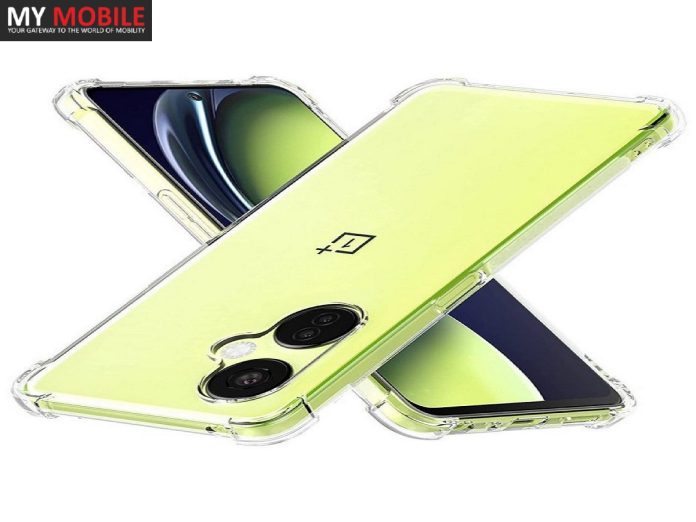

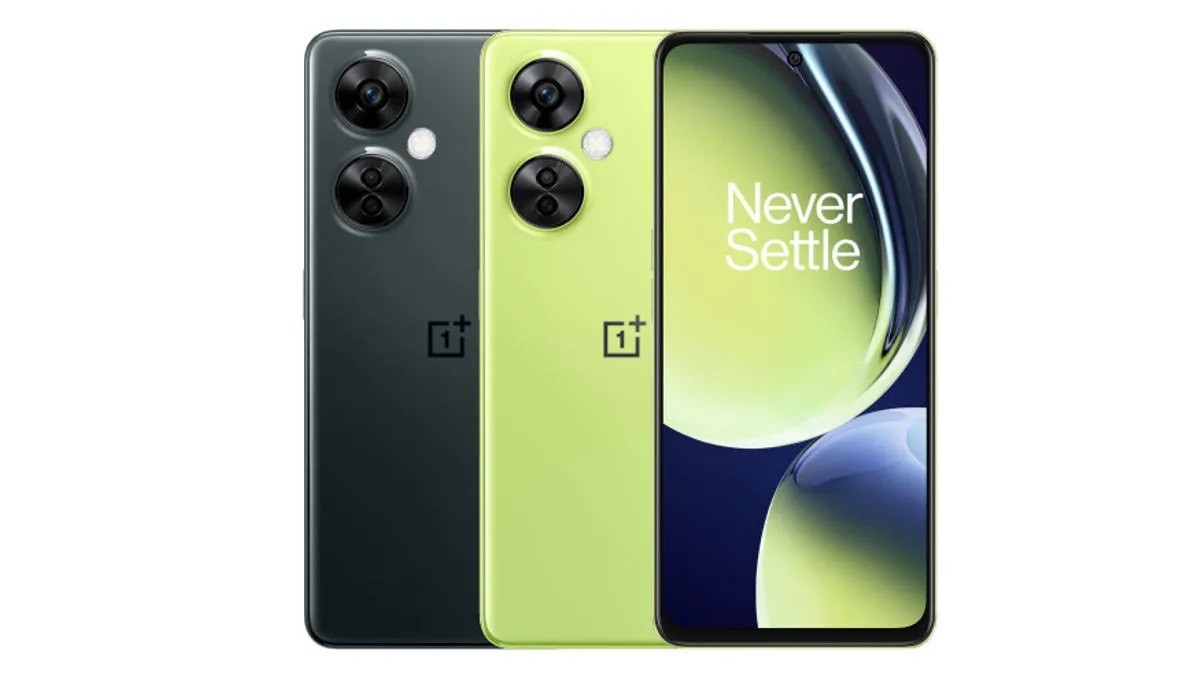
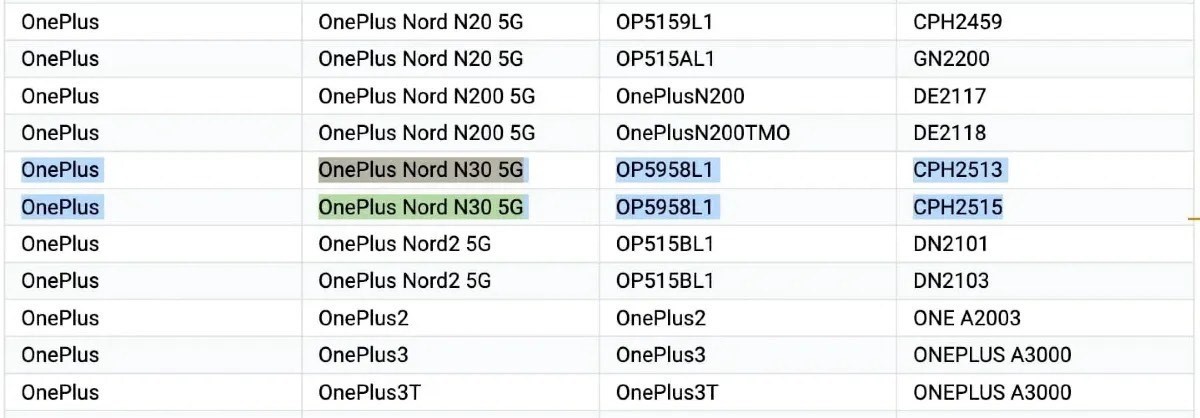
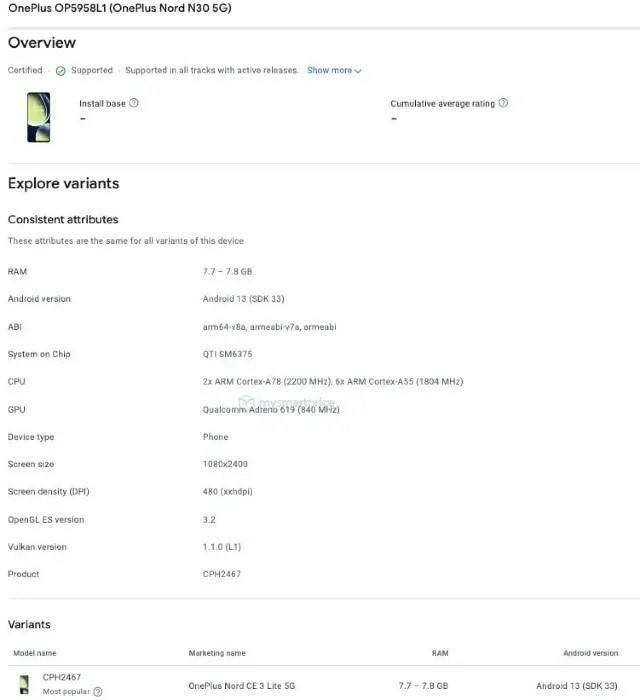
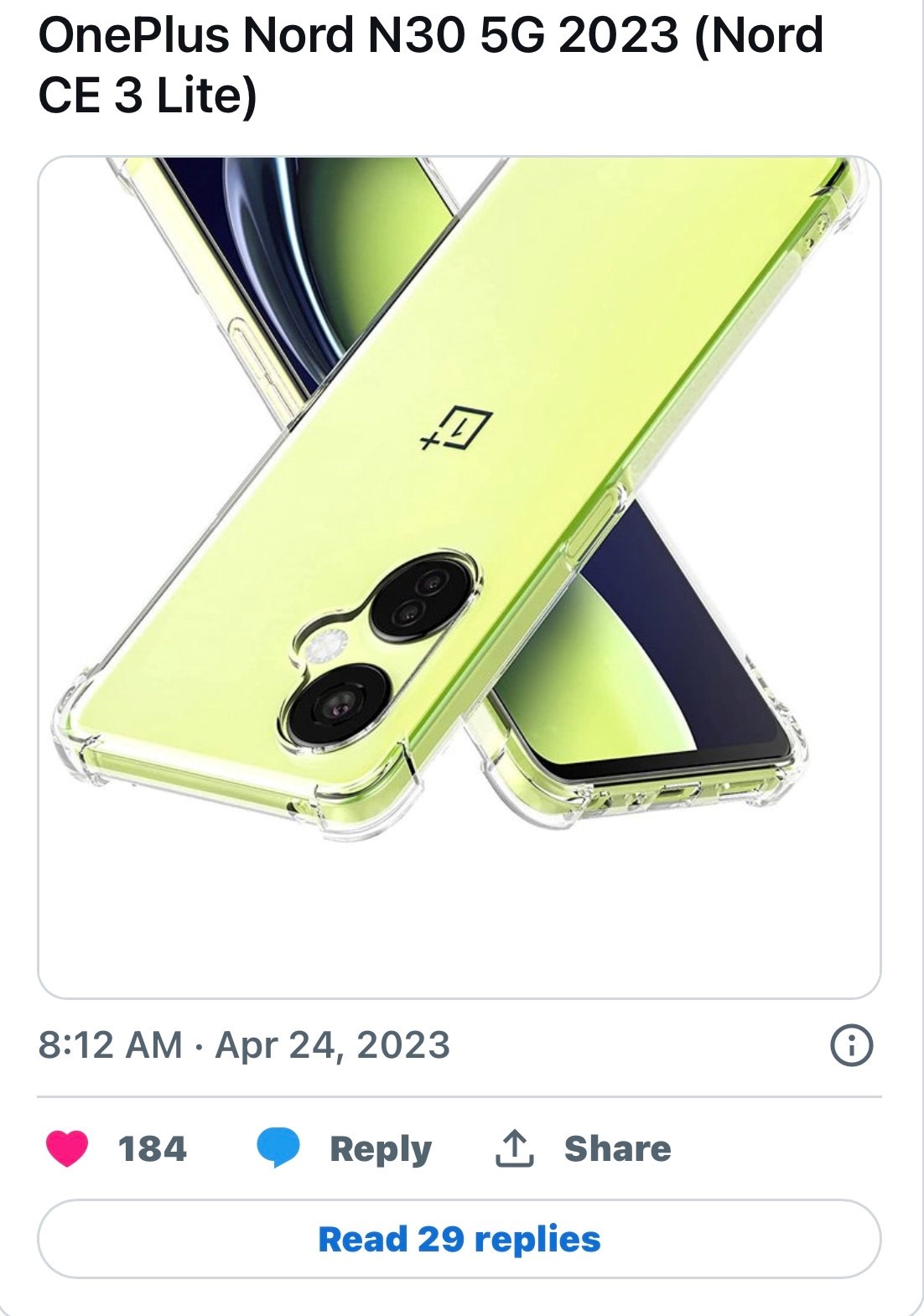
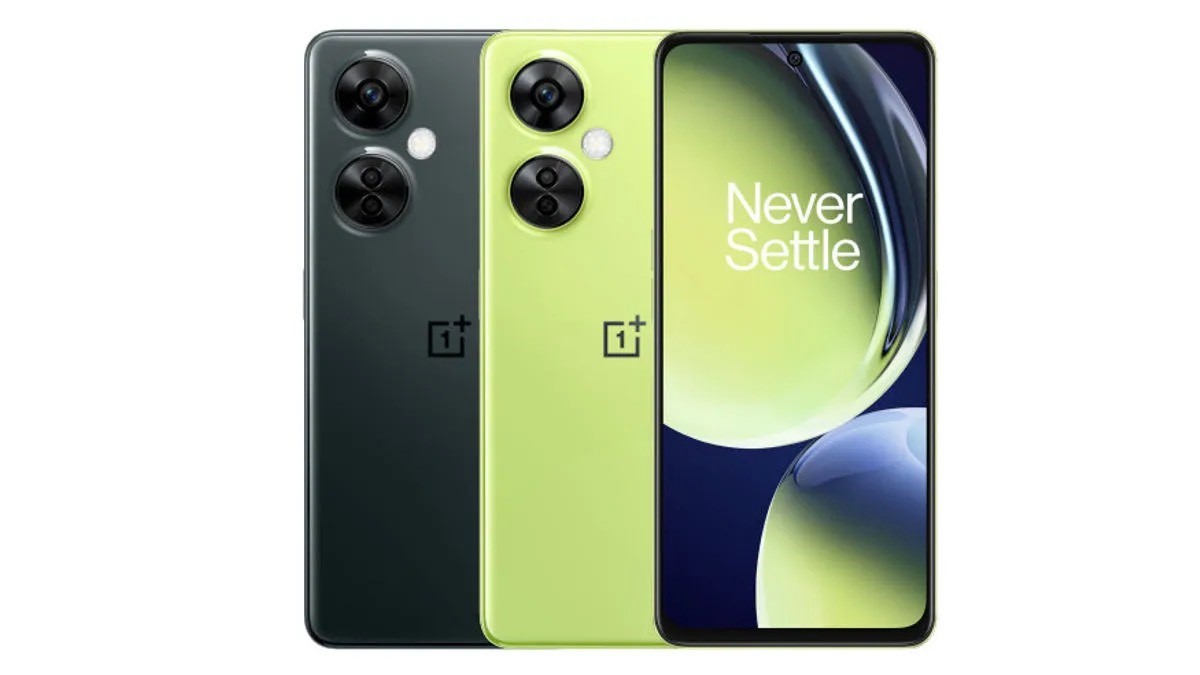
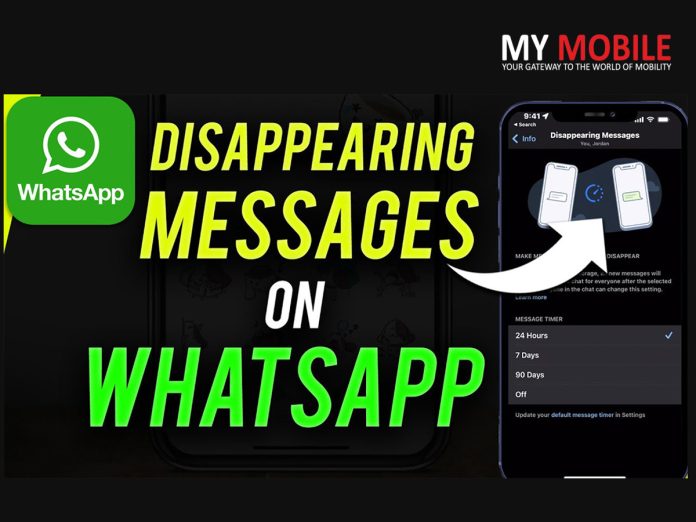
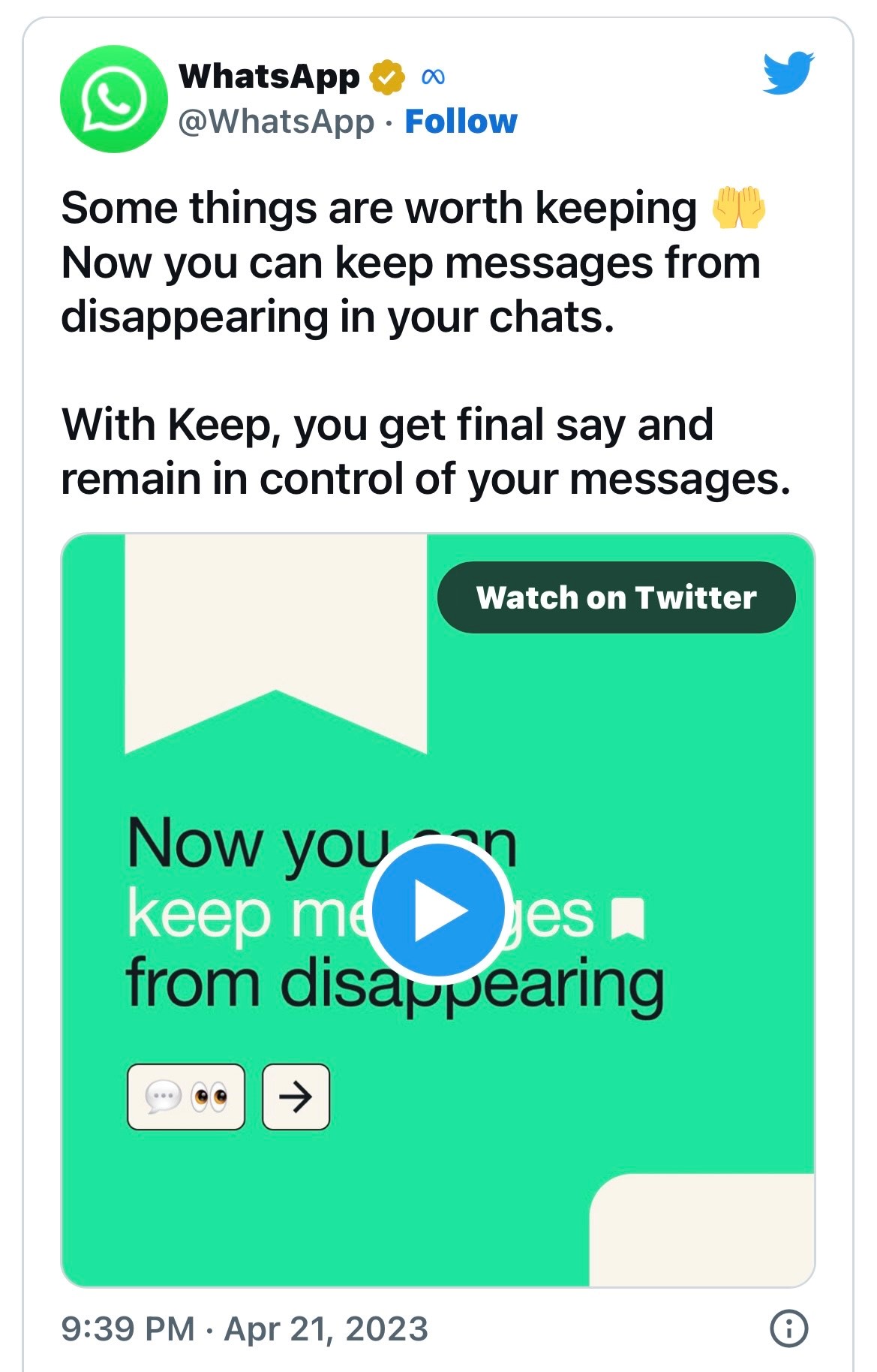
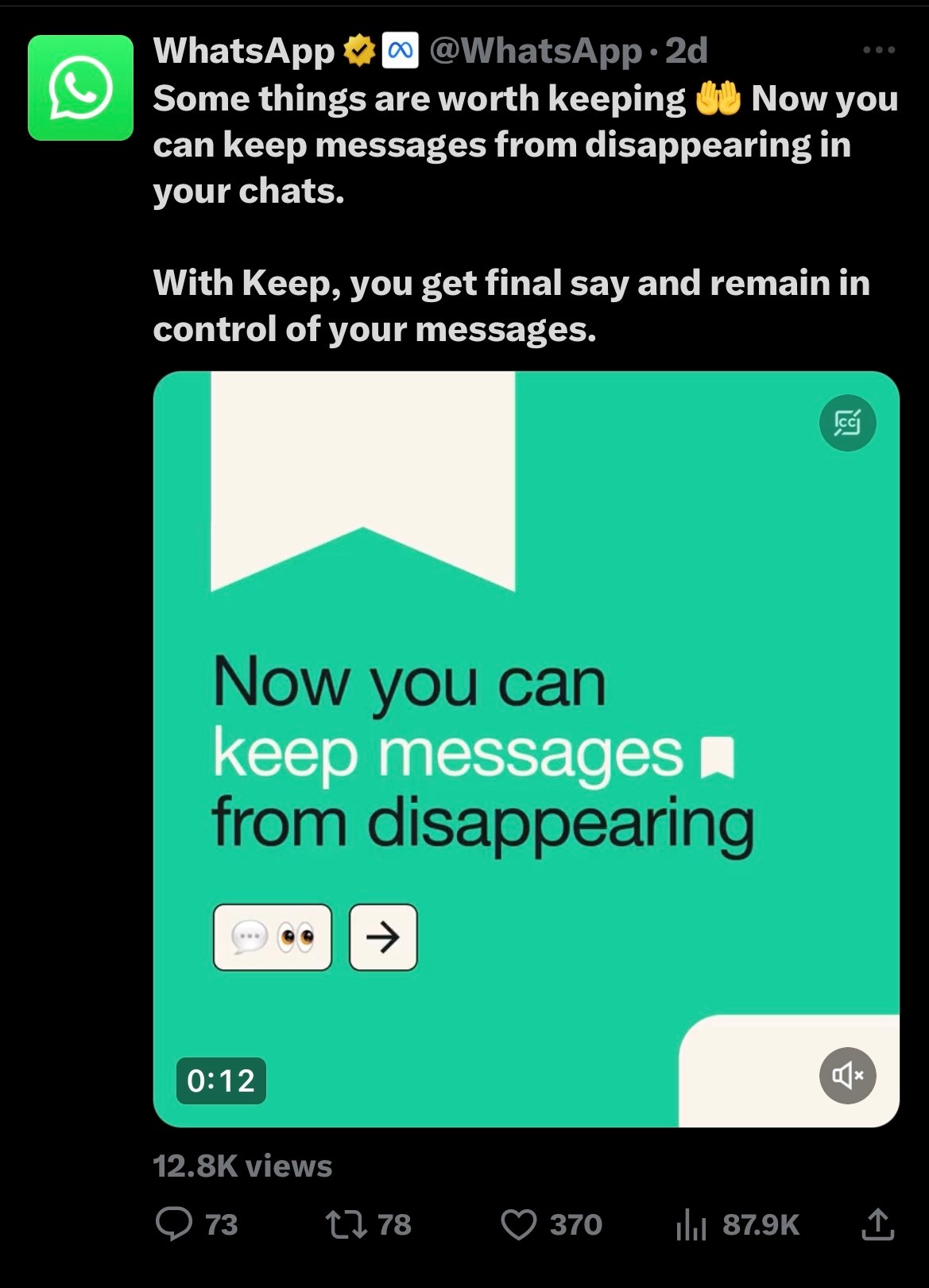
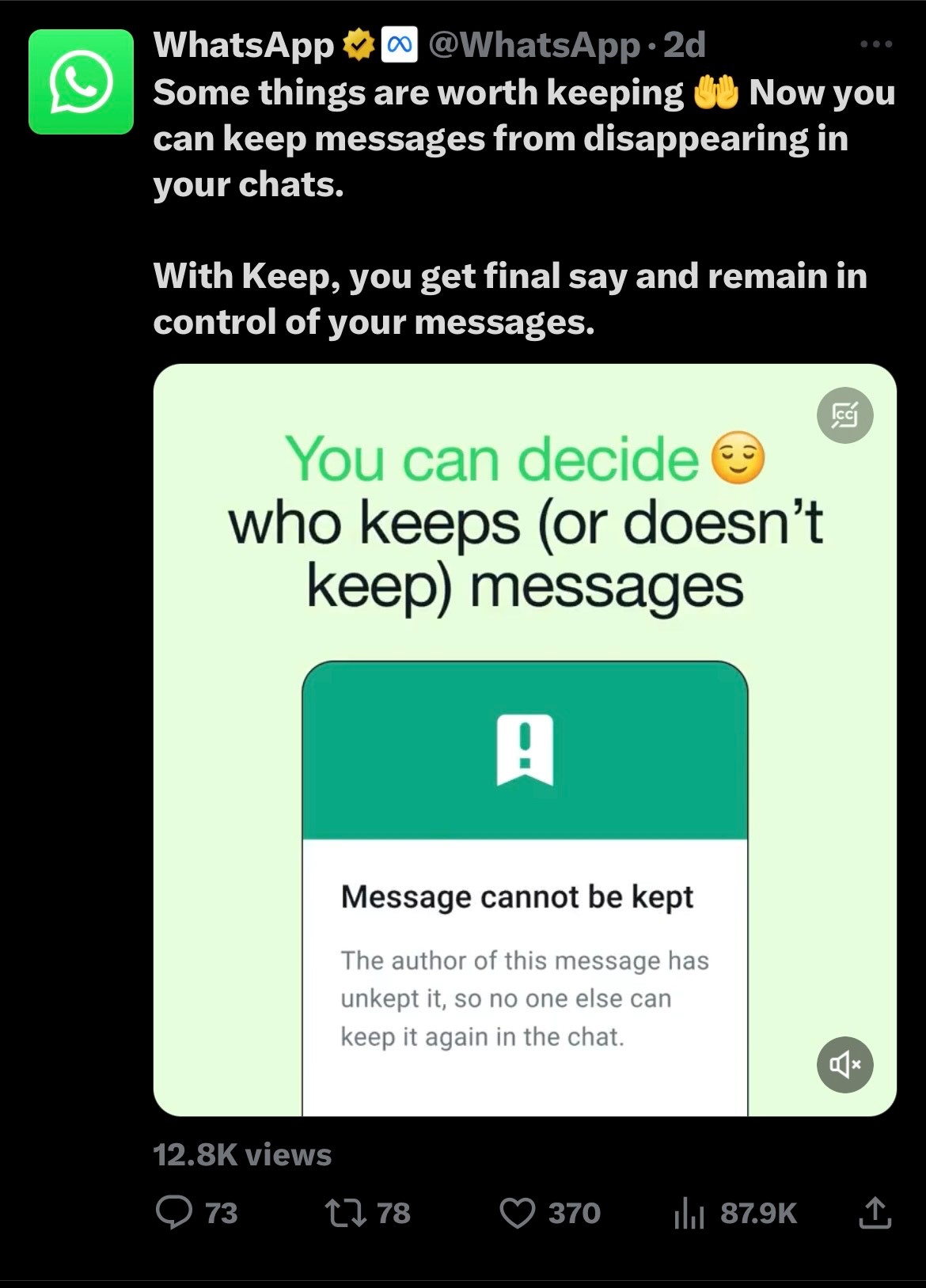
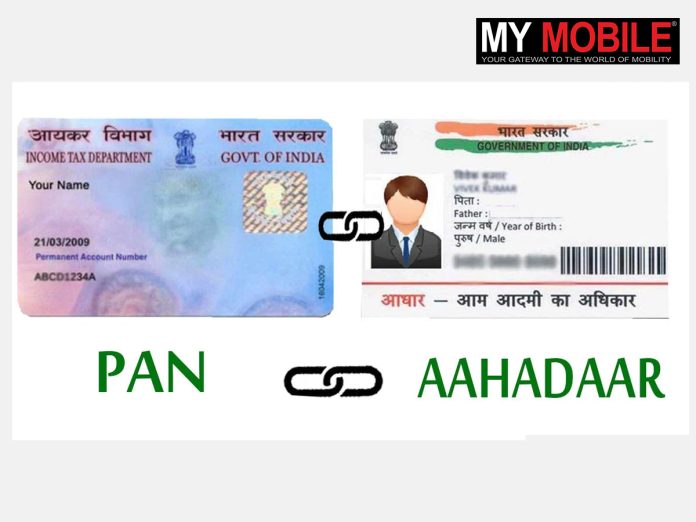
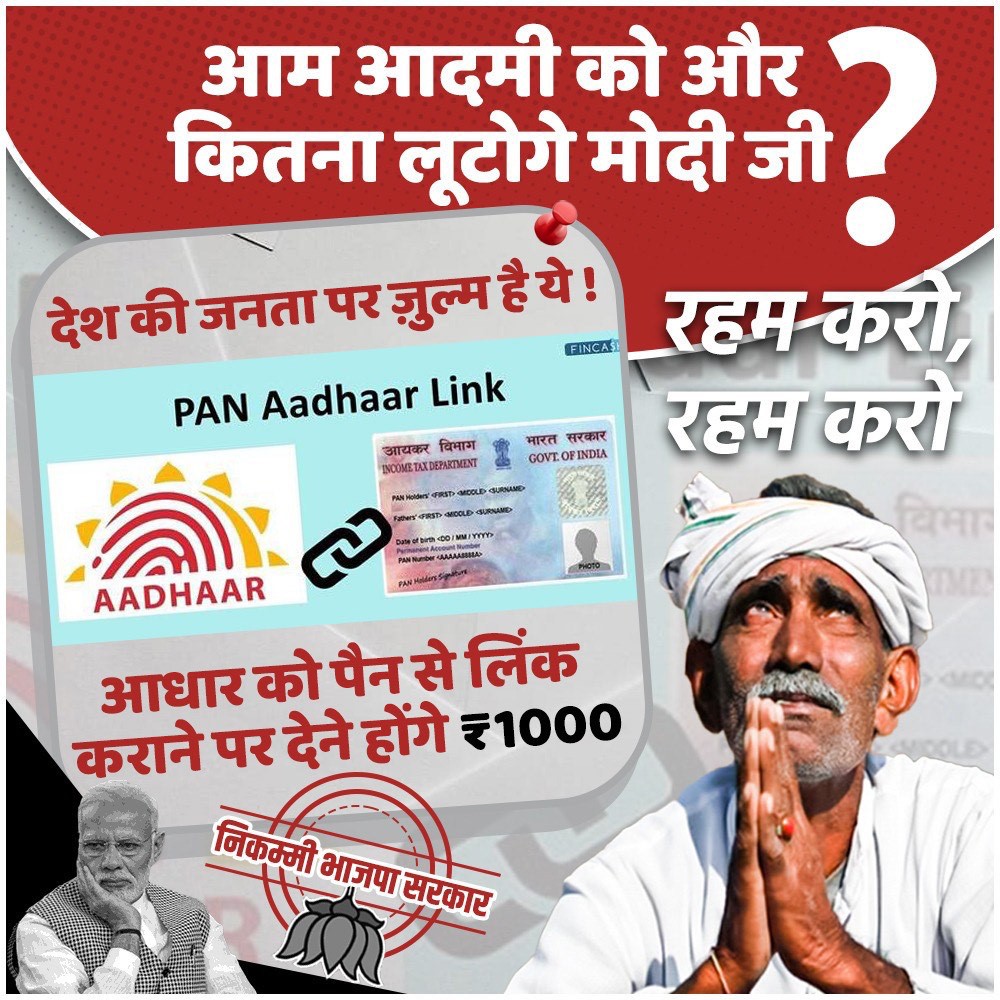

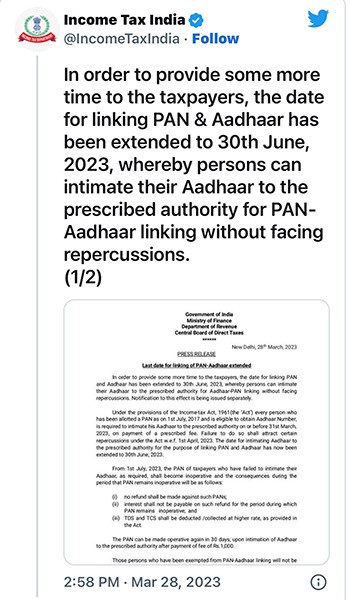

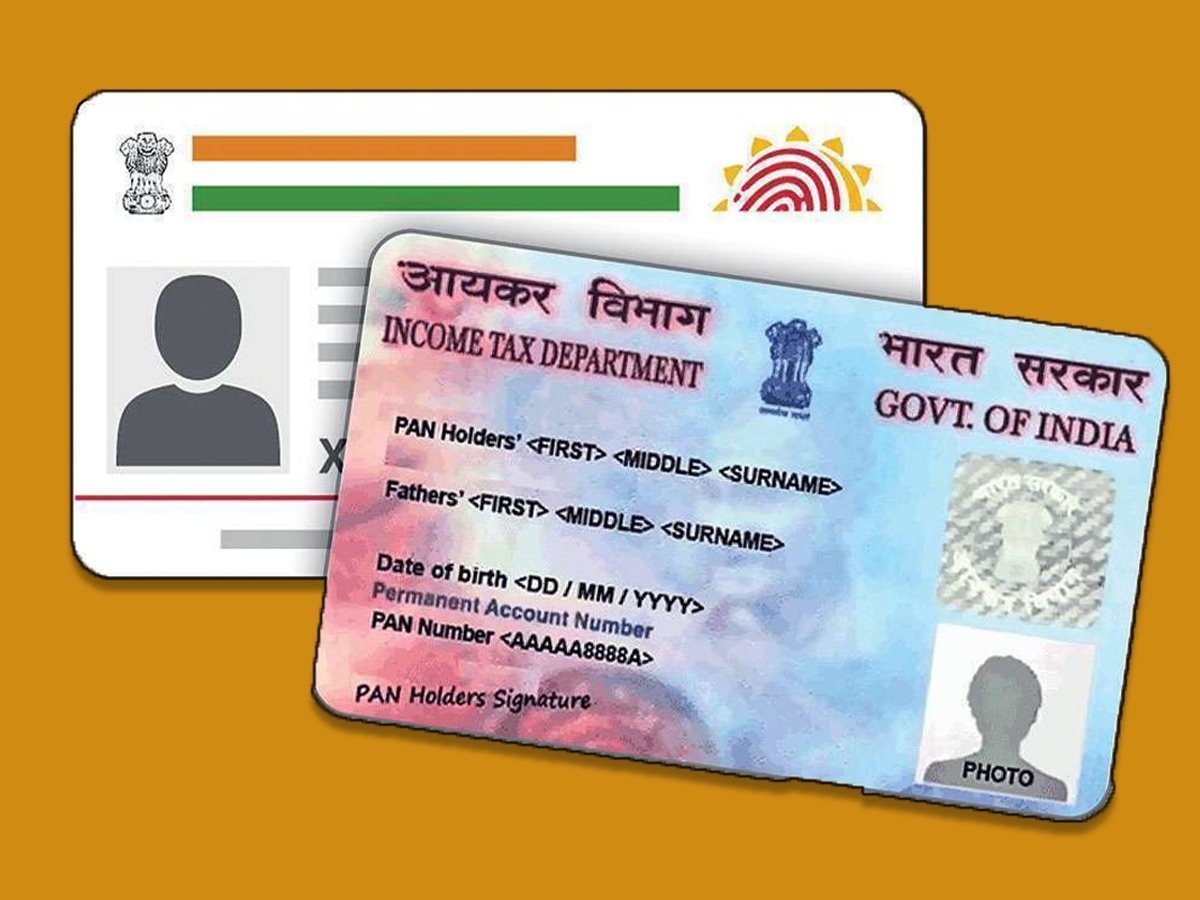
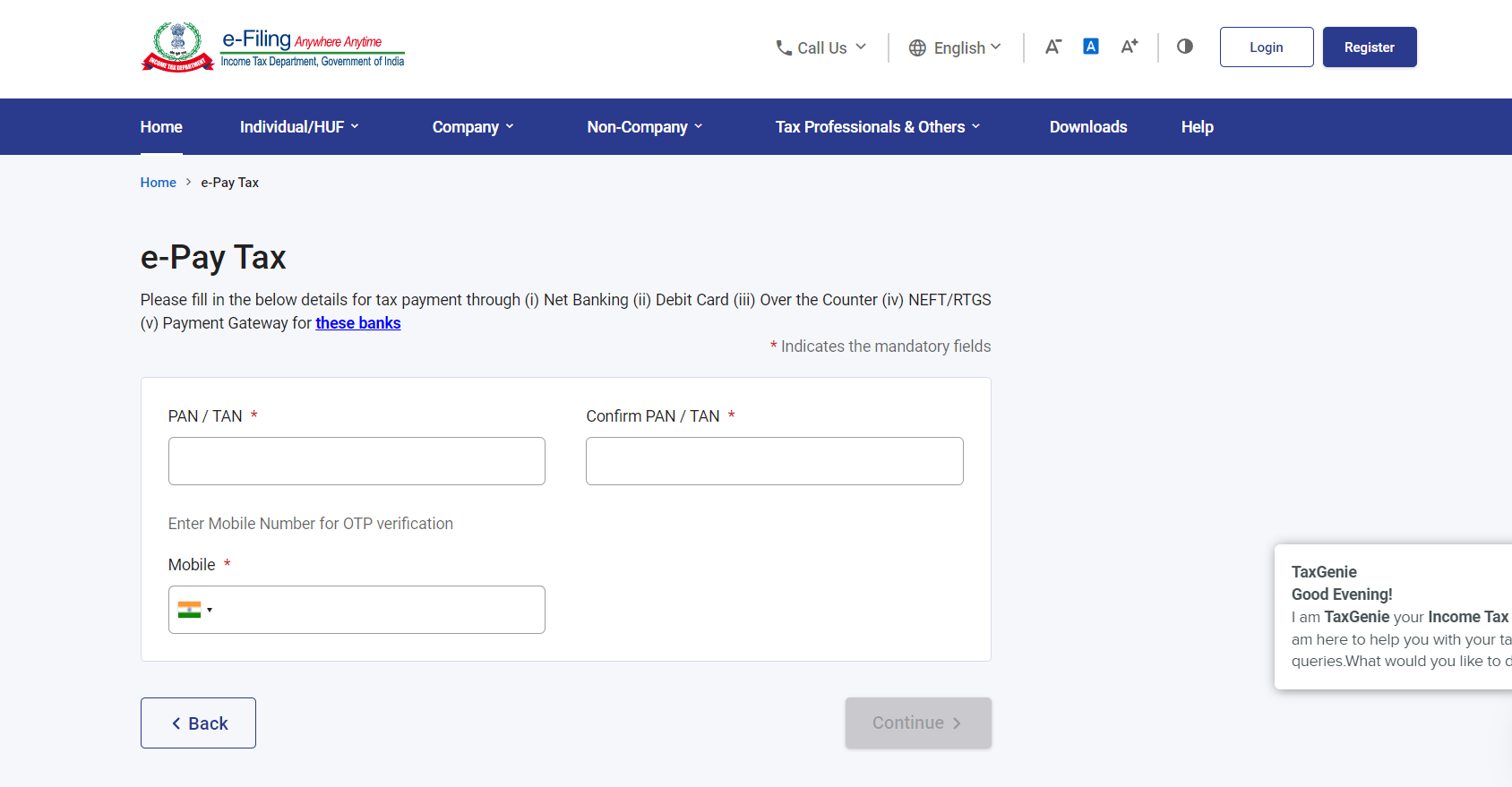
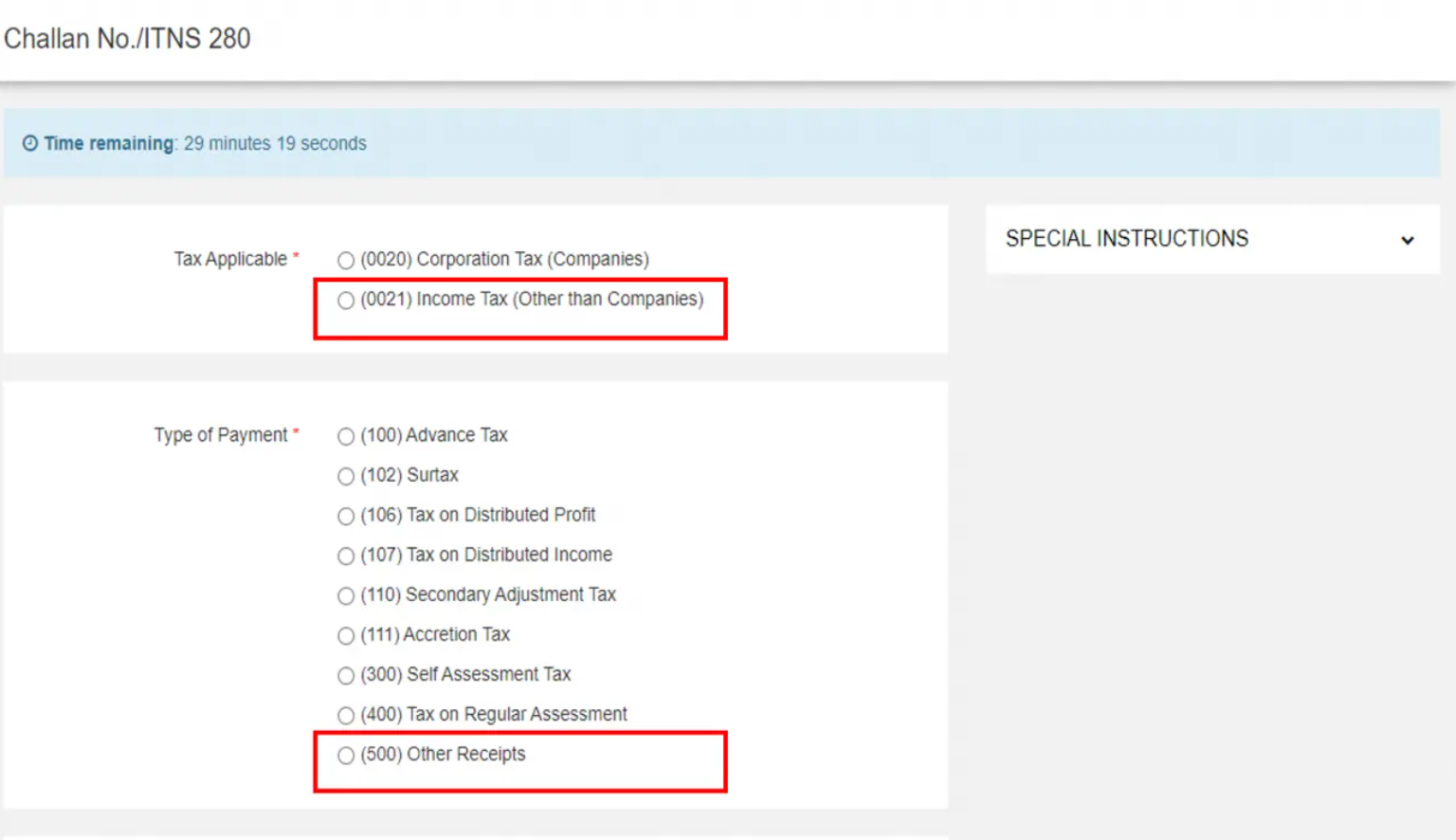
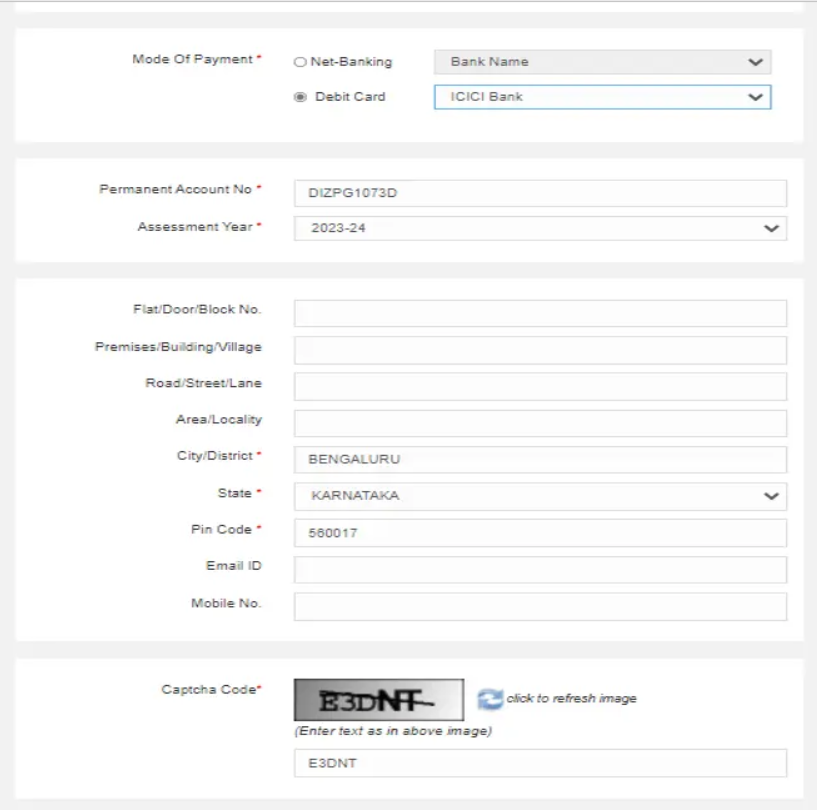

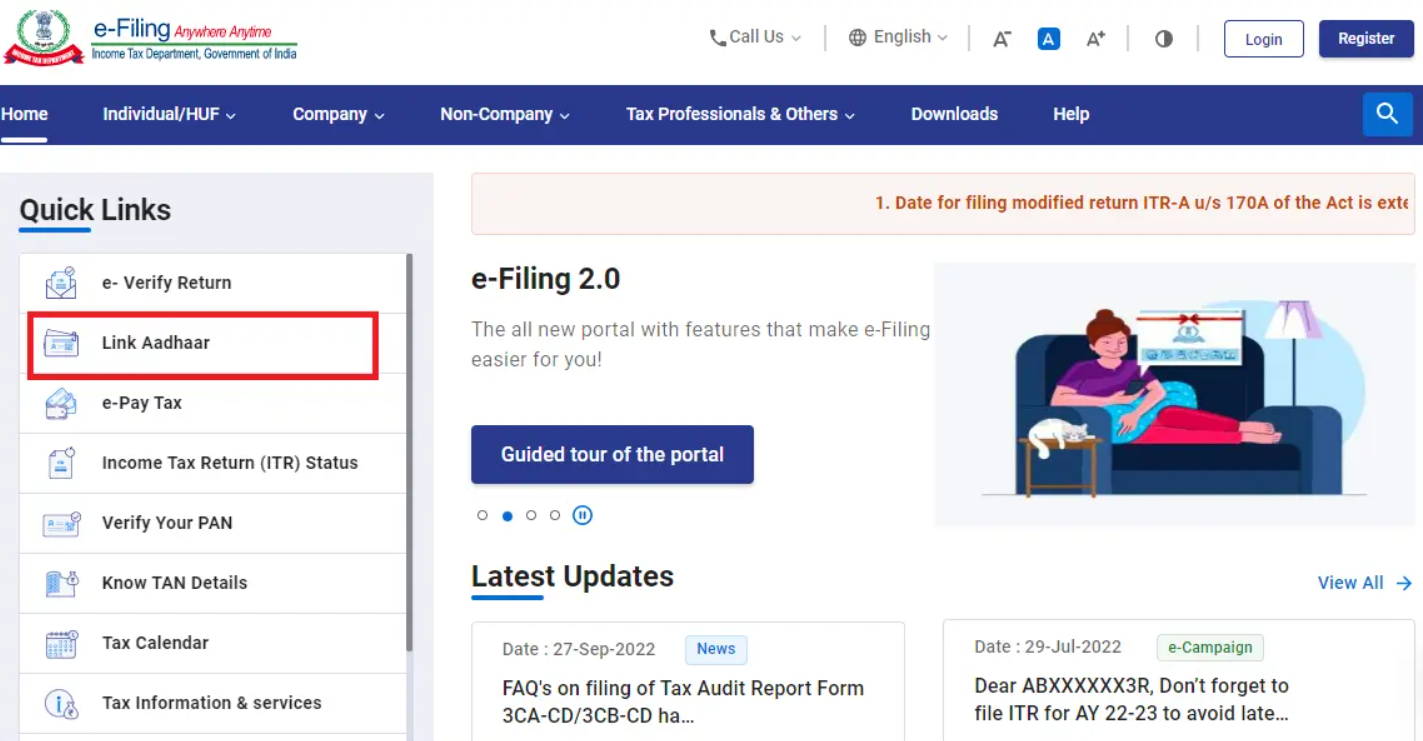

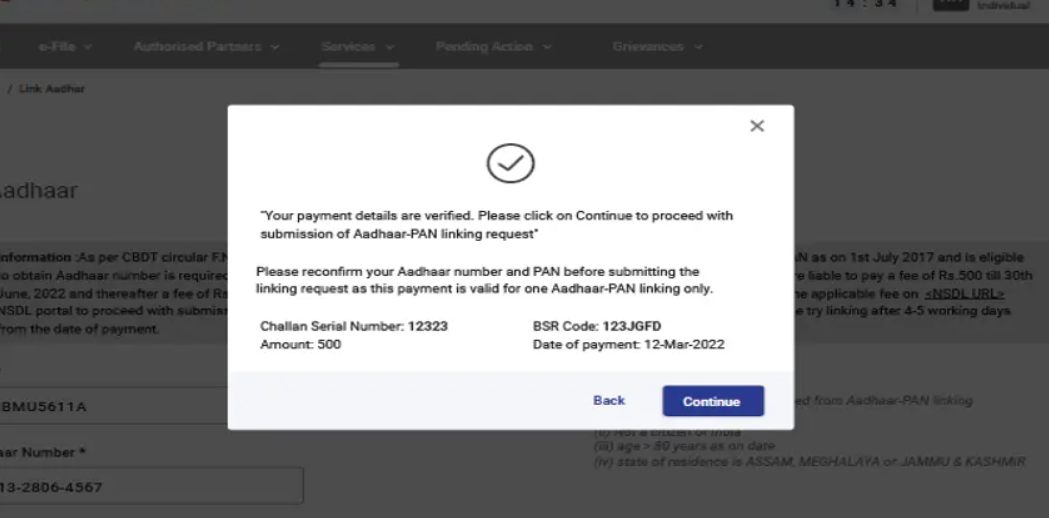
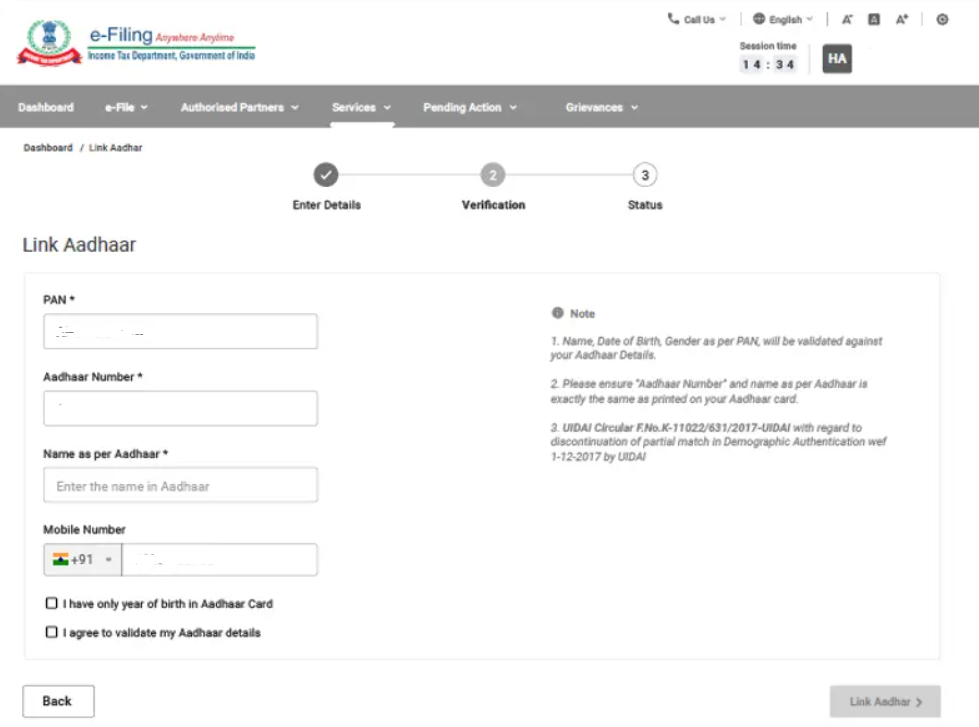
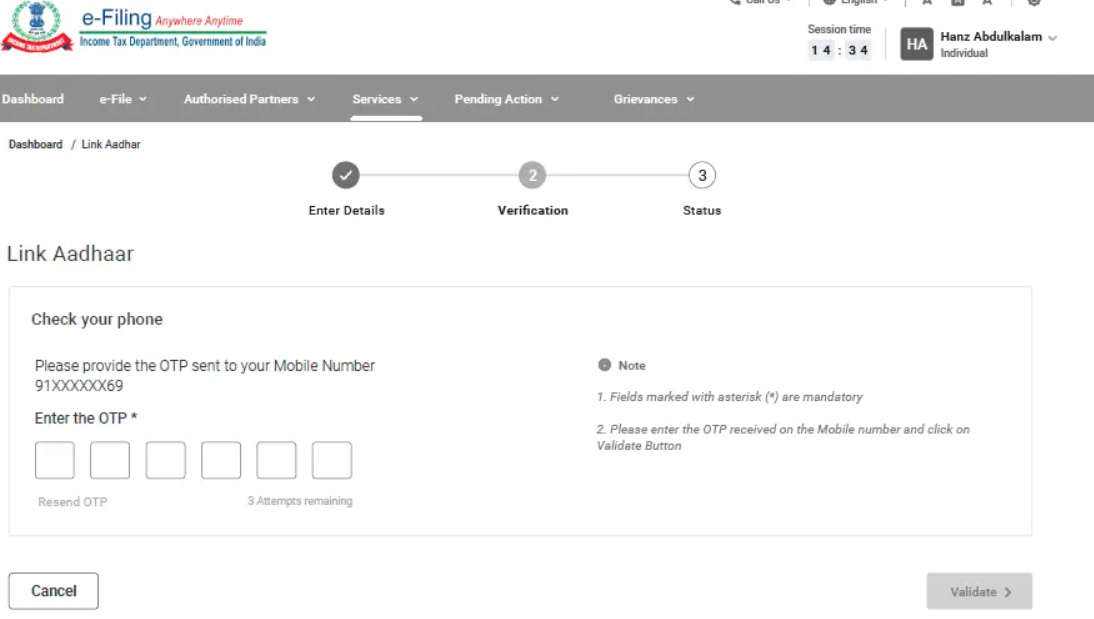
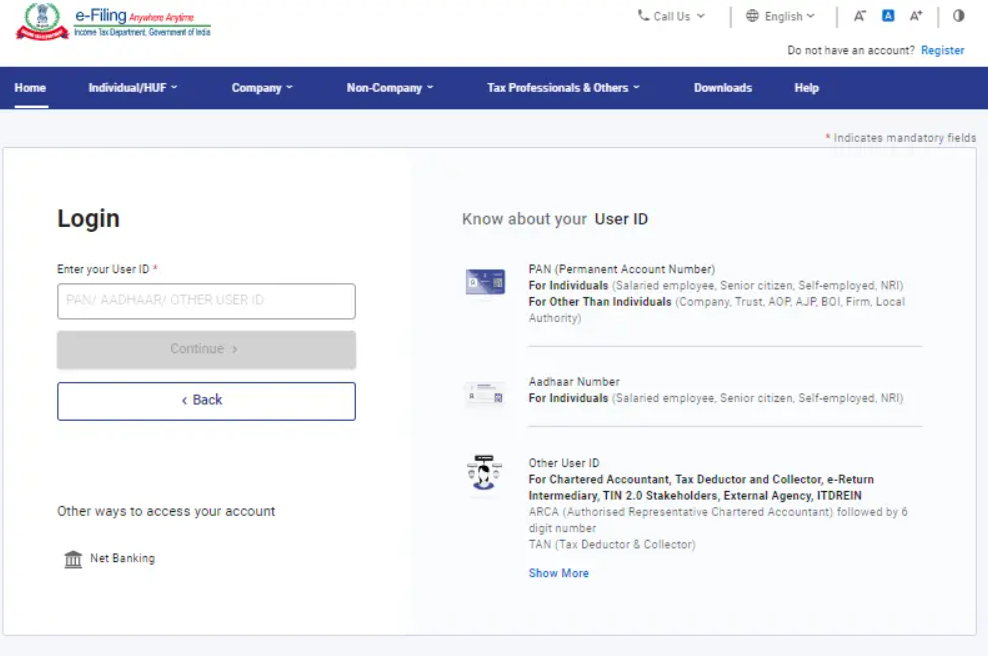
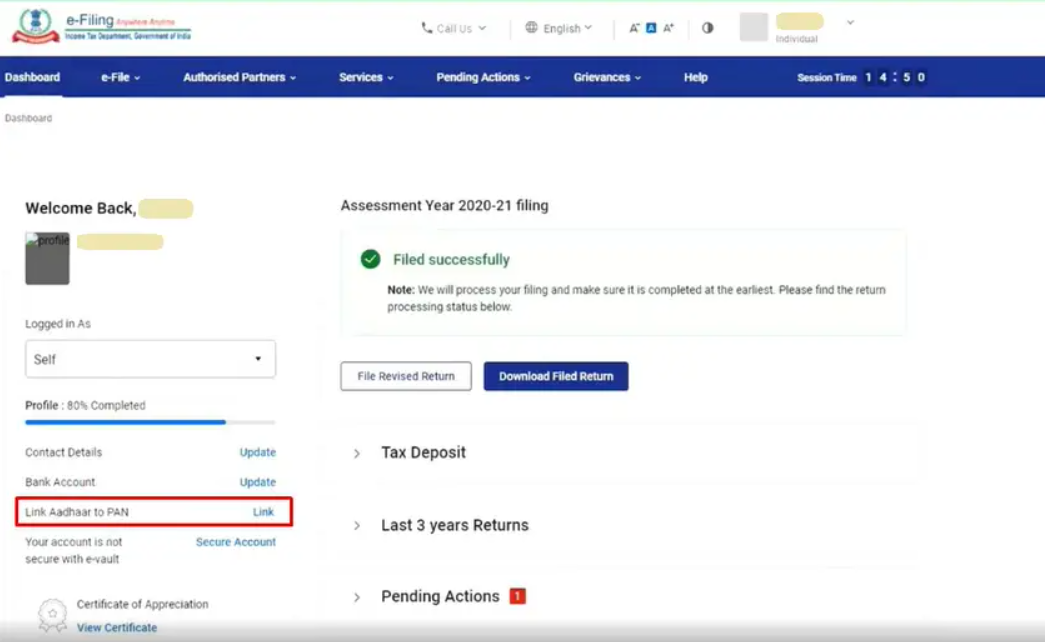
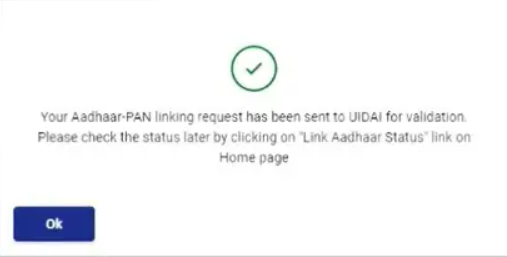
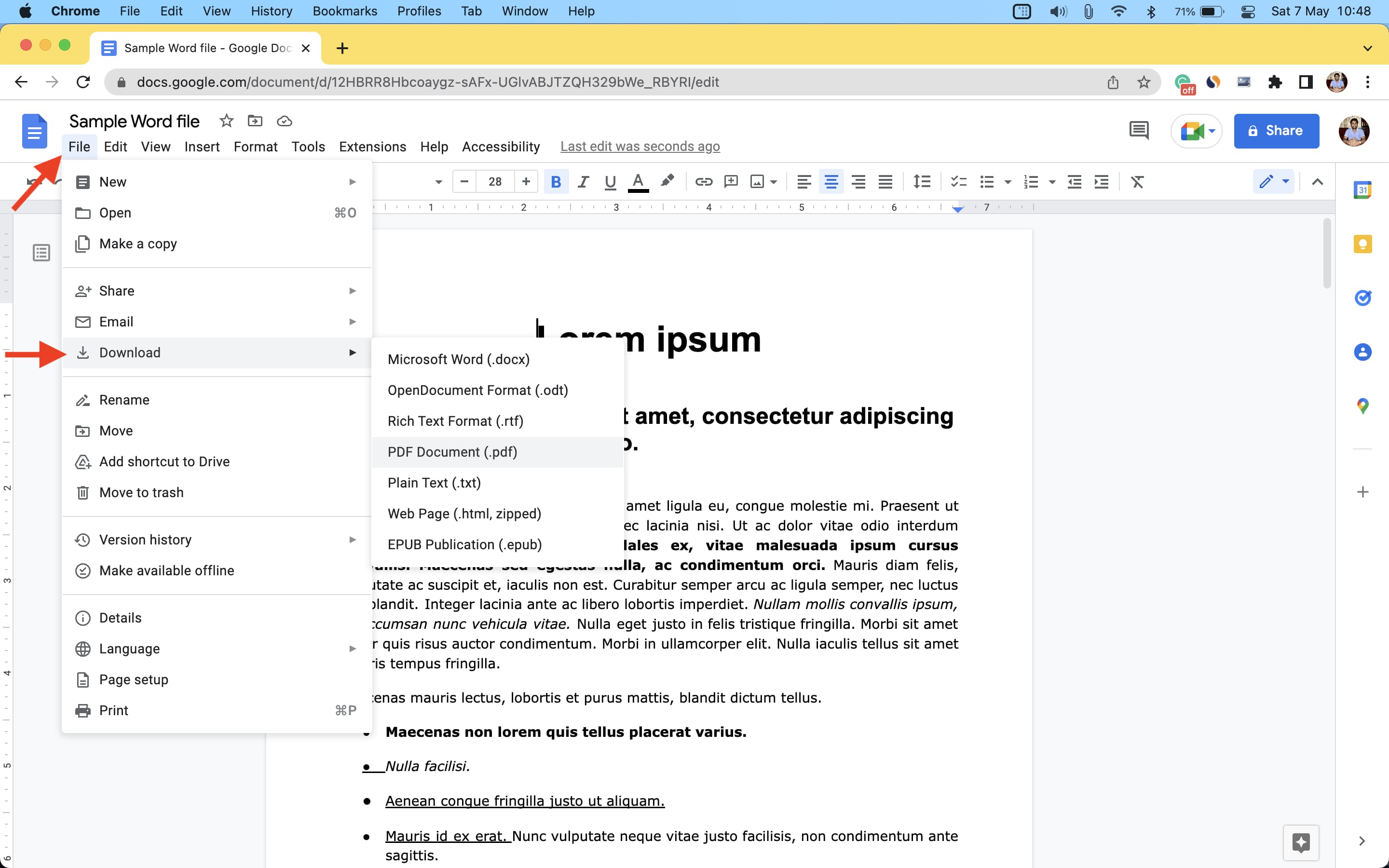
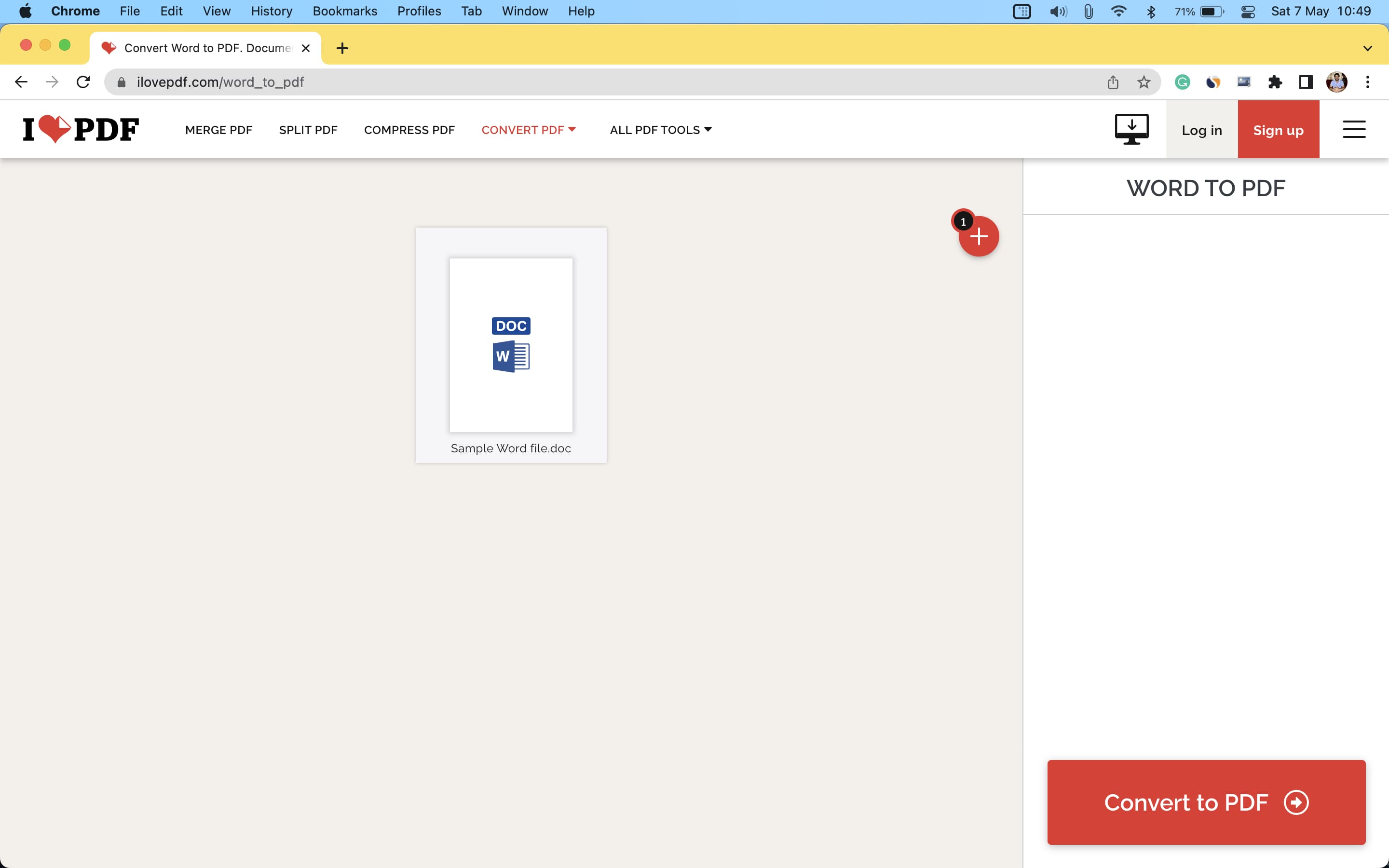
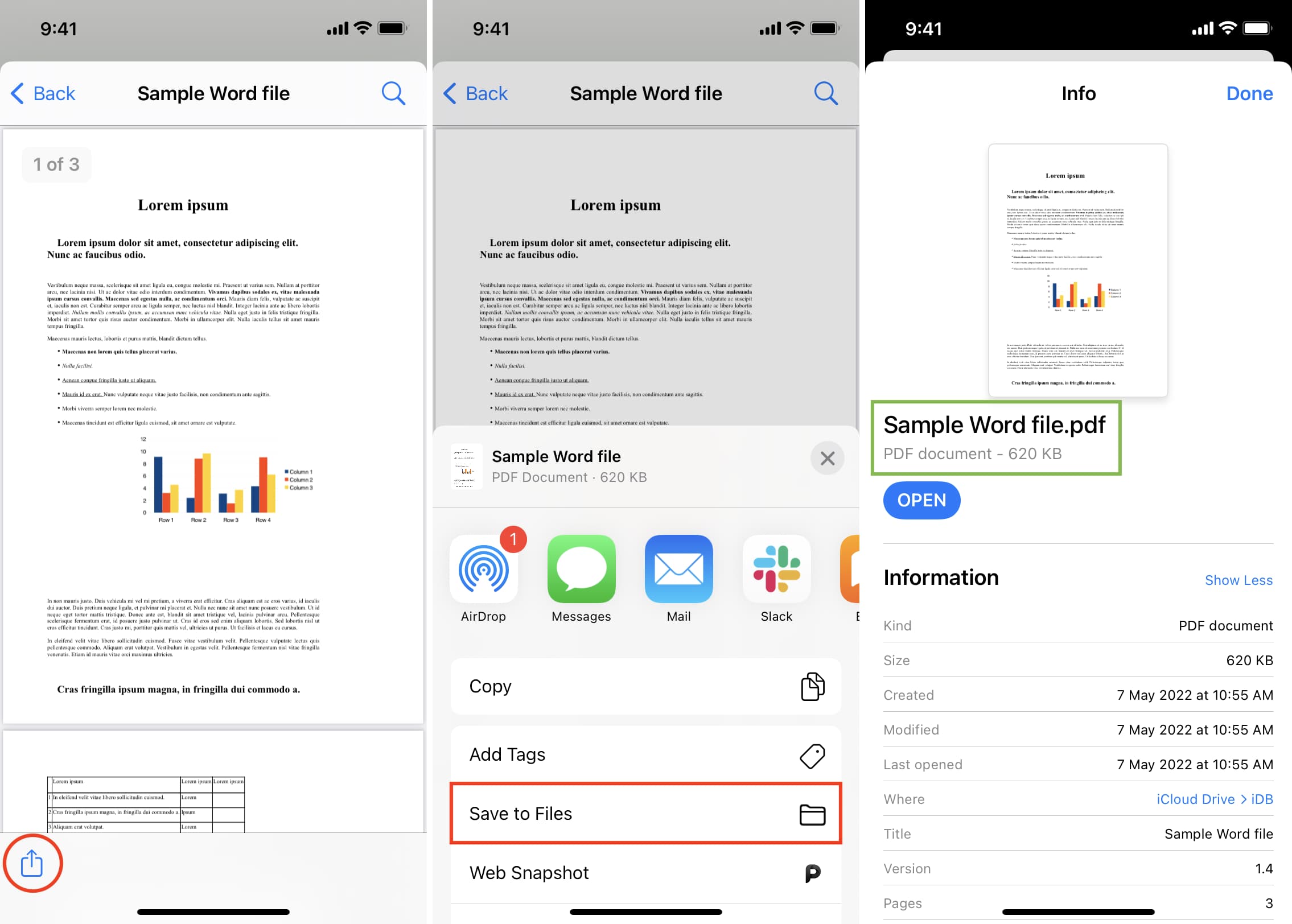 Below that when you click, you’ll see a drop-down menu > select PDF.