Home Blog Page 815

Google I/O 2023 Expectations: Pixel Tablet Appears On Amazon Before Launch; Check Price, Release Date, Design & Specifications

0
Google I/O 2023 Expectations

HIGHLIGHTS

* A Tensor G2 chipset will power Google Pixel Tablet.
* The tablet will offer an 8MP camera for video calls.
* It will also come with a speaker dock to convert the tablet into a Smart Home Hub, similar to Google Nest Hub.
* Google Pixel Tablet’s price and sale details have been accidentally revealed.
* The tablet is expected to cost Yen 79,800, which converts to roughly Rs 48,500.
* The Google Pixel Tablet will go on sale from June 20th.

Pixel Tablet will finally make its debut at the company’s I/O event which is set for May 10th.

The event will also witness the announcement of the Pixel 7a, Pixel Fold and Android 14 OS as well. Google officially revealed the design of the tablet last year during the same developer’s conference, leaving pretty much nothing to imagination. We’ve come across some key details of the tablet in the recent past. All that remains is the pricing details, which is a key factor considering Google will be competing with giants like Apple, Samsung and others.

Now, Google Pixel Tablet’s pricing details have leaked online accidentally on Amazon’s Japanese site. However, the listing is now takedown but the internet is a fast place and screenshots are available online.

Google is all set to launch the Google Pixel 7a, Google Pixel Fold, and Google Pixel Buds A-series (Sky Blue) at Google I/O 2023. Few days before the Google I/O, the Google Pixel Tablet was accidentally listed on Amazon Japan. The e-commerce listing, which has now been taken down, showcased the upcoming tablet in Porcelain and Olive Green colour options.

Google Pixel Tablet Amazon listing revealed complete specifications. As per the listing, the upcoming tablet will offer a 10.95-inch display powered by a Google Tensor G2 chipset.

Let us take a closer look at the Google Pixel Tablet design renders, specifications, and price.

Google Pixel Tablet’s Price (Expected)

IMG_3408 (1)
IMG_3425 (1)
IMG_3406 (1)
IMG_3408 (1) IMG_3425 (1) IMG_3406 (1)

According to the listing, the Pixel Tablet will be available in Hazel and Porcelain (White) colour options in Japan. The price listed is Yen 79,800, which converts to roughly Rs 48,500. This suggests that Pixel Tablet is not a cheap offering. The Amazon listing page also reveals the Pixel Tablet will be available from June 20th, 2023.

Google Pixel Tablet: Design Renders

IMG_3423
IMG_3424
IMG_3420 (1)
IMG_3416 (1)
IMG_3415
IMG_3414 (1)
IMG_3411 (1)
IMG_3410 (1)
IMG_3409 (1)
IMG_3423 IMG_3424 IMG_3420 (1) IMG_3416 (1) IMG_3415 IMG_3414 (1) IMG_3411 (1) IMG_3410 (1) IMG_3409 (1)

Amazon listing reveals the Google Pixel Tablet will come in two colour options – Porcelain and Olive Green. The porcelain colour variant has a white bezel on the front. Whereas the Olive Green variant appears to have black bezels. The listing also showcases the speaker dock, which will attach to the tablet magnetically with pogo pins. The speaker dock seems to have a proprietary charging port.

Google Pixel Tablet: Specifications, Features, and Price

The upcoming Pixel Tablet will feature a 10.95-inch LCD display panel. The display will feature a 2560 ×1600 pixel resolution and will support 500nits peak brightness. It will also feature support for USI 2.0 Stylus.

Powering the upcoming Pixel Tablet will be a Google Tensor G2 processor. This is the same processor that powers the Google Pixel 7 series, and as per leaks, the same will also power the upcoming Google Pixel 7a. The Tensor G2 on the Pixel tablet will be paired with 8GB of LPDDR5 RAM and 128/256GB UFS 3.1 storage. In addition, the tablet is expected to come pre-loaded with Android 13.

The Google Pixel Tablet will feature an 8MP rear camera. It will be equipped with another 8MP shooter at the front for selfies and video calls. In addition, it will feature a USB 3.1 Gen 1 Type-C port for charging and data transfer. On the connectivity front, it will feature Wi-Fi 6E, Bluetooth 5.2, and Ultrawide band support.

Google will also equip the device will a quad-speaker setup. The Google Pixel Tablet will also have rear pogo pins, enabling a connection with a speaker dock. With this speaker dock, the Pixel Tablet will double as a Smart Home Center, similar to Nest Hub. It will offer a 27-watt-hour battery and will last about 12 hours, as per the listing.

The Google Pixel Tablet, as per the listing, will be priced at ¥80,000 (approx Rs 48,500). The Pixel Tablet was spotted by a Reddit user claimed it would go on sale from June 20.

The Japanese Amazon listing showed the Pixel Tablet will come with a charging speaker dock that effectively turns the tablet into a smart display. We should know more details about the tablet in the next couple of days.

Faqs on Google Pixel Tablet

1) What are Google Pixel Tablet specifications?

Ans) * Display: The Pixel Tablet is tipped to flaunt a 10.9-inch display with a 1600 x 2560 resolution and we can expect a higher screen refresh rate as well.
* Processor: The Pixel tablet will be powered by the Google Tensor 2 SoC, which is powering the Pixel 7 and Pixel 7 Pro
* RAM and storage: The upcoming Google Tablet will carry 8GB of RAM paired with 128GB/256GB.
* OS: The Google Pixel Tablet is tipped to be powered by the Android 13 OS out of the box.

2) What are Pixel Tablet Release Date (Expected)?

Ans) As per the leaked listing, the tablet could be available on June 20 (at least in Japan). “The planned release date for this product is June 20, 2023,” the English translation of the screenshot reads.

While the tablet is leaked to debut next month, we could have our eyes on some official attributes at the Google I/O 2023.
Likewise, the tablet was teased at last year’s Google I/O and Pixel 7 series announcement.

3) What is the price of Google Pixel Tablet ?

Ans) According to the screenshot shared by the user, the Pixel Tablet would be available at 79,800 Japanese Yen (roughly Rs 48,000 after price conversion). It was listed in two colours – Porcelain and Hazel. Additionally, the information confirms it would debut alongside a Charging Speaker Dock.

Also Read: Google Pixel Tablet Official Image Leaks Ahead of I/O 2023; Reveals Thick Bezels Around Display; Tablet in pink with white bezels spotted

OPPO F23 5G Specifications, Price, Colours and Renders Leaked Ahead of India Launch

0
OPPO F23 5G

Highlights

* The OPPO F23 will be the successor to the OPPO F21 series.
* The OPPO F23 5G mid-range phone will come in two colour options.
* The upcoming OPPO phone is tipped to be powered by Snapdragon 6 series SoC.
* OPPO is expected to unveil the OPPO F23 5G in India soon.
* The upcoming smartphone will sport a 64MP main camera.
* The OPPO F23 5G will likely pack a 5,000mAh with 67W fast charging support.

The OPPO F23 5G mid-range phone is expected to launch in India soon as the successor to the OPPO F21 5G. The upcoming F series phone is expected to launch in India soon as the device’s full specifications, features, renders, and even price range have been revealed by tipster Mukul Sharma.

On Twitter, tipster Mukul has already shared most of the details of the F23 5G handset. According to the details shared, the OPPO F23 5G device will be priced under Rs 30,000, and it is likely to be powered by Snapdragon 695 series chipset. In addition, the phone will come with fast charging, up to 256GB storage, a 120Hz display, and a microlens camera setup on the back. In addition, another tipster Ishan Agarwal has also shared images of the device.

Chinese smartphone maker OPPO is planning to launch the upcoming OPPO F23 5G in India soon.

However, the company is yet to make an official announcement regarding the same. Ahead of that, tipster Mukul Sharma has come up with pricing information about the upcoming smartphone, which hints that it will be priced under Rs 30,000 in India.

On the other hand, another tipster Ishan Agarwal has shared the images as well as some key specifications of the upcoming phone on Twitter. Let’s take a look.

OPPO F23 5G India Price Tipped

According to the tipster, the price mentioned on the box is Rs 28,999. However, there are chances that the OPPO F23 5G will be available at a lower price than Rs 28,999 in India.
The Pro variant of the device, the OPPO F23 Pro 5G, will be launched on May 15th and it is expected that the company will price the phone around Rs 25,000 or Rs 26,000.

OPPO F23 5G Specifications, Colours (Expected)

Display: The OPPO F23 5G will likely sport a 6.72-inch FHD+ display with a 120Hz refresh rate display.

Rear cameras: As per the tipster, the OPPO F23 5G will sport a 64MP primary camera, a 2MP monochrome, and a 2MP microlens.Selfie camera: The smartphone will pack a 32MP selfie camera on the front.

Chipset: The smartphone will likely be powered by the Qualcomm Snapdragon 695 chipset.Storage: The smartphone is expected to pack 8GB of RAM and 5GB of expandable RAM. It will likely pack 256GB of internal storage.

OS: The phone will run on Android 13.

Battery: The OPPO F23 5G will likely pack a 5,000mAh with 67W fast charging support.

Colours: The phone might be launched in two colour options – Cool Black and Bold Gold.Weight and dimension: 192g; 16.6 x 7.6 x 0.8cm.

OPPO F23 5G
OPPO F23 5G
OPPO F23 5G
OPPO F23 5G OPPO F23 5G OPPO F23 5G

OPPO F23 KEY SPECIFICATIONS

Key Specs

RAM 6 GB
Processor Qualcomm Snapdragon 690
Rear Camera 16 MP + 8 MP + 2 MP
Front Camera 16 MP
Battery 5000 mAh
Display 6.44 inches (16.36 cm)

General

Launch Date June 2, 2023 (Unofficial)
Operating System Android v12
Custom UI ColorOS

Performance

Chipset Qualcomm Snapdragon 690
CPU Octa core (2 GHz, Dual core, Kryo 560 + 1.7 GHz, Hexa Core, Kryo 560)
Architecture 64 bit
Fabrication 8 nm
Graphics Adreno 619L
RAM 6 GB

Display

Display Type AMOLED
Screen Size 6.44 inches (16.36 cm)
Resolution 1080 x 2400 pixels
Aspect Ratio 20:9
Pixel Density 409 ppi
Bezel-less display Yes with punch-hole display
Touch Screen Yes, Capacitive Touchscreen, Multi-touch

Camera

MAIN CAMERA
Camera Setup Triple
Resolution 16 MP, Primary Camera
8 MP, Ultra-Wide Angle Camera
2 MP, Depth Camera
Autofocus Yes
Flash Yes, LED Flash
Image Resolution 4616 x 3464 Pixels
Settings Exposure compensation, ISO control
Shooting Modes Continuous Shooting
High Dynamic Range mode (HDR)
Camera Features Digital Zoom
Auto Flash
Face detection
Touch to focus
FRONT CAMERA
Camera Setup Single
Resolution 16 MP, Primary Camera

Battery

Capacity 5000 mAh
Type Li-Polymer
Removable No
Quick Charging Yes, Fast
USB Type-C Yes

Storage

Internal Memory 128 GB
Expandable Memory Yes, Up to 1 TB

Network & Connectivity

SIM Slot(s) Dual SIM, GSM+GSM
SIM Size SIM1: Nano, SIM2: Nano
Network Support 5G Not Supported in India, 4G Supported in India, 3G, 2G
VoLTE Yes
SIM 1
4G Bands:
TD-LTE 2300(band 40)
FD-LTE 1800(band 3)
3G Bands:
UMTS 1900 / 2100 / 850 / 900 MHz
2G Bands:
GSM 1800 / 1900 / 850 / 900 MHz
GPRS:
Available
EDGE:
Available
SIM 2
4G Bands:
TD-LTE 2300(band 40)
FD-LTE 1800(band 3)
3G Bands:
UMTS 1900 / 2100 / 850 / 900 MHz
2G Bands:
GSM 1800 / 1900 / 850 / 900 MHz
GPRS:
Available
EDGE:
Available
Wi-Fi Yes, Wi-Fi 4 (802.11 b/g/n)
Wi-Fi Features Mobile Hotspot
Bluetooth Yes, v5.1
GPS Yes with A-GPS
USB Connectivity Mass storage device, USB charging

Multimedia

Loudspeaker Yes
Audio Jack 3.5 mm

Sensors

Fingerprint Sensor Yes
Fingerprint Sensor Position On-screen
Fingerprint Sensor Type Optical
Other Sensors Light sensor, Proximity sensor, Accelerometer, Compass, Gyroscope

Faqs on Oppo F23 5G

1) What are OPPO F23 5G Specifications ?

Ans) The OPPO F23 5G is said to feature a 6.72-inch Full HD+ display with a 120Hz screen refresh rate. In addition, the device is expected to arrive with an AMOLED panel. Further, the device will likely be powered by Snapdragon 695 5G SoC. According to the tweet, the phone will come with 8GB of RAM and 256GB of storage. The phone could come with different RAM and storage options as well, but there is no confirmation as of now. In addition to the onboard RAM, the phone is also said to come with support for up to 5GB of Virtual RAM. The device will is said to come in two colour options 一 Bold Gold and Cool Black.

In the camera department, the upcoming OPPO mid-ranger is said to offer a triple camera setup on the back with a 64MP primary lens followed by a 2MP monochrome lens and a 2MP microlens with up to 40x capabilities. To the front, the handset is said to feature a 32MP selfie snapper. On the battery front, the F23 5G is tipped to feature a 5,000mAh battery unit with support for 67W fast charging. Other expected features include 8.2mm thickness, 192 grams weight, Android 13 OS,dual SIM slot, and a 3.5mm headphone jack.

2) What is the price of Oppo F23 5G?

Ans) The device of Oppo F235G is said to come with Rs 28,999 box price, and we can expect the device to be priced slightly less than the box price.

Also Read: OPPO F23 Pro 5G launch in India set on May 15th, Price and Specifications Revealed

Nothing Phone (2) specifications Specifications, Variants and Artist Render Surface in Massive Leak Ahead of Launch suggests new iPhone 14 feature

0

Highlights

* The Nothing Phone (2) is confirmed to launch this summer.
* There hasn’t been much revealed about the upcoming smartphone but its alleged specifications are out now.
* A render of the Nothing Phone (2) also shows there aren’t any changes to the design. 
* Nothing Phone 2 is said to be available in three variants
* It is expected to maintain the transparent rear design from the Phone 1.
* Unlike the Nothing Phone 1 it will be a premium device

Nothing Phone 2 details have been teased by the UK startup, hinting at launch timelines and its design. Meanwhile, key specifications have also been shared by tipsters. The phone has also reportedly bagged a BIS certification, indicating that it is headed to India. Nothing CEO Carl Pei began teasing details of the company’s upcoming smartphone, well before the firm announced its continued partnership with chipmaker Qualcomm at MWC 2023.

After a recent teaser showing off a part of the smartphone and a clearer launch timeline, the phone’s specifications have leaked in detail, giving us plenty more details about the upcoming smartphone, including the variants that it is expected to arrive in.

Tipster Sunary Gourkhede (@Tech_Wallah) has shared two tweets, including an artist’s render of the Nothing Phone 2. The render comes from Twitter user Ben Geskin, who previously created a mockup of the image based on a recent tweet by the brand, which also revealed a portion of the upcoming device.

It is worth noting that the image gives us a vague idea about how the phone would look and isn’t a leaked image or a render based on leaked specifications either.

Nothing Phone (2) is launching this summer, the company announced last week alongside a tiny glimpse of the highly anticipated phone. The company hasn’t revealed much other than an accidental leak of its chipset months ago, but there are new leaks revealing its alleged specifications, and how it’ll look. The alleged specs leak (by a tipster with no authenticated record of leaks though) suggests the phone will get satellite connectivity much like the iPhone 14 series.

Nothing Phone (2) Design (Expected)

The Nothing Phone (1) stood out for its unique and flashy design with the transparent back and white LEDs, which the company calls the ‘Glyph Interface. A render of the Nothing Phone (2) shared by Ben Geskin shows that there’s hardly any difference in terms of design.

The placement of the LEDs are the same with a very minor change on the top right corner of the rear panel but it’s something you’ll most likely miss. The image also shows the same iPhone 12-like flat edges on the Nothing Phone (2).

A concept design of the Nothing Phone (2) also showed a similar design with one notable change which is the camera module. The iPhone XS-like vertical camera module has been replaced by a triangle-like design to house three cameras.

Another change we might see is the punch-hole camera moving to the centre of the screen and not the left corner.

Nothing Phone (2) specifications

Nothing has so far confirmed only the chipset of the Phone (2) which is going to the Snapdragon 8+ Gen 1 chipset. This also confirms that the Nothing Phone (2) will be a premium offering from the Carl Pei-founded startup. As for the rest of the specifications, here’s what tipster @Tech_Wallah shared on Twitter.

The Nothing Phone (2) is expected to feature a 6.55-inch FHD+ AMOLED display with a 120Hz refresh rate, and an in-display fingerprint sensor. The smartphone is said to sport a triple-camera setup with a 50MP OIS primary camera. According to the leak, the Nothing Phone (2) will launch in three variants of 8GB + 128GB, 8GB + 256GB, 12GB + 256GB.The smartphone is also said to pack a 5,000mAh battery with fast charging support, and wireless charging as well.

On the software front, the Nothing Phone (2) will run Android 13 with NothingS 1.5 layered on top.Connectivity options on the Nothing Phone(2) are said to be NFC, Wi-Fi, Bluetooth, 5G support, and satellite communication.

While Nothing has confirmed the launch timeline of the Phone (2), there’s no launch date yet. Also, the Nothing Phone (2) will debut in the US but it is expected to launch in India as well.

The above information falls in line with a previous report about leaked information about the same device. However, since all of this comes from an unofficial source, we do advise our readers to take this information with a pinch of salt.

The device as per our last report is said to take place during the UK summer, which means it could be launched between July and September, but Nothing has yet to specify a launch date for the smartphone.

Nothing Phone (2)
Nothing Phone (2)
Nothing Phone (2)
Nothing Phone (2)
Nothing Phone (2)
Nothing Phone (2)
Nothing Phone (2)
Nothing Phone (2) Nothing Phone (2) Nothing Phone (2) Nothing Phone (2) Nothing Phone (2) Nothing Phone (2) Nothing Phone (2)

NOTHING PHONE 2 KEY SPECIFICATIONS

Key Specs

RAM 8 GB
Processor Qualcomm Snapdragon 8 Plus Gen 1
Rear Camera 50 MP + 50 MP + 50 MP
Front Camera 32 MP
Battery 4700 mAh
Display 6.67 inches (16.94 cm)

General

Launch Date July 19, 2023 (Unofficial)
Operating System Android v13

Performance

Chipset Qualcomm Snapdragon 8 Plus Gen 1
CPU Octa core (3.2 GHz, Single core, Cortex X2 + 250 MHz, Tri core, Cortex A710 + 2 GHz, Quad core, Cortex A510)
Architecture 64 bit
Fabrication 4 nm
Graphics Adreno 730
RAM 8 GB

Display

Display Type OLED
Screen Size 6.67 inches (16.94 cm)
Resolution 1080 x 2400 pixels
Pixel Density 395 ppi
Bezel-less display Yes with punch-hole display
Touch Screen Yes, Capacitive Touchscreen, Multi-touch
Refresh Rate 120 Hz

Camera

MAIN CAMERA
Camera Setup Triple
Resolution 50 MP, Primary Camera
50 MP
50 MP
Autofocus Yes
Flash Yes, LED Flash
Image Resolution 8150 x 6150 Pixels
Settings Exposure compensation, ISO control
Shooting Modes Continuous Shooting
High Dynamic Range mode (HDR)
Camera Features Digital Zoom
Auto Flash
Face detection
Touch to focus
FRONT CAMERA
Camera Setup Single
Resolution 32 MP, Primary Camera

Battery

Capacity 4700 mAh
Type Li-Polymer
Removable No
Wireless Charging Yes
Quick Charging Yes, Fast, 66W
USB Type-C Yes

Storage

Internal Memory 128 GB
Expandable Memory No

Network & Connectivity

SIM Slot(s) Dual SIM, GSM+GSM
SIM Size SIM1: Nano, SIM2: Nano
Network Support 5G Not Supported in India, 4G Supported in India, 3G, 2G
VoLTE Yes
SIM 1
4G Bands:
TD-LTE 2300(band 40)
FD-LTE 1800(band 3)
3G Bands:
UMTS 1900 / 2100 / 850 / 900 MHz
2G Bands:
GSM 1800 / 1900 / 850 / 900 MHz
GPRS:
Available
EDGE:
Available
SIM 2
4G Bands:
TD-LTE 2300(band 40)
FD-LTE 1800(band 3)
3G Bands:
UMTS 1900 / 2100 / 850 / 900 MHz
2G Bands:
GSM 1800 / 1900 / 850 / 900 MHz
GPRS:
Available
EDGE:
Available
Wi-Fi Yes, Wi-Fi 4 (802.11 b/g/n)
Wi-Fi Features Mobile Hotspot
Bluetooth Yes, v5.2
GPS Yes with A-GPS
NFC Yes
USB Connectivity Mass storage device, USB charging

Multimedia

Loudspeaker Yes
Audio Jack USB Type-C

Sensors

Fingerprint Sensor Yes
Fingerprint Sensor Position On-screen
Other Sensors Light sensor, Proximity sensor, Accelerometer, Compass, Gyroscope

Faqs

1) How is the design of Nothing Phone (2)?

Ans) In terms of design, the Nothing Phone 2 is expected to maintain the company’s Glyph Interface for notifications as on the outgoing Phone 1. The rear and front panels will be made of glass with an aluminium frame sandwiched in between. The device is tipped to pack a 5,000mAh battery and come with support for fast charging. There’s no indication of both wireless charging or an IP rating at this point, which turned out to be segment-leading features for the Nothing Phone 1 in our review. However, the Phone 2 is expected to retain the Phone 1’s stereo speakers and two mics.

2) What are the variants of Nothing Phone (2) ?

Ans) According to the tipster, the upcoming handset will be available in three variants.
The base variant will have 8GB of RAM and 128GB of storage. The second variant will have 8GB of RAM and 256GB of storage, with the top-of-the-line variant said to feature 12GB of RAM and 256GB of storage. These appear similar to the currently availableNothing Phone 1 variants.

3) What are the specifications of Nothing Phone (2)?

Ans) The tipster also claims that the Nothing Phone 2 will sport a 6.55-inch full-HD+
AMOLED panel with a 120Hz screen refresh rate and will also have an embedded fingerprint reader. A Snapdragon 8+ Gen 1 SoC will power the phone, according to Gourkhede. The device will reportedly come with LPDDR5 RAM and UFS 3.1 storage.

We can expect a 50-megapixel primary camera and two other cameras to be a part of the rear camera setup. The phone is tipped to support NFC, WiFi, Bluetooth, 5G radios and also Satellite connectivity, which could work like the Emergency SOS-like feature found on the iPhone 14 series. However, the tipster could simply be referring to regular global positioning systems (GPS) that feature on every smartphone.

Also Read: Nothing Phone (2) Launch Confirmed via Official Teaser For Summer 2023: Check Launch Timeline, First Look, Design, Specifications & Comparison with Nothing Phone (1)

Also Read: Nothing Phone (2) design imaged by concept creator: Carl Pei Reaction

Are You Receiving WhatsApp Calls From Unknown International Numbers? This Could Be A Scam but You Are Not Alone: Check What Can You Do For Your Safety

0
WhatsApp International Call Scam

Highlights

• Several WhatsApp users in India are receiving multiple scam calls from International numbers.
• Most of these calls are from Vietnam, Indonesia, etc.
• We strongly advise you not to accept these calls from such for their safety.
• Most of these are robocalls, but some of them are actually scammers, looking to target unsuspecting users.

In today’s digital era, WhatsApp is one of the most popular social media apps for messaging and staying connected with near and dear ones. However, it comes with a cost as this app time and again has become a tool for cybercriminals to target innocent customers. In increasing cases, fraudsters are using WhatsApp to scam the app users.

It is being reported that several WhatsApp users are receiving unknown calls from international numbers from different countries such as Ethiopia (+251), Malaysia (+60), Indonesia (+62), Kenya (+254), Vietnam (+84) and others.

WhatsApp International Call Scam

What you need to understand is that these code numbers do not necessarily mean that the calls are originating from these countries as we all know WhatsApp calls originate over the internet. Reports suggest that these international numbers are sold by agencies to scammers in the country.

In recent days, several users have reported about the new scam on microblogging site Twitter.

Okay seriously its getting out of hands!!! I have been getting these scam @WhatsApp calls from Unknown international numbers all day. Please take needed actions as all my friends have also reported the same!,” wrote one user in a Twitter post.

“I am getting lots of missed calls from Indonesian WhatsApp numbers. I think someone is not happy with my work,” wrote Vijay Patel, a Twitter user.

WhatsApp International Call Scam

Scam calls have been common in India for a couple of past years. As a result, Telecom operators recently introduced Al Filter spam to reduce the number of spam calls that a user receives in a day.

However, scammers have now started targeting users on WhatsApp. Various WhatsApp users complain that they keep receiving several unwanted WhatsApp videos and voice calls from unknown international numbers.

The report comes from Entrackr and multiple users who faced this problem. Recently, we also received calls from unknown international numbers on WhatsApp with the country code +7, designated to Russia and Kazakhstan. This suggests that scammers are using WhatsApp to target people in India and other countries.

It’s unclear how scammers are obtaining users’ phone numbers and whether they are using bots or manually targeting individuals. But these calls and messages overall are a menace.

Several Users Receiving Unknown WhatsApp Calls

WhatsApp International Call Scam

It seems that scammers have found a new way to dupe users. They have been calling users across India from international numbers. These international calls are being received from numbers with these country codes – +84 (code for Vietnam), +62 (country code for Indonesia), and +223 (code for Mali). Most of these international calls seem to be originating from Southeast Asian countries.

Do note that it is not confirmed whether the scammers are actually from these countries or are just using numbers from these countries. The report says scammers buy VoIP (Voice over Internet Protocol) numbers for WhatsApp online to call victims. Ritesh Bhatia, founding director of V4WEB Cybersecurity, says that the process to buy such numbers is easy, and anyone can buy them.

These scammers may also buy a SIM from the respective countries and use them to activate WhatsApp. After that, they can target any user around the globe.

WhatsApp International Call Scam

There have been many instances of such fraud. For example, Kul Bhushan from Entrackr says he received three international calls last month, and the frequency kept increasing daily. Similarly, users on Twitter have also pointed out the same issue. All these calls were reportedly from Vietnam.

We strongly advise our readers not to accept any WhatsApp voice or video calls from international numbers as they are fraud. You might now know who’s on the other side of the call and how they can use your face.

“Over the years, we have consistently invested in Artificial Intelligence and other state-of-the-art technology, data scientists and experts, and in processes, in order to keep our users safe on our platform,” a WhatsApp spokesperson told Entrackr.

Why are people getting these calls?

WhatsApp International Call Scam

The proliferation of scam calls, particularly on WhatsApp, appears to be unprecedented. Although scammers have been using conventional text messaging (SMS) for a long time to target people, the scale at which they are using WhatsApp seems new. While most of these are robocalls, some scammers are posing as HRs and luring people with the promise of jobs.

One Twitter user, Shreyansh Jain, shared a screenshot of a WhatsApp message he received from a scammer who introduced themselves as “HR Priscilla Barret” and offered him a part-time job. The job was to earn Rs 50 per like on YouTube videos and up to “10000 Rs” per day, which is clearly a scam.

According to the Entracker report, Bhaskar Majumdar, a senior communication consultant, said that the scam process has become more digital and omnichannel, including WhatsApp messages, SMS, and LinkedIn messages. He added that he receives a minimum of two calls a week, in addition to WhatsApp messages and LinkedIn messages. The process of obtaining VolP numbers for WhatsApp is straightforward, and scammers are using this to target unsuspecting users. From the number of complaints being raised on Twitter, this phenomenon seems to be well-organised, and these scammers are likely operating as a mafia.

So far, WhatsApp has not commented on this issue, but the company has been conducting awareness campaigns online and offline, encouraging users not to engage with these scam calls and messages. Telegram is also experiencing the same phenomenon, and readers are advised not to accept any unverified calls or messages from international numbers to protect themselves from these scams.

What is WhatsApp International Call Scam?

WhatsApp International Call Scam

A user on Twitter who goes by the name Shreyansh Jain revealed that he received a message from a similar international number. The contact from Vietnam introduced herself as HR Priscilla Barret, who offered the user a part-time job. The job description said that the user needs to like a YouTube video, and they will get Rs 50 for each like. They can earn up to Rs 10000 every day.

This is nothing but a scam that we reported months ago. In such cases, the scammers will either ask you to install an app that will be infected with malware or to join a Telegram channel where they will ask you to invest some amount in stocks and cryptos. This can lead to your financial or data loss. We strongly recommend our users not believe in such scams.

What WhatsApp users need to do?

WhatsApp Users Warned Not To Take Calls From International Numbers; Here's Why | കോൾ കണ്ട് ചാടിക്കേറി എടുക്കരുത്! രാജ്യാന്തര നമ്പരിൽനിന്നുള്ള വാട്സ്ആപ്പ് കോളുകൾക്കെതിരേ ...

WhatsApp users must ignore such calls and should not entertain at all. Moreover, the WhatsApp users can block and report these numbers. To block these unknown numbers on WhatsApp, you need to open a chat with the contact, then tap More > Block > Block. After this, you can also report the contact by tapping Report contact > Block.
Faqs

1) Indian WhatsApp users beware, messages and calls you are receiving from international numbers are a scam.Details?

Ans) WhatsApp is the go-to instant messaging application for a lot of us and has billions of users worldwide. However, the platform is often exploited by scammers who are trying to get a hold of people’s hard-earned money. A new scam is being reported in which people are getting calls from international numbers out of the blue. These calls are from different countries like Ethiopia (+251), Malaysia (+60), Indonesia (+62), Kenya (+254), Vietnam (+84) and others.

However, just because these calls start from a different country code does not mean that the origin of the call is actually that country.

We all know that WhatsApp calls are transmitted via the internet. And as per some media reports, there are agencies at work that are selling international numbers for WhatsApp calls in the same city as you. Hence, anybody can call from such numbers without worrying about any international call charges as would be incurred on a cellular call.
A number of users on Twitter reported receiving calls from international numbers more than once.

So what can you do? The best way out would be to simply not respond to any unknown international calls. These calls usually appear out of the blue. Hence, if you suddenly get a call from an international number, it is best to turn it down and block the number for additional safety. From trying to get your personal details to stealing your money, these scammers could have multiple malicious intentions.

Another type of scam that is being reported is that of receiving job offers via WhatsApp messages. The scammers pose to be from a reputed company and tell you that they can offer you a part-time job that can be carried out from within the comfort of your home. In most cases, the scammers first lure people by offering them a small reward for completing a ‘task’. Once the user gets their money, they start trusting the scammers and get caught up in a much-larger scam that could cost them a lot of money. Many such incidents have been reported in the past and a few users on Twitter have also highlighted the scam to raise awareness.

The internet, as we all know, has two sides. It is best to stay away from such scams by ensuring that whoever you interact with online is a trusted person. Additionally, you should never transfer money to any account or give out your personal details just because a random stranger on the internet asked you to.

2) Receiving WhatsApp calls from international numbers out of the blue? Beware! This is a scam.Details?

Ans) WhatsApp is one of the most popular social media apps, used by billions worldwide. The app time and again has become a tool for cyber criminals to target innocent customers. Once again, fraudsters are using WhatsApp to scam the app users.

This time, WhatsApp users are receiving calls from international numbers from different countries like Ethiopia (+251), Malaysia (+60), Indonesia (+62), Kenya (+254), Vietnam (+84) and others.

However, these codes do not necessarily mean that the calls are also originating from these countries as we all know Whatsapp calls originate over the internet. According to some media reports, these international numbers are sold by agencies to scammers in the country.

Multiple users have also reported about the new scam on microblogging site Twitter
“Okay seriously its getting out of hands!!! I have been getting these scam @WhatsApp calls from Unknown international numbers all day. Please take needed actions as all my friends have also reported the same!,” wrote one user in a Twitter post.

3) What should WhatsApp users do?

Ans) These calls are received by WhatsApp users out of the blue. It is advisable, at the moment, to simply ignore or reject the calls. Users can also block and report these numbers. If you unblock a contact, you won’t receive any messages, calls, or status updates the contact sent you during the time they were blocked.

To block a number on WhatsApp, open a chat with the contact, then tap More > Block > Block. You can also report the contact by tapping Report contact > Block.
Alternatively, you can open the app and tap on More options > Settings. Here, tap on Privacy > Blocked contacts. Tap Add here and search for or select the contact you want to block.

Also Read: Can You See Someone’s Profile Picture if They Blocked You on WhatsApp? Here’s Everything You Need to Know About WhatsApp Blocking Feature

Also Read: What Do Two Grey Ticks Mean on WhatsApp?

Also Read: WhatsApp launches ‘chat lock’ to increase privacy: keep certain messages secure spotted in beta

Realme 11 Pro+ 5G spotted on BIS; Battery, Fast Charging Specifications Confirmed Ahead of May 10 Launch

0
REALME 11 PRO PLUS
Realme 11 Pro+: Specs

HIGHLIGHTS

* The Realme 11 series will soon launch in China and in the global markets.
* The top-tier Realme 11 Pro+ 5G has been spotted on the Thai NBTC certification and the Indian BIS certification websites ahead of launch.
* The battery capacity and the fast charging speed of the Realme 11 Pro+ 5G has also been confirmed by the brand.
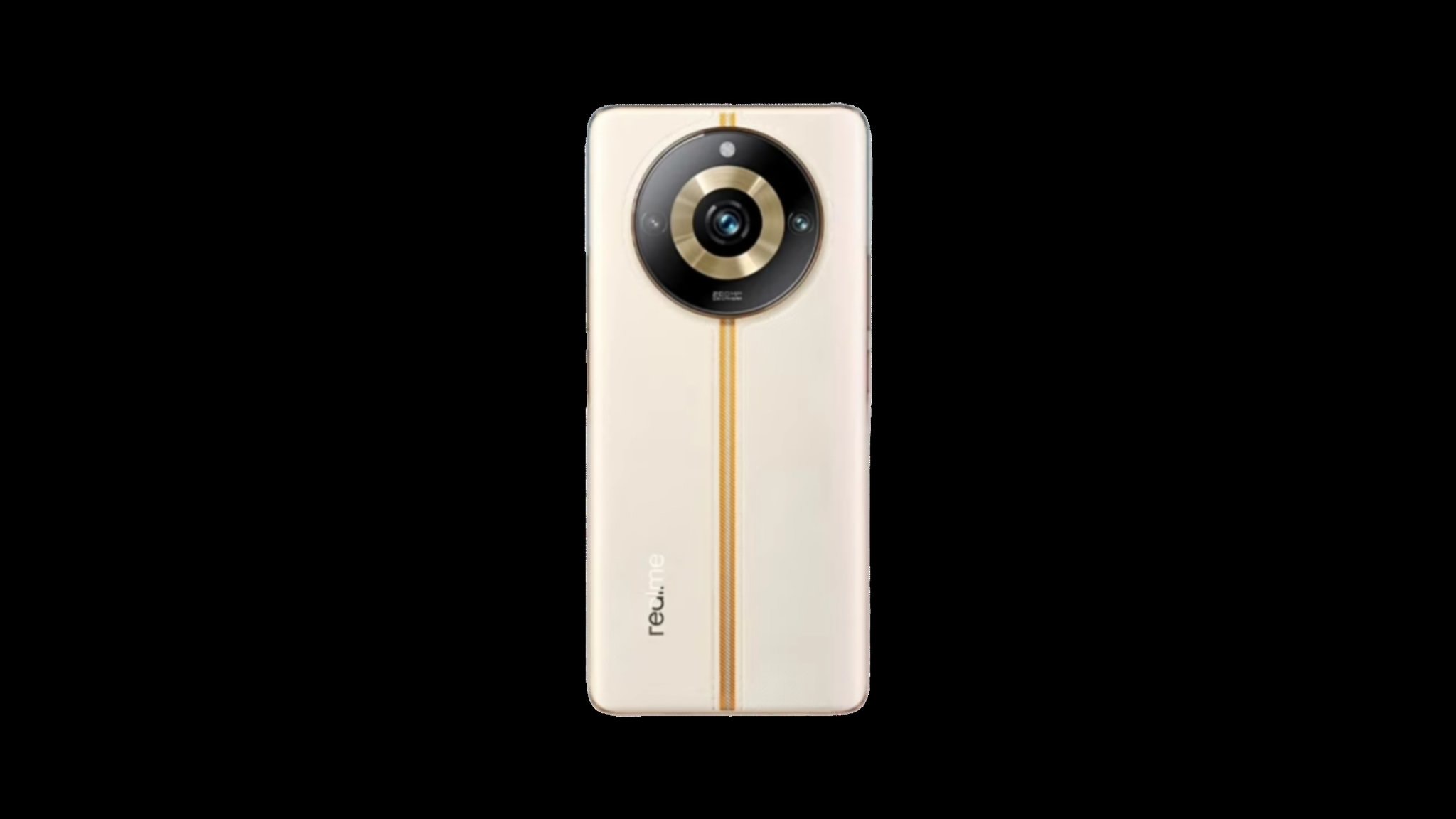
* Realme 11 Pro+ 5G will weigh about 183 grams.
* The mid-range smartphone will sport a curved AMOLED display.
* Realme has confirmed that the 11 Pro+ 5G will feature a triple-camera setup.

Realme is gearing up to launch its new number series smartphone in China later this week. The company will launch the Realme 11 Pro+ 5G as its first smartphone in the Realme 11 series on May 10 in China. Ahead of the official launch, Realme has been teasing the specifications and features of the upcoming upper mid-range smartphone.

The company has already revealed the design of the 11 Pro+ 5G. Furthermore, a few days before the debut, Realme confirmed the battery specs and fast charging details of the 11 Pro+ 5G.

The Realme 11 series of smartphones will launch on May 10th in China. Plus, the brand has already confirmed that the lineup will soon launch in the global markets as well. As for the India launch, earlier leaks suggest that the series will likely hit the Indian market sometime during this month itself.

Realme 11 Pro+ 5G


Ahead of launch, more leaks and official confirmations surrounding the top-of-the-line Realme 11 Pro+ 5G have popped up, which give us a working clue as to what some of its specifications and features would be.

The device has recently received the Indian BIS certification and the Thai NBC certification, which suggest an imminent launch in the respective countries. Plus, Realme has today revealed the battery and the fast charging capabilities of the device.

Realme 11 Pro+ 5G

The device will be slightly heavier than the outgoing model as well. But first, let’s take a look at the Realme 11 Pro+ G specifications, features and other details known so far.

Realme 11 Pro+ 5G Will Be the Fastest Charging Number Series Phone

Realme 11 Pro+ 5G

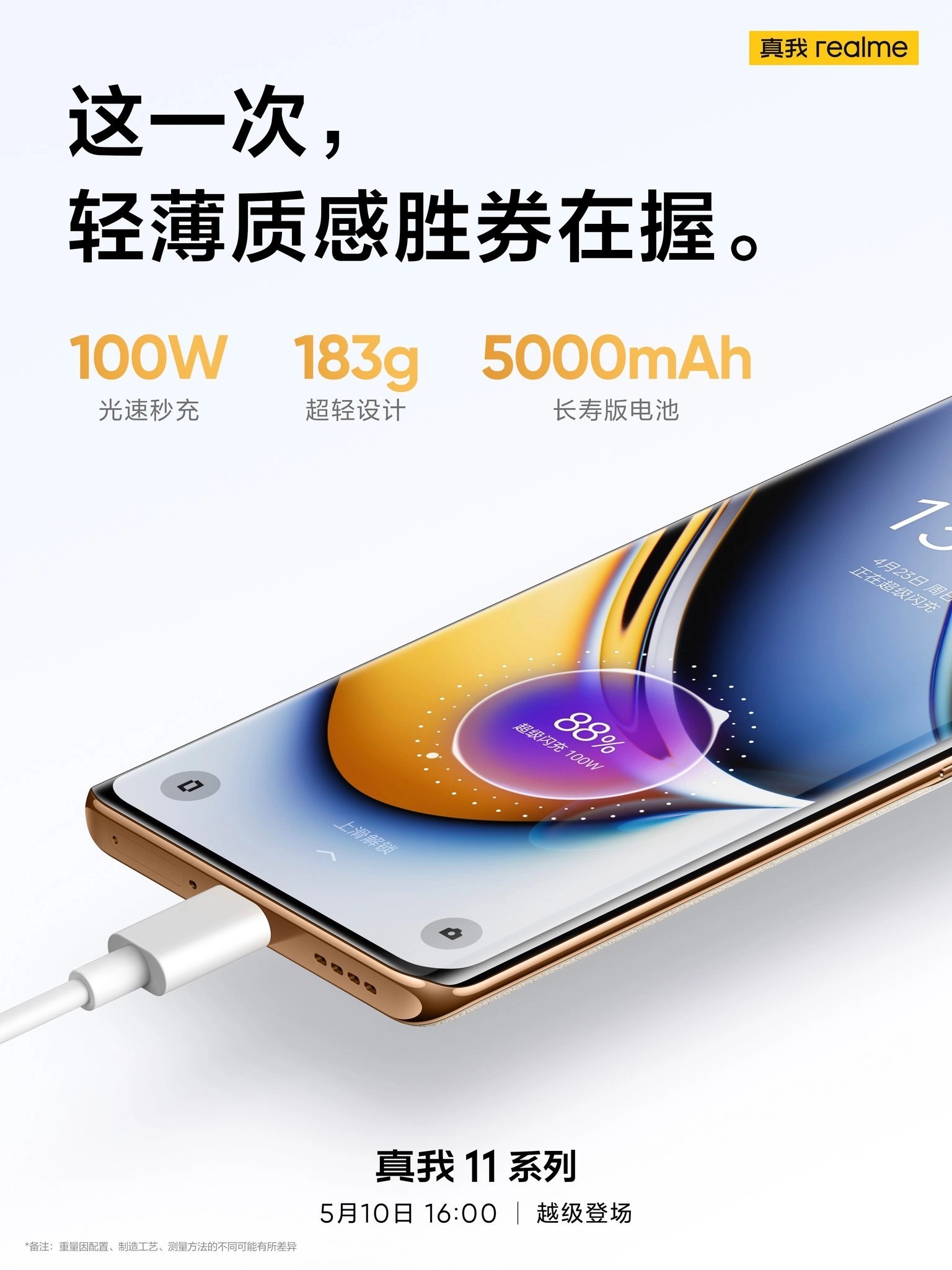
Realme 11 Pro+ 5G is set to launch on May 10 in China. Ahead of its launch, the company has confirmed the phone’s battery specs. Realme confirmed that the 11 Pro+ 5G will pack a 5000mAh battery under the hood. The battery capacity is the same as the Realme 10 Pro+ 5G, launched last year in India.

The 11 Pro+ 5G is set to get upgraded fast charging tech. Realme revealed that the phone will offer 100W fast charging support out of the box. This is higher than the Realme 10 Pro+ 5G, which came with 67W fast charging support. Unfortunately, Realme did not reveal the claimed charging time details of the 11 Pro+ 5G.

However, considering the 10 Pro+ 5G was claimed to charge from 1-100 per cent in 17 minutes, we can expect the 11 Pro+ 5G to charge faster with the upgraded charging tech. Realme also revealed that the phone will weigh about 183 grams.

Realme 11 Pro+ 5G

Previously, Realme revealed that the device will sport a triple-camera setup on the back. There is a massive circular camera module on the back for the three sensors and an LED flash. The 11 Pro+ will feature a 200MP primary camera sensor with support for optical
image stabilisation.

In addition, it is confirmed to feature a Samsung ISOCELL HM3 sensor. On the front, there will be a curved AMOLED display with support for a 120Hz refresh rate. The display will sport a hole-punch cutout at the top centre for the front camera. It will have a 61-degree curvature, the same as the outgoing model.

Realme 11 Pro+ 5G

As per rumours, the 11 Pro+ 5G will feature a 6.7-inch Full HD+ display with an in-display fingerprint scanner.

The phone was also spotted on Geekbench with a Dimensity 7050 SoC, which will be a rebadged Dimensity 1080 SoC. It will offer up to 12GB of RAM and 256GB of storage.
The phone will also run Android 13 out of the box and have a layer of Realme UI 4.0 on top.

In addition to the above details, the 11 Pro+ 5G is tipped to feature an 8MP ultra-wide camera and a 2MP macro sensor. For selfies, the phone will feature a 16MP front camera.

Realme 11 Pro+ 5G

REALME 11 PRO PLUS KEY SPECIFICATIONS

Key Specs

RAM 8 GB
Processor MediaTek Dimensity 1200 MT6893
Rear Camera 200 MP + 8 MP + 2 MP
Front Camera 32 MP
Battery 5000 mAh
Display 6.7 inches (17.02 cm)

General

Launch Date June 14, 2023 (Unofficial)
Operating System Android v13
Custom UI Realme UI

Performance

Chipset MediaTek Dimensity 1200 MT6893
CPU Octa core (3 GHz, Dual core, Cortex A78 + 2.6 GHz, Tri core, Cortex A78 + 2 GHz, Quad core, Cortex A55)
Architecture 64 bit
Fabrication 6 nm
Graphics Mali-G77 MC9
RAM 8 GB

Display

Display Type AMOLED
Screen Size 6.7 inches (17.02 cm)
Resolution 1080 x 2412 pixels
Pixel Density 394 ppi
Screen to Body Ratio (calculated) 90.75 %
Bezel-less display Yes with punch-hole display
Touch Screen Yes, Capacitive Touchscreen, Multi-touch
Refresh Rate 120 Hz

Design

Height 161.6 mm Compare Size 
Width 73.9 mm
Thickness 8.2 mm
Weight 185 grams

Camera

MAIN CAMERA
Camera Setup Triple
Resolution 200 MP, Primary Camera
8 MP, Ultra-Wide Angle Camera
2 MP, Macro Camera
Autofocus Yes
Flash Yes, LED Flash
Image Resolution 16300 x 12300 Pixels
Settings Exposure compensation, ISO control
Shooting Modes Continuous Shooting
High Dynamic Range mode (HDR)
Camera Features Digital Zoom
Auto Flash
Face detection
Touch to focus
FRONT CAMERA
Camera Setup Single
Resolution 32 MP, Primary Camera

Battery

Capacity 5000 mAh
Type Li-Polymer
Removable No
Quick Charging Yes, Fast
USB Type-C Yes

Storage

Internal Memory 128 GB
Expandable Memory No

Network & Connectivity

SIM Slot(s) Dual SIM, GSM+GSM
SIM Size SIM1: Nano, SIM2: Nano
Network Support 5G Not Supported in India, 4G Supported in India, 3G, 2G
VoLTE Yes
SIM 1
4G Bands:
TD-LTE 2300(band 40)
FD-LTE 1800(band 3)
3G Bands:
UMTS 1900 / 2100 / 850 / 900 MHz
2G Bands:
GSM 1800 / 1900 / 850 / 900 MHz
GPRS:
Available
EDGE:
Available
SIM 2
4G Bands:
TD-LTE 2300(band 40)
FD-LTE 1800(band 3)
3G Bands:
UMTS 1900 / 2100 / 850 / 900 MHz
2G Bands:
GSM 1800 / 1900 / 850 / 900 MHz
GPRS:
Available
EDGE:
Available
Wi-Fi Yes, Wi-Fi 6 (802.11 a/b/g/n/ac/ax) 5GHz
Wi-Fi Features Mobile Hotspot
Bluetooth Yes, v5.2
GPS Yes with A-GPS
USB Connectivity Mass storage device, USB charging

Multimedia

Loudspeaker Yes
Audio Jack 3.5 mm

Sensors

Fingerprint Sensor Yes
Fingerprint Sensor Position On-screen
Fingerprint Sensor Type Optical
Other Sensors Light sensor, Proximity sensor, Accelerometer, Compass, Gyroscope

Faqs on Realme 11 Pro+ 5G

1) Realme 11 Pro+ 5G battery specifications revealed, receives a couple more certifications. Details?

Ans) As seen in the certification images above, the Realme 11 Pro+ 5G has been spotted on the Thai NBTC certification website, which reveals its moniker for the global market. The certification listing does not tell us much, though, as only the moniker and the presence of 5G support are the noteworthy things on the listing.

That said, the model number (Realme RMX3741) on the NBTC listing helped us map the same on the Indian BIS listing website, and it is indeed present on the same, thereby meaning that the device (or the entire series) might soon be launching in India as well.

For those unaware, NBTC and BIS are regulatory bodies in their respective countries, which certify commercial products, including electronic goods, such as smartphones.

Furthermore, Realme has confirmed that the Realme 11 Pro+ 5G will feature a 5,000mAh battery, which will have support for up to 100W SUPERVOOC S fast charging over a USB Type-C charging port. The device will come with an independent power management chip, which will likely help provide a more efficient battery life to the device.

2) What are Realme 11 Pro+ 5G specifications (expected)?

Ans) * Display: The Realme 11 Pro+ 5G is said to offer a 6.7-inch FHD+ curved AMOLED display with a 120Hz refresh rate.
* Processor: The device will likely be powered by an octa-core MediaTek Dimensity 7050 processor.
* Storage and RAM: We can expect the device to feature up to 12GB RAM and up to 256GB
internal storage.
* OS: The Realme 11 Pro+ 5G will run the latest
Android 13-based RealmeUl 4.0 out of the box.
* Camera: The device is confirmed to feature a 200MP primary rear camera with OS support.
At the front, the device might feature a 16MP selfie snapper.

Also Read: Realme 11 Pro+ 5G live image leaked ahead of launch on May 10; Reveals Front & Rear Design

Also Read: Realme 11 Pro+ 5G with MediaTek Dimensity 7050 SoC, 12GB of RAM Spotted on Geekbench; Launch on May 10 th

Also Read: Realme 11 series tipped to launch in India next month, Narzo N53 price tipped: Storage Configuration, Colour Options Leaked

iQOO Neo 8 Series, iQOO Pad Launch Date Tipped via Renders: Specifications, Features

0
iQOO Neo 8 Pro

HIGHLIGHTS

* iQOO will reportedly launch its iQOO Neo 8 series of smartphones and its first-ever tablet, the iQOO Pad, in China in the near future .
* iQOO Neo 8 series will include at least two premium phones.
* The iQOO Neo 8 series will likely feature the vanilla iQOO Neo 8 and the iQOO Neo 8 Pro.
* The iQOO Neo 8 Pro will feature the new Dimensity 9200+ SoC.
* There will also be the Neo 8 5G with a Snapdragon 8+ Gen 1 SoC, according to some leaks.
* The launch date of the devices is leaked online.

iQOO recently launched the Neo 7 5G in India. The smartphone was launched in India as a rebadged version of the Neo 7 SE from China. It has been a few months since the launch of the Neo 7 series in the company’s home country, and now, iQOO is gearing up for the launch of the Neo 8 series in China.

The company is expected to launch two premium smartphones in the lineup. These will be called the Neo 8 and Neo 8 Pro. A new leak has now revealed the launch date of the iQOO Neo 8 series in China.

iQOO Neo 8 Series

Tipster Panda is Bald has shared images of the alleged posters, which reveal the launch date of the Neo 8 series. Alongside the premium smartphones, iQOO is also said to launch its first Android tablet, the iQOO Pad, on the same date.

The iQOO Neo 8 Pro has today been spotted on the Google Supported Devices list, while the renders of the iQOO Pad have surfaced online ahead of the official release. The launch date of all three devices has also been leaked.

Unfortunately, nothing about the iQOO Pad is known at the moment. However, the rumour mill has churned out some key specifications of the Neo 8 series. So, let’s take a look at more details about the upcoming iQ00 launch event.

iQOO Neo 8 Series, iQOO Pad: What is Known So Far

iQOO Neo 8 Series

The iQOO Neo 8 series and the iQOO Pad are rumoured to launch later this month in China. The Neo 8 series will include two premium phones. iQOO is likely to launch the devices in China on May 23. However, the company has not confirmed any details about the same. However, the posters shared by tipster Panda is Bald reveal the alleged launch date of the Neo 8 series and the iQOO Pad.

The company is likely to announce the launch date of the Neo 8 series on May 10. IQOO has already revealed that its upcoming premium smartphone will feature a MediaTek Dimensity 9200+ SoC, launched a few days back. The Neo 8 Pro will likely feature the new Media Tek flagship SoC, whereas the vanilla Neo 8 5G might pack a Snapdragon 8+ Gen 1 SoC.

iQOO Neo 8 Series

The Neo 8 Pro was spotted on the 3C certification website with 120W fast charging support. It was also spotted on Geekbench with a Dimensity 9200+ SoC and 16GB of RAM. The device scored 2034 and 5245 points in Geekbench 6’s single-core and multi-core tests. It will boot Android 13 out of the box. The phone scored over 1.3 million on AnTuTu and outperformed the ROG Phone 7’s Snapdragon 8 Gen 2 SoC.

The phone is tipped to feature a 6.78-inch AMOLED display with a 1.5K resolution and 2160Hz PWM Dimming.

iQOO Neo 8 Series iQOO Neo 8 Series

There will be support for a 120Hz refresh rate as well. There will be a triple-camera setup on the back. The Neo 8 Pro will likely feature a 50MP 1/1.5-inch primary camera with optical image stabilisation (OIS) support. Details about the other two sensors are unknown at the moment. The phone is also said to pack a 5000mAh battery.

The Neo 8 is also likely to sport a 6.78-inch display with a 120Hz refresh rate and a Full HD+ resolution. In addition, it might pack a 5000mAh battery and offer 120W fast charging support as well.

iQOO Neo 8 Pro

iQOO Neo 8 Series
iQOO Neo 8 Series
iQOO Neo 8 Series
iQOO Neo 8 Series iQOO Neo 8 Series iQOO Neo 8 Series

IQOO NEO 8 PRO KEY SPECIFICATIONS

Key Specs

RAM 12 GB
Processor MediaTek Dimensity 9200
Rear Camera 50 MP + 32 MP + 50 MP
Front Camera 32 MP
Battery 5000 mAh
Display 6.78 inches (17.22 cm)

General

Launch Date June 14, 2023 (Unofficial)
Operating System Android v13

Performance

Chipset MediaTek Dimensity 9200
CPU Octa core (3.05 GHz, Single core, Cortex X3 + 2.85 GHz, Tri core, Cortex A715 + 1.8 GHz, Quad core, Cortex A510)
Architecture 64 bit
Fabrication 4 nm
Graphics Immortalis-G715 MC11
RAM 12 GB

Display

Display Type AMOLED
Screen Size 6.78 inches (17.22 cm)
Resolution 1080 x 2400 pixels
Aspect Ratio 20:9
Pixel Density 388 ppi
Bezel-less display Yes with punch-hole display
Touch Screen Yes, Capacitive Touchscreen, Multi-touch
Refresh Rate 120 Hz
Screen to Body Ratio (claimed by the brand) 87.6 %

Camera

MAIN CAMERA
Camera Setup Triple
Resolution 50 MP f/1.79, Wide Angle, Primary Camera
32 MP f/2.4, Telephoto Camera
50 MP f/2.4, Ultra-Wide Angle Camera
Autofocus Yes
Flash Yes, LED Flash
Image Resolution 8150 x 6150 Pixels
Settings Exposure compensation
Shooting Modes Continuous Shooting
High Dynamic Range mode (HDR)
Camera Features Digital Zoom
Auto Flash
Face detection
Touch to focus
Video Recording 1920×1080 @ 30 fps
FRONT CAMERA
Camera Setup Single
Resolution 32 MP f/2.4, Wide Angle, Primary Camera
Video Recording 1920×1080 @ 30 fps

Battery

Capacity 5000 mAh
Type Li-Polymer
Removable No
Quick Charging Yes, Flash, 150W
USB Type-C Yes

Storage

Internal Memory 256 GB
Expandable Memory No
Storage Type UFS 3.1

Network & Connectivity

SIM Slot(s) Dual SIM, GSM+GSM
SIM Size SIM1: Nano, SIM2: Nano
Network Support 5G Supported in India, 4G Supported in India, 3G, 2G
VoLTE Yes
SIM 1
5G Bands:
FDD N1 / N3 / N5 / N8 / N28
TDD N77 / N78
4G Bands:
TD-LTE 2300(band 40)
FD-LTE 1800(band 3)
3G Bands:
UMTS 1900 / 2100 / 850 / 900 MHz
2G Bands:
GSM 1800 / 1900 / 850 / 900 MHz
GPRS:
Available
EDGE:
Available
SIM 2
4G Bands:
TD-LTE 2300(band 40)
FD-LTE 1800(band 3)
3G Bands:
UMTS 1900 / 2100 / 850 / 900 MHz
2G Bands:
GSM 1800 / 1900 / 850 / 900 MHz
GPRS:
Available
EDGE:
Available
Wi-Fi Yes, Wi-Fi 5 (802.11 a/b/g/n/ac)
Wi-Fi Features Mobile Hotspot
Bluetooth Yes, v5.3
GPS Yes with A-GPS, Glonass
NFC Yes
USB Connectivity Mass storage device, USB charging

Multimedia

Loudspeaker Yes
Audio Jack USB Type-C

Sensors

Fingerprint Sensor Yes
Fingerprint Sensor Position On-screen
Fingerprint Sensor Type Optical
Other Sensors Light sensor, Proximity sensor, Accelerometer, Compass, Gyroscope

Faqs on IQOO Neo 8 Pro

Faqs

1) What are iQOO Neo 8 series, iQOO Pad launch date & key details?

Ans) According to a Chinese tipster, who goes by the name Panda is Bald, the iQOO Neo 8 series and the iQOO Pad will launch in China on May 23rd, 2023.

The tipster has shared a bunch of alleged promotional posters for the devices, which have their launch timeline specifically mentioned at the bottom.

Though the promotional posters don’t tell us much about the design of the devices, an alleged render image of the iQOO Pad has also been leaked on Weibo.

As seen in the leaked render image, this is what the iQOO Pad will reportedly look like. The device will feature a dual rear camera setup and will have magnetic pins at the bottom (rear), which means that iQOO will likely launch a compatible folio case alongside the tablet. The front of the tablet appears to have minimal bezels all around, and the power button appears to be on the top of the device.

Additionally, the iQOO Neo 8 Pro has been spotted on the Google Supported Devices list, which confirms its moniker and also suggests that the global launch of the device (or the series) might be nearing. The device has the model numbers PD2302 and V2302A.

2) What are iQOO Neo 8 Pro specifications (expected)?

Ans) Display: The iQOO Neo 8 Pro is said to feature a 6.78-inch AMOLED panel with a 120Hz refresh rate and a 1.5K resolution.
Processor: The device will likely be powered by the new Dimensity 9200+ processor.
RAM and Storage: The iQ0O Neo 8 Pro is tipped to offer up to 16GB RAM and up to
512GB storage.
OS: In all likelihood, the device will boot the latest Android 13 OS out of the box.
Battery and Fast Charging: Though not officially confirmed, we can expect the device to offer a 5,000mAh battery with 120W fast charging support over a USB Type-C charging port.
Camera: The device will reportedly feature a 50MP main camera and a 16MP front camera.

Also Read: iQOO Neo 8 Pro spotted on AnTuTu running the newly launched MediaTek Dimensity 9200+ SoC

Also Read: iQOO Neo 8 to come with 120W fast charging, 3C listing Confirms

Also Read: iQOO Neo 8 Pro spotted on AnTuTu listing spotted with MediaTek Dimensity 9200+ chipset; key specifications revealed

How to Save Twitter Videos?

0
Save Twitter Videos

Highlights

  • Twitter is a popular social media platform where users share text, images, and videos.
  • Downloading Twitter videos can be difficult, but it’s a useful skill to have for various reasons.
  • Some reasons to download Twitter videos include saving them for later viewing, sharing them on other platforms, or using them in your own content.
  • This blog will show you how to download Twitter videos using various methods, making it easy to watch them offline or share them with others.

Twitter is one of the most popular social media platforms in the world, with millions of users sharing thoughts, news, and ideas every day. While Twitter is primarily a text-based platform, many users also share videos that can be informative, entertaining, or even newsworthy.

However, Twitter doesn’t make it easy to download these videos, which can be frustrating for users who want to save them for later viewing or share them on other platforms.

If you are wondering why would anyone want to download a Twitter video in the first place, well, there are a few reasons. Maybe you came across a video that you really enjoyed and want to watch again later, or maybe you want to share a video on another platform like Instagram or Facebook.

 Save Twitter Videos

Or perhaps you’re a content creator and want to use a Twitter video in your own work. Whatever your reason, knowing how to download Twitter videos can be a useful skill for any Twitter user.

And that’s where this blog comes in. In this post, we’ll show you how to download Twitter videos quickly and easily, using a few different methods.

Whether you’re on a computer or a mobile device, whether you have an Android or iOS device, there are several ways to save Twitter videos to your device so you can watch them offline or share them with your friends and followers.

So, without further ado, let’s get started with our guide on how to download Twitter videos.

What is Twitter’s Video Feature?

 Save Twitter Videos

Twitter’s video feature has become an increasingly popular tool for sharing and consuming content on the platform. Twitter users can upload and share videos of up to 2 minutes and 20 seconds in length, providing a way to engage with followers through more dynamic and visually compelling content.

The feature has many benefits for users and businesses alike. Twitter videos can be used for a variety of purposes, from sharing behind-the-scenes glimpses of a brand or product to showcasing new products or services to sharing educational or informative content.

For businesses, Twitter’s video feature is an excellent way to build brand awareness and connect with customers. Videos can be used to highlight the unique value proposition of a product or service or to showcase customer testimonials and case studies.

Additionally, video content tends to be more engaging and shareable than traditional text-based content, making it a powerful tool for increasing reach and engagement.

Overall, Twitter’s video feature has become an essential tool for businesses and individuals looking to connect with their audience and share compelling content. Whether you’re a content creator, marketer, or just looking to share your personal experiences with others, Twitter’s video feature is an excellent way to do so.

What Are Some Reasons To Download Twitter Videos?

 Save Twitter Videos

There are several reasons why someone might want to download Twitter videos:

  • Save for later viewing: Sometimes, you might come across a video on Twitter that you don’t have time to watch right away. Downloading it allows you to save it for later viewing, even when you don’t have an internet connection.
  • Share on other platforms: If you come across a video on Twitter that you think your friends or followers on other social media platforms would enjoy, downloading it allows you to share it with them.
  • Use in your own content: If you’re a content creator or social media manager, you may want to use Twitter videos in your own content. Downloading them makes it easy to incorporate them into your work.
  • Keep a copy for archival purposes: Some Twitter videos may only be available for a limited time, or the original poster may delete later on. Downloading them ensures that you have a copy for archival purposes.
  • Avoid losing videos due to technical issues: Sometimes, technical issues or glitches on Twitter’s platform can cause videos to be deleted or lost. Downloading them ensures that you have a copy of the video in case this happens.

There are many good reasons why you might want to download Twitter videos, and knowing how to do so can be a useful skill to have.

How To Download Twitter Videos on Mobile?

 Save Twitter Videos

If you want to download Twitter videos on your mobile device, there are a couple of popular methods you can use. Here’s a step-by-step guide to each method:

Method 1: Using a Third-Party App

Save Twitter Videos

  • Download and install a third-party app that allows you to download Twitter videos. Some popular options include Video Downloader for Twitter and Twitter Video Downloader.

Save Twitter Videos

  • Open the Twitter app on your Android device and find the video you want to download.

Save Twitter Videos

  • Tap the share icon (the arrow pointing upwards) below the video, then tap “Copy link to Tweet”.

Save Twitter Videos

  •  Open the video downloader app you installed in the first step and paste the link into the app.
  • Select the video quality you want to download (if applicable) and tap the “Download” button.
  • The video will now begin to download to your device.

Once the download is complete, you can access the video through the app’s download manager or through your device’s gallery app.

Method 2: Using a Web-Based Tool

Another method of downloading Twitter videos involves web-based tools or websites providing video download services. Here’s a step-by-step guide for you to follow –

  • Open the Twitter app on your mobile device and find the video you want to download.

Save Twitter Videos

  •  Tap the share icon (the arrow pointing upwards) below the video, then tap “Copy link to Tweet”.

Save Twitter Videos

  •  Open a web browser on your mobile device and go to a website that allows you to download Twitter videos. Popular websites include Twitter Video Downloader or TWDown.

Save Twitter Videos

  •  Paste the link you copied in the second step into the website’s download field.
  • Select the video quality you want to download (if applicable) and tap the “Download” button.
  • The video will now begin to download to your device.

Once the download is complete, you can access the video through your device’s gallery app.

Keep in mind that downloading Twitter videos without permission from the owner may be illegal, so be sure to only download videos that you have the right to use.

How To Download Twitter Videos on Desktop/PC?

 Save Twitter Videos

If you want to download Twitter videos on a desktop or PC, there are several methods you can use. Here’s a step-by-step guide to one popular method:

Method 1: Using a Web-Based Tool

Here’s how you can download Twitter videos using a website and web-based tool –

  • Open the Twitter website on your desktop or PC and find the video you want to download.

Save Twitter Videos

  •  Click on the share icon (the arrow pointing upwards) below the video, then click “Copy link to Tweet”.

Save Twitter Videos

  •  Open a web browser on your desktop or PC and go to a website that allows you to download Twitter videos, such as Twitter Video Downloader or TWDown.

Save Twitter Videos

  •  Paste the link you copied in the previous step into the website’s download field.

Save Twitter Videos

  • Select the video quality you want to download (if applicable) and click the “Download” button.
  • The video will now begin to download to your desktop or PC.

Once the download is complete, you can access the video through your file explorer.

Method 2: Using a Browser Extension

If you do not want to use a web-based tool, an alternative option is to use a browser extension for downloading Twitter videos. Here’s how to do that in simple steps –

  • Open Chrome Web Store and search for Twitter Video Downloader.

Save Twitter Videos

  • Install a browser extension that allows you to download Twitter videos, such as Video DownloadHelper for Firefox or Download Twitter Videos for Google Chrome.
  • Open the Twitter website on your desktop or PC and find the video you want to download.
  • Click on the share icon (the arrow pointing upwards) below the video, then click “Copy link to Tweet”.
  • Click on the browser extension icon in your browser’s toolbar and paste the link you copied in the previous step.

Save Twitter Videos

  • Select the video quality you want to download (if applicable) and click the “Download” button.
  • The video will now begin to download to your desktop or PC.

Once the download is complete, you can access the video through your file explorer.

Keep in mind that downloading Twitter videos without permission from the owner may be illegal, so be sure to only download videos that you have the right to use.

Is It Legal to Download Videos from Twitter?

 Save Twitter Videos

The legality of downloading videos from Twitter is a bit of a grey area. While there is no clear-cut answer, there are a few things to consider.

First, Twitter’s terms of service state that users are not allowed to download, distribute, or reproduce copyrighted material without permission from the owner. So, if the video you’re downloading is protected by copyright, downloading it without permission would likely be a violation of Twitter’s terms of service and could potentially lead to legal issues.

That being said, there are some situations where downloading videos from Twitter may be legal. For example, if the video is in the public domain or has a Creative Commons license that allows for sharing and reuse, it may be legal to download and use the video.

Additionally, some videos on Twitter may fall under the category of fair use, which allows for limited use of copyrighted material without permission for purposes such as criticism, comment, news reporting, teaching, scholarship, or research. However, the determination of whether a particular use of a video constitutes fair use is often subjective and can vary depending on the circumstances.

Ultimately, it’s important to be aware of the potential legal issues involved in downloading videos from Twitter and to use your best judgment when deciding whether to do so.

If you’re unsure whether a particular video is legal to download, it’s always best to err on the side of caution and seek permission from the owner before downloading or using the video.

FAQs on How to Save Twitter Videos?

Q1. What devices can I use to download videos from Twitter?

Answer. You can use any device that supports the internet such as a mobile phone, PC or laptop, tablet, etc to download Twitter videos.

Q2. Is it free to download videos from Twitter?

Answer. Yes, downloading videos from Twitter is absolutely free on any device. You do not need to pay even a single buck to download Twitter videos.

Q3. How do you get verified on Twitter?

Answer. To get verified on Twitter, users need to now subscribe to the Twitter Blue plans by paying a monthly subscription fee and confirming your mobile number for verification. Twitter now only verifies accounts if they are Twitter Blue subscribers with confirmed mobile numbers.

Q4. How do you delete your Twitter account?

Answer. To permanently delete your Twitter account, you must first deactivate it. Go to More > Settings and Privacy > Your Account > Deactivate your account > Deactivate. Your account will then disappear from Twitter after 30 days.

Q5. How do you change your Twitter handle?

Answer. To change your Twitter username in the app, tap the profile icon > Settings & Privacy > Account > Username. Type your new username > Done.

Q6. How To Save Twitter Videos in Bookmark?

Answer. If you want to save a Twitter video in your bookmarks for future reference, you can do so by following these steps:

  • Open the Twitter app or website and find the video you want to save.
  • Click on the share icon (the arrow pointing upwards) below the video, then click “Add Tweet to Bookmarks”.
  • The tweet containing the video will now be saved to your bookmarks, along with any other tweets you’ve previously saved.
  • To access your bookmarks, click on your profile icon and select “Bookmarks”.
  • Scroll through your bookmarks until you find the tweet containing the video you want to watch.
  • Click on the tweet to open it, then click on the video to play it.
  • If you want to remove a tweet from your bookmarks, click on the share icon below the tweet and select “Remove Tweet from Bookmarks”.

By saving a Twitter video in your bookmarks, you can easily access it at any time without having to search for it again. Note that this method does not actually download the video to your device, so you will need an internet connection to watch the video each time you access it.

7) How to download Twitter videos on your iPhone, Android smartphone?

Ans) Twitter may not be built for videos but it’s still a surprisingly good source for interesting clips. So good, in fact, that you’d want to share a lot of those so that everyone can share in the fun. Unfortunately, while Twitter does allow saving photos in just a few clicks, with videos it’s a different story. None of the Twitter apps or even the desktop site currently support video downloads. But as is the case with everything, there are workarounds. With the use of third-party apps, users can save Twitter videos to their devices. And the best part? It’s a lot easier than you’d expect.

Downloading Twitter videos on an Android device:

There are a ton of apps on the Play Store for the purpose but we recommend Tweeload due to its ease of use and the well-designed interface. Once the app’s installed, follow the steps given below.

Find the tweet containing the video you wish to share, hit the share icon, and tap on “Copy Link.”

After copying the link, open Tweeload and paste the URL into the text field at the top of the screen. Just use the blue clipboard icon for it.

Once that’s done, hit the download button below.
That will automatically save the video to your gallery from where you can easily share it.

Alternatively, you can also hit the download icon at the top-right corner to find downloaded videos.
Downloading Twitter videos on an iOS device:

To download Twitter videos on iPad or iPhone, we’ll be using the Shortcuts app, which you can download through the App Store. Once the app’s installed, follow the steps given below.
Open the Settings app on your iOS devices and scroll down until you find the Shortcuts app in the list.
Tap on it and give it the “Allow Untrusted Shortcuts” permission by toggling it on
Open this link on your device and click on Get Shortcut
The download shortcut for Twitter Video Downloader will open in the Shortcuts app
Scroll down and tap on “Add Untrusted Shortcut”
Next, open Twitter and find the tweet containing the video you wish to share
Tap on the share icon to reveal a new option for Twitter Video Downloader. Select it
The shortcut will launch, and you’ll be asked if you want your downloaded video to be high, medium, or low quality
Once you’ve made your selection, you can find the video in your gallery.
Downloading Twitter videos on desktop/PC:
Open Twitter and find the tweet with the video you want to download
Copy the video’s link by right-clicking on the video and copying its address
Head over to Twitter Video Downloader next and paste the copied URL in the text box, then click “Download”
The page will reload to reveal several qualities you can download the video in
Click on one of those for the download to autostart.

8) Twitter Video Download: How to Download Twitter Videos on Your Android, iOS Mobile Phones and Laptop?

Ans) Off lately, we have seen a lot of videos circulating on Twitter. Whether be it cute dog videos or a serious debate on some controversial topic, you also love to watch it again and again till the time you are tired of that video. However, the application does not allow you to download a video from its platform. This is primarily because of the copyright rules of the platform. However, what if there is a way to download these videos without much hassle? In this article, we are going to show you the easy way to download videos from Twitter. So, without wasting your time, let’s begin on how to download Twitter videos on your mobile phone or computer.

Download Twitter Videos Using Telegram Bot

Interestingly, you can easily download a Twitter video without going to any website or download any software. All you need is a Telegram account. There is a bot on Telegram, known as Twitter Video Downloader. As the name suggest, the bot allows you to download all Twitter videos with so much ease. All you need to do is click on this link and get the Twitter Video Downloader bot. Once done, simply send the link of the tweet that contains the video. The bot will automatically fetch the video and you can download it on your phone or desktop.

How to Download Twitter Videos on PC or Desktop

You can easily download videos from Twitter on your desktop. There are two websites that make the whole process of downloading a video on Twitter pretty simple. These are namely SaveTweetVid or Twitter Video Downloader. You can simply to go these websites and download your favourite videos from Twitter. All you need to do is follow these steps:

Open Twitter and search for the video you want to download
Now, copy the direct link of the tweet that contains the video you want to download.
Go to either Save Tweet Vid or Twitter Video Downloader website. Paste the link there and click on Download.
Both websites provide different download quality. You can select the video quality according to your need and click on the Download button, which is right next to the size of the file.

How to Download Twitter Videos on Android Mobile

You can also download a Twitter video on an Android application. All you need to do is first download the Download Twitter Videos application on your smartphone to download Twitter videos. You can easily use this app to download videos from Twitter as well as from Instagram. Here’s what you need to do next:

Open the Twitter application on your smartphone and go to the Tweet which has the video you want to save.

Tap on the Share button and then select copy the link to Tweet.

Now go to the Download Twitter Videos application and paste the link there. Then hit the download button at the bottom right corner of the page.

The video will begin to download in the background. In order to view the downloaded video, you can either open the application and select the video you want to watch. Or else, you can go to the Gallery application on your smartphone to watch the video offline.

How to Download Twitter Videos on iOS Mobile

The process of downloading a video on Twitter is a bit complex as compared to the Android or desktop. In order to download the video on your iPhone, you need to first download TweetSave – Twitter video Save application on your iPhone. Once done, you can follow these steps:

Open the Twitter application on your smartphone and go to the Tweet which has the video you want to save.

Tap on the Share button and then select copy the link to Tweet.
Now open the application on your iPhone and wait for the link to appear.
Just simply click on Download Video and the video will be saved in the iPhone gallery.

How to Download Twitter DM Videos Using Chrome Extension

You can easily download Twitter DM videos using the Google Chrome extension. All you need to do is follow these steps.

First, go to the Chrome web store and search for Video Downloader Professional extension.
Then select ‘Add to Chrome’ to install the extension on your Chrome browser.
Now, open Twitter on your Chrome browser and go to the video in your DM section which you want to download.

When you play the video, you will see a notification on VideoDownloader Professional extension.
Click on it and the extension will provide an option to download the video in different file sizes. Tap on your desired file and size and the video will be automatically downloaded.

9) How to save Twitter videos

Ans) While Twitter made it easy to save photos with just a few taps, it’s a different story for videos and GIFs. Twitter doesn’t provide a built-in save button to download videos on its platform. While that’s a bummer, it’s not impossible to download videos from Twitter.
With the use of third-party apps, users can save Twitter videos to their phones, computers and tablets.
Using a web browser on laptop or PC

Open Twitter in a new tab and find the tweet with the video you would like to download.
Copy the link of the video by right clicking the video and click on “copy video address.”
In another tab, open Twitter Video Downloader or SaveTweetVid and paste the URL in the text box and click Download.

Twitter Video Downloader and SaveTweetVid, both have the option to select video quality before final download.

SaveTweetVid also has a QR code option that can be scanned on your phone or tablet to download the video directly to your smart device. Just scroll down on the download page to find the QR.

Using an iOS device

According to myMobile ,Apple users have the option of using Shortcuts to download Twitter videos to their iPhones or iPads.

The first step is to make sure you have the Shortcuts app on your device. If you don’t already have it, you can download it from the App Store.
Go to settings and tap Shortcuts in the list. Glide the slider on for Allow Untrusted Shortcuts.
Open this link on your device and click on Get Shortcut.
The newly downloaded shortcut for Twitter Video Downloader V2.6 will open in the Shortcuts app.
Scroll down to tap Add Untrusted Shortcut.
With this shortcut, you can download Twitter videos in a few taps.
Open Twitter and select a tweet with the video you would like to download.
Tap on Share and the option for Twitter Video Downloader will be on the carousel, tap it.
The shortcut will launch, and you’ll be asked if you want your download to be high, medium or low quality.
Select your option and let the shortcut do the rest of the work.
After the download is finished, you can find the video in your phone gallery.

Using an Android device

To download Twitter videos on Android devices, there’s an app called Download Twitter Videos.

Install the app on your device. Open it and go to Preferred Settings and select options to download videos at the highest resolution and to automatically begin downloading when a link is pasted into the app.

Find the tweet with the video you would like to download and Copy Link to Tweet.
After copying the link, open Download Twitter Videos and paste the URL into the empty text field at the top of the screen.

Once the video is downloaded in the app, you can then save it to your gallery.

10) How do you get verified on Twitter?

Ans) To increase your chances of getting verified on Twitter, optimize your photos, bio, website, and tweets. Twitter verifies accounts only if they are of public interest.

11) How do you delete your Twitter account?

Ans) To permanently delete your Twitter account, you must first deactivate it. Go to More > Settings and Privacy > Your Account > Deactivate your account > Deactivate. Your account will then disappear from Twitter after 30 days.

12) How do you change your Twitter handle?

Ans) To change your Twitter username in the app, tap the profile icon > Settings & Privacy > Account > Username. Type your new username > Done.

Also Read: What is Twitter Multi-factor Authentication? Elon Musk Son Abused on Twitter, Elon Musk Death Threat & More. How to Use 2FA on Twitter Without Paying for Twitter Blue? What is Twitter Blue and How Does it Work?

Also Read: Twitter blue bird logo has been replaced with a Doge meme logo by Elon Musk :here’s why

Also Read: Twitter embarrasses & flags Samsung Galaxy S23 Ultra’s moon photos, labels them ‘Fake’

How to Turn Off Google Assistant?

0
Google Assistant

Highlights

  • Google Assistant is a popular voice assistant designed to make our lives easier by providing quick answers, setting reminders, and controlling smart devices.
  • However, some users may want to turn off the feature for privacy reasons or to declutter their devices.
  • Turning off Google Assistant is simple and can be done in a few steps on different devices.
  • This blog post will provide step-by-step instructions for disabling the assistant on Android devices, iPhones, and Google Home speakers.
  • Tips will also be provided on how to disable certain features of the assistant to better suit user preferences.

Google Assistant is a popular voice assistant that is designed to make our lives easier by providing quick answers, setting reminders, and controlling smart devices. However, not everyone likes the idea of a voice assistant always listening and waiting for a command.

If you are one of those people who are concerned about their privacy or simply find the Google Assistant distracting, you might want to turn it off.

Turning off Google Assistant is not as complicated as you might think. Whether you are using an Android device or a Google Home speaker, you can easily disable the Google Assistant feature in a few simple steps. However, the process might vary slightly depending on the device you are using.

Google Assistant

In this blog, we will guide you through the process of turning off Google Assistant on different devices. We will cover step-by-step instructions for turning off the Assistant on Android devices, iPhones, and Google Home speakers.

We will also provide some tips on how to disable certain features of the Assistant, such as the “Hey Google” wake word or the “Ok Google” hot word.

By the end of this blog, you will have a clear understanding of how to disable Google Assistant on your devices and how to adjust the settings to better suit your preferences. So, if you are ready to take control of your digital privacy or simply want to declutter your device, let’s get started!

Before that, let’s understand Google Assistant a bit more.

What is Google Assistant?

Google Assistant

Google Assistant is a popular voice-activated digital assistant designed to help users perform a variety of tasks using voice commands. It was first introduced in 2016 as a feature of Google’s messaging app, Allo, but has since expanded to many devices, including smartphones, smart speakers, and smart home devices.

Google Assistant uses natural language processing and machine learning to understand and interpret user queries and commands. It can answer questions, set reminders, make phone calls, send messages, and control other smart devices.

Additionally, it can perform various tasks such as setting alarms, checking the weather, and providing directions. It can even play music or provide entertainment on compatible devices.

One of the most significant benefits of Google Assistant is that it is designed to work seamlessly across multiple devices. Users can access the assistant on their smartphones or tablets while on the go or use a smart speaker to control smart home devices without needing to lift a finger.

In addition to its standard features, Google Assistant is also customizable, allowing users to set up routines, change the wake word, and adjust settings to their preferences. With regular updates and improvements, the assistant continues to evolve and provide new functionalities, making it an invaluable tool for many users.

Things to Know Before Turning Off Google Assistant

Google Assistant

Before turning off Google Assistant, there are a few things to consider to ensure that you’re making an informed decision. Here are some things to know before turning off Google Assistant:

  • Impact on smart home devices: If you use Google Assistant to control smart home devices, turning it off will affect your ability to do so. You may need to find an alternative method to manage your smart home devices.
  • Reduced functionality: Google Assistant provides many features that are not available through other apps or services. By turning it off, you will be limiting the functionality of your device and may miss out on helpful features.
  • Privacy concerns: If you are turning off Google Assistant due to privacy concerns, it’s important to note that other apps and services may also collect data. It’s important to review your privacy settings and be aware of the information that is being collected.
  • Difficulty turning it back on: Depending on the device and settings, turning Google Assistant back on may require going through several steps or setting up the device again.
  • Personal preferences: Ultimately, the decision to turn off Google Assistant should be based on your personal preferences and needs. Consider whether the benefits of having it outweigh the drawbacks of turning it off.

By keeping these things in mind, you can make an informed decision about whether to turn off Google Assistant on your device.

How to Turn off Google Assistant on an Android phone?

Google Assistant

If you’re looking to turn off Google Assistant on your Android phone, it’s a straightforward process that can be completed in a few simple steps. Here’s a guide on how to disable Google Assistant on your Android phone.

  • Open the Google app on your phone.

Turn Off Google Assistant

  • Tap your profile picture in the upper-right corner.

Turn Off Google Assistant

  • Select Settings.

Google Assistant

  •  Find and open the Google Assistant option. You’ll see a Popular Settings section at the top and an All Settings section a bit lower, arranged alphabetically.
  • Navigate to and tap General under All Settings.

Google Assistant

  • Turn off Google Assistant

How to Turn off Google Assistant on ChromeOS devices?

Disabling Google Assistant on a Chromebook or other ChromeOS device is a quick and easy process. Whether you’re concerned about privacy or simply want to turn it off temporarily, here’s a guide on how to turn off Google Assistant on your ChromeOS device.

  • Click the time in the lower-right corner of your Chromebook.

Google Assistant

  • Select the Settings gear icon.

Google Assistant

  • Go to the Search and Assistant tab and click Google Assistant.
  • Google Assistant
  •  Toggle the On switch to Off.

Google Assistant

  •  If you want to turn off the wake word only, click the drop-down menu next to “Hey Google” and select Off.

Once this is done, Google Assistant will no longer answer when you say, “OK Google.” However, because Google Assistant is still turned on, you can activate it using other methods.

How to turn off ‘Hey Google’ voice commands?

Google Assistant

If you’re tired of accidentally triggering Google Assistant on your device, you may want to turn off the “Hey Google” voice command. Here’s a guide on how to disable the “Hey Google” hotword on your phone, smart speaker, or other device.

  • Launch the Google app from your home screen or app drawer.
  • Tap your profile icon in the upper-right corner.
  • Select Settings.
  • Choose the Google Assistant setting.
  • Select Hey Google & Voice Match under Popular Settings.

Google Assistant

  • Toggle off Hey Google.

How to Turn off Google Assistant on Google Nest speakers?

Make Your Google Assistant Instantly Less Annoying by Disabling These 5 Settings - CNET

Google Nest speakers are equipped with Google Assistant, which can be a useful tool but may also be unnecessary for some users. If you’re looking to turn off Google Assistant on your Google Nest speaker, you should know that to disable Google Assistant on your Google Home or Nest smart speaker, you won’t find an option in the settings.

However, here’s what you can do instead –

Method 1.

Turn it off by tapping the microphone button on the speaker. This button is located on the back of Google Home and Google Nest speakers, and near the power cord on the Google Home Mini and Google Nest Mini.

By pressing the microphone button, the device will mute, disabling Google Assistant’s wake word detection and rendering it inactive. To resume using the device, simply unmute it using the same button.

Method 2.

Alternatively, you can use Google’s Downtime feature to temporarily turn off Google Assistant. Here’s how to do that –

  • Simply open the Google Home app

Google Assistant

  •  Select the smart speaker, go to Notifications and Digital Wellbeing, and choose Digital Wellbeing to disable the speaker’s microphone temporarily.

Google Assistant

  •  Then, set up the service and choose the smart speaker from the Devices list. Subsequently, choose the date and time for Downtime activation.
  • Google Assistant will be turned off during the selected period

FAQs on Turn Off Google Assistant

Q1. What is Google Assistant?

Answer. Google Assistant is Google’s official digital assistant. It can be found on almost all Google intelligent gadgets, such as Android phones, tablets, smart speakers, smartwatches, smart TV devices, and more. The service focuses on voice commands, and it can pull information, as well as take actions. You can learn more about Google Assistant in our dedicated post.

Q2. Do I need Google Assistant?

Answer. Not necessarily, but Google Assistant is good to have, even if you won’t use it. You can ignore the existence of Google Assistant on your phone, and it won’t bother you unless you say OK, Google, or Hey, Google. Having Google Assistant turned on entails Google listening to you at all times, though, which we know many of you dislike the idea of.

Q3. Are there alternatives to Google Assistant?

Answer. The most popular Google Assistant competitors are Amazon Alexa and Apple’s Siri. Of course, you can only use the latter with Apple devices, so the only true direct competitor is Alexa.

Q4. What can I do with Google Assistant?

Answer. Google Assistant can do a lot! You can ask for general information, request news summaries, ask it to solve mathematical problems, ask for recipes, control your smart home devices, find your phone, make calls, broadcast messages to other Google Assistant speakers, and much, much more. Learn more about what you can do here.

Q5. What Are the Features of Google Assistant?

Answer. Google Assistant is a powerful virtual assistant that offers a wide range of features to make users’ lives easier. Here are some of the key features of Google Assistant:

  • Voice commands: Users can interact with Google Assistant by speaking natural language commands and questions.
  • Smart home control: Google Assistant can control a variety of smart home devices, such as lights, thermostats, and cameras, making it easy to manage your home from one place.
  • Personalized recommendations: Based on your search and browsing history, Google Assistant can provide personalized recommendations, such as news updates, restaurant recommendations, and more.
  • Task management: Google Assistant can set reminders, create appointments, and add items to your calendar to help you stay organized.
  • Entertainment: Google Assistant can play music, podcasts, audiobooks, and other forms of entertainment on demand.
  • Translation: Google Assistant can translate words and phrases in real-time, making it a helpful tool for travel and international communication.
  • Accessibility: Google Assistant can assist users with visual and physical disabilities, such as reading messages aloud or operating a wheelchair.
  • Overall, Google Assistant is a versatile and intuitive assistant that can help users with a variety of tasks and needs.

Q6. Is Google Assistant Free for Use?

Answer. Yes, Google Assistant is free to use. It comes pre-installed on most Android devices and can be downloaded as an app on iOS devices. Additionally, it is available on smart speakers and other smart devices. While some features may require a subscription or purchase, the basic functionality of Google Assistant is free for all users.

7) How to Access Google Assistant with your voice?

Ans) You can get hands-free help from Google Assistant on your phone or watch by saying “Hey Google.” “Hey Google” requires Voice Match to recognize it’s you.

If you’re using a speaker or Smart Display with Google Assistant built-in, learn how to use Voice Match to link your voice to the device.

8) How to Turn on Google Assistant on Android phone ?

Ans) On your Android phone or tablet, open the Google Assistant app Assistant.
If Google Assistant is off, you’ll get the option to turn it on at the bottom. Tap Turn on.

9) How to Turn on “Hey Google” and teach Google Assistant to recognize your voice?

Ans) On your Android phone or tablet, open the Google Assistant app Assistant and say, “Assistant settings.”
Under “Popular settings,” tap Hey Google & Voice Match.
Turn on Hey Google.
If you don’t find Hey Google, turn on Google Assistant.
Tip: If you’re signed in to a Google Workspace for Education account on your device and can’t turn on “Hey Google,” the admin might have turned off settings that are needed for “Hey Google” to work. Please contact your admin for more details.
Follow the prompts to set up Voice Match so Google Assistant can recognize when you say “Hey Google.”
Tip: If you want to get hands-free help from Google Assistant while your Android phone or tablet is locked, make sure your Assistant on lock screen setting is turned on.

10) How to Retrain Google Assistant to recognize your voice?

Ans) On your Android phone or tablet, open the Google Assistant app Assistant and say, “Assistant settings.”
Under “Popular settings,” tap Hey Google & Voice Match.
Make sure Hey Google is on.
If you don’t find “Hey Google,” turn on Google Assistant.
Tip: If you’re signed in to a Google Workspace for Education account on your device and can’t turn on “Hey Google,” the admin might have turned off settings that are needed for “Hey Google” to work. Please contact your admin for more details.
Tap Voice model and then Retrain voice model.
Follow the steps to record your voice.

11) How to turn off “Okay Google”?

Ans) If you like using Google Assistant, but you don’t want to chance it listening in on you, you can turn off the voice feature on your phone and just use keyboard input.

To do this, go to the same screen used to turn off Google Assistant, but instead of toggling, tap on “Preferred Output.” Next, tap “Keyboard.”

Now, you’ll need to use the Assistant app to access Google Assistant. Then, just type in your command in the search or choose a previous command from the list.
However, please bear in mind that just because Google Assistant is disabled from waking when it hears the wake word does not mean that Google has stopped leveraging your microphone to spy on you,” says Walsh. “The device could still listen for the wake word—and any other trigger words it has been programmed to wait for—without activating the Assistant feature.” If you suspect there’s something wrong with your phone’s Google Assistant, look for spyware and learn how to remove spyware on an Android phone. Even if spyware isn’t causing the issue, it’s still a good security tactic to know for your devices.

12) How to turn off Google’s listening abilities

Ans) For more protection, you can prevent Google Search and other Google apps from listening to you through the setting on your phone. Follow these steps:

Open “Settings” on your phone.
Tap “Google” and “Account Services.”
Tap “Voice Match.”
Toggle off the button next to “Hey Google”.
Some phones have a separate driving option that allows Google to listen for commands while you drive, called Google Listening. To disable it, on the same screen if you see “Driving Settings” turn off “While Driving” by swiping the button to turn off this option.

13) How to disable Google microphone permissions

Ans) This is a last, extra cautious step you can take to be sure that Google doesn’t have access to your phone’s microphone. Here’s how to disable Google’s microphone permissions:
Open “Settings” on your phone.
Select “Apps & Notifications.”
In the list of apps, scroll down and select “Google.”
Tap “Permissions” and “Microphone.”
Select “Deny.”
Remember—if you factory reset an Android, you may need to go through this process again, so make a note of it before you reset. Next, read on to find out the top mobile security threats you’ll want to know about.

Also Read: Sundar Pichai’s Google Bard: What is Google’s New AI Bard Chatbot ? How to access it ? Microsoft’s Chat GPT Vs Google’s Bard

Also Read: WhatsApp Latest Feature will let you transfer chats in Android without Google Drive backup

Also Read: Create Gmail Account: How to Create a New Google Account on Mobile Phone

How to Check Your Laptop Model and Configuration?

0
Laptop Model and Configuration

Highlights

  • Laptops are essential devices used for work, study, entertainment, and communication.
  • Laptop model numbers contain useful information about the laptop’s specifications, features, and intended use, and understanding them can help make informed decisions when choosing a laptop.
  • Checking your laptop’s model and configuration can help troubleshoot issues, upgrade components, or install software that requires certain specifications.
  • This blog will show you how to check your laptop model and configuration on Windows and Mac laptops, using built-in tools and third-party software.

Laptops are essential devices in today’s world, used for work, study, entertainment, and communication. As you use your laptop, you may need to know its model and configuration to troubleshoot issues, upgrade components, or install software that requires certain specifications.

One thing you might have noticed when shopping for laptops is the complex numbering schemes used by manufacturers to identify different models. For example, some laptops may have model numbers like “A515-44-R41B” or “XPS 13 9310”. These numbers can seem arbitrary and confusing, but they actually contain useful information about the laptop’s specifications, features, and intended use.

Laptop Model and Configuration

Knowing your laptop’s model and configuration can also help you compare it to other models, check if it meets the system requirements for specific applications, or sell it if you want to upgrade to a newer device.

Fortunately, checking your laptop’s model and configuration is a straightforward process that doesn’t require any special skills or tools. In this blog, we’ll show you how to check your laptop model and configuration on Windows and Mac laptops, using built-in tools and third-party software.

We’ll cover basic information such as the laptop brand, model name, processor, memory, storage, and graphics card, as well as more advanced details like the BIOS version, motherboard model, and battery health.

By the end of this blog, you’ll be able to identify your laptop’s model and configuration easily and confidently and use that information to optimize your laptop’s performance and functionality. So, let’s get started!

What is Laptop Model Number?

Laptop Model and Configuration

A laptop model number is a unique identifier assigned by the manufacturer to a specific line or model of laptop. It is a combination of letters and numbers that is used to differentiate between different models of laptops.

Laptop model numbers typically consist of a series of letters and numbers that provide important information about the laptop’s specifications, features, and capabilities.

For example, the model number of a laptop may include information about the processor type and speed, amount of RAM, storage capacity, screen size, and other features.

These model numbers are a crucial aspect of the laptop purchasing process, as they help customers compare different models and make informed purchasing decisions, and they help manufacturers efficiently produce and distribute laptops that meet the needs of their customers.

Why Laptop Model Numbers Are Important?

Laptop Model and Configuration

Manufacturers assign model numbers to their laptops in order to make it easier for customers to identify and compare different models. Apart from that, knowing the laptop model number is important for a number of reasons including:

  • Identifying the laptop’s specifications and features: The model number of a laptop provides important information about its specifications and features, such as the processor type and speed, amount of RAM, storage capacity, screen size, and other details.
  • Finding compatible accessories and upgrades: Different laptop models require specific accessories or software upgrades that are compatible. By knowing the laptop model number, you can easily find accessories and upgrades that are compatible with your device and optimize the performance of your laptop.
  • Obtaining support and warranty services: When seeking support or warranty services for your laptop, the manufacturer may ask for the model number to ensure that they are providing the correct assistance or replacement parts.
  • Comparing and purchasing laptops: When considering purchasing a new laptop, knowing the model number can help you compare different models and make an informed decision about which device best meets your needs.

How To Check Laptop Model Number?

Laptop Model and Configuration

In Windows Laptop

If you are using a Windows laptop, there are several ways to check the laptop model number using the laptop itself. Here are some simple methods that should help you easily identify the model number of your Windows Laptop

Using the System Information Tool

  • Press the Windows key + R on your keyboard to open the Run dialog box.

Check Your Laptop Model and Configuration

  • Type “msinfo32” in the Run dialog box and press
  • The System Information window will open. Look for the “System Model” or “Model” field, which will display the laptop model number.

Using the Command Prompt

  • Press the Windows key + X on your keyboard to open the Power User menu.
  • Select “Command Prompt” or “Command Prompt (Admin)” from the menu.

Check Your Laptop Model and Configuration

  • In the Command Prompt window, type “wmic csproduct get name” and press Enter.
  • The laptop model number will be displayed in the output.

Using the Settings App

Check Your Laptop Model and Configuration

  • Click on the Windows Start menu and select “Settings” (gear icon).

Check Your Laptop Model and Configuration

  •  Next, Click on “System.”

Check Your Laptop Model and Configuration

  •  Then scroll down and click on “About”.
  • Under “Device specifications”, look for the “Device model” or “Model number” field, which will display the laptop model number.

Checking the Sticker on the Laptop

  • Check the bottom of the laptop for a sticker that displays the model number.
  • If the sticker is not on the bottom, check the sides, back or inside the battery compartment of the laptop.

In MAC Laptops

Knowing the model number of your Mac can be useful when looking for compatible accessories and upgrades, seeking technical support, or when considering selling or trading in your device.

To check the laptop model number in a Mac, follow these steps:

  • Click on the Apple logo in the top left corner of the screen and select “About This Mac”.

Check Your Laptop Model and Configuration

  •  In the window that appears, look for the “Model Name” and “Model Identifier” These fields will display the laptop model number.
  • Alternatively, you can also click on the “System Report” button in the About This Mac window to access more detailed information about your Mac, including the model number.

Check Your Laptop Model and Configuration

  • In the System Information window, click on “Hardware” in the sidebar and look for the “Model Identifier” field. This field will display the laptop model number.

How to Check Your Laptop Configuration?

Laptop Model and Configuration

By checking your laptop’s configuration, you can ensure that your device meets the requirements for specific applications or software, identify potential hardware or software issues, and determine if you need to upgrade your device’s hardware or software components to optimize its performance.

To check your laptop configuration, follow these steps:

In Windows Laptop

  • Open the Windows Start menu and select “Settings” (gear icon).
  • Click on “System” and then “About”.
  • Under “Device specifications”, you can see the processor type and speed, installed RAM, and system type (32-bit or 64-bit).
  • To see more detailed information about your laptop configuration, click on “System Information” and then “Components” in the left-hand sidebar.
  • Under “Components”, you can view detailed information about your laptop’s hardware and drivers, such as the display, network adapters, sound devices, and more.

In Mac Laptops

  • In Mac, click on the Apple logo in the top left corner of the screen and select “About This Mac”.
  • In the window that appears, click on “System Report” to access detailed information about your Mac’s hardware and software configuration.
  • In the System Information window, you can view information about your Mac’s processor, memory, storage, graphics, and more.

FAQs on Check Your Laptop Model and Configuration

Q1. What are some laptop sizes available in the market?

Answer. Laptops come in a variety of sizes, ranging from small and lightweight to large and powerful. Here are some common laptop sizes available in the market:

  • 11-12 inches: These laptops are usually very portable and lightweight, making them ideal for travellers and students who need a computer on the go.
  • 13-14 inches: These laptops strike a balance between portability and performance, with a screen size that is comfortable for productivity and entertainment.
  • 15 inches: This is the most common laptop size, with a screen large enough for most tasks and a good balance of performance and battery life.
  • 17-18 inches: These laptops are larger and heavier, but they offer more screen real estate and are often equipped with high-end hardware for gaming and professional use.

It’s worth noting that these are just general-size categories, and actual laptop sizes can vary within each category.

Q2. What is the best laptop configuration?

Answer. There is no one “best” laptop configuration, as the ideal configuration will depend on your specific needs and use case. That being said, there are some general guidelines you can follow when choosing a laptop configuration:

  • Processor: Choose a processor that is powerful enough for your needs. For most users, a mid-range processor like an Intel Core i5 or AMD Ryzen 5 will be sufficient.
  • RAM: The amount of RAM you need will depend on the type of tasks you’ll be performing. For basic tasks like web browsing and word processing, 8GB of RAM is usually sufficient.
  • Storage: Choose a storage option that is large enough for your needs. Solid-state drives (SSDs) are faster and more reliable than traditional hard disk drives (HDDs).
  • Graphics: If you’re a gamer or need to perform graphics-intensive tasks like video editing or 3D modelling, you’ll want to choose a laptop with a dedicated graphics card.
  • Display: Choose a display that is large enough and has a high enough resolution for your needs.

Ultimately, the best laptop configuration is one that meets your specific needs and fits within your budget.

Q3. How is a laptop model number different from a laptop serial number?

Answer. A laptop model number and a laptop serial number are two distinct identifiers used to identify a laptop, and they serve different purposes.

A laptop model number is a unique identifier assigned by the manufacturer to a specific line or model of laptop. It typically includes a combination of letters and numbers and is used to differentiate between different models of laptops. For example, the Dell XPS 13 is a specific model of laptop with a unique model number.

On the other hand, a laptop serial number is a unique identifier that is assigned to an individual laptop. It is typically a combination of letters and numbers and is used to track the laptop’s warranty status, repairs, and other important information. Serial numbers are unique to each individual laptop and are not shared among multiple laptops. Serial numbers are also used to track stolen laptops, as they can be reported to the manufacturer and law enforcement agencies to help recover the stolen device.

Q4. What laptop model is best for personal use?

Answer. The best laptop model for personal use will depend on your specific needs and preferences. You can always visit a laptop store and discuss with the sales representatives the specific requirements and work that you need the laptop for. All laptop store representatives are well-trained to guide you in this regard.

5) How to check your Laptop model and configuration?

Ans) When you start your laptop, you can view its basic configuration details displayed either in the PC info screen or the Windows System. However, these details are not exhaustive as you would get from the system utility which displays an in-depth account of your laptop’s details with regard to system configuration. Some of the most important details you will thus get from system information utility include the laptop model, services currently installed and running, a detailed information about the hardware components like the disk drive and devices. The system information utility can be run by using the Windows Run command.

Windows comes with a built-in utility that can be used to gather the laptop’s configuration details. Follow these steps to know your laptop’s configuration in detail.
Press the Windows Key. This will open the Start screen.
Type in “Run”. Choose “Run” from the list of results you will see on the screen.

In the Open field, type in “msinfo32”. After this, click on “OK”. This will open the system information window on the screen. Here you will find the detailed information about the system configuration. On the left pane of the window you will find the list of categories and on the right side of the window pane you will see the description pertaining to every category you see.

From the right pane of the window you see now, you can get to know the general configuration of your laptop including BIOS version and the physical memory.

From the list of items, choose the information you want to know and double click on it. You will find a list of sub categories displayed. Click on the sub-category now to view the detailed information on the sub-category. For instance, if you wish to know the display related information of your laptop, you can double click on ‘Components’, and then click on ‘Display’. The three available categories are ‘Hardware Resources’, ‘Components’ and ‘Software Environment’.

The other ways to know the system configuration of your laptop

Method-1

Click on the Start button and then enter ‘system’ in the search field. Choose ‘system information’ under the ‘programs’.

Method-2

Click on ‘System summary’ and you will see the details regarding the operating system installed on the computer, the details of the processor and the basic input and output systems and the RAM details.
Method-3

Double-click on “Components.” From the list you will see in front of you, select a hardware device. You will get the details about its name, manufacturer’s name, location of the driver and other details.

Method-4

Click on the Start button, right-click on “Computer” and then click on “Properties”. This process will display the information about the laptop’s computer make and model, operating system, RAM specifications, and processor model.

Method-5

In a Windows laptop, you cannot see the information bout the motherboard make and model. You can however use third party applications like CPU-Z or SiSoftware Sandra to know the details about the motherboard.

Method-6
If you wish to search some specific details about your computer, go to System Information and then type in the relevant search term in the ‘Find What field’ and then click “Find”.

6) How to Check Laptop or PC Model and System Configuration Details?

Ans) Windows 11 is already here and most of us are really excited to check its latest features and more. However, the company has revealed that it will be rolling out the Windows 11 update later this year. Microsoft has also revealed the list of the minimum recommended requirements for Windows 11. That being said, you need to first know all the details about your laptop or PC in order to see whether it is compatible with the latest Windows 11 update. So, in order to do this, we have come with a detailed article that will tell you how you can check your laptop or PC model along with its system configurations within a few seconds. Here’s all you need to know!

How to Check System Configuration of a Laptop or PC via Settings

The first and the easiest way to check for a system configuration of a laptop or PC is by going to the Settings menu. With this step, you will get a brief overview of your PC’s hardware configuration including chipset, RAM, architecture, and pen and touch support. Here’s how to check it:

Click on the Start Menu and go to Settings.
Once it is open, click on System and then go to the About section.
There you will brief specifications of your Windows 10-powered laptop or PC.

How to Check System Configuration of a Laptop or PC via System Information
If you want a detailed report of your laptop or PC, then using the System Information application is a must. The app is a legacy app that gives you an in-depth report about the device’s technical specifications. Here’s how to check your laptop’s system configuration using System Information.
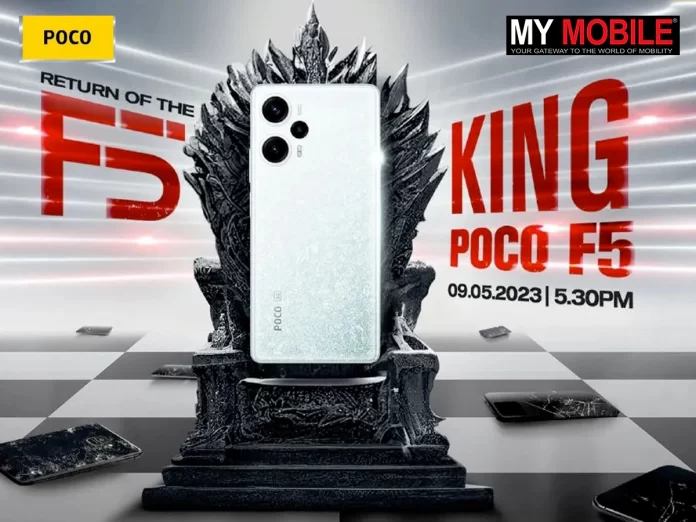

Go to the search bar and type msinfo32. From the results, open the System Information application.

Now click on the System Summary to get the full specifications of your laptop or PC.
If you want to get the information about the display and graphics card, you need to click on Components and then go to Display.

How to Check System Configuration of a Laptop or PC via DirectX Diagnostic Tool
Windows 10 also gives an option to check for the system configuration using the DirectX Diagnostic Tool, commonly known as dxdiag. Here’s how you can do it:

Go to the search bar and type dxdiag. Now click on the top results to open the DirectX Diagnostic Tool.
Now click on the System tab. Under the ‘System Information’ section, you will find key details including processor, memory, BIOS or UEFI version, system model, Windows 10 version, DirectX version, and more.
If you want to download the full report of your system specifications, you can click on Save All Information and click on the Save button.
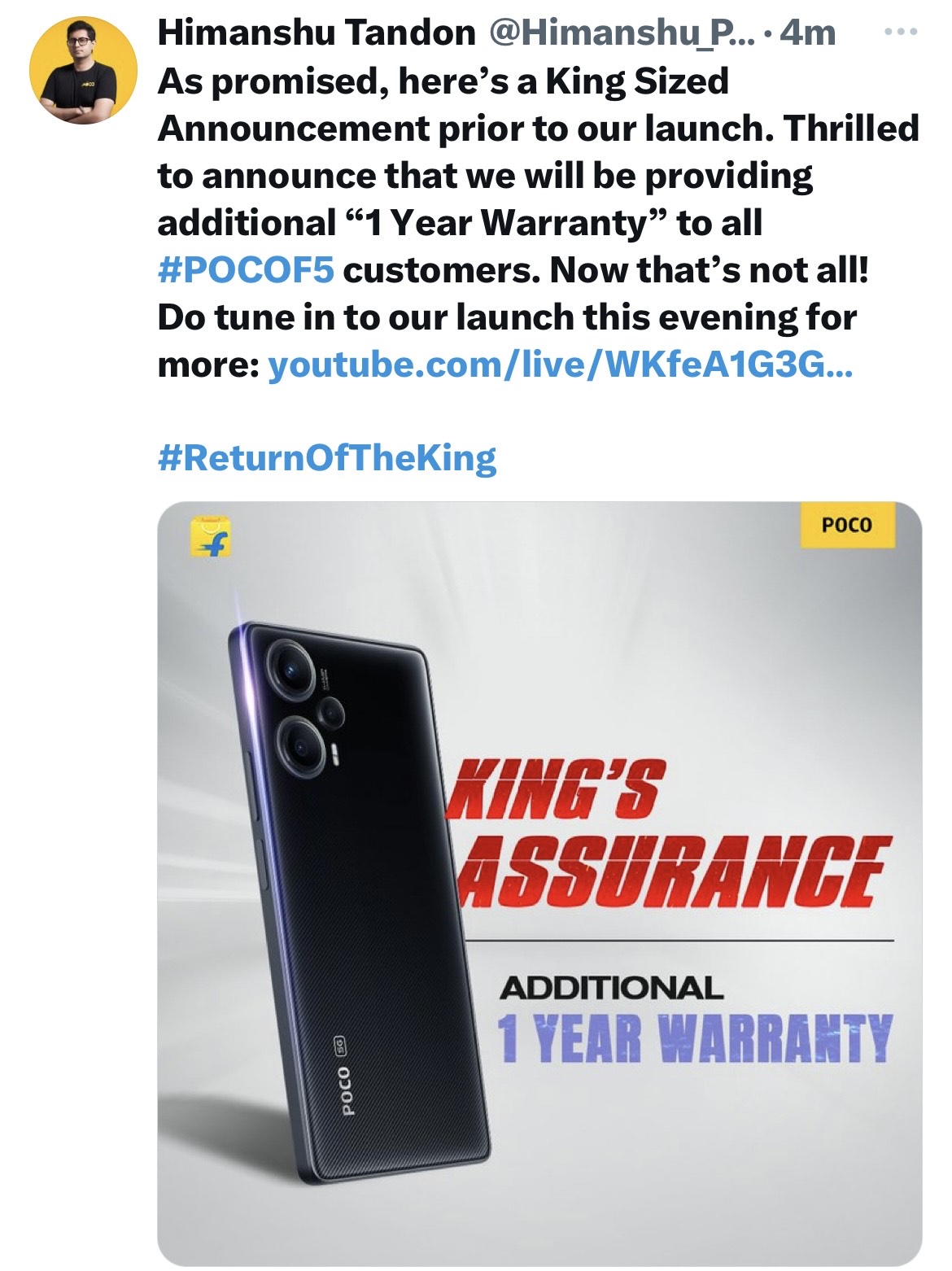
How to Check System Configuration of a Laptop or PC via Windows PowerShell
There is another way through which you can check the system configuration of your laptop or PC. This method is required to use the Windows PowerShell application. Here’s how to use it to get a detailed report about your system configuration:

Go to the Start menu and type PowerShell.
You need to then right-click on the top result and select ‘Run as Administrator’ option.
Once the app is opened, you need to type the following command: Get-ComputerInfo.
With this, you will get all the details about your laptop or PC’s system hardware specifications.

How to Check System Configuration of a Laptop or PC via Command Prompt
Last, but not least is the Command Prompt. With the command prompt application, you can easily check all the details about the laptop or PC. Here’s a step-by-step guide for it:

Open the Start menu and search for Command Prompt.
Right-click on the top result and select the ‘Run as Administrator option.
Now, you need to type ‘systeminfo’ command and then press Enter.
Once done, you will get all the information including hardware, Windows 10 version, BIOS or UEFI, RAM, network details, and more.

7) How do I find my PC Model number?

Ans) You can easily find your PC Model number with the System Information application, which is present in both Windows 11 and Windows 10. Here’s how you can do it:

Open Start and search for System Information.
Click on the top result and then click on System Summary.
There, you will find the PC model number under the System Model field.

8) How to check laptop model? Step-by-step guide to find your laptop model information

Ans) How do I check my PC hardware specifications?

For Windows 10
To check your PC hardware specs, click on the Windows Start button, then click on Settings (the gear icon). In the Settings menu, click on System. Scroll down and click on About. On this screen, you should see specs for your processor, Memory (RAM), and other system info, including Windows version.

For Windows 7
To check your PC hardware specs, from the desktop find the icon that is labeled “My Computer”. Right-click on this and select Properties. A window should appear summarizing your PC hardware specs including processor, Memory (RAM), and other system info, including Windows version.
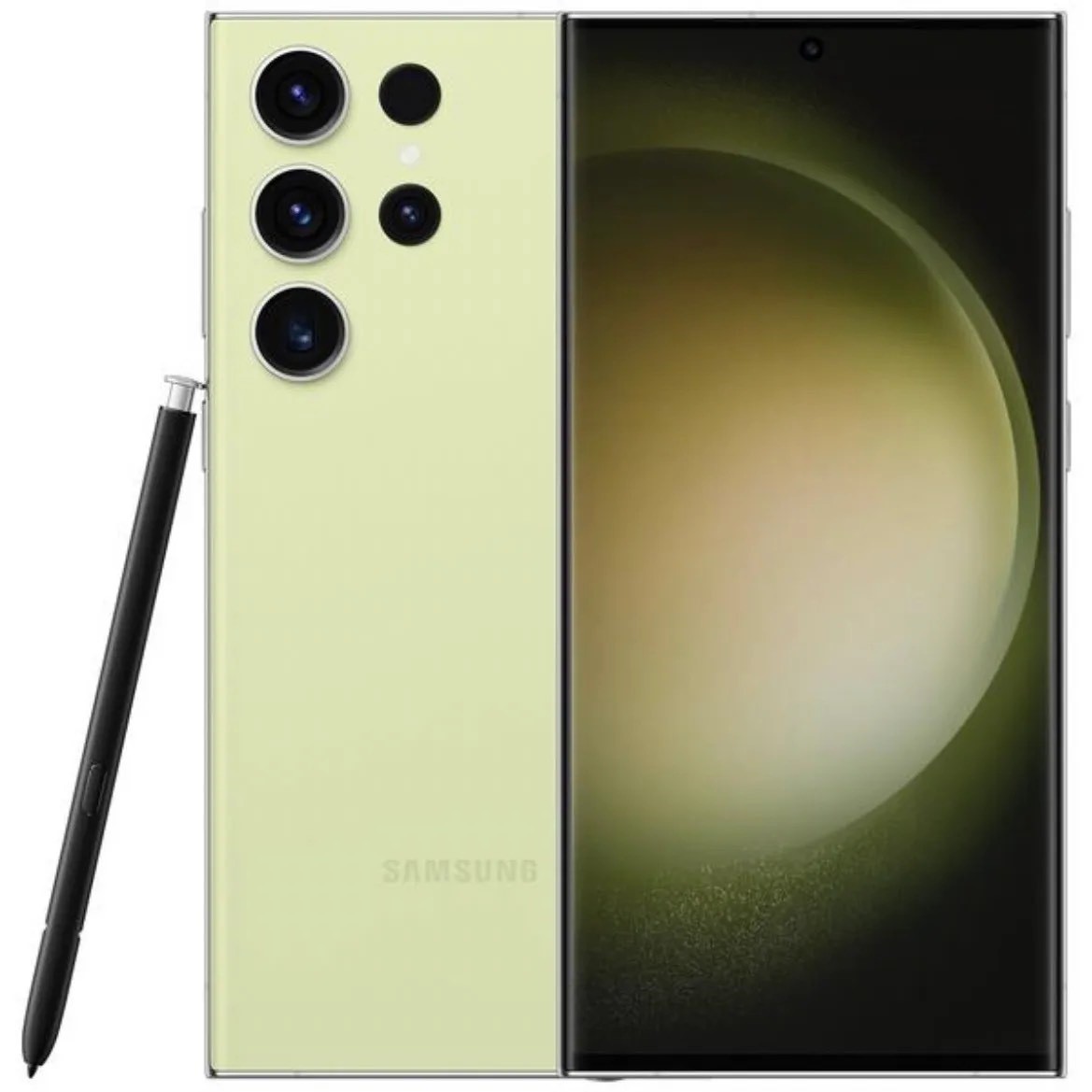
9) How to Find the Laptop Model on a Windows PC?

Ans) There are several ways to find your laptop model. Any method that gets you to your laptop model number and its configuration will help you ask for the right kind of support or get updated drivers and software. Brands print the laptop model numbers on the carton, etch them on the body, or mention it in any manual that comes with the computer. But if you can’t find them there, there are other ways too.
Let’s look at two of the simplest and quickest ways to locate the laptop model on your Windows computer. You can use the Command windows and PowerShell too, but they take slightly more effort than the two simple methods described below.

Use System Information to See the Laptop Model
System Information on a Windows PC will include information like the manufacturer’s name, custom system name, system model, and system type.

Open Start.

Type and search for System Information and click the top result to open the native Windows app.
Select System Summary.
Find the laptop model number of your device under the Values column for the System Model Item on the right panel.

Use Settings to Find Device Specifications
Microsoft also lists device specifications for your laptop on the About screen under Settings. Follow these steps to get to that screen in as few clicks as possible.
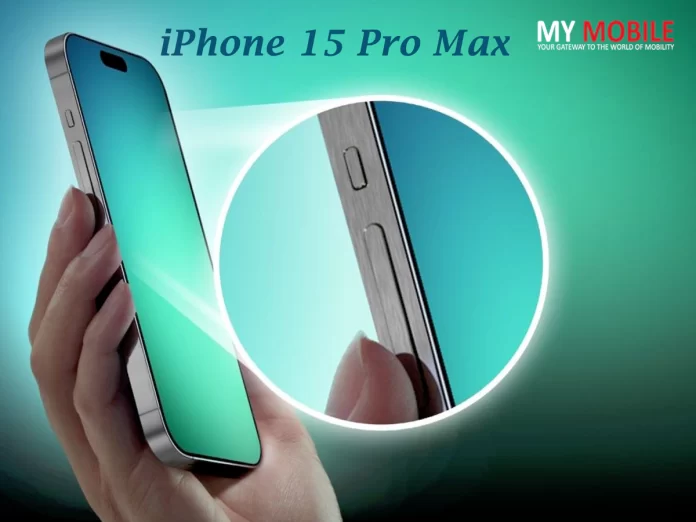
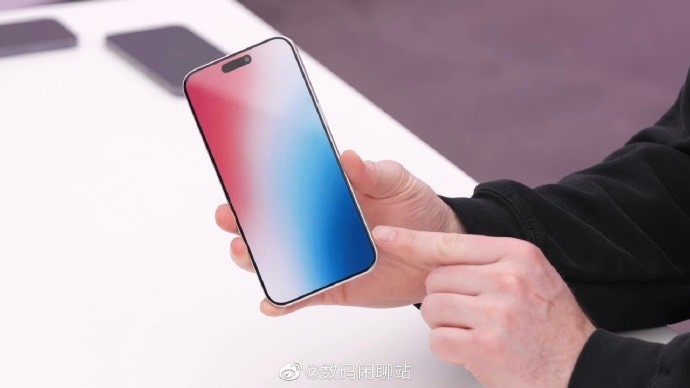
Right-click the Start button and select System.
Check the laptop model written in a larger font under Device specifications on the About screen.
Other information included under the laptop mode consists of the customizable device name, the processor type, the installed RAM, the device ID, the product ID, the system type, and Pen and Touch compatibility.

How to Find the Model of a MacBook
MacBook’s have good resale value. The model of a MacBook and the year of manufacture are necessary details to mention for any trade-ins. You will also need to know the specific model to check its compatibility with the latest Mac operating system or any other software or hardware.
Here are two common and quick ways to identify the MacBook model.

Use About This Mac
About This Mac is a menu item on all macOS computers, and it displays the specifications and Apple logo in a small window.

Go to the Apple menu on the top-left corner of the screen. Select About This Mac.

The Overview tab displays the model’s name, the year it belongs to, the model, serial number, and other details.
Use System Information
Like all Windows laptops, Apple’s MacBook also summarizes every system specification about the laptop’s hardware, software, external devices, and network settings.
Press and hold the Option key and select Apple menu > System Information.

Alternatively, select the Apple menu > About This Mac. Select the System Report button.

The System Report screen lists the Model Name and the Model Identifier with other details. The model identifier is precise enough to help identify the exact MacBook.

10) Why is my laptop so slow?

Ans) A slow laptop could be a sign that your system has malware or viruses. It could also be loading too many apps during startup, or perhaps its running out of hard drive space. If none of these solutions help, it might be time for a hardware upgrade.

11) How do you clean a laptop screen safely?

Ans) Turn your laptop off and unplug it, then gently wipe the screen with a microfiber cloth. You can use a damp sponge for more challenging grime, but don’t use standard tap water! Filtered or distilled water is best.

12) What’s the difference between a Chromebook and other laptops?

Ans) The biggest difference between a laptop and a Chromebook is the operating system. Chromebooks run Chrome OS, which uses the Chrome web browser as it’s primary interface. This means that most of its apps are cloud-based.

How do you connect a laptop to a monitor?

Determine which output your laptop supports (HDMI, Thunderbolt, DisplayPort, etc.), then connect the laptop to your monitor using the appropriate cable. If you’re on Windows 10, use the keyboard shortcut Fn+8 to switch between the laptop screen and the monitor. On macOS, go to Apple menu > System Preferences > Displays > Arrangement to change displays.

Also Read: Acer reveals new high-performance laptops: Predator Triton 17 X, Helios Neo 16, Swift X 16 and more

Also Read: Dell Inspiron 14, Inspiron 14 2-in-1 laptops with Intel Core processors, ExpressCharge support launched in India: Price, Specifications & Availability

Also Read: ASUS launches new ROG Zephyrus and Strix Scar series of gaming laptops in India: check price, specifications