


Highlights
- Android and iPhone devices offer built-in emergency alert systems that notify users of disasters and public safety threats in real time.
- On Android, go to Settings > Safety and Emergency > Wireless Emergency Alerts.
- On iPhone, go to Settings > Notifications > Government Alerts.
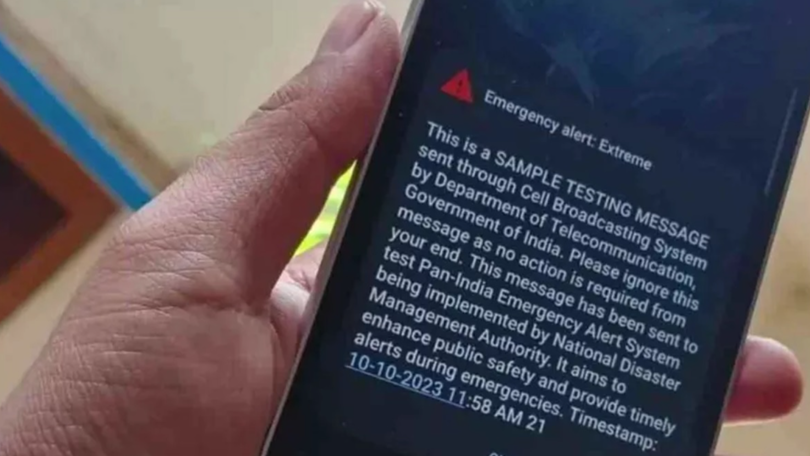
Caption – Emergency alerts on smartphones can help you stay informed and receive crucial updates. (Image credit – IndiaTVNews)
The tragic explosion near Delhi’s Red Fort Metro Station has claimed nine lives and injured several others. The incident has once again highlighted the importance of being prepared for emergencies. The blast occurred when a Hyundai i20 caught fire while waiting at a traffic signal near Gate No. 1, sparking chaos among commuters.
Incidents like this are a grim reminder that emergencies can happen anywhere, anytime. In such situations, receiving real-time alerts on your smartphone can make a life-saving difference by helping you stay informed and take timely action.
Modern smartphones come equipped with built-in emergency alert systems that provide instant warnings about disasters, public safety threats, and other critical situations. Once enabled, these alerts can deliver vital information directly to your phone, allowing you to respond quickly and move to safety.
Why You Should Keep Emergency Alerts Enabled?
The Delhi Red Fort blast serves as a powerful reminder of how unpredictable real-world situations can be. Turning on these alerts can help you stay informed, receive crucial updates, and avoid high-risk areas during emergencies.
By keeping emergency notifications active on your smartphone, you ensure that you and those around you are better equipped to stay safe in uncertain situations.
Here’s how you can activate emergency alerts on both Android and iPhone devices.
How to Enable Emergency Alerts on Android Smartphones?
For Android users running Android 11 or later, enabling emergency alerts is simple. Follow these steps –
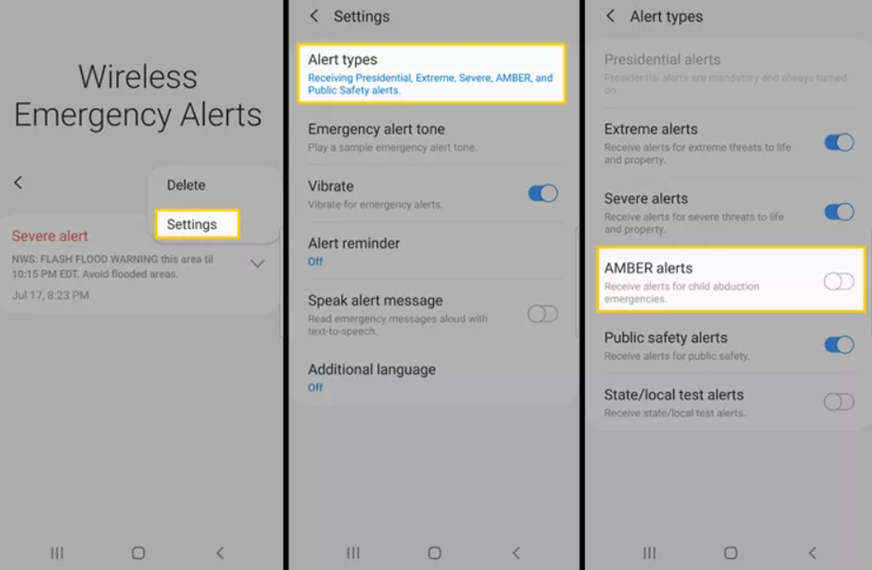
Caption – Emergency alert on Android phones. (Image credit – Unknown)
- Open your Settings app.
- Scroll down and select Safety and Emergency.
- Tap on Wireless Emergency Alerts.
- Turn on all available alert options.
The exact menu names may differ slightly depending on your smartphone brand and user interface such as Samsung (One UI), Xiaomi (HyperOS), or OnePlus devices. However, the process and functionality remain largely the same.
How to Turn On Emergency Alerts on iPhone?
iPhone users can also receive official alerts during emergencies. Here’s how to enable them –
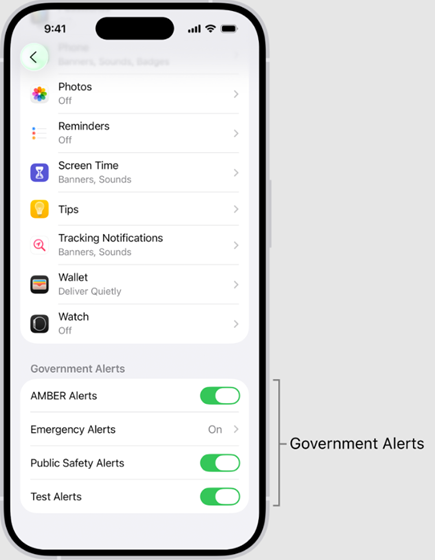
Caption – Emergency alert on iPhone. (Image credit – Apple)
- Open the Settings app.
- Tap on Notifications.
- Scroll down to Government Alerts.
- Enable the toggle for Test Alerts.
These alerts are designed to notify users about critical national threats or public emergencies, ensuring that the alert system functions properly when needed most.
FAQs
Q1. Why are emergency alerts important during incidents like the Red Fort blast?
Answer. Emergency alerts provide real-time updates during disasters or public safety threats, helping users stay informed and take timely action to stay safe.
Q2. How can I enable emergency alerts on my Android phone?
Answer. Go to Settings > Safety and Emergency > Wireless Emergency Alerts, then turn on all available alert options. Menu names may vary by brand.
Q3. How do I activate emergency alerts on an iPhone?
Answer. Open Settings > Notifications > scroll to Government Alerts > enable the toggle for Test Alerts to receive critical updates.
Also Read –