


Highlights
- Apple Clips, the short-form video editing app, is no longer available for download or updates starting October 10.
- Existing users can continue using it and follow Apple’s instructions to save videos with or without effects before uninstalling or upgrading devices.
- Apple’s decision to discontinue appears to be a part of a broader ecosystem overhaul.
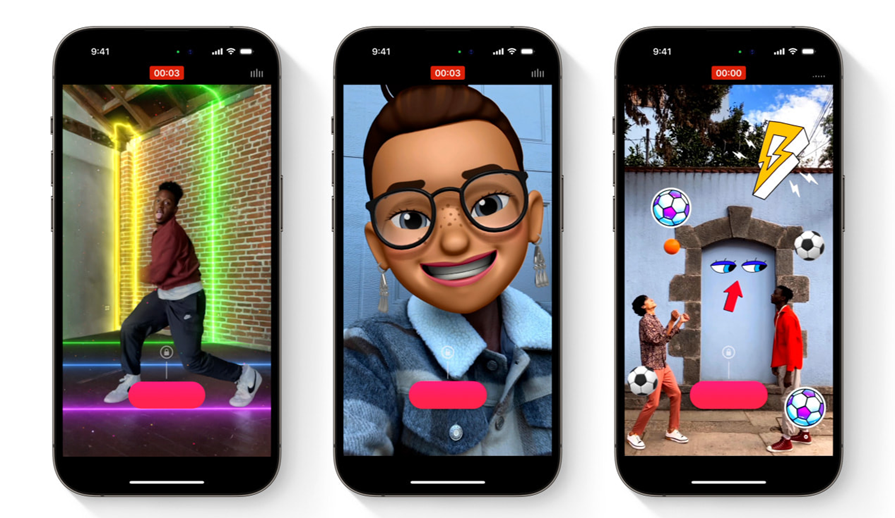
Apple has officially discontinued its Clips app, marking the end of the short-form video editing tool that debuted in 2017. As of October 10, the app is no longer available for download or updates from the App Store. The decision comes as part of Apple’s broader plan to shift focus toward other creative software and experiences.
Apple’s Clips App Discontinued
Clips was originally launched as a fun and easy-to-use video editing app. It allowed users to create short videos enhanced with animated captions, AR effects, and filters. While it enjoyed moderate popularity at launch, Apple has now chosen to sunset the app.
According to an updated support page on Apple’s official website, “as of October 10, Clips is no longer available for new users to download.” However, existing users can continue using the app on their current or earlier versions of iOS and iPadOS, and can also re-download it from their Apple ID purchase history if needed.
“While Clips has been a beloved tool for many, we are shifting our resources to enhance other creative experiences for our users,” an Apple spokesperson said.
Though the app will remain functional for current users, it will no longer receive updates or support. Apple recommends that users explore alternative video editing tools such as iMovie or other third-party apps like InShot, VN Video Editor, and GoPro Quik, which offer similar creative capabilities.
How to Save Your Clips Videos?
Users who still have the app installed can save their videos before uninstalling or upgrading devices. Apple has provided detailed instructions for saving projects both with and without effects.
To save Clips videos with effects –
- Open the video in the Clips app.
- Tap the Share button at the bottom right.
- Tap Options, then select Video.
- Adjust settings like Aspect Ratio and tap Done.
Choose a save option –
- Save Video to add it to your Photos library.
- Save to Files to store it on iCloud Drive or your device.
To save individual clips without effects –
- Open your project.
- Tap the clip you want to save.
- Swipe left on the toolbar and tap Save Clip.
The original video will be stored in your Photos library under a new album titled Clips. If the Save Clip option is unavailable, the original footage can still be found directly in your photo library.
Meanwhile, reactions on social media platforms like Reddit suggest that many Apple users weren’t surprised. Some admitted to having tried Clips years ago, while others had never heard of it.
We believe the rise of AI-powered video tools such as Sora, OpenAI’s generative video app that recently surpassed 1 million downloads, Apple’s traditional approach with Clips might seem dated by comparison. The discontinuation of Clips reflects Apple’s effort to streamline its app ecosystem and invest more in future creative technologies.
FAQs
Q1. Why did Apple discontinue the Clips app?
Answer. Apple officially discontinued the Clips app on October 10, 2025, as part of a broader strategy to reallocate resources toward other creative software and experiences. While Clips was popular at launch for its fun video editing features, Apple is now encouraging users to explore alternatives like iMovie or third-party apps such as InShot and VN Video Editor.
Q2. Can I still use the Apple Clips app if I already have it installed?
Answer. Yes, existing users can continue using Clips on their current or earlier versions of iOS and iPadOS. Although the app is no longer available for download or updates, users can re-download it from their Apple ID purchase history if needed. However, it will not receive future support or updates.
Q3. How can I save my videos from the Clips app before uninstalling?
Answer. To save videos with effects, users can Open the video in Clips → Tap Share → Tap Options → Select Video → Adjust settings → Tap Done → Choose “Save Video” or “Save to Files.” To save individual clips without effects – Open your project → Tap the clip → Swipe left on the toolbar → Tap “Save Clip.”