Highlights
- Use Back Tap on iPhone for quick shortcuts, automate tasks with Shortcuts, organise ideas in Freeform, and manage notes more efficiently with the built-in Notes app.
- Protect sensitive apps on iPhone with Face ID, prevent passcode changes using Screen Time and review or stop data sharing instantly with Safety Check.
- Take better photos with the hidden iPhone camera level guide and lens cleaning hints, while customising your device using widgets, app hiding and Spatial Wallpapers.
iPhones are packed with useful features but many of them remain hidden inside the Settings app. While most users know the basics, there are several built-in tools that can improve privacy, boost productivity and even help you take better photos.
If you’ve been using your iPhone the same way for years, it’s time to explore these hidden iPhone features. Here are seven hidden iPhone features and tricks that can make your everyday experience smarter and more convenient.
Back Tap Turns iPhone’s Back into a Shortcut Button
Screenshot by Macrumors
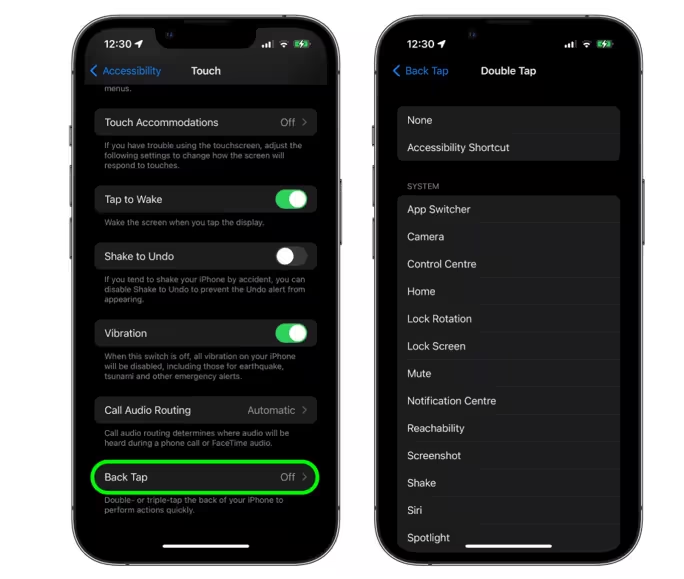
Did you know you can use the back of your iPhone as a shortcut button? Apple’s Back Tap feature allows you to perform different actions by simply double-tapping or triple-tapping the back of your device.
You can use it to:
- Take a screenshot
- Open the Camera app
- Launch your favourite app
- Trigger other supported shortcuts
The feature uses your iPhone’s built-in motion sensors to detect the taps, so you don’t have to press any physical buttons.
How to enable it –
Go to Settings > Accessibility > Touch > Back Tap and choose the action you want for double or triple tap.
Hide and Lock iPhone Apps with Face ID
Screenshot by Macrumors
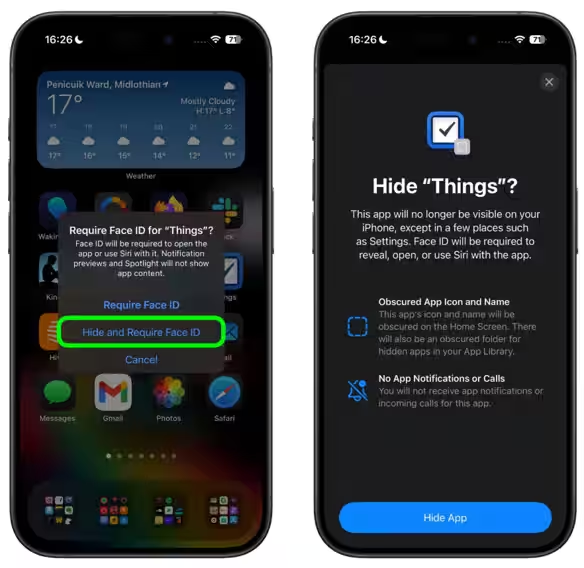
If you keep banking apps, personal notes, or private photos on your iPhone, adding an extra layer of security is always a good idea.
iOS lets you lock supported apps using Face ID, ensuring only you can open them. You can also hide apps from your Home Screen by moving them to the App Library or placing them inside folders. This makes sensitive apps harder to spot while keeping your personal information protected if someone else uses your phone.
Using Screen Time to Block Passcode Changes
Most people use Screen Time to limit app usage, but it can also help secure your iPhone.
By enabling restrictions through Screen Time, you can stop anyone from changing your iPhone’s passcode without permission. This is especially useful if children or family members occasionally use your device as it helps keep your security settings locked down.
iPhone Safety Check for Managing Data Sharing
Apple includes a powerful privacy tool called Safety Check designed to help you quickly review and control what information you’re sharing.
The feature shows whether your location, account access, or app permissions are being shared with other people or devices. If needed, you can stop all sharing with a single tap, making it a quick way to regain control over your privacy.
This feature can be particularly useful if you want to review or immediately end existing sharing permissions.
Create Standout Work Faster
Screenshot by Macrumors
You don’t always need third-party apps to stay productive. Apple already includes several useful tools that can help you get work done more efficiently.
Some of the most useful built-in apps include –
- Notes – Scan documents, create checklists, and collaborate with others.
- Freeform – A digital whiteboard that’s great for brainstorming ideas and planning projects.
- Shortcuts – Automate repetitive tasks such as resizing images or sending routine reports.
Using these apps together can help you complete everyday tasks faster while keeping everything within Apple’s ecosystem.
iPhone Lens Cleaning Hints Feature
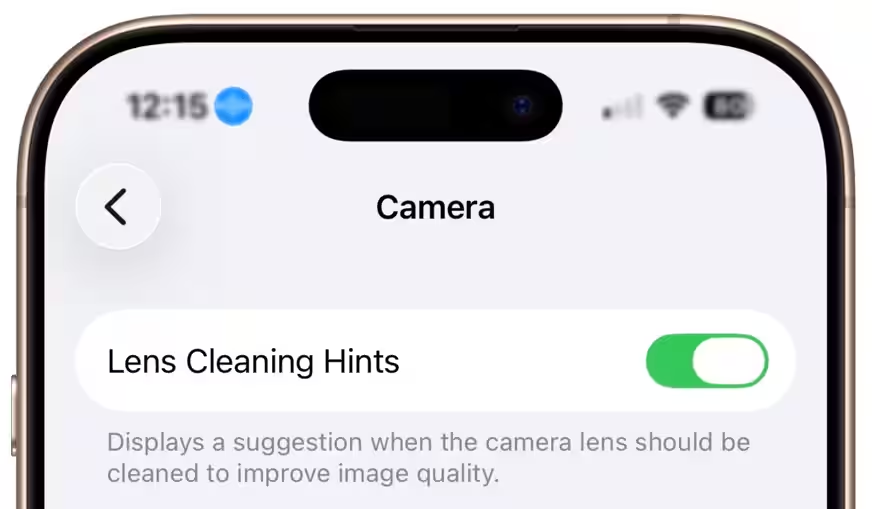
Your iPhone camera includes several lesser-known features that can improve photo quality.
If your photos suddenly appear blurry or hazy, iOS may detect that your camera lens needs cleaning and suggest wiping it. In many cases, a quick clean with a microfiber cloth is enough to restore image clarity.
iPhone Camera Grid Activates Built‑In Level Guide
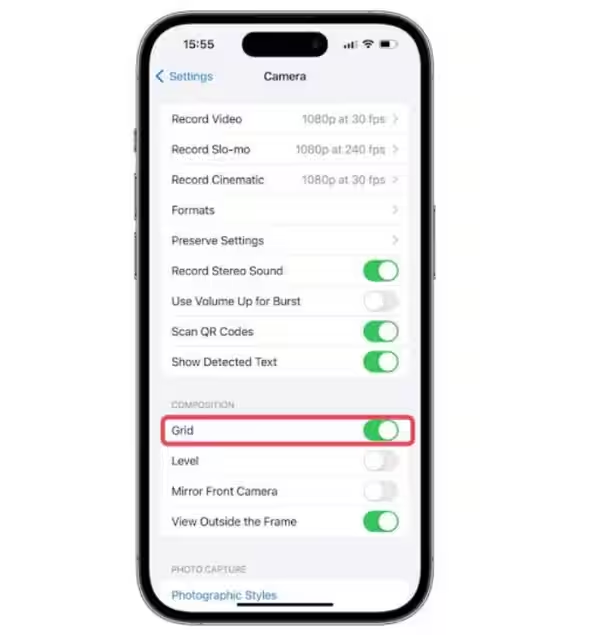
Enabling the Camera Grid offers more than just the rule-of-thirds guide. When you point your iPhone directly downward to capture documents, food, or flat objects, a hidden level guide appears. It helps you align the camera perfectly so your photos look straight instead of tilted.
To use it, simply turn on the camera grid from your camera settings.
iOS Widgets and App Hiding for a Personalised Home Screen
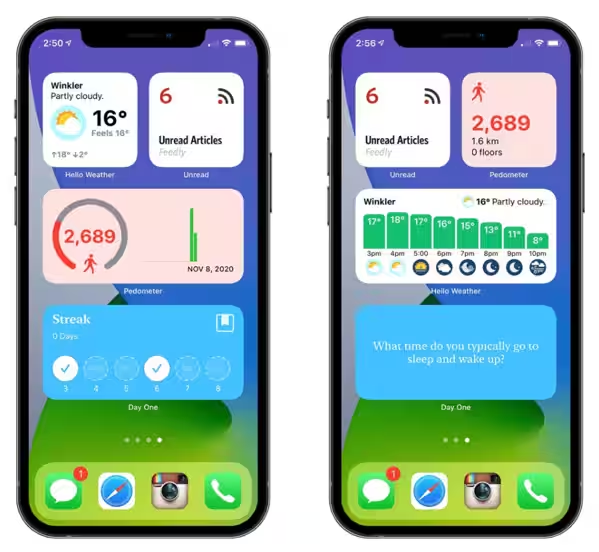
Apple offers several customisation features that can make your iPhone look cleaner while improving usability.
Add Widgets
Widgets display useful information like:
- Weather
- Calendar events
- Battery percentage
- Reminders
This lets you check important information without opening apps.
Hide Unused Apps
If you prefer a cleaner Home Screen, you can move apps into the App Library while keeping them installed on your device. It’s a simple way to reduce clutter and keep private apps out of sight.
Spatial Wallpapers Create 3D Depth on iPhone Lock Screens
Spatial Wallpapers add a subtle 3D effect to your Lock Screen. As you tilt your iPhone, the wallpaper shifts slightly, creating the illusion that the clock and widgets are floating above the background.
It’s a visual enhancement that gives your Lock Screen a more dynamic and modern appearance.